Custom Code in Elementor Without a Child Theme: What Survives an Update and What Does Not
On this page, 8 sections
This is the line that eats people’s custom code. In WordPress 7.1, Theme_Upgrader::upgrade() adds delete_old_theme to the upgrader_clear_destination filter and calls run() with clear_destination set to true.
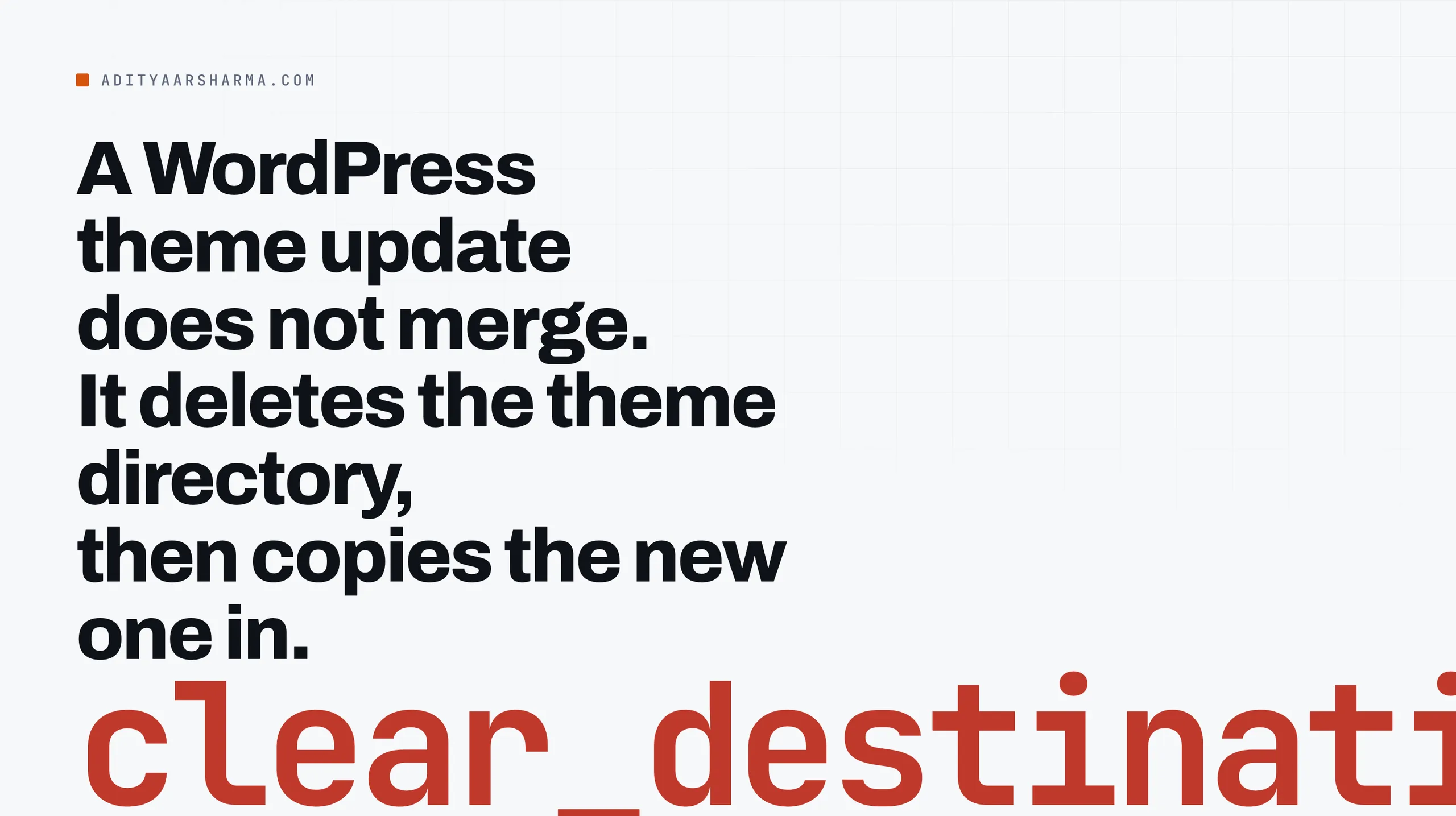
The theme directory is deleted, then the new one is copied in. Not merged. Deleted.
Plugin_Upgrader::upgrade() does the same thing with delete_old_plugin. Whatever you typed into a parent theme’s functions.php is gone the next time that theme updates, and there is no warning.
The standard answer is a child theme. That is one option out of five, and for most of what people actually put in functions.php on an Elementor site, it is not the best one.
Here is what each location really stores, and what survives what.
The five places, and what each one survives
| Where you put it | Actually stored in | Survives theme update | Survives theme switch | Survives plugin update |
|---|---|---|---|---|
Parent theme functions.php | a file in the theme directory | no | no | yes |
Child theme functions.php | a file in the child theme directory | yes | no | yes |
| A must-use plugin | wp-content/mu-plugins/*.php | yes | yes | yes |
| Customizer Additional CSS | a custom_css post keyed to the theme slug | yes | no | yes |
| Elementor Custom CSS or Custom Code | post meta and a custom post type | yes | yes | yes |
Two rows in that table surprise people, so both are worth the mechanism.
Customizer Additional CSS is keyed to the theme, not to the site
wp_get_custom_css_post() in wp-includes/theme.php queries for a single post of type custom_css whose name is sanitize_title( $stylesheet ), across every post status.
So it is a real post whose post_name is the sanitised stylesheet directory name of the active theme. Update the theme and the post is untouched, because it lives in the database rather than the theme folder.
Switch the theme and the CSS is still in your database and no longer loaded, because the lookup now asks for a different post_name.
This catches people at exactly the wrong moment. Activating a child theme is a theme switch.
Every rule you put in Additional CSS while the parent was active stops applying the second you activate the child. Nothing was deleted, and every diagnostic you run will say the CSS is fine.
Must-use plugins are the location with no update path at all
wp-settings.php line 505 loops wp_get_mu_plugins() and include_onces every file it returns. That is the whole loading mechanism.
wp_get_mu_plugins() in wp-includes/load.php is deliberately simple. It reads the directory with readdir(), keeps anything ending in .php, and sorts the result.
Read what that does and does not do. It reads the top level of wp-content/mu-plugins only, so a file inside a subdirectory is never loaded. It takes .php files only.
It sorts alphabetically, which is your only control over load order. It runs before regular plugins.
And no updater in WordPress ever writes to that directory, which is the whole point: there is no code path that can delete your file.
The tradeoffs are real. A must-use plugin has no activation hook, cannot be deactivated from the admin, and does not appear in the normal plugins list.
That last one is a feature when a client is the person clicking Deactivate, and a problem when you are debugging a white screen at midnight. Name the file so future-you finds it: 00-site-fixes.php rather than custom.php.
What Elementor actually stores where
Custom CSS, at three levels, all in the database
Elementor Pro puts Custom CSS at three levels, and all three land in the database rather than in a file you maintain:
| Level | Where you enter it | Stored in |
|---|---|---|
| Site | Site Settings, Custom CSS tab | the kit document’s settings, compiled into post-<kitID>.css |
| Page | Page Settings, Advanced | _elementor_page_settings post meta |
| Element | the element’s Advanced tab | inside the element’s node in _elementor_data |
The meta keys are declared in core/base/document.php as PAGE_META_KEY = '_elementor_page_settings' and ELEMENTOR_DATA_META_KEY = '_elementor_data'.
All of it compiles into the generated stylesheets under wp-content/uploads/elementor/css/, which means clearing Elementor’s cache deletes the compiled output and never the source.
If your custom CSS disappeared after a cache clear, it did not. The file just has not been rebuilt yet, and loading the page in the editor once rebuilds it.
Custom Code is a post type, not a file
Elementor’s Custom Code feature is a separate thing again: a post type with its own publish state, scheduling and display conditions, holding HTML, JavaScript and CSS to be injected at <head>, body start or body end, with a priority from 1 to 10 where lower runs earlier.
The documentation is unambiguous about its one hard limit:
Custom code does not support PHP snippets. You cannot use this feature to add custom hooks or actions. You can use a different approach for PHP, either through functions.php or a third-party plugin.
Elementor, Add custom code, elementor.com/help/custom-code-pro/, last updated 14 January 2024
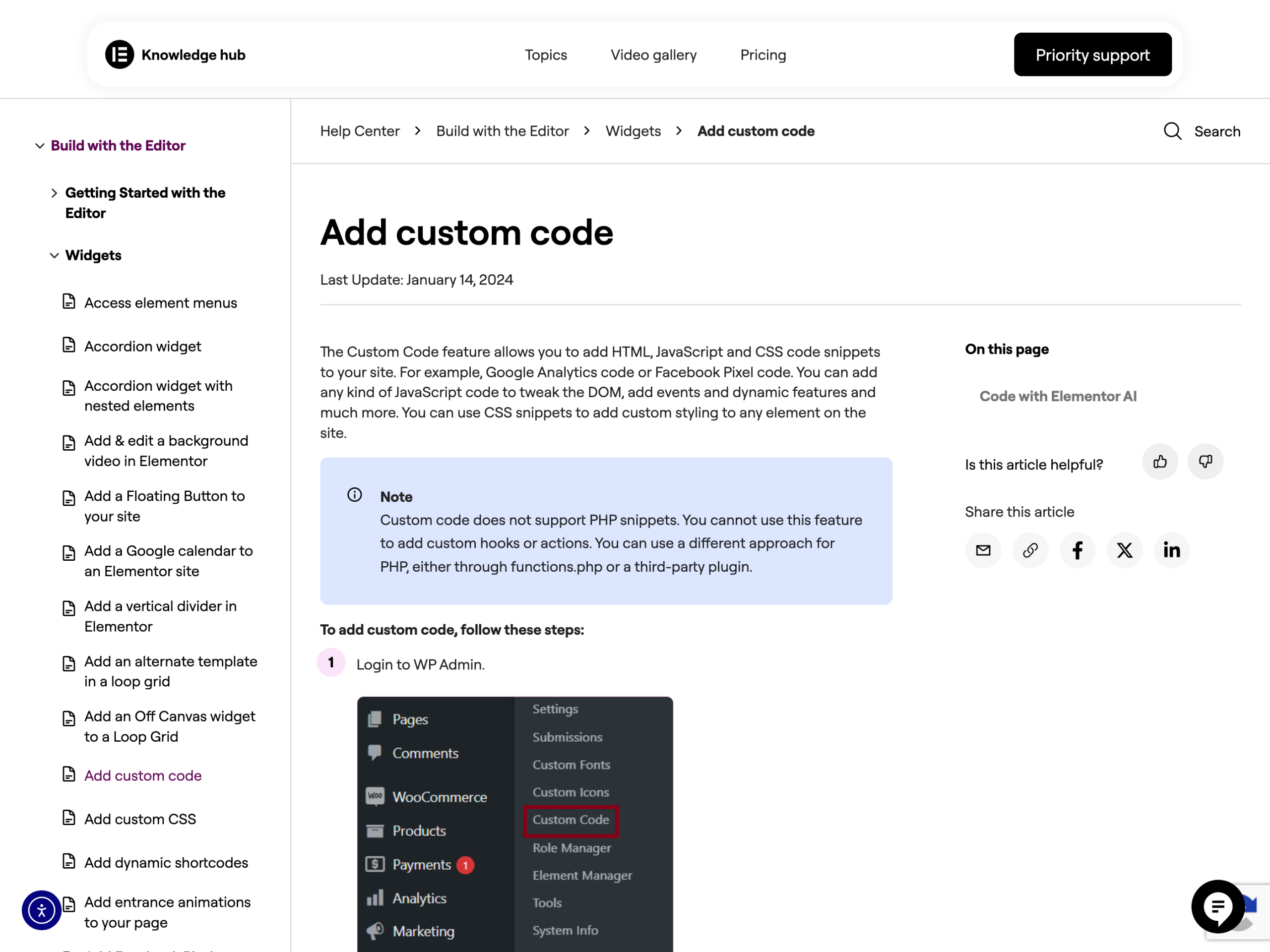
So the split is clean. Anything that is markup, script or style can live in Elementor and travels with the database. Anything that is a WordPress hook cannot, and needs one of the file-based locations above.
The selector keyword, and why your CSS targets the wrong element
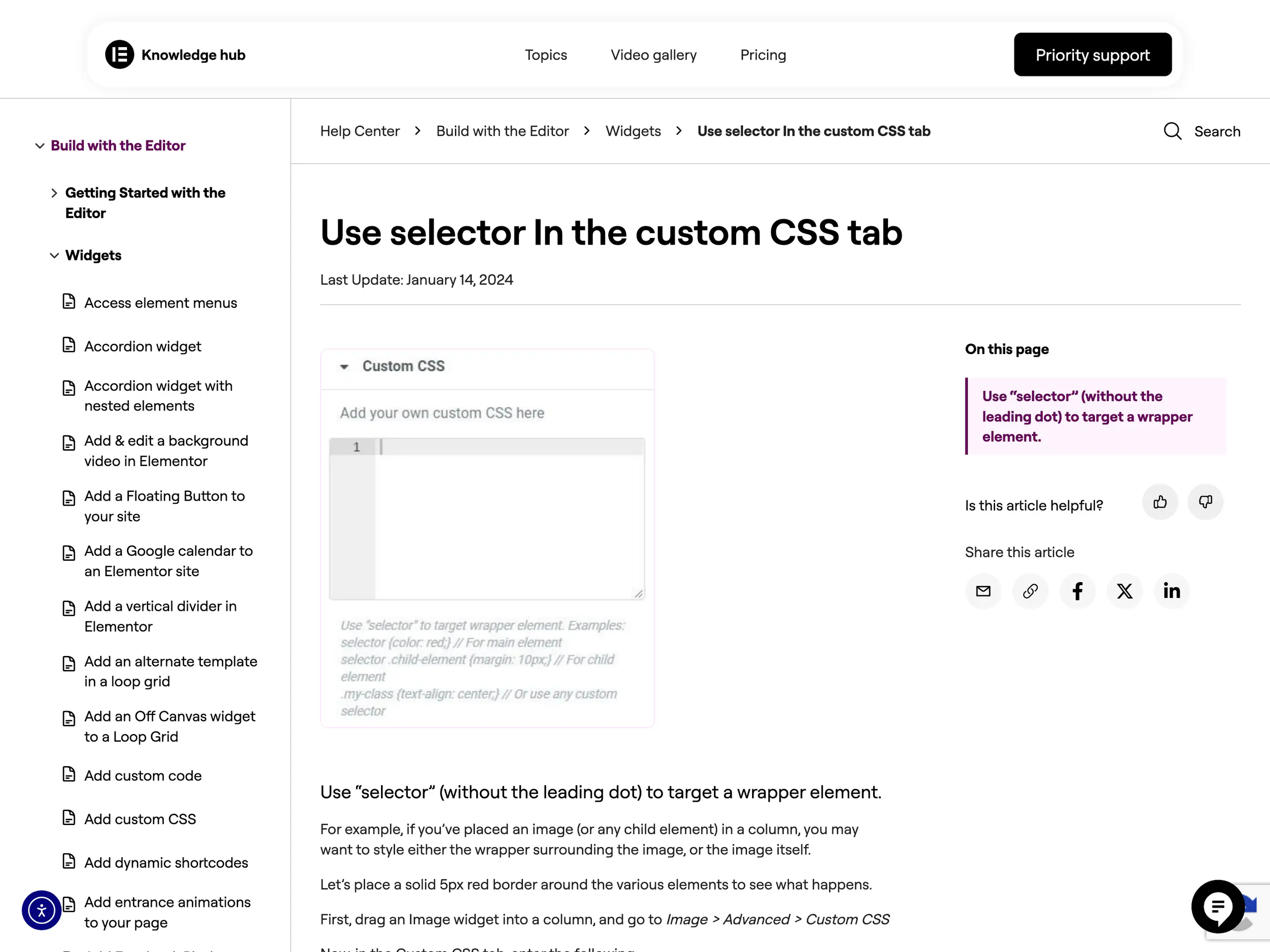
Elementor’s element-level Custom CSS gives you a selector keyword. It does not mean the widget. From Elementor’s own documentation on it, last updated 14 January 2024, with an Image widget selected:
selector { border: 5px solid red; }      /* borders the wrapper, not the image */
selector img { border: 5px solid red; }  /* borders the image */
selector is the wrapper, not your content
This is the single most common reason a rule looks correct and does nothing visible. selector resolves to the element’s wrapper. Your content sits inside it.
The same documentation notes that if you use your own class instead of selector, you often need !important to beat Elementor’s generated rule, which is a specificity fight you can avoid entirely by loading your CSS after Elementor’s.
The two hooks that decide the cascade
From includes/frontend.php in the Elementor source, three actions fire in this order:
elementor/frontend/before_enqueue_styleselementor/frontend/after_enqueue_styles, after elementor-icons and elementor-frontend are enqueuedelementor/frontend/after_enqueue_post_styles, afterpost-<ID>.cssfor the current document
Enqueue on elementor/frontend/after_enqueue_styles and you land after Elementor’s base stylesheet but before the per-post generated CSS.
Enqueue on elementor/frontend/after_enqueue_post_styles and you land after both, which is where you want to be if you are overriding values a client set in the editor.
Correct source order beats !important every time, and it is the reason a media query in WordPress refuses to take effect more often than any breakpoint mistake.
The setup I would actually ship
One file, in wp-content/mu-plugins/, holding both the PHP that Elementor cannot host and the enqueue for a stylesheet you own. It survives every theme update, every plugin update, and a theme switch.
add_action( 'elementor/frontend/after_enqueue_post_styles', function () {
    $file = WP_CONTENT_DIR . '/site-custom/site.css';
    if ( ! file_exists( $file ) ) { return; }
    wp_enqueue_style( 'site-custom', content_url( '/site-custom/site.css' ),
        array(), filemtime( $file ) );
} );
That is the whole file.
Give it a normal plugin header so it shows up in the Must-Use list. Add a second wp_enqueue_scripts callback at priority 999 for pages Elementor does not render, guarded with did_action() so it never enqueues twice.
Three details in that file that matter
filemtime() as the version argument means the browser refetches the moment you edit the file and never otherwise, which removes the entire class of I-cleared-the-cache-and-it-still-shows-the-old-CSS problem.
The stylesheet lives in wp-content/site-custom/ rather than in a theme, so it is not in anything’s delete path. And the did_action() guard stops the file being enqueued twice on a page that Elementor does render.
PHP hooks go in the same file. A settings link after install, a search placeholder change, an email template condition: all of them are five to twenty lines that belong here rather than in a theme.
The pattern in adding a Go to Settings link after installing a WordPress plugin and in changing the WordPress search placeholder without a plugin both drop straight into a must-use plugin unchanged.
What actually breaks on an Elementor update, and why
What breaks is CSS written against internal markup
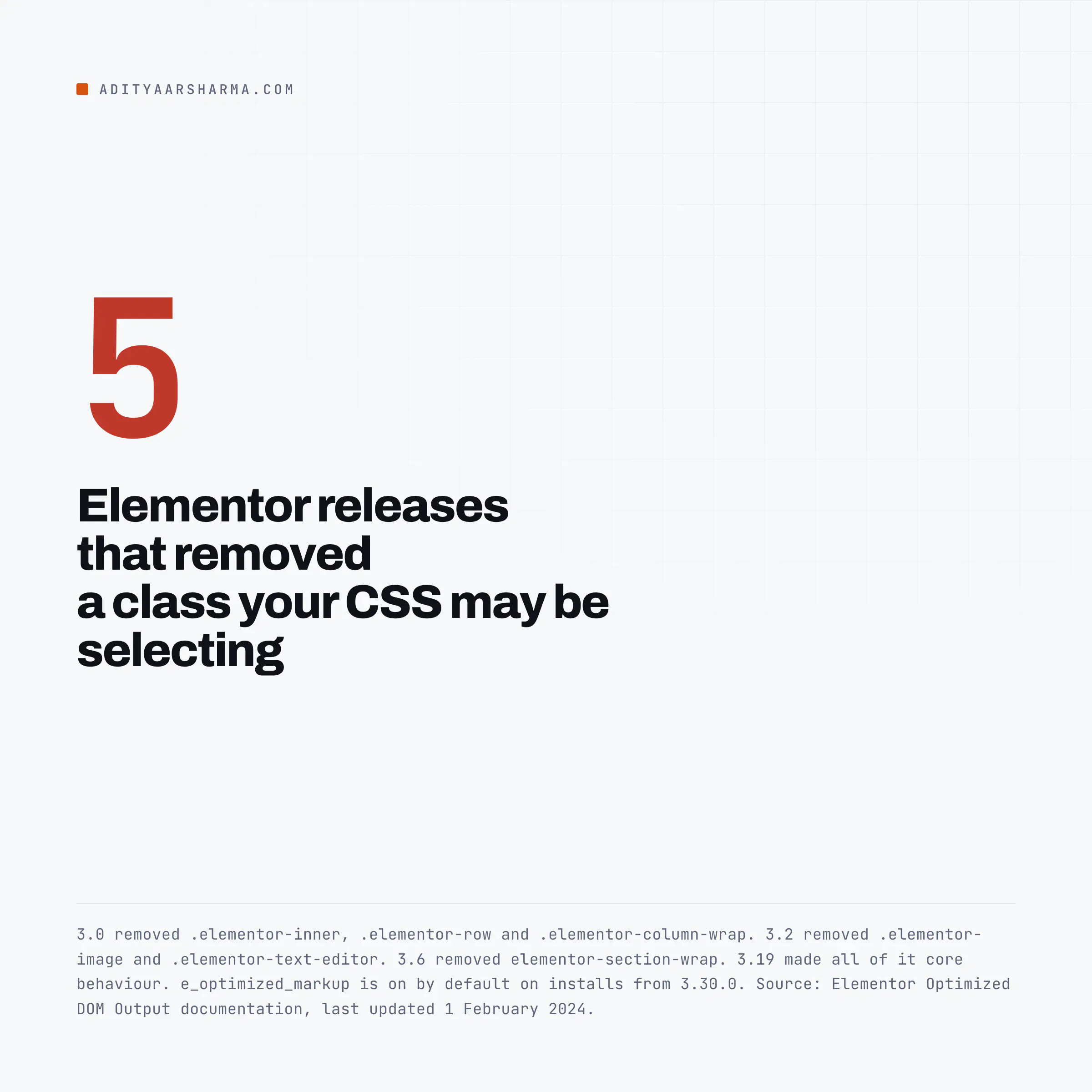
Not your PHP. Elementor’s PHP hooks are stable and deprecations are announced. What breaks is CSS written against Elementor’s internal markup, because that markup is versioned and it has been shrinking on purpose.
| Removed in | Class you can no longer select |
|---|---|
| Elementor 3.0 | .elementor-inner, .elementor-row, .elementor-column-wrap |
| Elementor 3.2 | .elementor-image, .elementor-text-editor |
| Elementor 3.6 | elementor-section-wrap |
| Elementor 3.19 | all of the above stopped being optional and became core behaviour |
Source: Elementor’s Optimized DOM Output documentation, last updated 1 February 2024.
There is a second wave coming from the e_optimized_markup feature, whose description in the source says plainly that it includes markup changes so it might require updating custom CSS or JS and cause compatibility issues with third-party plugins.
It is stable, it is off by default on existing sites, and it is on by default for sites installed on 3.30.0 or later.
Which means a site you built last year and a site you build this month behave differently out of the box.
Find your own exposure in one command
Do it before an update, not after:
grep -rn --include='*.css' --include='*.php' --include='*.js' \
  -e 'elementor-inner' \
  -e 'elementor-row' \
  -e 'elementor-column-wrap' \
  -e 'elementor-section-wrap' \
  -e 'elementor-text-editor' \
  wp-content/themes wp-content/mu-plugins wp-content/site-custom 2>/dev/null
Anything that returns is already broken or one release away from it.
Rewrite those selectors against a CSS class you set yourself on the element, in the Advanced tab, so the selector is yours and no Elementor release can remove it.
That is also the durable way to handle things like custom link colours in Elementor, where the tempting shortcut is to select a generated class.
So do you need a child theme
For custom code on an Elementor site, mostly no. A child theme protects files in a theme directory, and on an Elementor build there is usually nothing in the theme directory worth protecting, because Theme Builder has replaced the template files.
A must-use plugin covers the PHP with strictly stronger guarantees, since it also survives a theme switch.
When a child theme still earns its place
A child theme still earns its place when you are genuinely overriding template files, changing theme supports, or working on a classic theme you intend to keep.
That decision is its own question, and worth reading properly in whether you need a child theme with Elementor, how a child theme differs from a normal WordPress theme, and whether to create a child theme manually or with a plugin.
Run the grep above against your current project. If it returns nothing, move your snippets out of functions.php into a must-use plugin this week, while nothing is on fire.
Resources
- class-theme-upgrader.php at the WordPress 7.1 tag (clear_destination and delete_old_theme)
- wp-includes/load.php at the WordPress 7.1 tag (wp_get_mu_plugins)
- wp_get_custom_css_post() in the WordPress developer reference
- Use selector in the custom CSS tab (Elementor, last updated 14 January 2024)
- Add custom code (Elementor, last updated 14 January 2024)
- Custom CSS in Elementor (Elementor, last updated 14 January 2024)
- Clear Files and Data (Elementor, last updated 20 January 2026)
- Elementor frontend.php source on GitHub (the enqueue hook order)