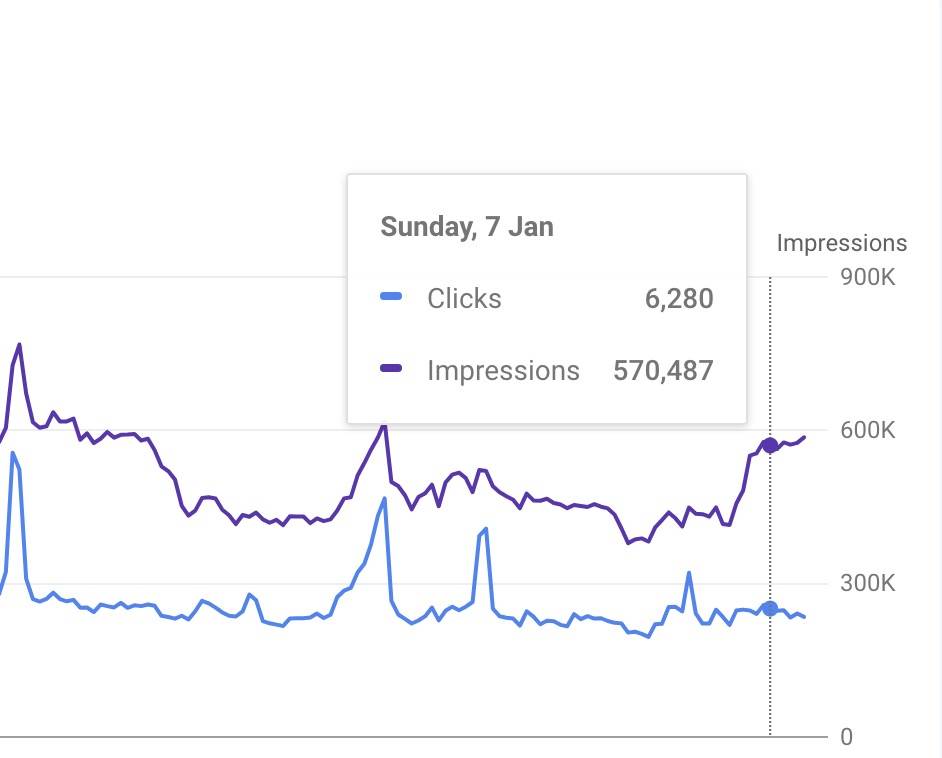
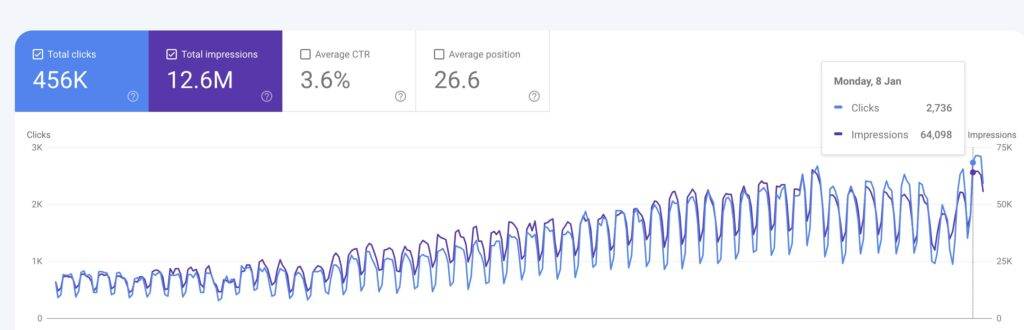
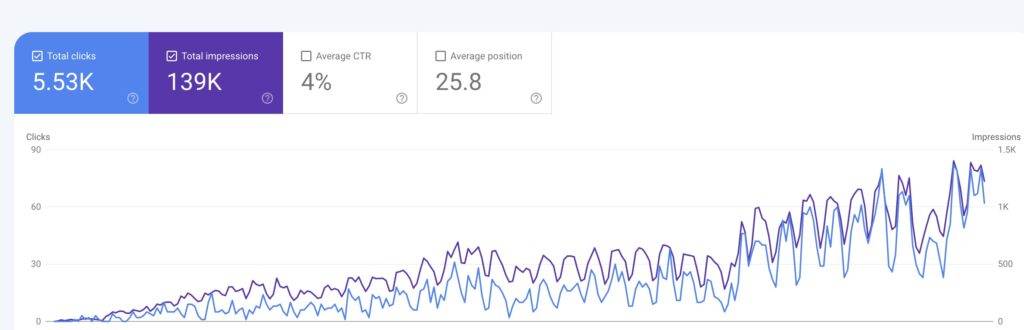
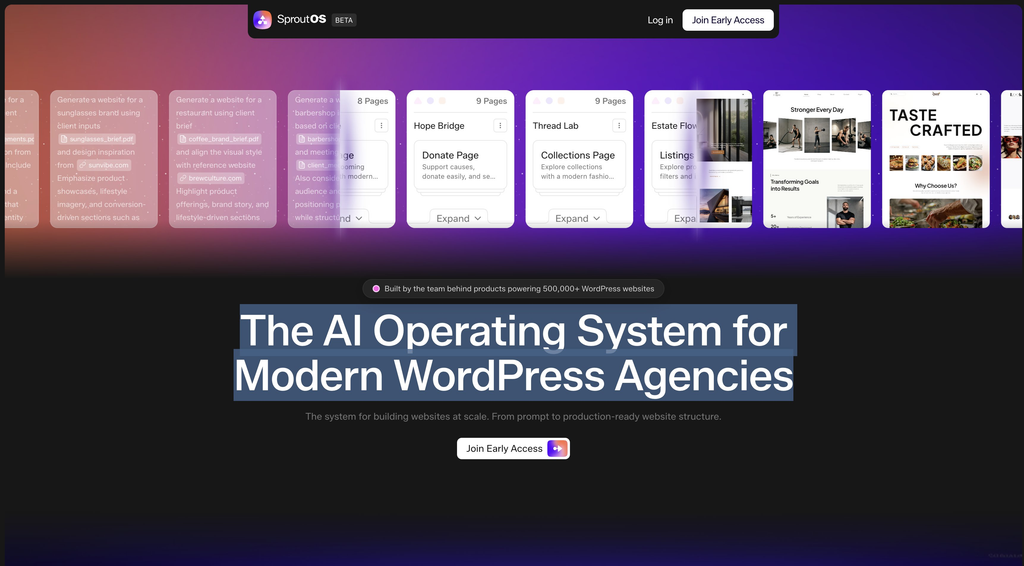
# Aditya R Sharma > Personal blog by Aditya R Sharma — WordPress, SEO, AI tools, and marketing insights from the team behind POSIMYTH Innovation. Aditya R Sharma is Marketing & Growth lead at POSIMYTH Innovation, makers of The Plus Addons for Elementor (theplusaddons.com), NexterWP (nexterwp.com), UiChemy (uichemy.com), and WDesignKit (wdesignkit.com). This blog covers practical guides on WordPress development, SEO strategy, AI-assisted content workflows, and SaaS growth marketing. Topics include Elementor, Gutenberg, DataForSEO, Claude AI, RankReady, and content automation. --- # WordPress Hosting for Agencies Source: https://adityaarsharma.com/wordpress-hosting-for-agencies/ # WordPress Hosting Built for Agencies You build websites. We keep them fast, secure, and online. Managed WordPress hosting for agency owners who want to scale their business, not babysit servers. Enterprise-grade security. Sub-second load times. Zero headaches. Book a Free 30-Min Call ## What You Get - Manage WordPress Websites for Agencies - Bank Grade Security for websites - Optimise Websites for Blazing Fast Performance - Web Vitals Optimisations - Contribute in your Agency Growth - Deliver Top-Notch Service to your Clients ## Why Agencies Pick Us - Free Website Migrations - Clean Hacked Websites - Plugin/Theme Vulnerability Monitoring - Dedicated VPS Hosting - Uptime Monitoring - Cloudflare DDoS & WAF Protection - Hourly/Daily Backups - Technical Support for WordPress Issues - Automated Bot Protections - Advanced Spam Protections Algorithm - Latest PHP Versions - Access to Premium WordPress Plugins - Image Optimization w/ WebP Conversions - Advanced Server-side FAST-CGI Edge Caching (No Cache Plugin Needed) ## The Numbers Speak Websites Management 0 + Agency Partners 0 + Tickets Answered 0 + Hours Saved 0 + ## Us vs Generic WordPress Hosting #### What You Get With Us - Personalised Plan for You - VPS Hosting powered by Digital Ocean, AWS, GCP - Web Vitals Optimisations - Bank Grade Security - Collaborates with your Team - Premium WordPress Plugins - Clean Hacked Site at no extra cost - Technical WordPress Support - Customise Things as per your needs #### What You Get Elsewhere - General Hosting Plan for Everyone - Unoptimised Low Powered VPS Servers - No Personal Performance Optimisation - Basic Security Protections - No Personal Touch & Communications - Pay for Premium Plugins - Pay Extra for Cleaning Hacked Site - General Hosting Support - No Customisations ### Ready to Stop Worrying About Servers? Book a free 30-minute call. We will walk through your current setup, find what is slowing things down, and build a plan that fits your agency.nnDrop your details below. Response within 24 hours. --- # Content Writing for SaaS & WordPress Business Source: https://adityaarsharma.com/content-writing-for-saas-wordpress-business/ # SEO Content Writing Partners for Technical SaaS Founders and WordPress Business Owners that Grows Traffic and Sales.​ Your Go-To Team for SEO-Driven Growth. We write content that ranks and increases your MRR. ## What We Do? - We create well-researched blogs for your business - We write to generate more organic clicks - Traffic is just numbers without sales. That's why we write with CRO in mind. - Understand your SEO strategy and write in accordance with your plan. ## What's makes us Unique? - We understand your product needs and niche, we tailor our writing to match your audience persona, driving sales. - We analyse the top 20 posts in SERP for your target keyword and craft content that gives you an edge. ## Our SEO Results [ ![](https://adityaarsharma.com/wp-content/uploads/2024/01/High-Clicks.jpg) ](https://adityaarsharma.com/wp-content/uploads/2024/01/High-Clicks.jpg) Reaching Organic 6K/Clicks a Day [ ![](https://adityaarsharma.com/wp-content/uploads/2024/01/4X-Traffic-in-Year-1024x330.jpg) ](https://adityaarsharma.com/wp-content/uploads/2024/01/4X-Traffic-in-Year-scaled.jpg) 4X a Domain Traffic within a Year [ ![](https://adityaarsharma.com/wp-content/uploads/2024/01/0-DA-Website-Getting-Traffic-withing-6-months-1024x330.jpg) ](https://adityaarsharma.com/wp-content/uploads/2024/01/0-DA-Website-Getting-Traffic-withing-6-months-scaled.jpg) 0 DA Website with No Backlinks Gets 1.5K Clicks/mo withing 6 months 0 + Blogs Written 0 + Active Clients 0 K+ Seo Optimised Words Written 0 M+ Clicks Generated ## Our Content Writers vs Freelance Writers or Random Content Agency - Quality Content - Well researched content - Targets your Buyer Persona - Collaborates with your Marketing Team - Content that generates Sales - Backed by CMO - Follows latest Google guidelines - Competitor analysis before Writing - Generic fluff Content - Spammy AI Content - Writes for Everyone - Delayed work output - Content Hardly makes sales - No experienced background - Follows outdated Google guidlines - No competitor analysis or research ### Lets Collborate Let's discuss on a free 30mins meeting about your SEO needs & business goals. Feel free to reach out using the form. I'll get back to you as soon as possible. ### Share your details --- # Privacy Policy Source: https://adityaarsharma.com/privacy-policy/ Last updated: 27 June 2023 Aditya Ranjan Sharma ("the Website," "we," "us," or "our") is committed to protecting the privacy and personal information of our users ("User" or "you"). This Privacy Policy outlines how we collect, use, disclose, and protect the information you provide to us when accessing and using our website [Your Website Link] ("the Website"). - Information We Collect 1.1 Personal Information: We may collect personal information such as your name, email address, contact information, and other relevant details when you voluntarily provide it to us through forms, registrations, or communications on the Website. 1.2 Usage Information: We may collect non-personal information about your interactions with the Website, such as your IP address, browser type, device information, and other similar analytics data. This information is collected using cookies and similar technologies. - Use of Collected Information 2.1 We use the collected information for the following purposes: - To provide and maintain the services offered on the Website. - To communicate with you and respond to your inquiries, requests, or feedback. - To personalize and enhance your experience on the Website. - To send you promotional or marketing communications (where you have consented to receive such communications). - To analyze usage trends, improve the Website's functionality, and for statistical purposes. - Disclosure of Information 3.1 We may disclose your personal information in the following circumstances: - To trusted third-party service providers who assist us in operating our website and delivering the services, subject to their agreement to keep the information confidential. - To comply with applicable laws, regulations, or legal processes, or to respond to lawful requests from public authorities. - To protect and defend our rights, property, or safety, as well as the rights, property, or safety of our users or others. - Data Security 4.1 We take reasonable measures to protect the information we collect from unauthorized access, alteration, or disclosure. However, no method of transmission over the internet or electronic storage is completely secure, and we cannot guarantee absolute security of your information. - Third-Party Links 5.1 The Website may contain links to third-party websites or services that are not owned or controlled by us. We are not responsible for the privacy practices or the content of such third-party websites. We encourage you to review the privacy policies of those websites before providing any personal information. - Your Rights 6.1 You have the right to access, update, correct, or delete your personal information held by us. You may also withdraw your consent to the processing of your personal information at any time. To exercise these rights or if you have any questions or concerns regarding your privacy, please contact us at [Your Email Address]. - Changes to the Privacy Policy 7.1 We reserve the right to update or modify this Privacy Policy at any time. Any changes will be effective immediately upon posting the revised Privacy Policy on the Website. We encourage you to review this page periodically to stay informed about how we collect, use, and protect your information. --- # Terms of Service Source: https://adityaarsharma.com/terms-of-service/ This Terms of Service ("Agreement") is a legally binding contract between AdityaSharma ("adityaarsharma.com") and the user ("User" or "you"). By accessing and using AdityaSharma, you agree to be bound by the terms and conditions outlined in this Agreement. - Services 1.1 The Website offers web hosting services and other related services ("Services") to its users. 1.2 The User acknowledges that the Services provided by the Website are subject to availability, and the Website reserves the right to modify, suspend, or terminate any Service without prior notice. - User Responsibilities 2.1 The User agrees to provide accurate and up-to-date information when registering for an account and using the Services. 2.2 The User is responsible for maintaining the confidentiality of their account credentials and agrees not to share or disclose them to any third party. 2.3 The User shall use the Services in compliance with all applicable laws and regulations, including but not limited to Indian laws. - Payment Terms 3.1 The User agrees to pay the fees for the Services as specified on the Website. Payment methods and terms will be provided on the Website and may be subject to change. 3.2 All fees and charges are non-refundable, unless otherwise stated. - Intellectual Property 4.1 All content, trademarks, logos, and intellectual property rights displayed on the Website are the property of AdityaSharma or its licensors. The User agrees not to use, reproduce, modify, or distribute any intellectual property without prior written consent from AdityaSharma. - Limitation of Liability 5.1 The User acknowledges and agrees that the Website shall not be liable for any direct, indirect, incidental, consequential, or exemplary damages, including but not limited to loss of profits, data, or business opportunities. - Indemnification 6.1 The User agrees to indemnify and hold harmless the Website, its affiliates, and their respective officers, directors, employees, and agents from any claims, damages, or liabilities arising out of the User's use of the Services or any breach of this Agreement. - Governing Law and Jurisdiction 7.1 This Agreement shall be governed by and construed in accordance with the laws of India. Any dispute arising out of or in connection with this Agreement shall be subject to the exclusive jurisdiction of the courts in [Specify the jurisdiction]. - Changes to the Agreement 8.1 The Website reserves the right to modify or update this Agreement at any time without prior notice. The User's continued use of the Services after any changes constitutes acceptance of the modified Agreement. --- # Connect Source: https://adityaarsharma.com/connect/ # Connect with mE ###### NAMASTE ### Let's Talk ! Whether you have questions, ideas, or just want to say hello, I am all ears. Let's discuss further. Feel free to reach out using the form. I'll get back to you as soon as possible. ### Drop me a Message --- # Blogs Source: https://adityaarsharma.com/blogs/ ### Blogs ## Recent Blogs ## Elementor ## WordPress ## Google Sheets ## Cyber Security ## Automation --- # Home Source: https://adityaarsharma.com/ # Namaste I write about marketing, WordPress, AI automation, SEO, servers, and whatever I am experimenting with that week. No fluff. Just real stuff. [ Read My Blogs ](https://adityaarsharma.com/blogs/) [ Message? Send Here ](https://adityaarsharma.com/connect/) ## Who is Aditya? ![](https://adityaarsharma.com/wp-content/uploads/2023/04/Aditya-Sharma.jpg) ###### I am active on [ Twitter ](https://twitter.com/adityaarsharma) [ Linkedin ](https://www.linkedin.com/in/adityaarsharma) [ Medium ](https://medium.com/@adityaarsharma) [ ](https://www.indiehackers.com/adityaarsharma) [ Wordpress ](https://profiles.wordpress.org/adityaarsharma/) [ Facebook ](https://www.facebook.com/adityaarsharma) [ Instagram ](https://www.instagram.com/adityaar_sharma/) [Loading Tweets...](https://twitter.com/adityaarsharma?ref_src=twsrc%5Etfw) I am Aditya R Sharma. I run marketing at [POSIMYTH Innovations](https://posimyth.com), where we build WordPress tools like [The Plus Addons for Elementor](https://theplusaddons.com), [Nexter](https://nexterwp.com), [UiChemy](https://uichemy.com), and [WDesignKit](https://wdesignkit.com) used by 500,000+ people. But that is one part of what I do. I manage WordPress servers for agencies on AWS, DigitalOcean, and Hetzner. I write SEO content that actually ranks and drives thousands of clicks daily. I build AI and n8n automations that replace hours of manual work. I have managed a YouTube channel with 300K+ subscribers. I volunteer at WordPress meetups and WordCamps. My WordPress story started during COVID when I built a fact-checking WhatsApp bot and fell into the rabbit hole. Never came out. Outside of work, I am into gym and clean eating, guitar, Indic history, civilizations, geopolitics, and memes. Lots of memes. [ Lets Talk ! ](https://adityaarsharma.com/connect/) ## Some Numbers Users Across Our Products 0 K+ Client Sites Managed 0 + Years of Building 0 + Daily Organic Clicks Driven 0 + ## The Journey So Far ### Website Management & Design • Hostmy.blog 2023 - Present Managing websites, branding, and business strategy for Hostmy.blog. Making life easier for bloggers with managed hosting that just works. ### Chief Marketing Officer • POSIMYTH Innovations 2021 - Present Running growth for a WordPress plugin ecosystem serving 500K+ users. SEO, content strategy, product marketing, community. Built the marketing engine from zero. ### Server Management • Side Projects 2020 - Present Hosting sites on AWS, DigitalOcean, Hetzner. Learned server security, performance tuning, and infrastructure the hard way. Now I manage 50+ agency sites. ### WordPress Designer • Freelance 2020 - 2021 Started during lockdown. Built, broke, and rebuilt dozens of WordPress sites. Learned debugging, performance optimization, and how to deliver client projects on time. ### YouTube Channel Manager • Rankers Jee (300K+ Subs) 2019 - 2021 Cold DM on Instagram led to managing thumbnails and growth for a 300K+ subscriber education channel. Helped create videos that hit 100K+ views in the first few months. ### Video Editor & GFX Designer • Freelance 2018-2019 Premiere Pro, Photoshop, motion graphics. Where the content instinct started. ## How I Can Help #### Managed WordPress Hosting for Agencies You build client websites. I keep them fast, secure, and online. Dedicated VPS hosting with 24/7 monitoring, autopilot plugin updates, and same-day hack cleanup. So you can focus on scaling, not servers. [ Learn More ](https://adityaarsharma.com/go/wordpress-hosting) ## Things I Know Marketing, WordPress, servers, SEO, automation, content, design, video, and a few things that have nothing to do with tech. Adobe Photoshop 60% Adobe Premier Pro 40% On Page & Technical SEO 86% YouTube Channel Management 75% Project Management 85% Team Management 26% Website Analytics & CRO 32% Personal Finance & Tax Management 48% Stocks & Crypto 30% Content Planning & Strategy 62% Blog & Content Writing 82% Email Marketing 53% Copy Writing 42% Live Chat & Support Management 71% Google Sheets 68% Product Management 42% Healthly Diet Planning & Gym Exercise 62% Better Communication & Networking 54% Server Management 53% Cyber & Server Security 62% Creating WordPress Websites 78% Twitter Bot Making 39% Whatsapp Bot Making 41% Task Automation 46% WordPress Performance Optimization 83% Cooking Food 36% Things I Want to Get Better At Speaking at WordCamps 0% AI Automation Agency 0% ## I Write About #### Elementor #### Wordpress #### Google Sheets #### SEO #### Cyber Security #### Marketing Coming Soon... #### Health #### Personal finance Coming Soon... #### Automation [ Read More Blogs ](https://adityaarsharma.com/blogs/) --- # AI Memory Tools for a Second Brain: mem0 vs MemPalace vs Graphiti vs Letta vs Supermemory vs Khoj vs Cognee Source: https://adityaarsharma.com/ai-memory-tools-compared/ Four weeks ago I sat down with one goal. Pick the right **AI memory** tool for my second brain. I figured I would read three comparison posts, pick whichever one had the most GitHub stars, and ship something by the weekend. Four weeks later I have a 40-tab browser session, half a Notion page of benchmark notes, and a quietly uncomfortable realisation: the tool most people recommend is not the one I picked, and the tool I did pick is one a lot of builders have never heard of. This post is everything I learned about **AI memory tools**. The 7 systems that actually matter, how they really work under the hood, the benchmarks that are honest and the ones that are marketing, and what I ended up choosing for my personal **AI second brain**. If you use Claude, ChatGPT, Cursor, or any AI tool daily and have ever felt like you are typing the same context into a new chat for the tenth time this week, this is for you. ![AI memory tools comparison for a second brain](https://adityaarsharma.com/wp-content/uploads/2026/04/image-1024x580.png) ## What "AI memory" actually means (30 seconds for beginners) Every AI chat you have today starts from zero. Claude forgets. ChatGPT forgets. Cursor forgets. Their built-in memory features are small, scoped to one app, and mostly a glorified sticky note. An **AI memory system** is a separate layer that sits between you and every AI tool you use. You feed it your conversations, your notes, your links, your Slack messages, your GitHub activity. It stores them, understands them, and feeds the right slice back into any AI tool when you need it. Call it an **AI memory layer**, an **AI memory framework**, or a **second brain**. Same category. Think of it like this. Without a memory layer, every AI session is a Monday morning after a long vacation. Empty head. Rebuild context from scratch. With a memory layer, every AI session starts with the AI already knowing what you were working on last week, what your clients have said, what patterns your own notes show. You stop explaining yourself. This is not a Notion plugin. This is not a ChatGPT feature. This is an entirely different layer of software, and it has become its own category with its own leaders, its own benchmarks, and its own war. ## Why I went looking for one I handle marketing and growth across six WordPress products at [POSIMYTH](https://posimyth.com/). I ship content, analyse SEO data, manage a team, run campaigns, talk to customers in Slack, track work in ClickUp, review code on GitHub. My life has about 10+ apps in it every day. My brain is full. My AI tools are not, because they keep forgetting what I told them yesterday. I wanted one thing. A persistent **memory for AI agents** that every tool I use can read from and write to. One mind. One base. That is when I fell in. ## But Claude already has memory. And claude-mem exists. Why do I need anything else? Fair question. I hear it every time someone sees my setup. Both of these are real, both work, and both are part of my stack. They just solve a tiny slice of the problem. **Claude Memory** is Anthropic's built-in feature inside [claude.ai](https://claude.ai/) and Claude Desktop. It lets Claude remember your preferences and some context across chats. It is genuinely useful. It will remember that you prefer TypeScript, or that you run a marketing team, or that you always want bullet points instead of prose. Turn it on, it costs nothing. **claude-mem** is a separate open-source plugin for Claude Code, built by thedotmack. It auto-saves your Claude Code sessions, compresses them, and reinjects the right slice of context when you open a new session. If you have ever had to re-explain a codebase to Claude every morning, this is the fix. Install in minutes: [github.com/thedotmack/claude-mem](https://github.com/thedotmack/claude-mem). I run both. So should you. But neither is a second brain. Here is what they cannot do. - **They only live inside Claude.** Claude Memory does not travel to Cursor, Windsurf, Codex, or any AI agent you build yourself. claude-mem is Claude Code only. Switch AI tools and you start from zero every time. - **They cannot ingest your stuff.** Claude Memory does not read your Slack, your GitHub, your Gmail, your ClickUp, your voice notes, your browser history. It only remembers what you type directly to Claude. A second brain is supposed to remember everything you do, not only what you said to one app. - **They are small.** Claude Memory has a hard cap you bump into faster than you expect. It is a sticky note on Claude's fridge, not a pantry. - **You do not own the data.** Claude Memory lives on Anthropic servers. You cannot export it, cannot query it with SQL, cannot run it offline, cannot take it with you if you ever leave Anthropic or if they change the feature. - **They cannot reason across time.** Neither one tracks how your beliefs or your clients or your projects have changed. "What did I think about this client in March" is not a question they can answer. So the right mental model is three layers, not one. | Layer | What it does | Example tool | | ----- | ------------ | ------------ | | **App memory** | Claude remembers your preferences inside its own apps | [Claude Memory](https://www.anthropic.com/news/memory) (built in, free with Claude) | | **Session continuity** | Each new Claude Code session does not start from zero | [claude-mem](https://github.com/thedotmack/claude-mem) (MIT, open source) | | **Your actual second brain** | Persistent, cross-tool, queryable, owned by you, ingests from everywhere you work | MemPalace, Graphiti, mem0, and the rest of this post | All three stack together cleanly. They do not compete. You should have all three. The one most people are missing is the third, and the rest of this post is about picking that one. | Dimension | **Claude Memory** (built-in) | **claude-mem** (plugin) | **mem0 / OpenMemory** | **MemPalace** | **Graphiti** | | --------- | --------------------------------- | ---------------------------- | --------------------- | ------------- | ------------ | | **What it is** | Anthropic's native memory inside Claude apps | Claude Code plugin that auto-saves sessions and reinjects context next time | Open-source memory layer with LLM fact extraction + vector search | Open-source verbatim memory, 96.6% on LongMemEval | Open-source bi-temporal knowledge graph | | **Where it runs** | Anthropic's cloud | Your machine (Claude Code only) | Your machine (Docker) or mem0 cloud | Your machine (pip install) | Your machine (Docker + graph DB) | | **Works with** | claude.ai, Claude Desktop | Claude Code only | Claude Desktop, Code, Cursor, Windsurf (via MCP) | Claude Desktop, Code, Cursor (via MCP, 29 tools) | Claude Desktop, Code, Cursor (via MCP) | | **Memory scope** | Per user, Claude apps only | Per Claude Code session | Cross-app via MCP | Cross-app personal knowledge base | Cross-app reasoning graph | | **Storage** | Anthropic cloud (you do not see it) | Local markdown + SQLite | Postgres + vector DB | SQLite + Chroma (local) | Neo4j / FalkorDB / Kuzu | | **Self-host?** | No | Yes (local plugin) | Yes (Docker) | Yes (pip) | Yes (Docker) | | **LLM cost on save** | Included in your Claude plan | None (it is just saving sessions) | Per-save LLM call (adds up) | **Zero** (local embeddings only) | Per-episode LLM call | | **License** | Proprietary (Anthropic) | MIT | Apache 2.0 | MIT | Apache-style | | **GitHub stars** | n/a (not OSS) | Smaller (niche plugin) | 53k | 46.7k | 25k | | **Best for** | Casual Claude users who want their chats to remember preferences | Claude Code power users who hate re-briefing every session | Apps, chatbots, SaaS that need memory across many users | Personal second brain that stores everything forever, evergrowing, low cost | Agents and products that need to track how facts change over time | | **Biggest limit** | Locked to Claude, tiny scope, no API, cloud-only | Only works in Claude Code, not a full "brain" | Flat facts, 49% on temporal reasoning, LLM cost per save | Newer (2025), no native Slack / GitHub / ClickUp connectors | Needs LLM on every ingestion, graph DB ops required | ## The bet behind all of this: the AI operating system for modern WordPress agencies If you read this far, you probably see where I am placing my bets. AI is not just changing how we work. It is changing how the internet works. A second brain fixes how your AI remembers. The other half of the problem is the web itself. ![SproutOS AI-native WordPress operating system](https://adityaarsharma.com/wp-content/uploads/2026/04/image-3-1024x566.png) At [POSIMYTH Innovation Labs](https://posimyth.com/) we are building [SproutOS](https://sproutos.ai/): WordPress for the new internet. A new way to build and manage sites without a dozen tools and plugins stacked on top of each other. If you have a WordPress site, get on the list: [**sproutos.ai**](https://sproutos.ai/). ## The 7 AI memory tools that actually matter (at a glance) These are the ones that pass three filters: they exist, they are being used, and they actually remember things across sessions. Seven of them: mem0, MemPalace, Graphiti, Letta, Supermemory, Khoj and Cognee. | Tool | GitHub Stars | Type | License | Self-host | Benchmark note | | ---- | ------------ | ---- | ------- | --------- | -------------- | | [mem0](https://github.com/mem0ai/mem0) | 53k | Vector + LLM facts | Apache 2.0 | Yes | ~85% general, 49% temporal | | [MemPalace](https://github.com/mempalace/mempalace) | 46.7k | Verbatim + temporal KG | MIT | Yes | 96.6% LongMemEval | | [Graphiti](https://github.com/getzep/graphiti) | 25k | Bi-temporal knowledge graph | Apache-style | Yes | ~85%, 15pt lead on temporal | | [Letta](https://github.com/letta-ai/letta) | 22.1k | Stateful agent + memory blocks | Apache 2.0 | Yes | Not benchmark-focused | | [Supermemory](https://github.com/supermemoryai/supermemory) | 22k | Connector-first SaaS | MIT repo / closed engine | Enterprise-only | 81.6% (self-reported higher) | | [Khoj](https://github.com/khoj-ai/khoj) | ~20k | Self-hosted second brain app | AGPL-3.0 | Yes | n/a | | [Cognee](https://github.com/topoteretes/cognee) | 15.5k | ECL pipeline + graph + vector | Apache 2.0 | Yes | Not published | Stars are a popularity signal, not a quality signal. mem0 has the most. MemPalace is a surprise in second place for a system most people have never heard of. We will get to why. ## The one thing most comparison posts get wrong: a brain is not a notebook Before comparing tools, we have to talk about the difference that makes this whole category interesting. It is the thing most reviews miss, and it is the single biggest reason one tool is right for you and another is not. **A notebook stores facts. A brain holds beliefs that change.** Let me show you what that means with a real example. ### The Ravi scenario Say I am talking to a lead named Ravi. Here is how the month plays out in real life. **April 2.** I capture the thought: *"Ravi from Studio X is evaluating The Plus Addons for Elementor for a multi-site license."* **April 14.** I capture: *"Ravi went with SproutUI instead, pricing was the blocker."* **April 20.** I ask my AI: *"What is happening with Ravi?"* Here is what happens in each tool. **In mem0 (the notebook pattern):** Both facts are stored. Both have timestamps. When I query, both come back. My AI has to read both and guess which one is current. Often it gets confused and says something like "Ravi is evaluating The Plus Addons for Elementor but also uses *SproutUI*," which is not right. The old belief never dies. This is why mem0 scores ~85% on general recall but drops to **49% on the temporal subset of LongMemEval** ([Atlan 2026 benchmark](https://atlan.com/know/best-ai-agent-memory-frameworks-2026/)). When the question is "what did I believe when, and what changed", mem0 fumbles. **In Graphiti (the brain pattern):** When the April 14 capture comes in, Graphiti looks at the existing edge `Ravi --evaluating--> The Plus Addons for Elementor`, sees that the new belief contradicts it, and **invalidates the old edge** with a `valid_to = April 14` timestamp. It creates a new edge `Ravi --purchased--> SproutUI` with `valid_from = April 14`. When I query on April 20, only the currently-valid edge comes back. When I query "what were we tracking with Ravi on April 10," I get the old edge, because it was valid then. This is called **bi-temporal reasoning**. Graphiti scores **63.8% vs mem0's 49% on the same temporal subset** ([Zep paper](https://arxiv.org/abs/2501.13956)). 15 points. That is not a rounding error. That is the difference between guessing and knowing. **In MemPalace (the verbatim pattern):** A third path. Store everything raw, no LLM extraction at ingestion, no graph building that could drift when models change. When I query, it retrieves the best semantic matches and a small deterministic temporal graph layer ranks them. The reasoning happens at query time, not at write time. It scores **96.6% on full LongMemEval** ([MemPalace 2026 ranking](https://www.mempalace.tech/blog/best-ai-memory-frameworks-2026)). The highest I found. ## Why this matters for you If your AI memory is a flat notebook, every contradictory fact adds confusion. If it is a brain, contradictions update beliefs. If it is verbatim storage done right, contradictions stay separate and the retrieval layer handles time. This is the axis that actually matters when you pick an **AI memory framework**. Star count is marketing. Temporal reasoning is product. ## The 7 AI memory tools, one by one ![Seven AI memory tools compared: mem0, MemPalace, Graphiti, Letta, Supermemory, Khoj, Cognee](https://adityaarsharma.com/wp-content/uploads/2026/04/image-5-1024x574.png) ## 1. mem0: the ecosystem winner (@mem0ai) - **Stars:** 53k ([github.com/mem0ai/mem0](https://github.com/mem0ai/mem0)) - **Funding:** $24M Series A from YC, Peak XV, Basis Set ([TechCrunch, Oct 2025](https://techcrunch.com/2025/10/28/mem0-raises-24m-from-yc-peak-xv-and-basis-set-to-build-the-memory-layer-for-ai-apps/)) - **Built for:** dropping persistent memory into any chatbot or AI agent, fast. - **What it is:** A vector store with an LLM extraction layer on top. You send in conversations, the LLM pulls out "facts," they get stored with embeddings, you search by similarity. - **If you are a SaaS founder, you can build:** a customer support bot that remembers every past ticket a user raised. An AI tutor that remembers what a student has mastered. A fitness app AI that remembers what you ate last week. A dating app AI companion that gets less generic the longer you use it. Anything with "AI chat" in the roadmap. - **If you are using it yourself:** make your side-project chatbot stop forgetting who you are. Great for anyone prototyping with LangChain or LangGraph. - **Strengths:** Biggest community, most integrations, AWS Agent SDK default, works out of the box, self-hostable via Docker. - **Weaknesses:** No temporal reasoning. Facts are flat. Contradictions stack, they do not resolve. 49% on the temporal subset of LongMemEval is the ceiling. - **Verdict:** the safest B2C chatbot memory. Not the right pick for a true "second brain." ![mem0 AI memory layer architecture](https://adityaarsharma.com/wp-content/uploads/2026/04/image-6-1024x569.png) ## 2. MemPalace: the quiet benchmark leader (@MemPalace) - **Stars:** 46.7k ([github.com/mempalace/mempalace](https://github.com/mempalace/mempalace)) - **Backstory:** Built by actress Milla Jovovich and dev Ben Sigman using Claude Code itself. Yes, really. - **Built for:** a personal second brain that stores everything forever, does not bleed LLM cost on every save, and can be queried from any AI client over MCP. - **What it is:** Your content stored verbatim in a palace-metaphor structure (wings, halls, rooms, drawers), with a small local temporal-entity graph and ChromaDB for semantic search. Critical fact: **the default mode uses zero LLM calls on ingestion.** Local embeddings only. 300 MB model, runs on CPU. - **If you are a SaaS founder, you can build:** a "private AI vault" for knowledge workers, writers, or researchers. A journalist's research memory tool that does not leak to OpenAI. A writer's notes + query app that scales without LLM bills killing margin. A founder's idea journal SaaS where the user owns everything. A lawyer's case-prep assistant where costs per save cannot balloon. - **If you are using it yourself:** dump every link, voice note, article, client update into one place. Query in natural language. Costs pennies per month instead of dollars per day. - **Strengths:** Highest benchmark score in the field. No LLM cost at ingestion. MIT license. 29 MCP tools built in so Claude Desktop and Cursor plug in directly. - **Weaknesses:** Newer (late 2025). No native Slack / GitHub / ClickUp connectors (same gap as every OSS option). Less production track record. - **Verdict:** the cost-aware benchmark leader. Best pick if you want a self-hosted AI memory that stores a lot without hemorrhaging tokens. ![](https://adityaarsharma.com/wp-content/uploads/2026/04/CleanShot-2026-04-16-at-11.47.38@2x-1024x903.png) ## 3. Graphiti: the brain that actually thinks in time (@zep_ai) - **Stars:** 25k ([github.com/getzep/graphiti](https://github.com/getzep/graphiti)) - **Built for:** agents that reason about how facts change over time, not just what is true right now. - **What it is:** The open-source bi-temporal knowledge graph engine powering Zep Cloud. Tracks four timestamps per edge: created_at, valid_at, invalid_at, expired_at. Facts get invalidated, not deleted. - **If you are a SaaS founder, you can build:** a CRM where the AI actually knows the current state of a deal instead of surfacing contradictory old notes. A legal research product that shows how a case's argument evolved. A compliance tool where "what was true in Q2 2025" is a real answerable query. A sales intelligence platform that tracks how a prospect's stance shifted over six months. A portfolio management AI that remembers every thesis change and why. - **If you are using it yourself:** track your own decisions across projects. See how your thinking on a client, product, or strategy has shifted over months. Perfect for consultants, researchers, operators. - **Strengths:** The reference implementation for temporal reasoning. Zep's paper showed +18.5% over MemGPT on LongMemEval and compressed context from 115k to 1.6k tokens. First-class MCP server in the repo. Backends: Neo4j, FalkorDB, Kuzu embedded, Amazon Neptune. - **Weaknesses:** No native connectors. LLM called on every episode to extract entities (cost adds up). Needs a graph DB and a bit of ops. - **Verdict:** the serious pick for anything where time + change matters. The best AI knowledge graph option in this list. ![Graphiti bi-temporal AI knowledge graph for agent memory](https://adityaarsharma.com/wp-content/uploads/2026/04/image-11-1024x575.png) ## 4. Letta: the agent, not the memory (@Letta_AI) - **Stars:** 22.1k ([github.com/letta-ai/letta](https://github.com/letta-ai/letta)) - **Funding:** $10M seed at $70M post from Felicis. - **Backstory:** This is the MemGPT team, rebranded. MemGPT the product is defunct, MemGPT the paper is the ancestor. - **Built for:** autonomous agents that learn and edit their own behaviour over time. - **What it is:** A stateful agent runtime with self-editing memory blocks. The LLM reads and edits labeled memory blocks as tool calls. Core context (in-prompt) + recall (vector) + archival (storage), all OS-metaphor. - **If you are a SaaS founder, you can build:** an "AI employee" product that learns a job role over weeks. A coding agent that learns your team's style without constant re-prompting. A recruiter assistant that learns each client company's hiring pattern. A customer success AI that remembers the personality of each account. A sales SDR agent that evolves its pitch based on what closed last month. - **If you are using it yourself:** a daily assistant that adjusts its persona as it learns your preferences, so you stop re-briefing it every morning. - **Strengths:** Best MCP client in the field. Your agent can read from any MCP server you already run. Self-editing persona. Sleep-time agents for background processing. - **Weaknesses:** Not a memory system, it is an agent framework that uses memory. LLM-heavy by design. Higher per-operation cost. Letta Code pivot (March 2026) is removing some server-side features. - **Verdict:** the agent layer, not the memory layer. Pair it with something else as the store. ![Letta AI stateful agent runtime with self-editing memory blocks](https://adityaarsharma.com/wp-content/uploads/2026/04/image-9-1024x574.png) ## 5. Supermemory: the polished one with a catch (@supermemory) - **Stars:** 22k ([github.com/supermemoryai/supermemory](https://github.com/supermemoryai/supermemory)) - **Backstory:** 20-year-old solo founder Dhravya Shah, $2.6M seed backed by Cloudflare execs, Jeff Dean, Logan Kilpatrick, David Cramer ([TechCrunch](https://techcrunch.com/2025/10/06/a-19-year-old-nabs-backing-from-google-execs-for-his-ai-memory-startup-supermemory/)). - **Built for:** SaaS products that want memory + OAuth connectors (Drive, Gmail, Notion) without building them. - **What it is:** API-first memory layer with connectors and a clean MCP server. Relational versioning with three edge types (updates, extends, derives) and dual timestamps (documentDate + eventDate). - **If you are a SaaS founder, you can build:** a team knowledge product where users plug in Google Workspace and the AI just works. A "your company, queryable" tool for SMBs. A sales enablement platform that reads from Drive and Notion and answers questions for the whole team. Any AI product where the fastest path to value is "connect your stack, get results." You save weeks of OAuth + webhook + rate-limit work. - **If you are using it yourself:** connect Drive + Gmail + Notion in ten minutes, query across all three from Claude Desktop. - **Strengths:** The only system here with native first-party connectors at the memory layer. Great DX. Sub-300ms retrieval. SOC 2, HIPAA, GDPR. - **Weaknesses:** **Self-hosting is enterprise-only.** The MIT repo is a shell, the real engine is closed and deployed on Cloudflare Workers. No Slack, no ClickUp, no Linear/Jira native. Gmail connector is gated behind the $399/mo Scale plan. Independent benchmarks show 81.6% on LongMemEval, under their marketing claim. - **Verdict:** best-in-class if you can pay and you need the connector polish. Wrong pick if you want to self-host as a solo operator. ![Supermemory API memory layer with OAuth connectors](https://adityaarsharma.com/wp-content/uploads/2026/04/image-8-1024x573.png) ## 6. Khoj: the closest thing to a second-brain app in a box - **Stars:** ~20k ([github.com/khoj-ai/khoj](https://github.com/khoj-ai/khoj)) - **Built for:** individual users who want a self-hosted AI chat over their own files and notes, out of the box. - **What it is:** A fully self-hosted AI second brain with chat interfaces for Obsidian, Emacs, WhatsApp, desktop, browser, and phone. Notion connector, local Ollama support, built-in RAG pipeline. - **If you are a SaaS founder:** less relevant as a backbone since AGPL-3.0 is viral for embedding, but a great reference product to study if you are designing a consumer second-brain app. - **If you are using it yourself:** point it at your Obsidian vault or a folder of notes, get a private AI chat that never leaves your machine. Privacy-focused professionals (lawyers, therapists, medics, anyone handling sensitive data) love this. - **Strengths:** Closest spiritual prior art for a ready-to-deploy second brain. Active community. Local-first privacy story. - **Weaknesses:** GitHub connector is deprecated. Underlying memory layer is simpler than Graphiti or MemPalace. AGPL-3.0 matters if you ever want to commercialise. - **Verdict:** the best "download and use" option. Less good if you want a primitive to build on. ![Khoj self-hosted AI second brain with Obsidian and WhatsApp](https://adityaarsharma.com/wp-content/uploads/2026/04/image-10-1024x569.png) ## 7. Cognee: the pipeline approach (@cognee_) - **Stars:** 15.5k ([github.com/topoteretes/cognee](https://github.com/topoteretes/cognee)) - **Built for:** developers who want a pluggable ingestion pipeline into a graph + vector store with real reasoning in it. - **What it is:** An Extract-Cognify-Load pipeline. You feed it data, it runs six stages (classify, permission, chunk, extract entities, summarise, embed + commit), and it stores into a graph + vector store. Default stack is SQLite + LanceDB + Kuzu, all embedded, zero external services. - **If you are a SaaS founder, you can build:** a domain-specific AI (legal research, medical Q&A, finance analyst) where your ingestion rules are the moat. A vertical AI product for an industry where generic RAG fails. A "company brain" product where custom entity extraction per document type is the actual value. A research AI for a specific discipline where your classifiers and pipelines are the IP. - **If you are using it yourself:** write your own loaders for obscure sources, get a clean graph + vector store, query from anywhere. Good if you enjoy controlling every pipeline stage. - **Strengths:** Easiest zero-dep self-host. Real reasoning in the pipeline (memify() reweights edges by usage, derives new facts). Widest connector breadth in the OSS space via cognee-community. - **Weaknesses:** LLM cost per ingestion. No published LongMemEval score. Smaller community than mem0. - **Verdict:** pick this if "custom pipeline" is the actual product, not just plumbing. ## Best AI memory tool by use case: pick by what you actually need | If you need | Pick | | ----------- | ---- | | The biggest ecosystem + plug-and-play | mem0 | | Highest recall benchmark + no LLM on save | MemPalace | | True temporal reasoning, "what changed when" | Graphiti | | An agent that edits its own behavior | Letta | | Native Slack + Gmail + Notion connectors out of the box | Supermemory (if you can self-host via enterprise) | | A ready-to-use second brain app | Khoj | | A full ingestion pipeline you control end-to-end | Cognee | ## The value bomb: what you can build with each AI memory tool If you are a builder, every tool on this list is a different product unlock. Same category, totally different shape of what you can ship. Here is the map. | Tool | SaaS product you can ship | Daily-life product you can ship | | ---- | ------------------------- | ------------------------------- | | **mem0** | AI customer support that remembers every past ticket. AI tutor that remembers what a student has mastered. Fitness AI that remembers your week. Companion apps. | Side-project chatbot that stops forgetting you. Personal Slack AI for one user. | | **MemPalace** | Private AI vault for knowledge workers. Journalist's research memory tool. Writer's notes + query app with healthy margins. Lawyer's case-prep assistant. | A lifetime second brain where every note, voice clip, link you drop in stays forever and costs pennies to query. | | **Graphiti** | CRM that actually tracks how a deal evolved. Legal research tool that shows argument drift. Compliance SaaS where "what was true in Q2" is a real query. Portfolio AI that remembers every thesis change. | Decision journal that remembers when you changed your mind and why. | | **Letta** | "AI employee" SaaS that learns a role. Coding agent that learns your team's style. Recruiter AI that learns each client's hiring pattern. Customer success AI that remembers account personalities. | A daily assistant that evolves its persona with use instead of resetting each morning. | | **Supermemory** | Team knowledge SaaS where users plug in Google Workspace and the AI just works. "Your company, queryable" for SMBs. Enablement products that read from Drive and Notion. | Personal cross-app query tool if you can pay for the Scale plan. | | **Khoj** | Less relevant as a backbone (AGPL is viral). Great reference product to study for consumer second-brain UX. | Private AI over your Obsidian vault. Privacy-first AI for lawyers, therapists, anyone with sensitive files. | | **Cognee** | Vertical AI for legal / medical / finance where your pipeline rules are the IP. Company brain products where custom entity extraction per document is the moat. | Your own pipeline from any weird source into a graph + vector store, queryable from anywhere. | The point: these are not seven versions of the same thing. mem0 is an engine for chatbots. MemPalace is a vault. Graphiti is a temporal reasoner. Letta is an agent runtime. Supermemory is a connector layer. Khoj is a consumer app. Cognee is a pipeline. They solve different problems, and if you pick the wrong one for your shape, the stars will not save you. ## LongMemEval benchmarks cheat sheet Published or independent scores on LongMemEval and related temporal memory benchmarks. Numbers below are from independent third-party sources, not from the vendors' own landing pages. | Tool | LongMemEval (general) | LongMemEval (temporal) | Source | | ---- | --------------------- | ---------------------- | ------ | | MemPalace | 96.6% | : | [mempalace.tech ranking](https://www.mempalace.tech/blog/best-ai-memory-frameworks-2026) | | Hindsight | 91.4% | : | [Vectorize / VentureBeat](https://venturebeat.com/data/with-91-accuracy-open-source-hindsight-agentic-memory-provides-20-20-vision) | | Zep / Graphiti | ~85% | 63.8% | [Zep paper, arXiv 2501.13956](https://arxiv.org/abs/2501.13956) | | mem0 | ~85% | 49% | [Atlan 2026](https://atlan.com/know/best-ai-agent-memory-frameworks-2026/) | | Supermemory | 81.6% | : | Independent reading of [mempalace ranking](https://www.mempalace.tech/blog/best-ai-memory-frameworks-2026) | Read the [LongMemEval paper](https://arxiv.org/abs/2410.10813) if you want to understand what is being tested. Short version: it is the closest thing to an honest "does your memory actually work across long sessions" test this category has. Two notes on honesty. One, Supermemory claims #1 on multiple benchmarks on its site. Cross-referenced with the MemPalace comparison, independent scores come in at 81.6%. Self-reported benchmarks should always be cross-checked. Two, Cognee has not published its LongMemEval score. That is a data point. ## The graveyard: AI memory startups that died in the last 12 months This is the part most posts skip. It matters, because the companies you were about to build your mind on are not all still standing. - **[Rewind.ai](https://rewind.ai/) / Limitless:** Acquired by Meta, December 2025. Rewind Mac app killed December 19, 2025. Pendant sales stopped. Never shipped the public API they promised for years ([9to5mac coverage](https://9to5mac.com/2025/12/05/rewind-limitless-meta-acquisition/)). - **[Heyday.xyz](https://heyday.xyz/):** Acquired by BetterUp, September 2024. Shut down. - **Humane AI Pin:** Bricked every Pin on February 28, 2025. Sold to HP. - **Cove AI:** Shut down April 1, 2026. Team joined Microsoft. - **Rabbit R1:** 95% device abandonment rate reported. Struggling to make payroll. - **Pi (Inflection AI):** Effectively abandoned. Founders went to Microsoft. - **[Mem.ai](https://mem.ai/):** Called "the $40M second brain failure" in Medium coverage. Still operating but no momentum. Lesson: this category eats hardware and eats consumer apps. The survivors are mostly developer infrastructure that can be self-hosted or has a clear API moat. Another lesson: do not build your mind on a startup that can get acquired and shut down. If the code is open source and you hold the data, you are safe from this. ## Other AI memory frameworks and mem0 alternatives worth knowing about I focused on the 7 above because they matter most right now. But the category is big. Here is what else is out there, grouped so you can skim. **Agent memory research and experiments** - [MemGPT paper](https://arxiv.org/abs/2310.08560): the original paper behind Letta. Worth reading. - [MemMachine](https://memmachine.ai/): ground-truth preservation, tops LoCoMo benchmark, v0.2 community-driven after MemVerge. - [MemOS (MemTensor)](https://github.com/MemTensor/MemOS): MemCube abstraction for parametric + activation + plaintext memory, v2.0 Stardust. - [MemReader](https://arxiv.org/abs/2604.07877): the extraction model inside MemOS, not standalone. - [Hindsight (Vectorize)](https://hindsight.vectorize.io/): four parallel memory networks, 91% LongMemEval. - [Memvid](https://github.com/Olow304/memvid): stores text as MP4 video frames, clever engineering. - [SuperLocalMemory](https://github.com/qualixar/superlocalmemory): math-grounded local memory, zero-LLM mode. - [Mnemosyne](https://arxiv.org/abs/2510.08601): Tsinghua research paper, not productised yet. **Framework-native memory** - [LangMem](https://blog.langchain.com/langmem-sdk-launch/): LangChain's memory SDK. - [LlamaIndex Memory modules](https://developers.llamaindex.ai/python/framework/module_guides/deploying/agents/memory/): integrates with LlamaHub's 300+ data loaders. - [Weaviate Engram](https://weaviate.io/): agent memory product on top of Weaviate. - [Pinecone Assistant](https://www.pinecone.io/product/assistant/): RAG over docs, cloud only. - Microsoft Agent Framework: pluggable backend, replaces AutoGen. **Commercial memory APIs** - [Papr Memory](https://papr.ai/): predictive memory graph, native Slack / GitHub / Jira connectors, AGPL-3.0 OSS option. - [Memobase](https://memobase.io/): user-profile memory for chatbots. - [Graphlit](https://graphlit.com/): 30+ native connectors (Slack, GitHub, Gmail, Notion, Jira, Linear), closed SaaS. **Consumer second-brain apps** - [Tana](https://tana.inc/): structured Supertags + AI agents. - [Heptabase](https://heptabase.com/): visual whiteboard with AI. - [Reflect](https://reflect.app/): notes with MCP server. - [Capacities](https://capacities.io/): WhatsApp + Telegram + Gmail capture. - [Saner.ai](https://saner.ai/): ADHD-focused operator assistant. - [Reor](https://github.com/reorproject/reor): local desktop AI notes. - [Notion AI](https://notion.com/): Notion 3.2 agents, persistent memory inside Notion only. **Messaging-first AI assistants** - [Notis](https://notis.ai/): WhatsApp + Telegram + Slack + iMessage native, 800+ integrations. - [Zapia](https://zapia.com/): WhatsApp consumer assistant, 5.5M LATAM users. - [Memorae](https://memorae.ai/): WhatsApp + Telegram second brain for reminders. - [Poke](https://poke.com/): messaging-native YC-backed, $300M valuation. - [Khoj WhatsApp](https://khoj.dev/): also fits here. **Claude-specific memory** - [claude-mem](https://github.com/thedotmack/claude-mem): Claude Code session continuity plugin. - [OpenMemory (mem0 variant)](https://mem0.ai/blog/introducing-openmemory-mcp): local MCP for cross-IDE shared context. Any of these might fit your stack better than the 7 I focused on. I went deep on the 7 because they appeared in every serious comparison I found, and because they span the real axes of this category: vector, graph, verbatim, agent, cloud, self-host, connector-led. ## What I picked (and why I am not naming it yet) After four weeks I picked one tool. It is not the one with the most ecosystem. It is not the one VCs are funding hardest. It is not the one Zep's cloud is built on. It is the one with three things none of the others have together: - **It stores what I give it, verbatim, forever.** No LLM extraction layer that drifts as models change next year. If I come back in 2030, my data is still my data. - **It does not call an LLM every time I save something.** My Claude bill does not bleed on ingestion. The LLM only gets called when I am actually asking a hard question. That changes the math on "evergrowing mind." - **It scored highest on the benchmark that measures the thing I actually care about.** Higher than the 53k-star favourite. Higher than the $24M rising star. Higher than the engine Zep's cloud runs on. The numbers are in the table above. And there is a fourth thing I did not expect to matter: **it was partly built using Claude Code itself, by two people, one of whom you have seen in movies.** Something about a tool being built with the AI I use daily, by people outside the usual AI startup bubble, felt right. Good taste tends to show. The full build, the exact setup, the pipeline, how it talks to my AI tools, and what it actually costs per month, is going into the next post. If you want that, follow along. ## Follow the build I am documenting this whole thing in public on X. Not another AI newsletter. Not another prompt thread. The actual wiring. The actual cost. The actual failures. My aim for the next 12 months is simple. Be in the top 1% of people using AI well. Not another generic ChatGPT user. Not another "AI is changing everything" poster. Top 1%, measured by what I ship. Follow me on X so you do not miss it: [@adityaarsharma](https://x.com/adityaarsharma). *Credits: benchmarks sourced from [LongMemEval](https://arxiv.org/abs/2410.10813), [Zep paper arXiv 2501.13956](https://arxiv.org/abs/2501.13956), [MemGPT paper arXiv 2310.08560](https://arxiv.org/abs/2310.08560), [MemPalace 2026 ranking](https://www.mempalace.tech/blog/best-ai-memory-frameworks-2026), [Atlan 2026 framework roundup](https://atlan.com/know/best-ai-agent-memory-frameworks-2026/), and [Vectorize Hindsight coverage](https://venturebeat.com/data/with-91-accuracy-open-source-hindsight-agentic-memory-provides-20-20-vision).* --- # How to Add Cloudflare Turnstile to Elementor Forms [FREE — No Plugin] Source: https://adityaarsharma.com/how-to-add-cloudflare-turnstile-to-elementor-forms-free-no-plugin/ Google reCAPTCHA is annoying. Your visitors hate clicking on traffic lights and crosswalks. You hate paying for it at scale. And honestly, it barely stops bots anymore. **Cloudflare Turnstile** is the fix. It is free, invisible, privacy-friendly, and way less friction for your users. But here is the problem: Elementor Pro does not support it natively. You are stuck with reCAPTCHA or hCaptcha, and that is it. I ran into this exact issue on a client site last month. The contact form was getting 40+ spam submissions a day. reCAPTCHA v3 was enabled, score threshold set to 0.5, and the bots sailed right through. I needed Turnstile, but I was not about to install a bloated plugin just to add one field to one form. So I wrote a PHP snippet that adds **Cloudflare Turnstile as a native Elementor form field**. One snippet. No plugin. Works with PHP Code Snippets (or your functions.php). And I am giving it away for free. In this post, I will walk you through the full setup, explain how every piece works in plain language, and give you the complete code you can copy and paste right now. ## Why Cloudflare Turnstile Over reCAPTCHA? Before I get into the code, here is why I switched. **reCAPTCHA v2** makes your visitors solve puzzles. That kills conversion rates. I have seen form completions drop 10-15% on pages with visible CAPTCHAs. **reCAPTCHA v3** runs in the background but it is a black box. Google scores your visitors and sometimes flags real people. You also have to load Google tracking JavaScript on every page, which is not great for privacy or page speed. **Cloudflare Turnstile** is different: - Completely free, no usage limits - No puzzles, no friction for visitors - Does not track users across sites - Lighter JavaScript payload - Works without Cloudflare on your domain (you just need a free Cloudflare account for API keys) If you care about your site speed and your visitors privacy, Turnstile is the obvious choice. ## What You Need Before Starting - **Elementor Pro** - The free version does not have the Forms widget. You need Pro. - **A Cloudflare account** - Free tier is fine. You just need it to generate Turnstile API keys. - **A way to add PHP code** - Either [WPCode](https://wordpress.org/plugins/insert-headers-and-footers/), Code Snippets plugin, or your functions.php. I recommend WPCode or Code Snippets. Editing functions.php directly works but you lose the code when you switch themes. ## How to Get Your Cloudflare Turnstile API Keys If you already have your Site Key and Secret Key, skip to the next section. ### Step 1: Log Into Cloudflare Go to your [Cloudflare Dashboard](https://dash.cloudflare.com/) and log in. If you do not have an account, create one. It is free. ### Step 2: Navigate to Turnstile In the left sidebar, click **Turnstile**. Or go directly to the Turnstile section from your account dashboard. ### Step 3: Add a Site Click **Add Site**. Fill in: - **Site Name**: Whatever you want (e.g., "My WordPress Site") - **Domain**: Your website domain (e.g., example.com) - **Widget Mode**: Choose "Managed" for the best balance Click **Create**. ### Step 4: Copy Your Keys - **Site Key** - Public key. Goes in your frontend widget. - **Secret Key** - Private. Stays on your server for verification. Save both. You will paste them into the settings page we are about to create. ## The Complete PHP Snippet Here is the full code. Copy this entire snippet and paste it into WPCode, Code Snippets, or your functions.php. I will explain each section after the code. **Important:** If you are using WPCode or Code Snippets, remove the opening ` '; printf( '


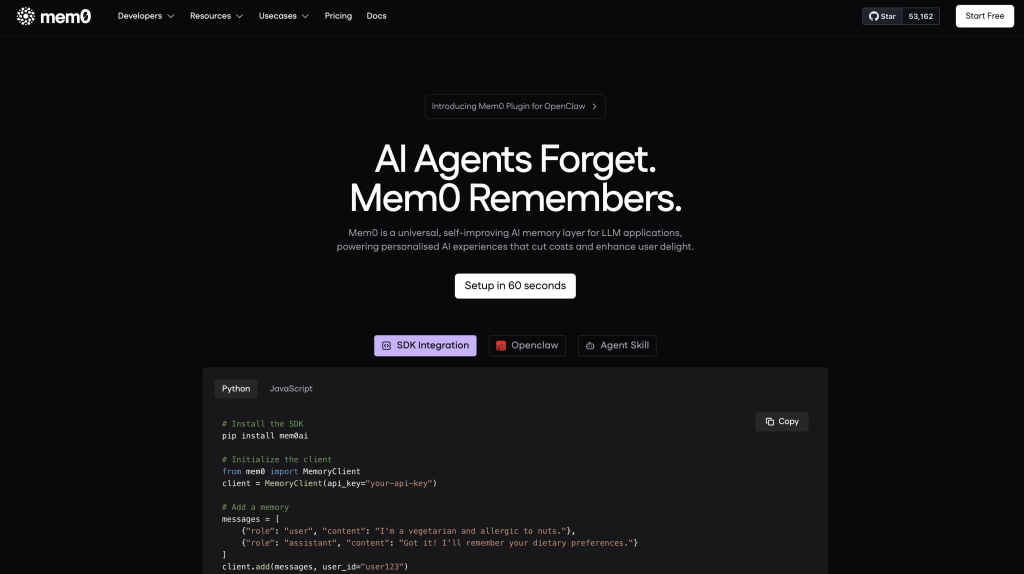
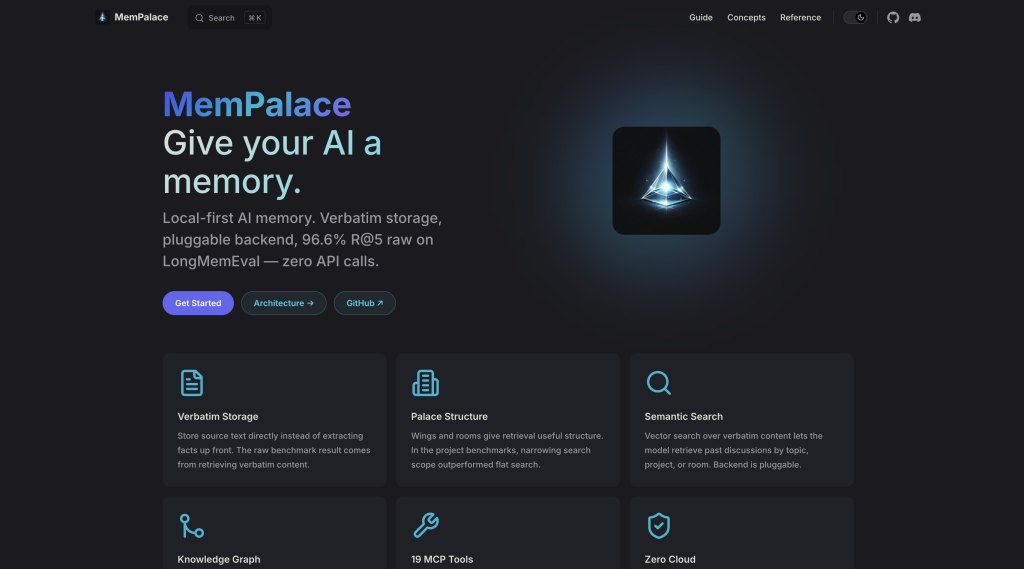
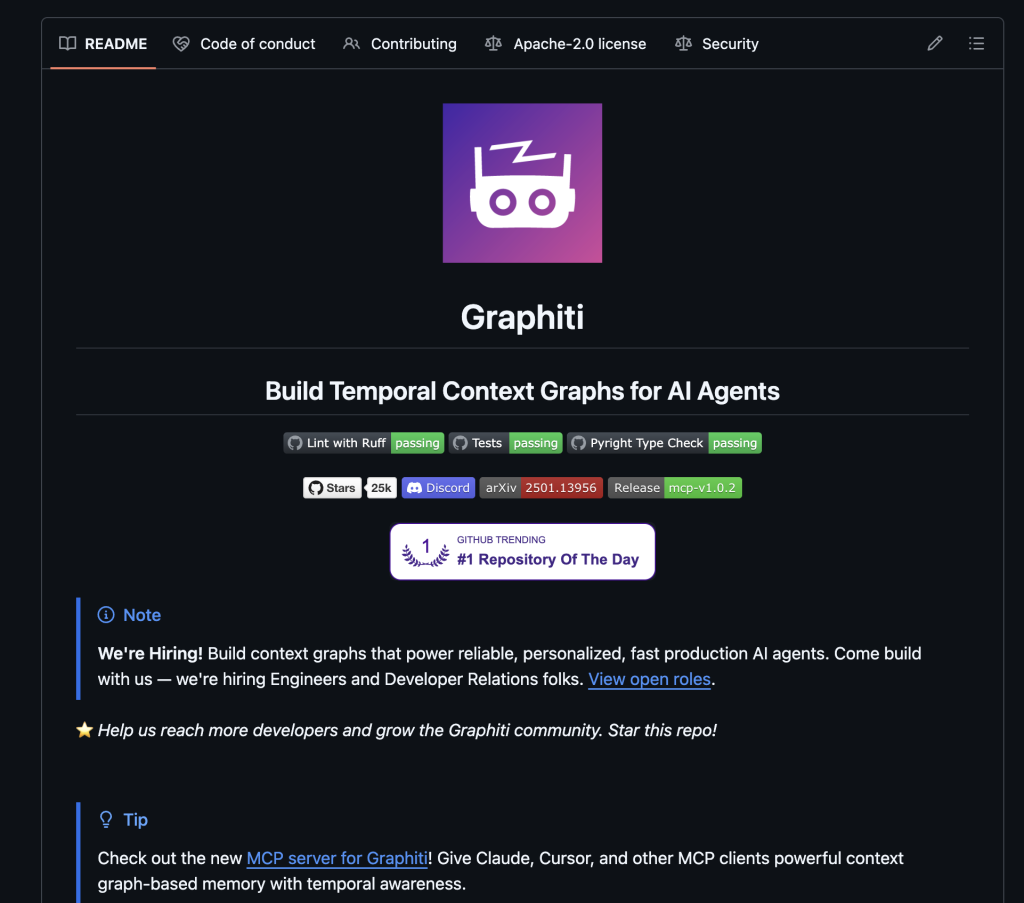
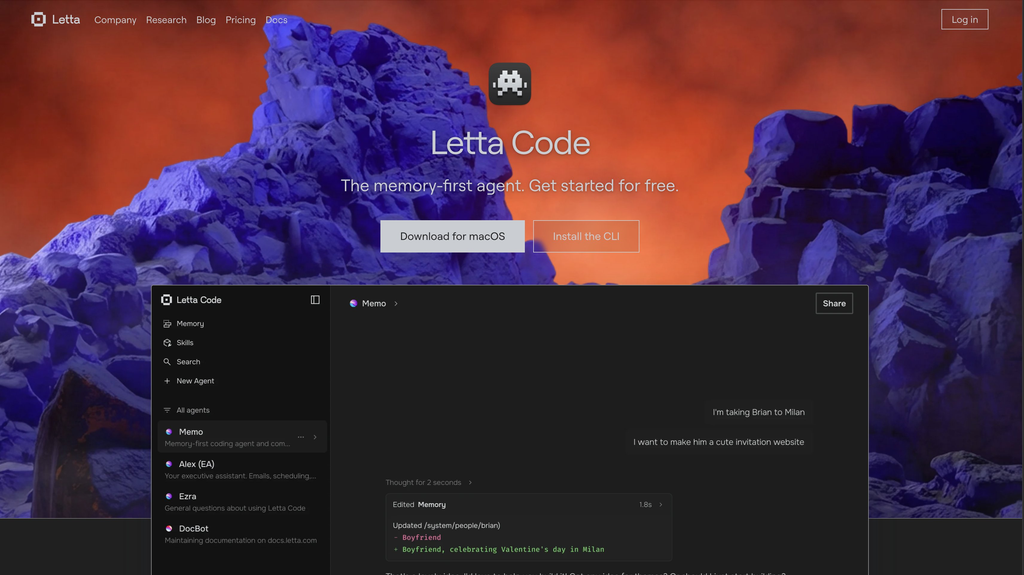


', esc_attr( $site_key ), esc_attr( $theme ), esc_attr( $size ), esc_attr( $appearance ), esc_attr( $language ) ); // Hidden input so the token travels with Elementor's AJAX submission echo ''; echo ''; }, 10, 3 ); /* ────────────────────────────────────────────── 4. Enqueue Turnstile JS on frontend only + callback writes token into hidden input + re-render after AJAX form submission ────────────────────────────────────────────── */ add_action( 'wp_enqueue_scripts', function () { if ( ElementorPlugin::$instance->editor->is_edit_mode() || ElementorPlugin::$instance->preview->is_preview_mode() ) { return; } $site_key = get_option( 'bsfe_cf_site_key', '' ); if ( empty( $site_key ) ) { return; } wp_enqueue_script( 'cf-turnstile-api', 'https://challenges.cloudflare.com/turnstile/v0/api.js?onload=bsfeTurnstileInit', [], null, true ); $inline = <<get( 'form_fields' ) as $field ) { if ( isset( $field['field_type'] ) && 'cf_turnstile' === $field['field_type'] ) { $has_turnstile = true; break; } } if ( ! $has_turnstile ) { return; } $secret = get_option( 'bsfe_cf_secret_key', '' ); if ( empty( $secret ) ) { return; } $token = isset( $_POST['cf-turnstile-response'] ) ? sanitize_text_field( wp_unslash( $_POST['cf-turnstile-response'] ) ) : ''; if ( empty( $token ) ) { $ajax_handler->add_error_message( 'Please complete the security check.' ); return; } $response = wp_remote_post( 'https://challenges.cloudflare.com/turnstile/v0/siteverify', [ 'timeout' => 10, 'sslverify' => true, 'body' => [ 'secret' => $secret, 'response' => $token, 'remoteip' => sanitize_text_field( $_SERVER['REMOTE_ADDR'] ?? '' ), ], ] ); if ( is_wp_error( $response ) ) { $ajax_handler->add_error_message( 'Security check could not be completed. Please try again.' ); return; } $body = json_decode( wp_remote_retrieve_body( $response ), true ); if ( empty( $body['success'] ) ) { $ajax_handler->add_error_message( 'Security check failed. Please try again.' ); } }, 10, 2 ); /* ────────────────────────────────────────────── 6. Admin settings page registration ────────────────────────────────────────────── */ add_action( 'admin_menu', function () { add_submenu_page( 'elementor', 'Cloudflare Turnstile', 'Cloudflare Turnstile', 'manage_options', 'bsfe-cf-turnstile', 'bsfe_cf_settings_page' ); } ); /* ────────────────────────────────────────────── 7. Settings page (full styled UI) Site Key, Secret Key, Theme, Size, Appearance, Language ────────────────────────────────────────────── */ function bsfe_cf_settings_page() { if ( ! current_user_can( 'manage_options' ) ) return; if ( isset( $_POST['bsfe_save'] ) && check_admin_referer( 'bsfe_cf_nonce' ) ) { update_option( 'bsfe_cf_site_key', sanitize_text_field( wp_unslash( $_POST['bsfe_cf_site_key'] ?? '' ) ) ); update_option( 'bsfe_cf_secret_key', sanitize_text_field( wp_unslash( $_POST['bsfe_cf_secret_key'] ?? '' ) ) ); update_option( 'bsfe_cf_theme', sanitize_text_field( wp_unslash( $_POST['bsfe_cf_theme'] ?? 'light' ) ) ); update_option( 'bsfe_cf_size', sanitize_text_field( wp_unslash( $_POST['bsfe_cf_size'] ?? 'normal' ) ) ); update_option( 'bsfe_cf_appearance', sanitize_text_field( wp_unslash( $_POST['bsfe_cf_appearance'] ?? 'always' ) ) ); update_option( 'bsfe_cf_language', sanitize_text_field( wp_unslash( $_POST['bsfe_cf_language'] ?? 'auto' ) ) ); echo '

Settings saved.

'; } $site_key = get_option( 'bsfe_cf_site_key', '' ); $secret_key = get_option( 'bsfe_cf_secret_key', '' ); $theme = get_option( 'bsfe_cf_theme', 'light' ); $size = get_option( 'bsfe_cf_size', 'normal' ); $appearance = get_option( 'bsfe_cf_appearance', 'always' ); $language = get_option( 'bsfe_cf_language', 'auto' ); ?>

Cloudflare Turnstile Settings

Site Key
Secret Key
Theme
Size
Appearance
Language
Cloudflare Turnstile** in your WordPress admin. It gives you fields for: - **Site Key** and **Secret Key** - Your Cloudflare API keys - **Theme** - Light, Dark, or Auto - **Size** - Normal, Compact, or Flexible - **Appearance** - Always visible, invisible, or show only on interaction - **Language** - Auto-detect or force a specific language All inputs are sanitized with `sanitize_text_field()` and protected with a nonce check. The Secret Key is stored in the database and displayed masked, showing only the last 4 characters. ## How to Install the Snippet ### Step 1: Install a Code Snippets Plugin If you do not already have one, install [WPCode](https://wordpress.org/plugins/insert-headers-and-footers/) or [Code Snippets](https://wordpress.org/plugins/code-snippets/) from the WordPress plugin repository. ### Step 2: Create a New PHP Snippet Go to the snippets plugin in your admin panel. Create a new PHP snippet. Give it a name like "Cloudflare Turnstile for Elementor Forms." ### Step 3: Paste and Activate Copy the entire PHP snippet from above and paste it in. If your snippets plugin starts every snippet with ` Cloudflare Turnstile** in your WordPress admin sidebar. Paste your Site Key and Secret Key. Choose your widget settings. Click Save. ### Step 5: Add the Field to Your Form Open any page with an Elementor form in the editor. Add a new field. Set the field type to **Cloudflare Turnstile**. Save. That is it. You will see a green placeholder in the editor. On the frontend, the actual Cloudflare widget will appear. ## Things to Know ### Does It Work With Multiple Forms on One Page? Yes. The JavaScript scans for every `.elementor-cf-turnstile` div on the page. Each one gets its own widget instance. If you have three forms on one page, you get three Turnstile widgets, each generating its own token. ### Can I Style the Widget? The Turnstile widget itself is rendered inside a Cloudflare iframe, so you cannot change its internal appearance with CSS. But you can control theme, size, and wrapper spacing. To center the widget, add this CSS: `.elementor-cf-turnstile { display: flex; justify-content: center; margin: 15px 0; }` ### What Happens if Cloudflare Is Down? If Cloudflare Turnstile API is unreachable, the verification call returns a WP_Error. The code catches this and shows: "Security check could not be completed. Please try again." Your form does not silently fail. The visitor gets a clear message and can retry. If Cloudflare is having a prolonged outage (rare), you can temporarily deactivate the snippet and your forms will work without Turnstile. ## Wrapping Up That is the complete setup. One PHP snippet gives you: - A native Elementor form field for Cloudflare Turnstile - A clean settings page for your API keys - Server-side verification that actually stops bots - Automatic re-rendering after AJAX submissions - No plugin bloat, no annual subscription, no tracking I have been running this on four client sites for the past month. Spam submissions dropped from 40+ per day to zero on every single one. And not a single real submission was blocked. If you found this useful, I share what actually works in WordPress, SEO, and AI automation every week. Real numbers. Real experiments. No recycled advice. [**Need help setting this up on your site, or want managed WordPress hosting where I handle all of this for you? Connect with me here.**](https://adityaarsharma.com/connect/) --- # WordPress 7.0 Is the Biggest Thing to Happen Since Gutenberg and Nobody’s Talking About It !! Source: https://adityaarsharma.com/wordpress-7-0-is-the-biggest-thing-to-happen-since-gutenberg-and-nobodys-talking-about-it/ The **WordPress 7.0 release date** is April 9, 2026 — and this isn't just another version bump. Most people think it's a routine update, new blocks, some UI polish, a few fixes. That's what they thought about the [Gutenberg block editor](https://developer.wordpress.org/block-editor/) too, right up until it shipped and rewired how 43% of the internet builds websites. This is that moment again. Except bigger. WordPress 7.0 is the first release that ships with a native **WordPress MCP server** — a foundation that lets **AI agents for WordPress** like Claude and ChatGPT actually work *inside* your WordPress site. Not generate text you copy-paste in. Work inside it. Read your content, understand your structure, create drafts, manage pages, and wait for your confirmation before touching anything live. If you use WordPress and you haven't heard about this yet, that's exactly why I'm writing this post. ## What Is MCP and Why Does It Matter for WordPress [MCP](https://modelcontextprotocol.io/docs/getting-started/intro) stands for **Model Context Protocol** — the open standard that's reshaping how AI connects to applications. Before MCP, every **WordPress AI integration** was a custom mess. One plugin connected to OpenAI its own way. Another talked to Gemini differently. No standard. No shared infrastructure. Everything broke when APIs updated. MCP fixes the connection layer. It's the same idea as USB-C — before it, every device had its own charger. USB-C standardized the port so any cable works with any device. MCP standardizes how any AI agent connects to any application. One protocol. Discoverable, structured, secure. The **WordPress MCP server** exposes your site to any MCP-compatible AI. The AI can discover what your site can do, understand how each capability works, and take action on your behalf — with your explicit sign-off before anything changes. This is not a plugin. This is infrastructure. And it's going into WordPress core. ## What WordPress 7.0 Actually Ships — Key Features Three major **WordPress 7.0 features** are landing in core on April 9: - **AI Connectors** — live in Settings → Connectors. You enter your API key for Claude, ChatGPT, or Gemini once. Every plugin on your site can use those credentials through a shared, standardized layer. No more fifteen plugins each storing keys in their own way. Three providers supported at launch: Anthropic, OpenAI, Google. More coming in 7.1. - **The Abilities API** — introduced in WordPress 6.9 and expanded in 7.0, lets plugins register discrete capabilities in a language AI understands. Fetch posts. Update a page. Generate a title. Run a site health check. Standard inputs, standard outputs. WordPress describing itself to an AI agent, not the other way around. - **The MCP Adapter** — is the bridge. It takes every registered ability and exposes it through the Model Context Protocol. Point any MCP-compatible AI at your WordPress site and it can discover what your site does, understand each capability, and call them on your terms. The result: your WordPress site stops being a dashboard you log into. It becomes something an AI can actually work inside — opening the door for **AI agents for WordPress** to handle content creation, site management, and optimization tasks autonomously. The Community Is Already Building on Top of This, one product I love is [Novamira](https://novamira.ai/) from [@giovannicintolo](https://x.com/@giovannicintolo). Where the official MCP Adapter communicates with WordPress through registered abilities, Novamira gives an AI agent direct PHP execution inside your WordPress process. Five primitives — execute PHP, Read & Write Files, Edit Files, Delete & Toggle, List Directory — and from those five tools, an AI can build essentially anything that PHP can build. [@WPTutz](https://x.com/@WPTutz) recently covered a project called **Novamira** that shows where this goes for developers: https://youtu.be/rp0bOaYceQ0 ## WordPress.com Already Flipped the Switch [WordPress.com](https://wordpress.com/) went live with write access via MCP on March 20, four days ago. Video on official WordPress channel - https://youtu.be/Jywvzfo_w8c It allows you to - Edit existing content - Manage comments - Create posts and pages - Handle media uploads - Restructure categories and tags 19 new write operations, across 6 content types. Every single one requires your explicit confirmation before it executes. New content defaults to draft. Deletions go to trash and stay recoverable for 30 days. The AI inherits your WordPress user role — an Editor cannot change site settings. Nothing goes live without you saying yes. [WordPress.com](https://wordpress.com/) is also the first host to ship OAuth 2.1 for AI agents by default — meaning your credentials never touch your AI client. Only secure, expiring tokens. Clean and locked down. If you're on [WordPress.com](https://wordpress.com/), you can enable this today at [**wordpress.com/me/mcp**](https://wordpress.com/me/mcp). [@pootlepress](https://x.com/@pootlepress) also published a post on "[100 Things Your AI Can Do to Your WordPress Site Right Now."](https://www.pootlepress.com/2026/03/100-things-you-can-do-with-wordpress-com-mcp/) It's worth reading in full. But here's the shape of it, because it makes the MCP shift concrete in a way that specs and announcements don't. ## A Real Workflow, Not a Demo — Something I Actually Did I connected Claude to my [WordPress.com](https://wordpress.com/) site and typed: *"Check what I've published recently, find a topic I haven't covered, draft a post, and save it as a draft."* Claude read my last 10 posts. Checked my categories. Drafted a post in my style with appropriate heading structure. Saved it directly to WordPress — right category applied, tags filled in, draft status. Then told me it was ready to review. I opened WordPress, reviewed the post, made two edits, published it. I didn't open a WordPress tab until it was time to read and hit publish. That's the workflow. Not a gimmick. Not a future use case. It works today on [WordPress.com](https://wordpress.com/), and it comes to self-hosted WordPress on April 9. ## How the WordPress MCP Server Works on Self-Hosted Sites For self-hosted WordPress, the MCP Adapter is the piece that turns your site into a **WordPress MCP server**. It was released officially in February 2026 and is tracking toward inclusion in WordPress core. Here's what it does in practice: The Adapter exposes three core capabilities to any AI agent that connects: - **Discover abilities** — the AI can see what your site is capable of - **Get ability info** — the AI understands how each capability works and what inputs it needs - **Execute abilities** — the AI can call them, with your permission Out of the box, WordPress core registers a small set of abilities: get site info, get user info, and a few others. The power comes from the plugin ecosystem. Any plugin that registers abilities via the Abilities API becomes AI-accessible. One line of configuration and your plugin's functionality is discoverable by Claude, Cursor, or any other MCP client. This **WordPress AI integration** model means that tools like [The Plus Addons for Elementor](https://theplusaddons.com/), [Nexter Blocks](https://nexterwp.com/), or any Gutenberg block plugin can expose their widget-building and design capabilities directly to AI agents. For self-hosted users who want to try it before the **WordPress 7.0 release date** on April 9, the MCP Adapter is available on GitHub now. It requires developer-level setup today. The April 9 stable release is when it becomes accessible for everyone. ## Why This Is Different From Every AI Feature That Came Before Every AI feature that's shipped in the WordPress ecosystem before this was additive. A writing assistant here. An image generator there. A plugin that calls GPT to generate a title. Those are tools. Useful, sure. But they don't change how WordPress fundamentally works. MCP changes the architecture. What's shipping in WordPress 7.0 is not a feature — it's a platform layer. It's the infrastructure that the entire ecosystem builds AI capabilities on top of. Instead of every plugin reinventing **WordPress AI integration** separately, there is now one standard for credentials, one standard for capabilities, one standard for agent communication. The analogy that keeps coming to mind is the REST API. When the REST API shipped in WordPress 4.7, most users didn't care. Developers noticed. A few years later it was the foundation of headless WordPress, block-based themes, and the entire modern WordPress development model. The **WordPress MCP server** and the Abilities API are the 2026 version of that moment. Developers are noticing now. In two years this will just be how WordPress works. Even [@elementor](https://x.com/@elemntor) released their new product [Angie – Agentic AI for WordPress](https://wordpress.org/plugins/angie/) recently. Angie Code lets professional web creators and agencies create custom Elementor widgets, snippets for WordPress, and functionality instantly. If you're building with Elementor, tools like [The Plus Addons for Elementor](https://theplusaddons.com/) already give you 120+ widgets — and with the Abilities API, those widgets can soon be generated and configured by AI agents too. Video on this from [@miriamschwab](https://x.com/@miriamschwab) https://youtu.be/vaVRD-SxzPg ## What I Think WordPress Should Look Like in 5 Years I've been thinking about this since I first saw James LePage's demo at State of the Word 2025 where WordPress 6.9 was shipped live during the keynote for the first time in WordPress history. Most WordPress users are not technical. They're a restaurant owner, a blogger, a small agency client who needed a website three years ago. They log in once a week, struggle with something, and close the tab. What WordPress has never fully solved is the gap between "I have a site" and "my site is actively working for me." The Gutenberg block editor closed the design gap. REST API closed the developer gap. MCP closes the operations gap. But I think the real end state 5 years from now isn't "AI that helps you inside the dashboard." I think it's a WordPress where the dashboard itself becomes optional for day-to-day operations. Where you describe what you want to happen and it happens. Where managing a website feels like having a capable collaborator, not running software. WordPress has 43% of the internet because it lowered the floor for who could *publish*. The MCP era is about lowering the floor for who can *operate* a site without needing to understand hosting, admin panels, plugin settings, or any of the invisible complexity that still sits between most site owners and their goals. That's what Matt has been circling since the beginning. April 9 is when the foundation starts becoming real. ## What We're Building at POSIMYTH Being part of an amazing WordPress plugin ecosystem at [POSIMYTH](https://posimyth.com/), we build products that serve half a million users across WordPress: - [**Nexter — Theme, Blocks & Extensions**](https://nexterwp.com/) — A complete WordPress theme and Gutenberg block plugin for building modern, performant websites without code. - [**The Plus Addons for Elementor**](https://theplusaddons.com/) — 120+ premium Elementor widgets used by agencies to build hundreds of client sites faster. - [**UiChemy**](https://uichemy.com/) — The fastest way to convert [Figma designs to live WordPress pages](https://uichemy.com/blog/uichemy-2025-yearly-recap-figma-to-wordpress/), now with [full Bricks Builder design system sync](https://uichemy.com/blog/uichemy-bricks-update-full-design-system-sync-from-figma-to-bricks/). - [**WDesignKit**](https://wdesignkit.com/) — Design templates and widget library for both Elementor and Gutenberg workflows. The Abilities API changes what's possible for products like ours. When [Nexter](https://nexterwp.com/) registers its design capabilities as abilities, an AI agent can call them. Build a landing page using the agency's standard block layout. Create a product section with a [WDesignKit](https://wdesignkit.com/) template. Convert a Figma design to a live WordPress page via [UiChemy](https://uichemy.com/). Not through a custom one-off integration we build and maintain. Through the standard WordPress layer that every AI agent already speaks. We're building this into our products. Excited to share some really interesting things we're building ahead. And there's a bigger direction we're heading — an agentic layer where your entire WordPress workflow becomes something you can operate through conversation. Design, build, publish, manage, report. We're not ready to announce it fully yet. But WordPress 7.0's infrastructure is the exact foundation it runs on. ## The Honest Take on Where Things Actually Stand [WordPress.com](https://wordpress.com/)'s implementation is live, polished, and working today. Thousands of users already connected. Real safeguards. Real workflows. This part is done. Self-hosted **WordPress MCP server** support is directionally correct but still maturing. The WordPress AI contributor notes from March 11 are transparent: MCP progress has been slower than planned due to contributor availability. The milestones for MCP Adapter v0.5.0 are still being clarified. April 9 is the goal, not a guarantee of full completion. The Abilities API itself is also paused on new core additions while the team focuses on getting the AI Connectors screen and AI client stable for 7.0. Deeper ecosystem adoption will come in the cycle after release. None of this changes the direction. It just means the early experience on self-hosted WordPress will be more developer-facing than user-friendly on day one. That changes with time and ecosystem adoption, exactly like every other foundational WordPress feature before it. WordPress spent 20 years making *publishing* accessible to anyone with an idea and internet access. WordPress 7.0 starts making *operating a website* accessible to anyone — through conversation, through **AI agents for WordPress** that work inside your site with your permission, following your rules, waiting for your sign-off before anything goes live. April 9. The foundation ships. ## Frequently Asked Questions About WordPress 7.0 ### What is the WordPress 7.0 release date? The official **WordPress 7.0 release date** is April 9, 2026. This is when the stable version ships with the MCP Adapter, AI Connectors, and the expanded Abilities API built into WordPress core. ### What is the Model Context Protocol (MCP) in WordPress? The **Model Context Protocol** is an open standard that lets AI agents connect to applications in a structured, secure way. In WordPress 7.0, the MCP Adapter turns your site into a **WordPress MCP server** that any compatible AI — Claude, ChatGPT, Gemini — can interact with to read content, create drafts, manage pages, and more. ### How do AI Connectors work in WordPress 7.0? AI Connectors live in Settings → Connectors inside your WordPress dashboard. You enter your API key once for Claude (Anthropic), ChatGPT (OpenAI), or Gemini (Google), and every plugin on your site can use those credentials through a single standardized layer. No more multiple plugins storing separate API keys. ### What is the WordPress Abilities API? The Abilities API lets WordPress plugins register specific capabilities — like fetching posts, updating pages, or generating titles — in a format that AI agents understand. When combined with the MCP Adapter, these abilities become discoverable and executable by any MCP-compatible AI client. ### Is WordPress 7.0 safe to update to? Yes. The AI features in WordPress 7.0 are opt-in. Nothing changes about your site unless you explicitly enable AI Connectors and grant permissions. All AI actions require your confirmation, new content defaults to draft, and deletions stay recoverable for 30 days. The AI inherits your WordPress user role — it can never do more than you're allowed to do. ### Can I use ChatGPT or Claude with WordPress 7.0? Yes. WordPress 7.0 ships with native support for three AI providers at launch: Anthropic (Claude), OpenAI (ChatGPT), and Google (Gemini). You can connect any of these through the AI Connectors screen, and they'll work with any plugin that registers abilities through the Abilities API. ### How will WordPress 7.0 affect Elementor and Gutenberg users? For **Gutenberg block editor** users, the Abilities API means blocks and block patterns can be created, modified, and managed by AI agents directly. For [Elementor users](https://theplusaddons.com/), Elementor has already released [Angie — their Agentic AI product](https://wordpress.org/plugins/angie/). Plugin developers for both ecosystems can register their widget-building capabilities as abilities, making tools like [The Plus Addons](https://theplusaddons.com/) and [Nexter Blocks](https://nexterwp.com/) AI-accessible through a single standard. ### What is the difference between WordPress.com MCP and self-hosted WordPress MCP? WordPress.com already has MCP with write access live since March 20, 2026, including OAuth 2.1 authentication. Self-hosted WordPress gets the MCP Adapter in WordPress 7.0 on April 9 — it uses application passwords for authentication today, with OAuth support coming later. The core functionality is the same: AI agents can discover, understand, and execute site capabilities with your permission. --- # How to Fix Missing Color and Underline Font Options in WordPress? [SOLVED] Source: https://adityaarsharma.com/fix-missing-color-and-underline-font-options-in-wordpress/ You may have come across the issue of missing color and underline font options. This can be frustrating, especially if you're trying to create visually appealing and functional content. Fortunately, there are several solutions available that can help you fix this problem and regain access to these vital functionalities. One possible solution is to switch to the Classic Editor if you're using Gutenberg. Another option is to install formatting plugins that offer extra features, including color and underlined fonts. Additionally, it's important to keep your WordPress and plugins up to date, clear your cache and cookies, and inspect your custom CSS for any errors that may be causing the issue. By troubleshooting common issues and enhancing the visual appeal and functionality of your WordPress site, you can ensure a smoother and more enjoyable experience for both you and your audience. *Learn:** [How To Add Copy Code Button To WordPress Code Blocks – Gutenberg ](https://adityaarsharma.com/how-to-add-copy-code-button-to-wordpress-code-blocks/)*** In this article, I'll provide step-by-step solutions to help you fix the problem of missing color and underline font options, as well as answer some frequently asked questions about this issue. ### Key Takeaways - Switching to the Classic Editor or installing formatting plugins can help you regain access to missing color and underline font options in WordPress. - Keeping your WordPress and plugins up to date, clearing your cache and cookies, and inspecting your custom CSS can also help resolve this issue. - By troubleshooting common issues and enhancing the visual appeal and functionality of your WordPress site, you can ensure a smoother and more enjoyable experience for both you and your audience. ## Troubleshooting Common Issues to Fix Missing Color and Underline Font Options in WordPress Here are some steps that you can take to identify and resolve the issue: ### 1) Identify the Problem The first step in troubleshooting missing color and underline font options in WordPress is to identify the problem. This can be done by checking for plugin and theme conflicts, adjusting editor settings and permissions, and inspecting custom CSS. If you are not sure where to start, you can explore potential plugin conflicts by deactivating all plugins and then reactivating them one by one to see if the problem is resolved. *Also Read: *[***How to change Search Placeholder Text in WordPress [NO PLUGIN]***](https://adityaarsharma.com/how-to-change-search-placeholder-text-in-wordpress/) ### 2) Resolve Plugin and Theme Conflicts If you have identified a plugin or theme conflict as the cause of the missing color and underline font options, you can resolve the issue by either updating the plugin or theme, or by finding a compatible alternative. ![](https://adityaarsharma.com/wp-content/uploads/2024/02/Deactivate-WordPress-Plugin-to-check-Conflicts-1024x576.jpg) You can also try customizing your theme to include the missing formatting options, or by installing a plugin that provides additional customization options. *Suggested: [**How To Change Text Content On Page Refresh In Wordpress [NO PLUGINS]**](https://adityaarsharma.com/how-to-change-text-content-on-page-refresh-in-wordpress/)* ### 3) Adjust Editor Settings and Permissions Another common cause of missing color and underline font options in WordPress is insufficient user permissions or an incorrect user role. ![](https://adityaarsharma.com/wp-content/uploads/2024/02/Update-User-permission-1024x718.jpg) To fix this issue, you can check user permissions and adjust the user's role to grant access to the formatting options in the editor. You can also switch to the classic editor or block editor to see if this resolves the issue. ## Frequently Asked Questions ### What steps are needed to modify text color within a WordPress post or page? To modify text color within a WordPress post or page, you can use the built-in color picker tool in the editor. Simply highlight the text you want to modify, click on the "Text color" button in the editor toolbar, and select the color you want to apply. ### Can you guide me through changing the header font color on my WordPress site? To change the header font color on your WordPress site, you can use CSS. First, identify the CSS class or ID for the header element you want to modify. Then, add a CSS rule to your site's stylesheet that sets the "color" property to the desired color value. ### How can I adjust the font color for products in my Woocommerce store? To adjust the font color for products in your Woocommerce store, you can use the built-in styling options in the Woocommerce settings. Go to "Appearance > Customize > Woocommerce > Product Catalog" and select the "Fonts" tab. From there, you can adjust the font color and other styling options. ### Is there a way to customize font styles and colors in WordPress without using a plugin? Yes, you can customize font styles and colors in WordPress without using a plugin by using CSS. You can add custom CSS rules to your site's stylesheet that modify the font styles and colors of specific elements on your site. ### What are the options for highlighting text with different colors in WordPress? The options for highlighting text with different colors in WordPress include using the built-in color picker tool in the editor, using CSS to style the text, or using a plugin that adds highlighting functionality. ### How do I troubleshoot issues with missing font style options in the WordPress editor? To troubleshoot issues with missing font style options in the WordPress editor, you can try switching to the Classic Editor, checking user permissions, installing formatting plugins, exploring potential plugin conflicts, updating WordPress and plugins, clearing cache and cookies, inspecting custom CSS, and checking for JavaScript errors. --- # Dedicated Password Manager Vs Browser Password Manager (Chrome, Safari, Firefox) Source: https://adityaarsharma.com/password-manager-vs-browser-password-manager/ As someone who uses the internet daily, you likely have multiple accounts that require passwords. With so many passwords to remember, it's no surprise that many people turn to password managers to keep their accounts secure. However, some web browsers come with built-in password managers, which begs the question: which is better, a password manager or a browser password manager? When it comes to choosing between a password manager and a browser password manager, there are several factors to consider. In this article, we'll explore the pros and cons of each and help you decide which option is best for you. ### Key Takeaways - Password managers and browser password managers both have their advantages and disadvantages. - Password managers generally offer more security features and are more flexible than browser password managers. - Ultimately, the best option for you depends on your individual needs and preferences. ## What are Password Managers? As an internet user, you probably have several online accounts, each with its unique login credentials. With the number of accounts you have, it can be challenging to remember all your passwords. This is where password managers come in handy. ![](https://adityaarsharma.com/wp-content/uploads/2023/05/Bitwarden-Password-Manager-1024x495.jpg) Password managers are software applications that store and manage your login credentials for various websites, apps, and services. They help you create and manage complex passwords, store them securely, and enter them automatically when you need to log in. ### Types of Password Manager There are two types of password managers: local and cloud-based. A local password manager stores your login credentials on your device, while a cloud-based password manager stores them on the internet. ![](https://adityaarsharma.com/wp-content/uploads/2024/01/Local-Enpass-Password-manager-1024x606.png) Local password managers are more secure than cloud-based ones because they keep your login credentials on your device, which means that they are not vulnerable to online attacks. However, they are not as convenient as cloud-based password managers because they do not synchronize your login credentials across different devices. ![](https://adityaarsharma.com/wp-content/uploads/2023/04/Vault-Report-Bitwarden.jpg) On the other hand, cloud-based password managers are more convenient than local ones because they synchronize your login credentials across different devices. However, they are less secure than local ones because they store your login credentials on the internet, which means that they are vulnerable to online attacks. *Suggested:** [Reasons Why Bitwarden is My Go-To Password Manager as a Marketer](https://adityaarsharma.com/reasons-why-bitwarden-is-my-go-to-password-manager/)*** #### Some Popular Password Managers are - [Bitwarden](https://bitwarden.com/)(Cloud & Local) - [1Password](https://1password.com/) (Cloud) - [Dashlane](https://www.dashlane.com/)(Cloud) - [NordPass](https://nordpass.com/) (Cloud) - [Enpass](https://www.enpass.io/) (Local) - [KeePass](https://keepass.info/) (Local) *Do checkout -**[ The Best Password Managers](https://www.passwordmanager.com/best-password-managers/)*** ## What are Browser Password Managers As the name suggests, browser password managers are built-in password management tools that come with web browsers. They are designed to remember and autofill login credentials for websites that require authentication. ![](https://adityaarsharma.com/wp-content/uploads/2024/01/Chrome-Desktop-Password-Manager-1024x566.jpg) Browser password managers are integrated into web browsers, which means that they are readily available for anyone who uses the browser. They are usually enabled by default, and users can turn them off if they choose to. ### Browser which have Password Manager Some web browsers come with built-in password managers which can be used to save and autofill login credentials. ![](https://adityaarsharma.com/wp-content/uploads/2024/01/Chrome-Password-Manager-Backend-1024x715.jpg) These include: - Google Chrome - Mozilla Firefox - Apple Safari - Microsoft Edge While these in-built password managers may seem like a convenient option, they are not as secure as standalone password managers. They are more susceptible to hacking, and your login credentials can be compromised if your browser is hacked. Additionally, they do not offer advanced features such as password sharing, two-factor authentication, and password analysis. *Also Read**[: Should You Use Multiple Password Managers? Read This First Before Using]](https://adityaarsharma.com/should-you-use-multiple-password-managers/)*** ## Which One Should You Choose between Password Manager Vs Browser Password Manager? Both have their advantages and disadvantages, and it's important to understand the differences between them to make an informed decision. ### Pros & Cons of Using Password Managers Password managers are dedicated applications designed to securely store and manage passwords. They typically offer a range of features, including password generation, password strength analysis, and two-factor authentication. Password managers are generally considered to be more secure than browser password managers because they use advanced encryption algorithms to protect your passwords. Pros: - Strong encryption algorithms - Additional security features - Centralized password management - Cross-platform compatibility - Easy password sharing with trusted contacts Cons: - Requires a separate application - May have a learning curve for new users - May come with a subscription fee *Did you know about YubiKeys? Then I would suggest you to check - [**YubiKey vs Password Managers : Which One to Choose? [Detailed Guide]**](https://adityaarsharma.com/yubikey-vs-password-managers-which-one-to-choose/)* ### Pros & Cons of using Browser Password Managers Browser password managers are built-in tools that come with most web browsers. They're designed to simplify the login process by automatically filling in your username and password for you. While they're convenient, they're generally considered to be less secure than dedicated password managers because they're more vulnerable to phishing attacks and other security threats. Pros: - Built-in to your web browser - Easy to use - No additional software required - Usually free Cons: - Less secure than dedicated password managers - Limited features - Vulnerable to phishing attacks - Not always cross-platform compatible Overall, while browser password managers are convenient, they're not as secure or feature-rich as dedicated password managers. If you're serious about protecting your online accounts, I recommend using a dedicated password manager. ## Frequently Asked Questions ### What are the advantages of using a dedicated password manager over a browser's built-in option? Using a dedicated password manager offers several advantages over a browser's built-in option. Firstly, a dedicated password manager provides stronger encryption for your passwords. This means that your passwords are better protected from hackers and other malicious actors. Secondly, a password manager allows you to generate strong, unique passwords for each of your accounts. This reduces the risk of a single password being compromised and used to gain access to multiple accounts. Finally, a dedicated password manager can help you keep track of all your passwords in one place, making it easier to manage and update them as needed. ### How do dedicated password managers enhance security compared to browser password managers? Dedicated password managers enhance security by providing stronger encryption for your passwords. They also offer additional security features such as two-factor authentication, which can further protect your accounts from unauthorized access. In contrast, browser password managers are often less secure because they store your passwords in plain text, making them vulnerable to hacking and other attacks. ### Can you trust browser-based password managers with your sensitive information? While browser-based password managers can be convenient, they are generally less secure than dedicated password managers. This is because they store your passwords in plain text, making them more vulnerable to hacking and other attacks. Additionally, browser-based password managers are often less reliable than dedicated password managers, and may not work properly with all websites and applications. ### What features should you look for in the best password manager for personal use? When choosing a password manager for personal use, it is important to look for one that offers strong encryption, two-factor authentication, and the ability to generate strong, unique passwords. You should also look for a password manager that is easy to use and offers a user-friendly interface. Finally, it is important to choose a password manager that is compatible with all your devices, so that you can access your passwords from anywhere. ### Why might some users avoid saving passwords in their browser? Some users may avoid saving passwords in their browser because of security concerns. Browser-based password managers are often less secure than dedicated password managers, and may store your passwords in plain text, making them vulnerable to hacking and other attacks. Additionally, browser-based password managers may not work properly with all websites and applications, which can be frustrating for users. ### Are there any free password managers that offer robust security features? Yes, there are several free password managers that offer robust security features. Some popular options include LastPass, KeePass, and Dashlane. These password managers offer strong encryption, two-factor authentication, and the ability to generate strong, unique passwords. However, it is important to note that some free password managers may have limitations on the number of passwords you can store or the devices you can use them on. --- # [SOLVED] How to Fix Media Query Not Working in WordPress? (6 Real Fixes) Source: https://adityaarsharma.com/how-to-fix-media-query-not-working-in-wordpress/ I've debugged media query issues across more WordPress sites than I care to count. Client sites, my own projects, plugin sandboxes. And almost every time, it comes down to one of six things. The frustrating part isn't that media queries are hard. They aren't. The frustrating part is that WordPress adds layers — theme stylesheets, plugin CSS, the block editor injecting its own styles — that silently break responsive rules you wrote perfectly. This post covers every real cause I've run into and exactly how to fix each one. ## Why Media Queries Break Specifically in WordPress Before jumping to fixes, it helps to understand why this happens in WordPress and not in a plain HTML file. WordPress loads CSS in a specific order through its enqueue system. Your media query might be correct, but if another stylesheet loads after yours with higher specificity, your responsive rules lose. The viewport meta tag might be missing if you're using a lightweight or poorly built theme. And if you're adding custom CSS through the Customizer instead of a proper file, caching can serve stale styles that ignore your changes entirely. None of this is obvious. That's why the same media query that works on your test page fails on the live site. ## 6 Ways to Fix Media Query Not Working in WordPress ### Fix 1: Check Your Syntax First — This Catches 60% of Issues Start here. Every time. The most common reason a media query doesn't work is a syntax error — a missing bracket, an unclosed parenthesis, a misplaced semicolon. The browser silently skips the broken rule and you spend an hour looking for something else. Correct syntax: `@media screen and (max-width: 768px) { .your-element { font-size: 16px; } }` Common mistakes: `/* Missing closing bracket on the rule */ @media screen and (max-width: 768px) { .your-element { font-size: 16px; } /* Wrong: no 'and' keyword */ @media (max-width: 768px) screen { ... }` Paste your CSS into a validator like W3C CSS Validator or Stylelint before anything else. If the syntax is wrong, nothing else matters. ### Fix 2: Add the Viewport Meta Tag (Often Missing in Custom Themes) If your media queries work in a browser preview but fail on mobile, this is almost certainly why. Without the viewport meta tag, mobile browsers render the page at desktop width and then scale it down. Your `max-width: 768px` rule never triggers because the browser thinks the viewport is 980px or 1024px. Add this inside the `` of your theme: `` In WordPress, that means editing your theme's `header.php` or adding it via a hook: `function add_viewport_meta() { echo ''; } add_action('wp_head', 'add_viewport_meta');` Add this to your child theme's `functions.php` or through a plugin like Code Snippets. Do not edit the parent theme directly — your changes will be overwritten on the next update. **Recommended if you're seeing this issue on mobile only.** ### Fix 3: Check for CSS Specificity Conflicts This is the sneaky one. WordPress loads your theme's stylesheet, then plugin stylesheets, then anything added via `wp_enqueue_style()`. If a plugin loads after your custom CSS with a more specific selector, your media query loses even if the syntax is perfect. Open browser DevTools (F12 → Elements → Styles). Find the element that isn't responding correctly. Look at which CSS rules are crossed out — those are being overridden. If you see your media query rule crossed out with another rule below it, you have a specificity conflict. Three ways to fix it: **Option A — Increase specificity:** `body .your-element { font-size: 16px; }` **Option B — Load your stylesheet later:** `function load_custom_styles() { wp_enqueue_style('custom-style', get_stylesheet_uri(), array('conflicting-plugin-style'), '1.0'); } add_action('wp_enqueue_scripts', 'load_custom_styles');` The third parameter lists dependencies — your stylesheet loads after them. **Option C — Use `!important`** (see Fix 6 for when this is actually okay) ### Fix 4: Use Browser DevTools to Diagnose — Not Guess If you're not using DevTools to debug CSS, you're wasting time. Open DevTools (F12 in Chrome, Firefox, Edge). Click the responsive design icon or press Ctrl+Shift+M. Set the viewport width to your breakpoint (e.g. 768px). Now inspect the element that should be changing at that breakpoint. In the Styles panel, you'll see exactly which CSS rules apply and which are overridden. This tells you: - Whether your media query is being read at all- Whether something else is overriding it- What the computed styles actually are vs what you expect One specific thing to check: the "Computed" tab shows the final applied values. If your `font-size: 16px` at mobile breakpoint isn't showing up there, the issue is either syntax, specificity, or the file isn't loading. This step alone has saved me hours on client sites. Use it before trying any other fix. ### Fix 5: Verify Your CSS File Is Actually Loading Sometimes the file just isn't there. Or isn't being enqueued correctly. In DevTools, go to Network and filter by CSS. Reload the page. Check whether your stylesheet appears in the list. Click it — confirm the media query code is actually in the file being served. If the file isn't loading, the issue is in how you're registering it. The correct way to load custom CSS in WordPress: `function enqueue_custom_styles() { wp_enqueue_style( 'my-custom-style', get_stylesheet_directory_uri() . '/css/custom.css', array(), filemtime(get_stylesheet_directory() . '/css/custom.css') ); } add_action('wp_enqueue_scripts', 'enqueue_custom_styles');` The `filemtime()` as the version parameter forces cache-busting every time the file changes. Caching is a silent killer for CSS updates in WordPress. Also check file permissions: your CSS file should be readable (644). A permissions error can cause the file to 404 silently. ### Fix 6: Use !important — But Only Here `!important` gets a bad reputation because people abuse it. But there are two situations where it's the right call. One: you're overriding third-party plugin styles and can't change how they load. Two: you're using the WordPress Customizer Additional CSS field, where specificity rules make normal overrides difficult. `@media screen and (max-width: 768px) { .plugin-element { display: none !important; } }` If you're reaching for `!important` everywhere, that's a sign of a deeper architecture problem — your stylesheets are loading in the wrong order. Fix that first (Fix 3). But for a one-off override of a plugin style you can't touch, `!important` inside your media query is fine. ## FAQ ### Why does my media query work in Chrome but not on my phone? The viewport meta tag is missing. Mobile browsers need that tag to apply the correct viewport width. Without it, your breakpoints never trigger. Add Fix 2 above. ### Why does my media query work on a plain HTML file but not in WordPress? WordPress is loading another stylesheet after yours with higher specificity. Use DevTools (Fix 4) to find the conflicting rule, then fix the load order (Fix 3). ### Does the WordPress block editor affect media queries? Yes. The block editor injects its own stylesheet — `wp-block-library` — which sometimes sets styles that conflict with custom responsive rules. You can dequeue it if you're not using blocks, or use specificity to override it. ### My media query was working and then stopped. What happened? Either a plugin update added a conflicting stylesheet, or a caching plugin is serving a stale version of your CSS. Clear all caches first. Then check DevTools to see if a new rule appeared that wasn't there before. ### Can I add media queries directly in the WordPress Customizer? Yes, through Additional CSS. But the Customizer has lower specificity than stylesheets loaded via `wp_enqueue_style`. If something still overrides it, you'll need `!important` (Fix 6) or move the CSS to a properly enqueued file. If you're still stuck after all six fixes, drop the issue in the comments. Share what the breakpoint is, what element isn't responding, and what DevTools shows in the Styles panel. That's usually enough to pinpoint it. --- **Need Help With Your WordPress Site?** I help with managed hosting, SEO content, speed optimization, security, and automation. If your WordPress setup is giving you headaches — [let me know](https://adityaarsharma.com/contact). --- # [SOLVED] How To Fix 301 Errors in WordPress? (3 Ways) Source: https://adityaarsharma.com/how-to-fix-301-errors-in-wordpress/ If you're managing a WordPress site, you may have encountered a 301 error. A 301 error is a redirect error that occurs when a page or post has been permanently moved to a new location. This can happen when you change the URL of a page or post, or when you move your site to a new domain. While 301 redirects are important for maintaining SEO and user experience, they can be tricky to set up correctly. In this article, I will guide you through the process of fixing 301 errors in WordPress. ### Key Takeaways - A 301 error is a redirect error that occurs when a page or post has been permanently moved to a new location. - Understanding how 301 redirects work is important for maintaining SEO and user experience on your site. - Fixing 301 errors in WordPress is relatively simple, and can be done using the Redirection plugin or other methods. Best practices for managing redirects include keeping your redirects up to date, using descriptive URLs, and monitoring your site for broken links. ## What is a 301 Error Redirect? A 301 redirect is an HTTP status code that indicates a permanent move of a web page from one URL to another. It informs search engines and web browsers that the original URL has been permanently replaced by a new one. When a user tries to access the old URL, the server automatically redirects them to the new URL. *Also Read: **[ How To Fix Contact Form 7 Page Refresh After Submit?](https://adityaarsharma.com/how-to-fix-contact-form-7-page-refresh-after-submit/)*** ### The Impact of 301 Redirects on SEO 301 redirects play a crucial role in maintaining the SEO rankings of a website. When a page is permanently moved to a new URL, all of its backlinks, social shares, and other SEO signals are transferred to the new URL. This helps to maintain the page's rankings in search engine results pages (SERPs) and prevent a loss of traffic. However, it is important to note that excessive use of 301 redirects can negatively impact a website's SEO. Search engines may view too many redirects as a sign of poor site architecture or an attempt to manipulate rankings. Therefore, it is recommended to use 301 redirects only when necessary and to limit the number of redirects on a website. ### Common Causes of 301 Errors in WordPress There are several common causes of 301 errors in WordPress. Some of the most common reasons include: - **Incorrectly configured redirects:** If a redirect is not set up correctly, it can result in a 301 error. - **Plugin conflicts:** Certain WordPress plugins can conflict with each other and cause 301 errors. - Changes to site structure: If the structure of a website is changed, it can result in broken links and 301 errors. - **Server misconfiguration: **A misconfigured server can result in 301 errors. ## How to Fix 301 Errors in WordPress? Here are 3 ways to fix 301 errors in WordPress. ### Method 1) Editing .htaccess File One way to fix 301 errors is by [editing the .htaccess file.](https://www.hostgator.com/help/article/how-to-edit-your-htaccess-file) This file is used by the Apache web server to control website access and configuration. ![](https://adityaarsharma.com/wp-content/uploads/2024/01/image-1-1024x316.png) To edit the .htaccess file, you will need to access your website's file system through FTP or cPanel or using the [Htaccess File Editor Plugin.](https://wordpress.org/plugins/wp-htaccess-editor/) Once you have access, you can add a 301 redirect code to the file to redirect visitors from the old URL to the new one. ### Method 2) Using Plugins for Redirection Another way to fix 301 errors is by using a redirection plugin. There are several popular redirection plugins available for WordPress, including [Redirection Plugin,](https://wordpress.org/plugins/redirection/) Yoast SEO, and AIOSEO Plugin. ![](blob:https://adityaarsharma.com/968ad71c-1f44-49ba-93ce-fb1b73b1b9cd) These plugins allow you to set up 301 redirects for specific pages on your website without having to edit the .htaccess file manually. *Also Read: **[How To Fix Elementor Custom Upload SVG Not Showing? (Unable To Upload Svg)](https://adityaarsharma.com/how-to-fix-elementor-custom-upload-svg-not-showing-solved/)*** ### Method 3) Fixing Broken Links Manually If you have a small number of broken links on your website, you can fix them manually by updating the links to the correct URL. This can be done by accessing the page or post where the broken link is located and updating the link in the editor. However, if you have a large number of broken links, it may be more efficient to use a plugin or a tool to fix them automatically. ## Best Practices for Managing Redirects When managing redirects on your WordPress website, there are a few best practices to keep in mind to ensure a seamless user experience and maintain your site's SEO ranking. Here are some tips to help you manage redirects effectively: ### 1. Planning URL Structure Changes Before making any changes to your website's URL structure, it's important to plan ahead and ensure that all redirects are in place. This will help avoid broken links and 404 errors, which can negatively impact your SEO ranking and user experience. One way to plan for URL structure changes is to create a spreadsheet or table that lists all of your old URLs and their corresponding new URLs. This will help you keep track of all the redirects you need to create and ensure that they are set up correctly. *Also Read**[: How To Fix WordPress Automatic Updates Not Working?](https://adityaarsharma.com/how-to-fix-wordpress-automatic-updates-not-working/)*** ### 2. Maintaining Redirects Over Time Redirects should be maintained over time to ensure that they continue to function properly. This is especially important if you make changes to your website's URL structure or move content around. To maintain redirects, it's a good idea to periodically check your website for broken links and 404 errors using a tool like Google Search Console. This will help you identify any redirects that need to be updated or fixed. ### 3. Avoiding Redirect Chains Redirect chains occur when a URL is redirected multiple times before reaching its final destination. This can slow down page load times and negatively impact your SEO ranking. To avoid redirect chains, it's important to use 301 redirects instead of temporary redirects (302 or 307). It's also a good idea to use a plugin like Redirection to manage your redirects, as this can help you identify and fix any redirect chains that may exist on your website. By following these best practices, you can effectively manage redirects on your WordPress website and ensure a seamless user experience. *Suggested Reading: **[Fix Getting Spam Despite Google reCAPTCHA – Stop Wordpress Spam](https://adityaarsharma.com/solved-fix-getting-spam-despite-google-recaptcha-stop-wordpress-spam/)*** Remember to plan ahead, maintain redirects over time, and avoid redirect chains to keep your website running smoothly. ## Frequently Asked Questions ### What steps can I take to troubleshoot a 301 moved permanently error in WordPress? If you are experiencing a 301 moved permanently error in WordPress, there are a few steps you can take to troubleshoot the issue. First, make sure that the URL you are redirecting to is correct and that the redirect is set up properly. You can also check your .htaccess file to ensure that there are no errors in the code. Additionally, you can try clearing your browser cache and cookies to see if that resolves the issue. ### How do I set up a 301 redirect in WordPress without using a plugin? Setting up a 301 redirect in WordPress without using a plugin involves modifying your .htaccess file. You can do this by adding the following code to the file: `Redirect 301 /old-url/ http://www.yourdomain.com/new-url/` Replace "old-url" with the URL you want to redirect and "new-url" with the URL you want to redirect to. Make sure to save the changes to the .htaccess file. ### Why might a 301 redirect implemented via .htaccess not function correctly in WordPress? There are several reasons why a 301 redirect implemented via .htaccess may not function correctly in WordPress. One common issue is incorrect syntax in the .htaccess file. Another issue may be conflicting directives in the file. Additionally, some WordPress plugins may interfere with .htaccess redirects. ### What methods are available to fix redirect errors in WordPress? There are several methods available to fix redirect errors in WordPress. These include checking for incorrect redirect settings, modifying your .htaccess file, using a plugin such as 301 Redirects or Redirection, and clearing your browser cache and cookies. ### How can I use the 301 Redirects WordPress plugin to address redirection issues? To use the 301 Redirects WordPress plugin to address redirection issues, first install and activate the plugin. Then, navigate to the plugin settings page and enter the URL you want to redirect from and the URL you want to redirect to. Save the changes and the redirect should be in effect. ### What does a '301 moved permanently from disk cache' message indicate in WordPress, and how can I resolve it? A '301 moved permanently from disk cache' message in WordPress indicates that the redirect has been cached on the server. To resolve this issue, you can clear the cache on your server or use a plugin such as WP Fastest Cache to clear the cache. --- # How to Get FREE Ekadashi Reminder via Email ? [2026 Calendar] Source: https://adityaarsharma.com/free-ekadashi-reminder/ Do you need a reminder whenever there's an Ekadashi a day before? I love to observe Ekadashi, but sometimes I forget when it is coming up. That's why I was so excited to create a Ekadashi reminders that can be sent to my email. With these reminders, I can stay on track with my fasting routine and make sure that I am observing this important day properly. By signing up for Ekadashi reminders, you can receive an email notification one day before the fast. This way, you can prepare yourself mentally and physically for the day ahead. #### Signup for FREE Email Reminder for Ekadashi 2026 Jai Shri Hari!  Your subscription could not be saved. Please try again. Your subscription has been successful. Never Miss Next Ekadashi Dates Get reminded about Ekadashi by receiving an email one day before! Enter your email address to subscribe Provide your email address to subscribe. For e.g. abc@xyz.com. ✓ No Spam Guarantee, ✓ Unsubscribe anytime. Get Ekadashi Updates ## What is Ekadashi? Ekadashi is a sacred day for Hindus that occurs twice a month, on the eleventh day of the waxing and waning moon. It is considered an auspicious day for spiritual activities such as fasting, meditation, and prayer. Observing Ekadashi is believed to purify the mind and body, and bring one closer to God. ![](https://adityaarsharma.com/wp-content/uploads/2024/01/Ekadashi-image.jpeg) It is the eleventh day of the lunar cycle in the Hindu calendar. It is considered to be a very auspicious day and is often observed by fasting. However, it can be difficult to remember when Ekadashi is coming up, especially if you have a busy schedule. That's where Ekadashi reminders come in handy. ### Significance of Ekadashi Ekadashi is considered a powerful day for spiritual growth and purification. It is believed that on this day, the spiritual energy is heightened, and one can easily connect with the divine. Fasting on Ekadashi is believed to help one control their senses and overcome material desires. It is also believed to improve one's physical and mental health. ### Ekadashi Dates There are two types of Ekadashi: **Shukla Paksha (waxing moon)** and **Krishna Paksha (waning moon)**. Each type occurs twice a month, resulting in a total of 24 Ekadashi days in a year. The dates of Ekadashi may vary depending on the lunar calendar and the geographical location. ## Ekadashi Dates for the Year 2026 | Date | Ekadashi Name | Paksha | | ---- | ------------- | ------ | | January 28 | Pausha Putrada Ekadashi | Shukla Paksha | | February 12 | Shattila Ekadashi | Krishna Paksha | | February 26 | Jaya Ekadashi | Shukla Paksha | | March 14 | Vijaya Ekadashi | Krishna Paksha | | March 28 | Amalaki Ekadashi | Shukla Paksha | | April 12 | Papamochani Ekadashi | Krishna Paksha | | April 27 | Kamada Ekadashi | Shukla Paksha | | May 12 | Varuthini Ekadashi | Krishna Paksha | | May 26 | Mohini Ekadashi | Shukla Paksha | | June 10 | Apara Ekadashi | Krishna Paksha | | June 25 | Nirjala Ekadashi | Shukla Paksha | | July 10 | Yogini Ekadashi | Krishna Paksha | | July 25 | Devshayani (Ashadhi) Ekadashi | Shukla Paksha | | August 8 | Kamika Ekadashi | Krishna Paksha | | August 23 | Shravana Putrada Ekadashi | Shukla Paksha | | September 7 | Aja Ekadashi | Krishna Paksha | | September 21 | Parsva Ekadashi | Shukla Paksha | | October 6 | Indira Ekadashi | Krishna Paksha | | October 20 | Papankusha Ekadashi | Shukla Paksha | | November 4 | Rama Ekadashi | Krishna Paksha | | November 19 | Devutthana (Prabodhini) Ekadashi | Shukla Paksha | | December 4 | Utpanna Ekadashi | Krishna Paksha | | December 19 | Mokshada Ekadashi | Shukla Paksha | ## Why I made this Ekadashi Reminder Automation for my Mother? I've got a little story to share with you today, one that involves my dear mom and a clever tech solution I came up with. You see, in our family, we follow a tradition of fasting on Ekadashi, which falls on the 11th day of every lunar fortnight. It's a special day for spiritual observance, and one of the key rules is avoiding rice. Now, this might not sound like a big deal, but for my mom, it used to be a challenge because she'd often forget the date. So, there she was, occasionally missing Ekadashi vrat (fast) because it was tough to keep track of. You can imagine how disappointed she'd feel. That's when I decided it was time to bring technology into the picture and help her out. I wanted to create something simple, efficient, and accessible, and that's when I came up with the idea of using an SMS automation to send her a reminder when there's an Ekadashi. She does not use email much, hence I set SMS for her. And guess what? It worked like a charm! Now, a day before Ekadashi, my mother gets an SMS. ![](https://adityaarsharma.com/wp-content/uploads/2023/09/SMS-Reminder-for-Ekadashi-1024x962.jpg) I know what you're thinking, and yes, I'm more than happy to help you set this up for yourself or anyone in your family. You don't need any Ekadashi Reminder App or install any Ekadashi Reminder App in Android or iPhone. It's all about blending tradition with technology to make our lives easier and more meaningful. So, here's to never forgetting Ekadashi and keeping our spiritual journeys on track! 🙏✨ I am providing FREE Ekadashi Reminder via email to everyone, submit the details to get reminded about Ekadashi a day before. No spam, no ads, or anything, it's just for other devotees like me. Feel free to **[reach out to me if you'd like to set up any other automation.](https://adityaarsharma.com/connect/?reason=AI%20Automations)** Until next time, happy fasting! Om Namo Bhagavate Vasudevaya 🙏 --- # Best 8 WordPress Sites Management Tools Source: https://adityaarsharma.com/best-8-wordpress-management-tools/ If you're managing multiple WordPress websites, you know how challenging it can be to keep everything up-to-date and secure. Fortunately, there are WordPress management tools that can help you manage multiple WordPress sites from a single dashboard, saving you time and effort. In this blog, we'll explore the best 8 WordPress management tools and compare them based on 40+ parameters. ## What are WordPress Site Management Tools? WordPress site management tools are software applications that help you manage multiple WordPress sites from a single dashboard. They allow you to update plugins, themes, and WordPress core files, as well as manage backups, security, and user roles. These tools can save you a lot of time and effort by allowing you to manage all your WordPress sites from a single dashboard. Instead of logging into each site individually, you can make updates and changes across all your sites from a central location. This can be especially helpful if you're managing a large number of sites. ### Benefits of WordPress Site Management Tools: Here are some of the benefits of using WordPress site management tools: - **Time savings: **Managing multiple WordPress sites individually can be time-consuming. With a site management tool, you can update plugins, themes, and WordPress core files across all your sites from a single dashboard, saving you time and effort. - **Improved security:** Keeping all your WordPress sites up-to-date and secure can be a challenge. Site management tools can help you manage security across all your sites, including backups, malware scans, and security monitoring. - **Better organization:** Managing multiple WordPress sites can be overwhelming. Site management tools can help you keep track of all your sites in one place, making it easier to stay organized and on top of things. - **Increased productivity:** By streamlining your WordPress site management tasks, you can increase your productivity and focus on other important tasks, such as content creation and marketing. *If you would like to learn how to manage multiple WordPress websites at scale - [then check this blog](https://adityaarsharma.com/how-to-manage-wordpress-websites-for-clients/), where I have discussed everything you require to start managing WordPress sites for clients.* ## The Best 8 WordPress Management Tools are: Here's a brief overview of each tool, in no particular order: ### 1. MainWP MainWP is a self-hosted WordPress management tool that allows you to manage an unlimited number of WordPress sites from a single dashboard. It offers a wide range of features & plugin integrations. ![](https://adityaarsharma.com/wp-content/uploads/2023/04/MainWP-to-Manage-Websites-1024x495.jpg) ### 2. ManageWP ManageWP is a cloud-based WordPress management tool that allows you to manage multiple WordPress sites from a single dashboard. Its from the GoDaddy company. ![](https://adityaarsharma.com/wp-content/uploads/2023/04/managewp-dashboad-1024x620.jpg) ### 3. WP Remote WP Remote is a paid WordPress management tool that allows you to manage up WordPress sites with top-notch security and enterprise grade WooCommerce backups from a single dashboard. ![](https://adityaarsharma.com/wp-content/uploads/2023/04/WP-Remote-Dashboard-1024x465.jpg) ### 4. WP Umbrella WP Umbrella is a cloud-based WordPress management tool that allows you to manage multiple WordPress sites from a single dashboard. Known for its performance driven fast dashboard and PHP Error Reporting. ![](https://adityaarsharma.com/wp-content/uploads/2023/04/wp-umbrealla-WordPress-website-manager-tool-1024x695.png) ### 5. Infinite WP Infinite WP is a self-hosted WordPress management tool that allows you to manage an unlimited number of WordPress sites for free. It offers features such as updates, backups, and security in the pro plan. ![](https://adityaarsharma.com/wp-content/uploads/2023/04/Infinite-WP-Dashboard.jpg) ### 6. Updraft Central Updraft Central is a cloud-based WordPress management tool that allows you to manage multiple WordPress sites, known for its popular WordPress plugin Updraft Backup. ![](https://adityaarsharma.com/wp-content/uploads/2023/04/Updraft-Central-Dashboard-1024x550.jpg) ### 7. Ithemes Syncs Ithemes Syncs is a cloud-based WordPress management tool that allows you to manage multiple WordPress sites from a single dashboard. From the same team who made the popular iThemes Security. ![](https://adityaarsharma.com/wp-content/uploads/2023/04/Itheme-Sync-Dashboard.gif) ### 8. WPMUDev Hub WPMUDev Hub is a cloud-based WordPress management tool that allows you to manage multiple WordPress sites and manage client billing from the same place. ![](https://adityaarsharma.com/wp-content/uploads/2023/04/WP-Mu-Dev-Hub-1024x576.jpg) ## Comparing Table for Best WordPress Management Tools Together (Based on 40+ Parameters) In this comparison, we'll take a closer look at the features and capabilities of each WordPress management tool. Please refer to the table below for a detailed comparison of the tools. ## Buyer's Guide: Which WordPress Site Management Tool Should you choose? When it comes to choosing the best WordPress management tool for your needs, it's important to consider your specific use case. Here are some recommendations based on different use cases: - Best for Large Agencies on Budget: **Main WP** - Best for Agencies into GoDaddy Ecosystem: **Manage WP** - Best for Big Agency Looking who don't Want to Compromise on Security: **WP Remote** - Best for Error Detection & Performance: **WP Umbrella** - Best for iThemes Security Ecosystem: **Ithemes Syncs** - Best for a Self-Hosted Solution to Manage WordPress Websites with Rich Controls: **Infinite WP** - Best for Backup & Restore of WordPress sites as its backend by the Popular Updraft Backup Plugin: **Updraft Central** - Best for Agencies who want to Manage Client Billing from the Same Portal: **WPMU Dev Hub** ## Conclusion I hope you found this roundup of WordPress management tools helpful. Whether you're looking for a cloud-based solution, a self-hosted option, or a tool that seamlessly integrates with your favorite plugins, there's something for everyone on this list. And if you're an agency owner looking to hand over all the technical nitty-gritty to experts, feel free to connect with me and to book a free meeting. I will take care of all the technical parts from hosting, security, performance to debugging so that you can focus on scaling your business. Let me know in the comments which WordPress management tool you chose and why. Would love to hear from you! ## Extra Resources --- # Main WP vs Manage WP: 40+ Feature Comparisons Source: https://adityaarsharma.com/main-wp-vs-manage-wp/ As a WordPress site owner, managing multiple websites can be a challenging task, especially when you have to update plugins, themes, and content regularly. That's where site management tools come in handy. In this post, I'll be sharing my experience comparing two popular WordPress site management tools - MainWP and ManageWP. Both these tools offer a range of features to help you manage your WordPress sites more efficiently. In this comparison, I'll be highlighting 40 key features of both tools to help you make an informed decision on which one to choose for your site management needs. So, let's dive in and see how these two tools stack up against each other. ## What is Main WP ? ![](https://adityaarsharma.com/wp-content/uploads/2023/04/MainWP-to-Manage-Websites.jpg) MainWP is a powerful WordPress management tool that helps website owners and developers manage multiple WordPress sites from a single dashboard. With MainWP, you can easily update themes, plugins, and WordPress core across all your sites with just a few clicks. You can also manage user roles and permissions, schedule backups, and monitor site performance and security. MainWP makes it easy to keep your WordPress sites up-to-date and secure, saving you time and effort in the process. Whether you're managing a handful of sites or dozens, MainWP is a must-have tool for any WordPress professional. ## What is Manage WP ? ![](https://adityaarsharma.com/wp-content/uploads/2023/04/managewp-dashboad.jpg) ManageWP is a powerful WordPress management tool that allows you to manage multiple WordPress websites from a single dashboard. With ManageWP, you can easily update plugins, themes, and WordPress core across all your sites with just a few clicks. You can also schedule backups, monitor uptime, and track website performance metrics all from one place. This tool is especially useful for website owners who manage multiple websites or for agencies that handle website maintenance for clients. With ManageWP, you can streamline your workflow and save time, so you can focus on growing your business. ## Comparison Table Between Main WP vs Manage WP: 40+ Feature Comparisons I have compared all the popular Best 8 WordPress Management Tools and created [a comprehensive comparison table which includes - ManageWP vs MainWP vs WP Umbrella vs Infinite WP vs WPMU Dev HUB vs iThemes Sync vs Updraft Central vs WP Remote](https://adityaarsharma.com/best-8-wordpress-management-tools/) to help you make an informed decision.  ## Buyer's Guide: Which WordPress Management Tool Should you Choose between Main WP and Manage WP? When it comes to choosing between Main WP and Manage WP, it ultimately depends on your specific needs and preferences. However, after careful consideration, we recommend Main WP for its user-friendly interface, robust feature set, and affordable pricing. Main WP offers a range of features that make it an ideal choice for managing multiple WordPress sites, including the ability to update plugins and themes across all sites at once, schedule backups, and monitor site uptime. Additionally, Main WP offers a simple and intuitive interface that makes it easy to navigate and use, even for those who are new to WordPress management. On the other hand, while Manage WP also offers a range of useful features, it may be better suited for larger agencies or businesses with more complex needs. Manage WP includes features such as client reporting and white-labeling, making it a great choice for those who need to provide detailed reports to clients or manage multiple teams. Overall, both Main WP and Manage WP are great options for WordPress management, but Main WP's user-friendly interface and affordable pricing make it the better choice for most users. --- # YubiKey vs YubiKey 5- What’s the Difference? (With Comparison Table) Source: https://adityaarsharma.com/difference-between-yubikey-security-key-vs-yubikey-5/ YubiKey is a popular security key that provides an extra layer of security to online accounts. When it comes to choosing between YubiKey Security Key and YubiKey 5, users often get confused about which one to choose. In this article, we will provide a comparison table between YubiKey vs YubiKey 5, highlighting the key differences between the two. By comparing the two, users can make an informed decision about which one is best for their needs. ### Key Takeaways - YubiKey Security Key is a simple and affordable solution that provides basic security features. - YubiKey 5 is a more advanced and versatile security key that offers additional features such as passwordless authentication and FIDO2/WebAuthn support. - By comparing the two, users can make an informed decision about which one is best for their needs. ## What is YubiKey Security Key? ![](https://adityaarsharma.com/wp-content/uploads/2023/12/img-SKY-Enterprise-edition-1.jpg) YubiKey Security Key is a physical security key that provides an extra layer of security to your online accounts. It is a small USB device that can be used to authenticate your identity when logging into your accounts. It is designed to protect against phishing and other types of attacks that can compromise your personal information. ### Key Features of YubiKey Security Key - **Strong Authentication:** It uses strong two-factor authentication to protect your accounts. It requires both something you know (your password) and something you have (the YubiKey Security Key) to log in. - **Easy to Use:** It is easy to use. Simply plug it into a USB port on your computer and touch the button on the device to authenticate your identity. - **Compatibility: **It's compatible with a wide range of online services, including Google, Facebook, Dropbox, and more. - **Durable: **It is made from durable materials and is designed to withstand daily wear and tear. - **Affordable: **It is an affordable way to add an extra layer of security to your online accounts. It is significantly cheaper than other types of security devices, such as smart cards or biometric scanners. *Find out if [YubiKey can actually be hacked.](https://adityaarsharma.com/can-yubikey-be-hacked/) Before you make a purchase, give this a read!* ## What is YubiKey 5? YubiKey 5 is a series of security keys developed by Yubico, a leading provider of hardware authentication devices. These keys are designed to provide an extra layer of security to your online accounts, ensuring that only you have access to your sensitive data. ![](https://adityaarsharma.com/wp-content/uploads/2023/12/YubiKey-5-family-new-photos-web@2x-1.png) ### Key Features of YubiKey 5 - **Strong authentication: **The series supports a range of authentication protocols, including FIDO2, U2F, OATH, and PIV. This means that you can use your YubiKey 5 to secure a wide range of online accounts, including Google, Microsoft, Facebook, and more. - **Multi-protocol support: **The YubiKey 5 series supports both USB-A and USB-C connectors, as well as NFC for mobile devices. This means that you can use your YubiKey 5 with a wide range of devices, including laptops, desktops, smartphones, and tablets. - **Easy to use: **Its is designed to be easy to use, with no drivers or software required. Simply plug your YubiKey 5 into your device and follow the on-screen instructions to set it up. Once set up, you can use your YubiKey 5 to log in to your accounts with just a touch. - **Durable and waterproof:** It is built to last, with a durable design that can withstand the wear and tear of daily use. It is also waterproof, so you don't have to worry about damage from spills or other accidents. ## Feature Comparison Table between YubiKey Security key and YubiKey 5 Here, we'll break down the key differences between these two YubiKey models to help you make an informed decision. | Feature | YubiKey Security Key | YubiKey 5 | | ------- | -------------------- | --------- | | | ![](https://adityaarsharma.com/wp-content/uploads/2023/12/securitykeyanfc-hero-ns.png) | ![](https://adityaarsharma.com/wp-content/uploads/2023/12/yubikey5anfc-hero.png) | | Accounts | Supports Google, Facebook, Twitter, Dropbox, Coinbase, and more | Supports Google, Facebook, Twitter, Dropbox, Coinbase, and more | | Yubico Authenticator App | Works with Yubico Authenticator App | Works with Yubico Authenticator App | | Password Manager | Works with 1Password, Dashlane, and more | Works with 1Password, Dashlane, and more | | Phishing Protection | Protects against phishing attacks | Protects against phishing attacks | | Security Protocols | Supports FIDO2, U2F, WebAuthn, OATH, PIV, and more | Supports FIDO2, U2F, WebAuthn, OATH, PIV, and more | | Two-Factor Authentication | Provides multi-factor authentication | Provides multi-factor authentication | | Physical Layer of Protection | Provides a hardware-based layer of protection | Provides a hardware-based layer of protection | | Fingerprint and Biometrics | Does not support fingerprint or biometric authentication | Supports fingerprint and biometric authentication with the YubiKey Bio | | Waterproof | Is not waterproof | Is waterproof | | NFC Capabilities | Does not have NFC capabilities | Has NFC capabilities | | Regulated Industries | Meets FIPS and other industry standards | Meets FIPS and other industry standards | | Moving and Office Use | Can be used as a spare key or for moving between devices | Can be used as a spare key or for moving between devices | | Connector | USB-A | USB-A, USB-C, and Lightning | | Compatible Devices | Desktop, laptop, and mobile devices | Desktop, laptop, and mobile devices | As you can see, both the YubiKey Security Key and the YubiKey 5 offer a range of features for securing online accounts and protecting against account takeovers. *Find out if a single [YubiKey can be used across multiple accounts.](https://adityaarsharma.com/can-you-use-the-same-one-yubikey-for-multiple-accounts/)* However, there are some key differences to consider. For example, **the YubiKey Bio offers biometric authentication, which the Security Key does not**. Additionally, the YubiKey 5 is waterproof, making it ideal for use in outdoor or wet environments. Overall, the choice between the YubiKey Security Key and the YubiKey 5 will depend on your specific needs and preferences. We recommend reviewing the [Works with YubiKey catalog to see which YubiKeys are compatible with your online services and accounts](https://www.yubico.com/in/store/compare/), and considering factors such as NFC capabilities, biometric authentication, and waterproofing when making your decision. ## Frequently Asked Questions ### What are the main features that distinguish the YubiKey Security Key from the YubiKey 5 series? The YubiKey Security Key is a basic model that only supports FIDO U2F and FIDO2 protocols, while the YubiKey 5 series supports a wider range of protocols, including OTP, PIV, OpenPGP, and others. Additionally, the YubiKey 5 series has a higher storage capacity for credentials and supports more authentication methods. ### Can you explain the differences in connectivity options, like USB-C and NFC, between YubiKey Security keys and YubiKey 5 models? Both the YubiKey Security Key and YubiKey 5 series have models with USB-A, USB-C, and NFC connectivity options. However, the YubiKey 5 series also includes a model with USB-C and Lightning connectors for use with iOS devices. ### How does the YubiKey 5 series compare to the YubiKey Security Key in terms of security protocols and authentication methods? As mentioned earlier, the YubiKey 5 series supports a wider range of protocols and authentication methods than the YubiKey Security Key. This makes it a more versatile and secure option for users who need to protect a variety of accounts and devices. ### What are the considerations for choosing between a YubiKey 5C Nano and other YubiKey models? The YubiKey 5C Nano is a smaller, more compact version of the YubiKey 5 series that is designed for use with devices that have limited USB port space. If space is not a concern, other YubiKey 5 models may be a better choice due to their larger form factor and additional features. ### Could you highlight the differences between FIPS-certified YubiKeys and non-FIPS models? FIPS-certified YubiKeys meet specific security standards set by the US government, making them suitable for use in high-security environments. Non-FIPS YubiKeys are still secure, but may not meet the same level of security requirements as FIPS-certified models. ### In what scenarios would a YubiKey alternative be preferable to a YubiKey, and how do they compare? YubiKey alternatives may be preferable in scenarios where cost is a concern or where users need additional features that are not available on YubiKeys, such as biometric authentication. However, YubiKeys are generally considered to be more secure and versatile than most alternatives. --- # Can YubiKey be Hacked? (Read This Before you Buy) Source: https://adityaarsharma.com/can-yubikey-be-hacked/ YubiKey is a popular security key that provides an extra layer of protection for online accounts. But can Can YubiKey be hacked? Let's Find out ! ## How does YubiKey Security Work? YubiKey is a type of security key that provides an additional layer of protection to online accounts. It is a physical device that generates a one-time password (OTP) or uses public-key cryptography to authenticate users. The device is a small, USB or NFC-enabled key that can be plugged into a computer or mobile device. ![](https://adityaarsharma.com/wp-content/uploads/2023/12/What-does-Yubico-Works-1024x620.jpg) YubiKey uses the FIDO (Fast Identity Online) protocol, which is designed to make online authentication simpler and more secure. FIDO is an open standard that is supported by major tech companies like Google, Microsoft, and Facebook. The protocol uses public-key cryptography to secure online accounts and eliminates the need for usernames and passwords. It also supports the U2F (Universal 2nd Factor) protocol, which is a FIDO-compliant standard for two-factor authentication. U2F is a simple and secure way to protect online accounts against phishing and other types of attacks. The protocol uses a hardware key to authenticate users and provides a higher level of security than traditional two-factor authentication methods. *Get the lowdown on [YubiKey vs Password Managers ](https://adityaarsharma.com/yubikey-vs-password-managers-which-one-to-choose/)– find out which one's better for keeping your online stuff safe. Dive into our detailed guide and pick what suits you best!* ### Common Attack Vectors on Yubikey Hardware Keys While YubiKey is designed to be secure, it is not immune to attacks. There have been instances where YubiKeys have been hacked or compromised. Common attack vectors on hardware keys include physical attacks, side-channel attacks, and firmware vulnerabilities. ![](https://adityaarsharma.com/wp-content/uploads/2023/12/Can-YubiKey-Get-Hacked-1024x570.jpg) Physical attacks involve physically accessing the device and extracting sensitive information from it. Side-channel attacks involve monitoring the power consumption or electromagnetic radiation of the device to extract sensitive information. Firmware vulnerabilities can be exploited to gain access to the device and extract sensitive information. To mitigate these risks, YubiKey implements various security measures, including secure boot, firmware signing, and tamper-evident packaging. These measures help to ensure that the device is secure and has not been tampered with. *Find out if a single [YubiKey can be used across multiple accounts.](https://adityaarsharma.com/can-you-use-the-same-one-yubikey-for-multiple-accounts/)* ## How to Protect Your YubiKey from getting Hacked? To ensure the security of your YubiKey, it is important to follow best practices for its usage. Here are some tips to help you: - Always keep your YubiKey in a safe place, such as a secure drawer or a safe. - Do not share your YubiKey with anyone else. - Use a strong password to protect your YubiKey. - Use your YubiKey with two-factor authentication (2FA) to provide an additional layer of security. - Use a backup key in case your primary YubiKey is lost or stolen. - Use a password manager to store your login credentials securely. ### What to do if YubiKey Gets Hacked? If you suspect that your YubiKey has been compromised, take the following steps: - Immediately change your password. - Check your account activity to see if there have been any unauthorized logins. - Contact the support team of the service you are using your YubiKey with to report the incident. - If necessary, revoke the compromised YubiKey and replace it with a new one. Remember that YubiKeys are hardware security keys that provide an additional layer of security to your online accounts. However, they are not immune to hacking attempts. By following these best practices and responding appropriately to suspected compromises, you can help protect your YubiKey and the accounts it secures. ## Frequently Asked Questions ### How can a YubiKey be compromised if lost or stolen? If an attacker gains access to a lost or stolen YubiKey, they may be able to use it to gain access to the user's accounts. However, the YubiKey is designed to be extremely difficult to compromise without physical access. That being said, it is still important to take precautions to protect your YubiKey, such as keeping it in a safe place and using a strong PIN. ### What are the risks of using YubiKey on Android devices? YubiKeys can be used with Android devices, but there are some security concerns to be aware of. For example, if an attacker gains physical access to the device, they may be able to use the YubiKey to gain access to the user's accounts. Additionally, some Android devices may not support all of the features of the YubiKey, which could limit its effectiveness. ### Is it possible for a YubiKey 5 NFC to be cloned or tampered with? While it is theoretically possible for a YubiKey to be cloned or tampered with, it is extremely difficult to do so. YubiKeys are designed to be highly resistant to physical and electronic tampering, and they use advanced encryption algorithms to protect against cloning and other attacks. ### How does YubiKey stand up against phishing and other hacking attempts? YubiKey is designed to protect against a wide range of attacks, including phishing, man-in-the-middle attacks, session hijacking, and data breaches where passwords are stolen. By requiring physical access to the device in order to authenticate, YubiKey provides an additional layer of security that can help prevent these types of attacks. ### Can malware affect the functionality of a YubiKey? While it is possible for malware to affect the functionality of a YubiKey, it is extremely rare. YubiKeys are designed to be highly secure and resistant to attacks, and they use advanced encryption algorithms to protect against malware and other threats. ### What measures should be taken to ensure the security of my YubiKey? To ensure the security of your YubiKey, it is important to keep it in a safe place and use a strong PIN. Additionally, you should avoid sharing your YubiKey with others and be careful when using it on public computers or networks. Finally, it is important to keep your YubiKey firmware up to date in order to take advantage of the latest security features. --- # How to Create a FREE vCard in Elementor? (No Plugins Required) –  Digital Business Card Source: https://adityaarsharma.com/create-a-free-vcard-in-elementor/ Creating a vCard website is an excellent way to showcase your professional profile, services, and contact information. With Elementor, you can easily design a stunning vCard website without using any plugin. In this article, we will guide you on how to create a vCard website in Elementor for free. Elementor is a popular page builder used to create beautiful websites without any coding skills. It offers a free version with limited features and a paid version with advanced features. However, for creating a vCard website, the free version is sufficient. With Elementor's drag and drop interface, you can design a vCard website that reflects your personality and professionalism. ## How to Design the vCard Page with Elementor? Designing a vCard website with Elementor is a simple and straightforward process that requires no additional plugins. ### Step 1: Creating a New Elementor Page The first step in designing your vCard page is to create a new page in WordPress. To create a new page, navigate to Pages in the WordPress dashboard and click Add New. Give your page a title and click Publish. *Ever confused? If you need [Child Theme with Elementor Websites](https://adityaarsharma.com/do-you-need-a-child-theme-with-elementor/) or not? - Then check this* ### Step 2: Design a Page using Elementor Widgets Once you have created your new page, you can begin designing your vCard page using Elementor widgets. Elementor provides a wide range of widgets that you can use to create your vCard page, including text boxes, image boxes, social icons & buttons. You can pick any design you like, something like this ![](https://adityaarsharma.com/wp-content/uploads/2023/12/Vcard-editing-in-Elementor-Editor-1024x764.jpg) To add a widget to your vCard page, simply drag and drop it onto the page. You can customize each widget by clicking on it and adjusting its settings in the Elementor sidebar. As you can see, I have created a button called Save my Contact, we will now add a VCF File here. This button will download the VCF File, which makes your page as vCard Business Digital Card. ## How to Generate vCard File for FREE using VCFgenerator.com? Next to create a virtual business card in the vCard format, [VCFgenerator](https://www.vcfgenerator.com/) is a powerful and free tool that can help. With VCFgenerator, you can easily generate a VCF file that contains all your contact details, including your name, phone number, email address, company, and job title. You can also add other important details such as your address, website, and social media profiles. ![](https://adityaarsharma.com/wp-content/uploads/2023/12/VCard-Maker-for-WordPress-1024x759.jpg) To generate a vCard file using VCFgenerator.com, follow these simple steps: - Go to [vcfgenerator.com](https://www.vcfgenerator.com/) - Fill in the required fields with your contact information, such as your name, phone number, email address, company, and job title. You can also add optional fields such as your address, website, and social media profiles. - Click on the "Generate vCard" button to create your vCard file. - Download the vCard file to your computer. ![](https://adityaarsharma.com/wp-content/uploads/2023/12/Download-the-VCF-File-1024x680.jpg) After this the VCF File will be downloaded on your system. *Suggest reading, [How to add custom link colour to Elementor?](https://adityaarsharma.com/how-to-easily-add-custom-link-colors-in-elementor/) * ## How to add the VCF on your Elementor Website Page? Once the VCF file is downloaded, then you need to upload this on your WordPress media library. But bydefault WordPress does not allows, uploading VCF file, so you need to enable upload of VCF files. You can directly upload from FTP or use[ Enable virtual card upload – vcf,vcard plugin](https://wordpress.org/plugins/enable-virtual-card-upload-vcardvcf/). Once done you can delete the plugin. ![](https://adityaarsharma.com/wp-content/uploads/2023/12/Copy-VCF-File-from-WordPress-Media-Library-1024x556.jpg) Next copy this URL, of VCF file from your Media library and paste it on the button, where you want your visitors to download the VCF contact file. ![](https://adityaarsharma.com/wp-content/uploads/2023/12/Adding-the-VCF-File-Link-1-1024x796.jpg) And that's it, you have made your Digital Business Card for FREE with Elementor FREE. And this should how the page should look finally, since this is custom designed you're not limited on anything, use Elementor widgets to make your own custom branded Business card. ![](https://adityaarsharma.com/wp-content/uploads/2023/12/vCard-Made-with-Elementor-495x1024.jpg) If you're still facing the issue, feel free to comment below or [connect with me](https://adityaarsharma.com/connect/), I will check that for you. If you can't get a custom vCard designed on Elementor or WordPress, with vCard setup, feel free to message me your requirement. ## Frequently Asked Questions ### Can I design a vCard in Elementor without any additional cost? Yes, you can design a vCard in Elementor without any additional cost. Elementor provides a wide range of free widgets that you can use to create a professional-looking vCard website. However, you may need to purchase a premium Elementor plan if you want to access more advanced features. ### How can I add a download vCard feature to my Elementor website? To add a download vCard feature to your Elementor website, you can use the "Download Button" widget that comes with Elementor. This widget allows you to create a button that, when clicked, will download your vCard file. You can customize the button's text, color, and style to match your website's design. ### What are the best free widgets in Elementor to use for a vCard website? Elementor provides a variety of free widgets that you can use to create a vCard website. Some of the best widgets for this purpose include: - Image widget: Use this widget to add your photo to your vCard website. - Text Editor widget: Use this widget to add your personal information and contact details. - Icon widget: Use this widget to add icons for your social media profiles. - Download Button widget: Use this widget to add a download button for your vCard file. ### Where can I find free Elementor blocks suitable for building a professional vCard layout? You can find free Elementor blocks suitable for building a professional vCard layout in the Elementor Template Library. Simply search for "vCard" or "resume" templates, and you will find a variety of options to choose from. You can also find free Elementor blocks on third-party websites and marketplaces. --- # [SOLVED] How to Fix Contact Form 7 Page Refresh After Submit? Source: https://adityaarsharma.com/how-to-fix-contact-form-7-page-refresh-after-submit/ I understand the importance of having a functional contact form that allows visitors to easily get in touch with me. However, it can be frustrating when the Contact Form 7 plugin on WordPress refreshes the page after submission. This issue can cause visitors to miss error messages or even think that their message was not sent. After encountering this issue myself, I decided to do some research and find a solution. Through my findings, I discovered several ways to fix the Contact Form 7 page refresh after submit problem. By implementing these solutions, website owners can ensure that their visitors have a smooth and hassle-free experience when submitting a contact form. ## Understanding the Page Refresh Problem in Contact Form 7 I will provide an overview of what Contact Form 7 is, what causes page refresh after submit, and why it's an issue. *Do you manage Multiple WordPress websites? We're have compared [8+ WordPress Website Management Tools [Comparison Table]](https://adityaarsharma.com/best-8-wordpress-management-tools/)* ### What is Contact Form 7? Contact Form 7 is a popular plugin for WordPress that allows website owners to create and manage multiple contact forms. It is a free and open-source plugin, which means that anyone can download and use it. ![](https://adityaarsharma.com/wp-content/uploads/2023/04/Contact-Form-7-Fix.jpg) ### Why is Page Refresh After Submit a Problem? The page refresh after submitting a form is a problem because it can be confusing for users. If the page refreshes, users may think that their form was not submitted correctly or that there was an error. This can lead to frustration and may cause users to abandon the form altogether. Additionally, if the page refreshes, any errors or missing fields in the form will be displayed. This can be embarrassing for website owners, especially if the form is being used for business purposes. ### What Causes Page Refresh After Submit? One of the main reasons why the Contact Form 7 plugin refreshes the page after submitting a form is due to a JavaScript file not being loaded correctly. This can happen if you are using a theme that has page optimizers like Lite Speed Cache. In this case, the problem is usually with the theme, and you may need to contact the theme developer for assistance. *Learn How to compress your [WordPress site Images in bulk for Free](https://adityaarsharma.com/how-to-compress-wordpress-images-in-bulk/), to make your website lighter & faster using this powerful free tool*. ## 4 Ways to Solve Page Refresh Issue in Contact Form 7 If you are facing the issue of page refresh after submitting a form in Contact Form 7, you are not alone. This issue can be caused by various factors, such as conflicts with other plugins, themes, or server settings. Here are four methods that can help you solve the page refresh issue in Contact Form 7. ### Method 1: Deactivating Other Plugins One of the most common reasons for the page refresh issue in Contact Form 7 is conflicts with other plugins. To check if this is the case, you can deactivate all other plugins except Contact Form 7 and see if the issue persists. If the problem is resolved, then you can reactivate each plugin one by one to identify the conflicting plugin. Once you find the culprit plugin, see if there's an update or try contacting their developer with the issue. ### Method 2: Switching to the Default WordPress Theme and Check Another way to check if the issue is caused by a theme conflict is to switch to the default WordPress theme and see if the problem persists. If the issue is resolved, then you can switch back to your original theme and check if the problem persists. And once again report to the Theme developers ### Method 3: Modifying the Header and Footer Files In some cases, modifying the header and footer files of your theme can solve the page refresh issue in Contact Form 7. You can add the following code to your header.php file just before the `` tag: `` Similarly, you can add the following code to your footer.php file just before the `` tag: `` *If this is something new for you, then you refer to this blog to learn [How to Add code to the Header & Footer of WordPress safely](https://kinsta.com/knowledgebase/add-code-wordpress-header-footer/)* ### Method 4: Using AJAX to Submit the Form Using AJAX to submit the form can also solve the page refresh issue in Contact Form 7. You can add the following code to your functions.php file: `add_filter( 'wpcf7_ajax_loader', '__return_false' );` ![](https://adityaarsharma.com/wp-content/uploads/2023/04/Adding-Custom-Code-to-Function-php-file-1024x500.jpg) To safely add code to the functions.php file in WordPress, use Child Theme or a code snippet plugin, it is recommended to follow some best practices, if you're new to this, you [can refer to this blog](https://www.wpbeginner.com/beginners-guide/beginners-guide-to-pasting-snippets-from-the-web-into-wordpress/). ## Conclusion In this article, I have provided various solutions to fix the issue of Contact Form 7 page refresh after submit. I have explained the reasons behind this problem and provided step-by-step instructions to resolve it. In conclusion, fixing the Contact Form 7 page refresh after submit issue is crucial to ensure a smooth user experience on your website. By following the solutions provided in this article, you can resolve this problem easily and efficiently. If you're still facing the issue, feel free to comment below or [connect with me](https://adityaarsharma.com/connect/), I will check that for you. --- # [SOLVED] How to Fix Elementor Custom Upload SVG not Showing? (Unable to Upload SVG) Source: https://adityaarsharma.com/how-to-fix-elementor-custom-upload-svg-not-showing-solved/ Are you having trouble with Elementor custom upload SVG not showing? It can be frustrating when you spend time creating a custom SVG only for it to not show up on your website. Fortunately, there are several steps you can take to troubleshoot and fix this issue. ## Checking Elementor and WordPress Basic Compatibility Here are some steps you can take to ensure that Elementor and WordPress are compatible with each other: ### Make sure Elementor and WordPress Versions are Updated First, make sure that you are using the latest versions of both Elementor and WordPress. You can check for updates by going to the WordPress dashboard and clicking on the Updates tab. ![](https://adityaarsharma.com/wp-content/uploads/2023/07/Update-WordPress-Plugin-Theme-1003x1024.jpg) If there are any updates available, make sure to install them. ### How to Verify PHP Version and Server Requirements in Elementor? Another thing to check is the PHP version and server requirements. Elementor requires PHP version 5.6 or higher, and WordPress recommends PHP version 8.0 or higher. You can check your PHP version by going to the WordPress dashboard and clicking on the Elementor -> System Info ![](https://adityaarsharma.com/wp-content/uploads/2023/12/Checking-Elementor-System-Info-1024x954.jpg) It's also important to ensure that your server meets the minimum requirements for WordPress and Elementor. WordPress recommends that your server runs on Apache or Nginx, and that it has at least 512 MB of memory available for PHP. Elementor recommends that your server has at least 2 GB of RAM and 4 cores. By checking Elementor and WordPress compatibility, you can ensure that your website is running on the latest versions and meets the minimum requirements, which can help solve issues with Elementor Custom Upload SVG not showing. *Ever confused? If you need [Child Theme with Elementor Websites](https://adityaarsharma.com/do-you-need-a-child-theme-with-elementor/) or not? – Then check this* ## How to Enable SVG Support in Elementor? To enable SVG support in Elementor, you'll need to adjust some settings in the plugin. Here are the steps: - Go to Elementor > Settings > Advanced. - Look for the "Enable SVG Uploads" option and select "Enable" from the dropdown. - Click the "Save Changes" button to apply the changes. ![](https://adityaarsharma.com/wp-content/uploads/2023/07/Unable-Unfilter-Uploads-Elementor-1024x986.jpg) Once you've done this, you should be able to upload SVG files to Elementor without any issues. *Learn how to craft a *[*FREE Digital Business vCard in Elementor*](https://adityaarsharma.com/create-a-free-vcard-in-elementor/)* without any plugins. * ### WordPress Plugins to Enable SVG Support in Elementor If you're still having trouble uploading SVG files to Elementor after adjusting the settings, you may need to use a plugin to enable SVG support. Here are a few plugins that you can use: - **[Safe SVG:](https://wordpress.org/plugins/safe-svg/)** This plugin allows you to upload and use SVG files in WordPress without any security concerns. - **[SVG Support:](https://wordpress.org/plugins/svg-support/)** This plugin adds SVG support to WordPress, allowing you to upload and use SVG files in Elementor. ### What are the Security Considerations for SVG Uploads? It's important to note that SVG files can pose a security risk if they contain malicious code. To ensure that your website remains secure, you should take the following precautions when uploading SVG files: - Only upload SVG files from trusted sources. - Use a plugin that sanitizes SVG files before uploading them to WordPress. - Keep your WordPress installation and plugins up to date to ensure that any security vulnerabilities are patched. - ## Troubleshooting Common SVG Icon Elementor Issues You may sometimes encounter issues when uploading SVG files to Elementor. In this section, I will provide some additional tips on how to troubleshoot common Elementor SVG issues. ### How to Resolve SVG Display Errors in WordPress Elementor? When you upload an SVG file to Elementor, it may not display properly on your website. This can be due to a number of reasons such as file size, resolution, or compatibility issues. To resolve this issue, you can try the following: - Make sure that your **SVG file is properly formatted and doesn't contain any errors.** You can use an online validator like [SVGOMG](https://jakearchibald.github.io/svgomg/) to check your SVG file for errors. - Check the r**esolution of your SVG file.** If it is too low, the file may not display properly. You can use a tool like Adobe Illustrator to increase the resolution of your file. - Ensure that your **SVG file is compatible with Elementor.** Some SVG files may not be compatible with Elementor due to their coding or structure. You can try[ converting your file to a different format such as PNG.](https://svgtopng.com/) - Try disabling any plugins that might be conflicting with the upload process. You can also try increasing the file size limit in your server's php.ini file. - Clear your** browser cache**. Sometimes, your browser may cache an older version of your SVG file which can cause display errors. Clearing your cache can help resolve this issue. - Use a different browser. Sometimes, browser extensions or plugins can cause conflicts with SVG files. Try using a different browser to upload your SVG files. *Ever confused what’s the difference between Child Theme vs. Default WordPress Theme? – **[Take a look at this in-depth blog, where I share in depth.](https://adityaarsharma.com/child-theme-vs-normal-wordpress-theme/)*** ### How to check if your SVG File has for Malicious Code? If your SVG file is still not showing up after checking the resolution and sanitizing it, it's possible that it contains malicious code. This can happen if you've downloaded the file from an untrusted source. ![](https://adityaarsharma.com/wp-content/uploads/2023/12/How-to-check-if-SVG-is-Safe-1024x675.jpg) To check for malicious code, you can use an online tool like [VirusTotal](https://www.virustotal.com/gui/). This tool scans your file for any potential threats and provides a report on its safety. If your file contains malicious code, do not upload it to your website. Instead, try finding a different SVG file from a trusted source. ## Frequently Asked Questions ### How can I enable SVG uploads in WordPress for use with Elementor? To enable SVG uploads in WordPress, you can use a plugin like Safe SVG. Once the plugin is installed and activated, navigate to Settings > Safe SVG to configure the plugin settings. From there, you can enable SVG uploads and customize the settings to your liking. ### Why aren't my custom SVG icons displaying in Elementor? If your custom SVG icons aren't displaying in Elementor, there could be a few reasons why. First, make sure that your SVG file is properly formatted and doesn't contain any errors. You can use an online validator like SVGOMG to check your SVG file for errors. If your SVG file is error-free, try clearing your Elementor cache and refreshing the page. You can also try disabling any plugins that might be conflicting with the display of your SVG icons. ### How can I fix issues with SVG code not functioning properly in WordPress? If you're experiencing issues with SVG code not functioning properly in WordPress, there are a few things you can try. First, make sure that your SVG code is properly formatted and doesn't contain any errors. You can use an online validator like SVGOMG to check your SVG code for errors. If your SVG code is error-free, try disabling any plugins that might be conflicting with the display of your SVG code. You can also try using a different SVG code editor to see if that resolves the issue. ### Is there a way to change the color of SVG images within Elementor? Yes, you can change the color of SVG images within Elementor. To do this, select the SVG image and navigate to the Style tab in the Elementor editor. From there, you can change the color of the SVG image by selecting a new color from the color picker. ### What should I do if I encounter a 'This file is not allowed for security reasons' error for SVGs in Elementor? To enable safe uploads from the Elementor section, you can follow these steps: In your WordPress dashboard, navigate to Elementor > Settings. Click on the "Advanced" tab. Look for the "Enable Safe Mode for Templates" option and toggle it to enable safe uploads. --- # Should You Use Multiple Password Managers? [READ THIS FIRST BEFORE USING] Source: https://adityaarsharma.com/should-you-use-multiple-password-managers/ When it comes to managing our online security, using a password manager is a no-brainer. But what about using multiple password managers? Is it a good idea to spread our passwords across different platforms? In this article, we'll explore the pros and cons of using multiple password managers and help you decide if it's the right approach for you. ## What are Password Managers? As we all know, passwords are the keys to our online lives. We use them to log in to our email accounts, social media profiles, online banking, and many other online services. However, keeping track of passwords can be a real challenge, especially when we have to remember dozens of them. ![](https://adityaarsharma.com/wp-content/uploads/2023/05/Bitwarden-Password-Manager-1024x495.jpg)*Bitwarden Password Manager Homepage* This is where password managers come in. Password managers are software applications that help us store and manage our passwords securely. Instead of trying to remember all our passwords, we can rely on a password manager to store them for us. Using a password manager can make our online lives easier and more secure. We only need to remember one master password to access all our other passwords. This can save us time and reduce the risk of forgetting passwords or using weak passwords. *Read **[why as a marketer, Bitwarden is my Go-to Password Manager](https://adityaarsharma.com/reasons-why-bitwarden-is-my-go-to-password-manager/),** in short, I can't live without.* ## Should You Use Multiple Password Managers? When it comes to password management, there are different schools of thought. Some people prefer to use multiple password managers to keep their accounts secure, while others believe that one password manager is enough. Let's explore the pros and cons of using multiple password managers. ## Pros of Using Multiple Password Managers When it comes to password management, using multiple password managers has its own set of advantages. Here are some of the pros of using multiple password managers: ### 1. Reduced Risk Using multiple password managers reduces the risk of a single point of failure. If one password manager is hacked or compromised, the other password managers remain unaffected. This way, we can ensure that our sensitive information is safe and secure. ### 2. Improved Security Using multiple password managers allows us to take advantage of the unique security features offered by each password manager. We can use one password manager for its strong encryption, while another password manager can be used for its multi-factor authentication (MFA) feature. This way, we can enhance our security and protect our online accounts from potential breaches. ### 3. Compatibility with Multiple Devices Using multiple password managers also allows us to access our passwords on multiple devices. We can use one password manager on our desktop computer and another password manager on our mobile device. This way, we can ensure that our passwords are always accessible, no matter which device we are using. ### 4. Effective Password Management Using multiple password managers allows us to effectively manage our passwords. We can use one password manager for our personal accounts and another password manager for our work accounts. This way, we can keep our passwords organized and easily accessible. ### 5. Value for Money Using multiple password managers can also be cost-effective. We can use a free password manager for our personal accounts and a paid password manager for our work accounts. This way, we can save money while still ensuring that our passwords are secure. ## Cons of Using Multiple Password Managers When it comes to using multiple password managers, there are a few cons to consider. Let's take a closer look at some of the potential drawbacks: ### 1. Risk of a Single Point of Failure Using multiple password managers can increase the risk of a single point of failure. If one of the password managers is compromised, all of your passwords and sensitive information could be at risk. ### 2. Difficulty in Managing Multiple Master Passwords Managing multiple master passwords can be challenging, especially if you have a lot of passwords to remember. It can be easy to forget which password goes with which password manager, leading to frustration and potential security vulnerabilities. ### 3. Compatibility Issues with Multiple Devices Using multiple password managers can also lead to compatibility issues with multiple devices. Not all password managers work seamlessly across different platforms, which can lead to frustration and difficulty accessing your accounts. ### 4. Security Vulnerabilities Using multiple password managers can increase the risk of security vulnerabilities. If one of the password managers has a security flaw, it could potentially compromise all of your passwords and sensitive information. ### 5. Increased Risk of Malware Using multiple password managers can also increase the risk of malware. Malware can potentially compromise all of your passwords and sensitive information, leaving you vulnerable to identity theft and other security breaches. *Are you wondering if you should use a 3rd party Password manager or stick with your browser password manager? - **[Then read this to make your informed decisions](https://adityaarsharma.com/why-choose-bitwarden-over-chromes-browser-password-manager/)***. ## How to Choose the Right Password Manager When it comes to choosing the right password manager, there are a few key factors to consider. Here are some things to keep in mind: ![](https://adityaarsharma.com/wp-content/uploads/2023/04/Vault-Report-Bitwarden.jpg)*Exclusive Features from Bitwarden* - **Security Features : ** First and foremost, you want to make sure that the password manager you choose has strong security features. Look for features like two-factor authentication, strong password generation, and encryption. You want to be able to trust that your passwords are safe and secure. - **Ease of Use : ** A good password manager should be easy to use and intuitive. Look for a password manager that has a simple and user-friendly interface. You don't want to waste time trying to figure out how to use the software. - **Compatibility :** Make sure that the password manager you choose is compatible with all of the devices you use. If you use a desktop computer, a laptop, and a mobile device, you want to be able to access your passwords from all of these devices. - **Price :** There are both free and paid password managers available. While free password managers can be a good option, they often have limited features. Paid password managers generally offer more features and better security. Consider your budget and choose a password manager that fits your needs. - **Reputation** : Before choosing a password manager, do your research and make sure that it has a good reputation. Look for reviews from cybersecurity experts and other users. You want to be able to trust that the password manager you choose is trustworthy and reliable. - **Additional Features : **Finally, consider any additional features that the password manager may offer. Some password managers offer features like auto-fill, password recovery questions, and monitoring. Look for a password manager that offers features that will help you improve your password hygiene and protect yourself from identity theft. By considering these factors, you can choose a password manager that meets your needs and helps you stay safe online. Remember, a good password manager is an essential tool for protecting yourself from hacks and bad actors. --- # Do You Need a Child Theme with Elementor? [My Opinions] Source: https://adityaarsharma.com/do-you-need-a-child-theme-with-elementor/ As a website developer, I often get asked if using a child theme with Elementor is necessary. The answer is simple: it depends on what you want to achieve with your website. It provides a number of benefits, such as improved security, easier updates, and better organization of your website's files. Let's look at it, in details. ## What is a Child Theme? As a WordPress developer, I have come across the term "child theme" quite often. In simple terms, a child theme is a theme that inherits all the features, styles, and functionality of a parent theme. It's like a clone of the parent theme, but with the ability to make changes and customizations without modifying the parent theme's files. Definition wise, a child theme is a theme that works in conjunction with a parent theme. It inherits all the features, styles, and functionality of the parent theme but allows you to make customizations without affecting the parent theme's files. It's like having a copy of the parent theme that you can modify to your liking. A child theme is created by creating a new folder in the WordPress themes directory and adding two files: style.css and functions.php. *What's the best way to create a Child Theme? Manual or Plugin Based, know the pros and cons of both the**[ method from here.](https://adityaarsharma.com/wordpress-child-theme-manual-creation-vs-plugin/)*** ### Why Use a Child Theme? ![](https://adityaarsharma.com/wp-content/uploads/2023/05/A-Website-with-Child-Theme-1024x495.jpg) There are many reasons why you should consider using a child theme. Here are a few: - **Customization**: A child theme allows you to customize the design and functionality of your website without modifying the parent theme. This means that you can make changes without worrying about losing them when the parent theme is updated. - **Updates**: When a parent theme is updated, any modifications you have made to the theme will be lost. However, with a child theme, you can update the parent theme without losing your customizations. - **Code**: A child theme allows you to add your own code to the theme without modifying the parent theme's files. This means that you can add custom functionality to your website without worrying about breaking the parent theme. - **Developer**: If you're a developer, a child theme is a great way to create custom themes for your clients. It allows you to create a theme that is specific to their needs without starting from scratch. - **Files**: A child theme allows you to keep your customizations separate from the parent theme's files. This makes it easier to manage your website and ensures that your customizations are not lost when the parent theme is updated. *Ever confused what's the difference between Child Theme vs. Default WordPress Theme? - **[Take a look at this in-depth blog, where I share in depth.](https://adityaarsharma.com/child-theme-vs-normal-wordpress-theme/)*** ## Elementor and Child Themes ### How Elementor Works with Themes As a page builder plugin, Elementor works with any WordPress theme. It allows you to create custom pages and posts using a simple drag-and-drop interface. ![](https://adityaarsharma.com/wp-content/uploads/2023/05/Elementor-Templates-1024x495.jpg) Elementor comes with a library of templates and blocks that you can use to create your website. You can also create your own templates and save them for future use. ### Do You Need a Child Theme with Elementor? Whether or not you need a child theme with Elementor depends on your website's design and functionality needs. A child theme is a theme that inherits the features and functionality of a parent theme but allows you to override them without modifying the parent theme's files. If you're using a pre-built theme like Hello Elementor, you don't need to create a child theme since it already comes with one. However, if you want to customize your website's design and functionality, a child theme is a great way to do so without affecting the parent theme's files. ### Pros and Cons of Using a Child Theme with Elementor #### Pros - Allows you to customize your website's design and functionality without affecting the parent theme's files. - Keeps your customizations safe when the parent theme is updated. - Allows you to create custom templates and blocks for future use. - Gives you more control over your website's design and functionality. #### Cons - Requires additional setup and maintenance. - May not be necessary if you're using a pre-built theme that already meets your needs. - Can be confusing for beginners. ![](https://adityaarsharma.com/wp-content/uploads/2023/05/Child-Theme-Function.php_-1024x522.jpg) In general, using a child theme with Elementor is a great way to customize your website without affecting the parent theme's files. It gives you more control over your website's design and functionality while keeping your customizations safe when the parent theme is updated. However, it may not be necessary if you're using a pre-built theme that already meets your needs. ## Conclusion In my experience, using a child theme with Elementor can be a great way to customize your website without having to worry about losing any of your work when updating the parent theme. However, it ultimately depends on your specific needs and preferences. If you are someone who likes to make a lot of CSS adjustments or frequently adds new code to your functions.php file, then a child theme might be a good option for you. It allows you to make these changes without affecting the parent theme, making it easier to update in the future. On the other hand, if you are happy with the design and functionality of your website as is, then a child theme may not be necessary for you. Additionally, if you are not comfortable with coding or making changes to your website's files, then using a child theme might not be the best option for you. Ultimately, it's important to weigh the pros and cons of using a child theme with Elementor and determine what will work best for your specific situation. Whether you decide to use a child theme or not, Elementor is a powerful and flexible page builder that can help you create a beautiful and functional website. ## Frequently Asked Questions ### Do I Need a Child Theme with Elementor? The short answer is no, you don't *need* a child theme to use Elementor. However, using a child theme can be beneficial in a number of ways. For example, if you want to make customizations to your website's design, a child theme can help you do so without affecting the parent theme. Additionally, a child theme can help protect your website from potential errors that may occur during theme updates. ### How Do I Create a Child Theme with Elementor? Creating a child theme with Elementor is relatively simple. First, you'll need to create a new folder in your WordPress themes directory. Next, create a new style.css file and add the necessary information, including the template name and the parent theme. Finally, create a new functions.php file and add any custom functions you want to include in your child theme. ### Can I Use an Existing Child Theme with Elementor? Yes, you can use an existing child theme with Elementor. However, it's important to make sure that the child theme is compatible with Elementor before using it. Additionally, you may need to make some customizations to the child theme to make it work properly with your website. ### What Are the Benefits of Using a Child Theme with Elementor? Using a child theme with Elementor can provide a number of benefits. For example, it can help you make customizations to your website's design without affecting the parent theme. Additionally, it can help you protect your website from potential errors that may occur during theme updates. Finally, using a child theme can help you maintain a consistent design across your website, even as you make updates and changes over time. ### Are There Any Downsides to Using a Child Theme with Elementor? While there aren't necessarily any downsides to using a child theme with Elementor, it's important to note that creating and maintaining a child theme can require some additional time and effort. Additionally, if you're not comfortable working with code, you may need to hire a developer to help you create and maintain your child theme. --- # How to Remove Top and Bottom White Space on WordPress? Source: https://adityaarsharma.com/how-to-remove-top-and-bottom-white-space-on-wordpress/ Are you struggling with unwanted white space at the top and bottom of your WordPress website? I know how frustrating it can be to spend hours designing the perfect website, only to have it ruined by pesky white space. Fortunately, with a little bit of CSS magic, you can easily fix this issue and achieve a clean, polished look for your website. As an avid WordPress user myself, I've encountered this issue more times than I'd like to admit. But through trial and error, I've learned how to tackle it head-on. In this article, I'll be sharing my tips and tricks for fixing top and bottom white space on your WordPress website, as well as Elementor Page Builder using custom CSS. ## What Causes Top and Bottom White Space in WordPress? There are several reasons why you might be experiencing top and bottom white space on your website. Some of the most common reasons include: - **Header:** If your header has a large height, it can cause white space to appear at the top of your website. - **Bottom Margin:** If you have a large bottom margin on your website, it can cause white space to appear at the bottom of your website. - **Tag:** If you have an open tag in your code, it can cause white space to appear at the top or bottom of your website. - **Margin-Bottom:** If you have a margin-bottom property set on an element, it can cause white space to appear at the bottom of your website. - **Themes:** Some themes may have pre-set margins or padding that can cause white space to appear. - **Posts:** If you have a post with a lot of white space, it can cause white space to appear on your website. ## Removing the White Space Issue in WordPress The process of adding the CSS follows: ### 1) Using the Customizer Or Editing the Stylesheet One option is to use the Customizer in WordPress. To do this, navigate to Appearance > Customize > Additional CSS. From here, you can add CSS code to adjust the margins and padding of your website. ![](https://adityaarsharma.com/wp-content/uploads/2023/05/Adding-Custom-CSS-via-Cusstomiser.jpg) Another option is to edit your website's stylesheet directly. To do this, navigate to Appearance > Editor > Stylesheet. Here, you can add CSS code to adjust the margins and padding of your website. Make sure to create a Child Theme, before performing this step, otherwise after update, the code changes will be removed. *If you would like to understand what's the difference between the default WordPress Theme & Child Theme, then - **[take a look at this details blog where i simply everyone.](https://adityaarsharma.com/child-theme-vs-normal-wordpress-theme/)*** ### Pasting the Custom CSS Code Once you have finalized either of the places to add Custom CSS, simply paste this code `page-content{ border-bottom: none; margin-bottom: 0; padding-bottom: 0; }` Make sure to replace page content with your page container class, if you need any help with it, feel free to [connect with me](https://adityaarsharma.com/connect/), will help you with it. You can refer to this video to learn more on how to remove space between WordPress Blocks. https://youtu.be/fk2rItagF4M ## How to Remove White Space in Elementor Page Builder If you're experiencing unwanted white space at the top or bottom of your Elementor page, there are a few things you can do to fix it. Here are some steps you can take to remove it. ### Step 1: Adjusting Margins and Padding A way to fix white space on Elementor is by adjusting the margins and padding. This can be done by going to the settings window of the section or block that is causing the white space and adjusting the margin and padding values. You can refer to this video to learn more about this margin adjustment part https://youtu.be/dh1xCE2fGag You can try decreasing the margin top to remove the white space after the header area. If the white space is at the bottom, try decreasing the margin bottom instead. ### Pasting the Custom CSS Code If the above method doesn't work, you can try using custom CSS code to fix the white space. To do this, go to the Advanced tab in the settings window and add your custom CSS code. Here's an example of a code snippet you can use: `.elementor-section { margin-top: 0px !important; margin-bottom: 0px !important; padding-top: 0px !important; padding-bottom: 0px !important; } ` This code will remove all margins and padding from the section, effectively removing any unwanted white space. In conclusion, there are several ways to fix white space on Elementor, including removing unnecessary blocks, adjusting margins and padding, and using custom CSS code. Try these methods out and see which one works best for you. --- # How to Fix WordPress Automatic Updates not Working? [SOLVED] Source: https://adityaarsharma.com/how-to-fix-wordpress-automatic-updates-not-working/ I understand how important it is to keep my website up-to-date with the latest features and security patches. That's why the automatic update feature is such a lifesaver – it takes the hassle out of manually updating my site and ensures that I'm always running the latest version of WordPress. However, it can be frustrating when the automatic updates don't work as expected. In this article, I'll share some tips and tricks to help you troubleshoot and resolve issues with WordPress automatic updates not working. By following this guide, you can get your WordPress site back on track and enjoy the peace of mind that comes with knowing your website is secure and up-to-date. ## Why Are Automatic Updates Important? As a WordPress website owner, I can't stress enough the importance of automatic updates. They play a crucial role in maintaining the security and performance of my site. In this section, I'll share some of the key reasons why automatic updates are essential for any WordPress website. - First and foremost, **security is a top priority **for any website owner. With the constant evolution of online threats, it's crucial that I keep my site up-to-date with the latest security enhancements. Automatic updates provide an efficient way to ensure my website is always protected against newly discovered vulnerabilities. - In addition to security, automatic updates can greatly **improve the overall performance of my WordPress site**. Updates often include fixes for bugs, as well as optimizations that can make my site load faster and perform better. This not only helps with user experience but also potentially helps with search engine rankings. - **Core updates**, which include both major and minor releases, are essential to the **overall stability of my WordPress site.** Major releases come with new features and improvements, while minor releases focus on bug fixes and security patches. By enabling automatic updates, I'm ensuring that my site benefits from all the latest enhancements WordPress has to offer, without having to worry about manually updating it each time. ## Common Reasons for WordPress Automatic Updates Not Working Let's break down some of the most common reasons why WordPress automatic updates may not be working on your website. ### 1) Make sure Right File Permissions are set a Hosting Level File permissions play a crucial role in WordPress updates. If my file and folder permissions are not set correctly, the automatic update process may fail. ![](https://adityaarsharma.com/wp-content/uploads/2023/05/cpanel-File-permissions-1024x705.png) Improper file permissions could disallow WordPress from accessing the necessary files to perform an update. Here's what I looked into: - Ensure that all directories have 755 permissions. - Verify that all files have 644 permissions. To change file permissions, I accessed my hosting account's file man You can also **[read more about this from here](https://blog.cpanel.com/how-to-assign-permissions-to-files-and-folders-in-cpanel/)** ### 2. Your WordPress Plugin or Theme Might be Conflicting Another reason for WordPress automatic updates not working could be plugin or theme conflicts. In some instances, outdated or poorly coded plugins and themes may interfere with the update process. To rectify this issue, I would advise: - Updating all plugins and themes to their latest versions - Deactivating all plugins and then testing the update process - Switching to a default WordPress theme and testing the update process By doing this, I can identify the problematic plugin or theme and take necessary action. ![](https://adityaarsharma.com/wp-content/uploads/2023/05/Deactivate-WordPress-Plugins-To-Troubleshoot-1024x545.jpg) You can use **[this plugin to troubleshoot](https://wordpress.org/plugins/health-check/)** the plugins & theme without harming your live website, as plugins are deactivated in safe mode, i.e., only for backend. ### Caching and Browser Cache Caching issues could also cause WordPress automatic updates to fail. Here are some ways to tackle caching problems: - **Clear website cache: **If I'm using a caching plugin, I need to clear the cache and try updating again. - **Purge website's server cache: **If my hosting provider has server-side caching enabled, I should contact them to help purge the cache. - **Clear browser cache:** Sometimes, the browser cache can lead to problems with updating. I should clear my browser cache and force-refresh the WordPress dashboard. By addressing these common issues, I'll be better equipped to ensure my website's automatic updates work correctly. If you require any help to find this, feel free to[ connect with me](https://adityaarsharma.com/connect/), I can help with this ## Ensure WordPress Automatic Updates are Enabled if Not If you want to enable automatic updates after disabling them, or you'd like to have more control over the update process, follow these steps: - Open the `wp-config.php` file again in your website's root folder. - Remove the line of code you previously added or change it to: `define('WP_AUTO_UPDATE_CORE', true); ` - Save the changes and close the file. Now, automatic updates for WordPress core files are enabled. It's worth mentioning that you can also control plugin and theme updates by adding filters to your `functions.php` file, located in your theme's folder. For example, you can add the following code to enable automatic updates for all plugins: `add_filter('auto_update_plugin', '__return_true'); ` For automatic updates on themes, use the following code: `add_filter('auto_update_theme', '__return_true'); ` These are the basic steps to disable and enable automatic updates in WordPress. Remember to always make a backup of your website before making any changes to the core files, plugins, or themes. This will ensure you can quickly revert your website to a previous state if something goes wrong. *If you manage multiple websites for your clients, then [**check this blog,**](https://adityaarsharma.com/how-to-manage-wordpress-websites-for-clients/) where I discuss everything you need to know to manage websites for** your clients in bulk.*** ## Try Updating WordPress Manually Sometimes, the automatic update feature in WordPress might not work as expected. In such cases, you can manually update your WordPress installation to fix the issue. Let me walk you through the process step by step: First, log in to your WordPress dashboard using your username or email and password. Once you are there, check if you see a notification beside the "Updates" menu. This usually appears if your website is running on an older WordPress version. Before you proceed, I highly recommend backing up your WordPress site. You never know what might go wrong, and a backup can be a lifesaver. To update WordPress manually from your dashboard, click on the "Updates" menu. You'll see an "Update Now" button – click on it to initiate the updating process. The system might take a few minutes to complete the update, so be patient. ![](https://adityaarsharma.com/wp-content/uploads/2023/05/Manual-Checking-WordPress-Updates-1024x465.jpg) Alternatively, you can update WordPress using an FTP client or cPanel's File Manager. To do this, first, download the latest version of WordPress from the official website. Then, extract the files on your computer and upload them to your website's WordPress directory, replacing the existing files with the new ones. While doing this, remember to exclude the `wp-content` folder, as this contains your themes, plugins, and uploaded files. Overwriting this folder by mistake could delete your site's content. After successfully completing these steps, your WordPress site should be updated to the latest version. Check your dashboard to verify the update was successful. These manual update methods can come in handy whenever automatic updates fail to work. ## Conclusion As I wrap up this article on fixing WordPress automatic updates not working, I'd like to mention a few resources that have been invaluable in my research. The WordPress.org website has been an essential source of information for me, and following their recommendations can be instrumental in addressing the issue. Remember that maintaining your WordPress website is an ongoing process, and keeping yourself updated with the latest information is key to avoiding and resolving issues like automatic updates not working. Stay vigilant, and don't hesitate to seek assistance from the abundant resources available to you. Happy WordPress-ing! ## Frequently Asked Questions ### Why are your WordPress automatic updates not working? There are several reasons why your WordPress automatic updates may not be working, including incorrect file permissions, outdated WordPress version, plugin conflicts, or disabled automatic updates. ### How do I fix WordPress automatic updates not working due to incorrect file permissions? Yes, you can disable WordPress automatic updates by adding the following line of code to your wp-config.php file: define('WP_AUTO_UPDATE_CORE', false);. However, it is not recommended to disable automatic updates because it can leave your website vulnerable to security threats. ### Can I disable WordPress automatic updates? You can enable WordPress automatic updates by adding the following line of code to your wp-config.php file: define('WP_AUTO_UPDATE_CORE', true);. You can also use a plugin like Easy Updates Manager or Advanced Automatic Updates to manage automatic updates. ### How do I enable WordPress automatic updates? To fix WordPress automatic updates not working due to plugin conflicts, you can try disabling all plugins and then re-enabling them one by one to identify the problematic plugin. Alternatively, you can use the Health Check plugin to troubleshoot plugin conflicts. ### What are WordPress automatic updates? WordPress automatic updates are a feature that allows your WordPress website to automatically update its core software, plugins, and themes to the latest version without requiring any manual intervention. ### What are the benefits of WordPress automatic updates? The benefits of WordPress automatic updates include improved security, bug fixes, new features, and compatibility with the latest versions of WordPress software, plugins, and themes. --- # How to Change Search Placeholder Text in WordPress [No Plugin] Source: https://adityaarsharma.com/how-to-change-search-placeholder-text-in-wordpress/ Changing the search placeholder text in WordPress can be a simple yet effective way to personalize your website's search bar. In this article, I will share with you how to change the search placeholder text in WordPress without using any plugins. ## Changing Search Placeholder Text in WordPress If you want to change the placeholder text in your WordPress search form without using a plugin, you can do so by adding a few lines of code to your theme's functions.php file. Here's how: ### Step 1: Locate the search form First, you need to locate the search form in your WordPress theme. Depending on your theme, the search form may be located in the header, sidebar, or footer. Once you've located the search form, you can move on to the next step. ### Step 2: Find the search input field Next, you need to find the search input field in the search form. This is the field where users enter their search terms. In most WordPress themes, the search input field is identified by the name "s" or "search". ### Step 3: Add the code to change the placeholder text Once you've located the search input field, you can add the following code to your theme's functions.php file to change the placeholder text: `function my_search_placeholder( $text ) { if ( is_search() ) { $text = 'Enter your search term here'; } return $text; } add_filter( 'get_search_query', 'my_search_placeholder' ); ` You can use a[ **code snippets plugin**](https://wordpress.org/plugins/code-snippets/) or add this in your [**child theme's function.**](https://adityaarsharma.com/child-theme-vs-normal-wordpress-theme/) In this code, the `my_search_placeholder` function checks if the user is on the search results page, and if so, changes the placeholder text to "Enter your search term here". You can replace this text with any custom text you like. And that's it! With this code added to your theme's functions.php file, the placeholder text in your WordPress search form will be changed. *If you want to add a copy button to your WordPress code block, then [**check this blog, where I have shared the custom CSS.**](https://adityaarsharma.com/how-to-add-copy-code-button-to-wordpress-code-blocks/)* ## Using Custom CSS to Change the Search Placeholder Text If you want to change the search placeholder text in WordPress without using a plugin, you can also do it by adding custom CSS to your theme. Here's how: ### Step 1: Identify the search form class or ID First, you need to identify the search form class or ID. You can do this by inspecting the search form element using your browser's developer tools. Look for the class or ID attribute of the search form element. ### Step 2: Add custom CSS to change the placeholder text Once you have identified the search form class or ID, you can add custom CSS to change the placeholder text. Here's an example: `.search-form input[type="search"]::placeholder { color: #999; font-style: italic; } ` In this example, we are targeting the placeholder text of the search form input field using the `::placeholder` pseudo-element. We are setting the color to `#999` and the font-style to `italic`. You can customize the CSS to your liking, depending on your theme's design and your preferences. Here are some other CSS properties you can use to style the search placeholder text: - `font-family` - `font-size` - `font-weight` - `text-align` - `background-color` - `border-color` - `border-radius` Make sure to test your custom CSS on different devices and browsers to ensure that it looks good and works well. That's it! With these simple steps, you can change the search placeholder text in WordPress using custom CSS. ## Conclusion In conclusion, changing the search placeholder text in WordPress is a simple task that can be accomplished without using any plugins. By following the steps outlined in this article, I was able to successfully change the placeholder text on my WordPress website. It is important to note that this change will affect all search forms on your website, including the default WordPress search, as well as search forms on posts, pages, and custom post types. Additionally, it is important to ensure that the new placeholder text is accessible to all users, including those using screen readers. Overall, changing the search placeholder text in WordPress can be a quick and easy way to improve the user experience on your website. By using the `functions.php` file and making the necessary modifications, you can customize the search form to better fit your website's needs. --- # Can you use the same one YubiKey for Multiple Accounts? Source: https://adityaarsharma.com/can-you-use-the-same-one-yubikey-for-multiple-accounts/ When it comes to online security, using a YubiKey is a great way to add an extra layer of protection to your accounts. But Can you use the same one YubiKey with multiple accounts? ## Can You Use One YubiKey for Multiple Accounts? As someone who values security and convenience, I often wonder if it's possible to use one YubiKey for multiple accounts. After researching and experimenting, I've found that the answer is yes, it is possible. Let's uncover How ### Why You Might Want to Use One YubiKey for Multiple Accounts ? Using one YubiKey for multiple accounts can be beneficial in several ways: - **Cost-effective**: Purchasing multiple YubiKeys can be expensive, and using one for multiple accounts can save you money. - **Convenient**: Having all your accounts on one device means you don't have to carry multiple keys or remember which key goes with which account. - **Efficient**: Setting up one YubiKey for multiple accounts can be faster and easier than setting up multiple keys. To use one YubiKey for multiple accounts, you'll need to set it up correctly and follow some best practices. *Wondering if we can use YubiKey with Password Managers - [**Check this, where I have explained it in details**](https://adityaarsharma.com/yubikey-vs-password-managers-which-one-to-choose/)* ### Best Practices for Using One YubiKey for Multiple Accounts While using one YubiKey for multiple accounts can be convenient, it's important to follow some best practices to ensure your accounts are secure: - **Use different slots**: YubiKeys have multiple slots that can be used for different accounts. Make sure you use a different slot for each account to prevent any potential security issues. - **Backup your YubiKey**: Make sure you have a backup YubiKey in case you lose your primary one. You can also save a copy of the QR code or private key in a safe place to scan and add later. - **Use strong passwords**: While YubiKeys provide an extra layer of security, it's still important to use strong passwords for your accounts. ## How to Use One YubiKey for Multiple Accounts I can say that it's definitely possible to use the same YubiKey for unlimited sites and accounts. ### Types of YubiKeys That Support Multiple Accounts Before we get started, it's important to note that not all YubiKeys support multiple accounts. However, most YubiKeys that support WebAuthn do. https://youtu.be/UNg84G0gQ0w Some of the YubiKeys that support WebAuthn include: - YubiKey 5 NFC - YubiKey 5C - YubiKey 5Ci - YubiKey 5 Nano ### How to Set Up Your YubiKey for Multiple Accounts using WebAuthn for Unlimited Sites To use the same YubiKey for unlimited sites and accounts, you'll need to use WebAuthn. Here's how to set it up: - First, make sure your YubiKey is set up for WebAuthn. You can do this by following the instructions provided by Yubico. - Next, log in to the website or service you want to use your YubiKey with. - Look for the option to add a security key or enable two-factor authentication. Select this option. - Follow the instructions provided by the website or service to register your YubiKey. This will typically involve inserting your YubiKey and pressing a button. - Once your YubiKey is registered, you'll be able to use it to log in to the website or service. - Repeat steps 2-5 for all the websites and services you want to use your YubiKey with. https://youtu.be/_JYSIuNGW_M That's it! With WebAuthn, you can use the same YubiKey for unlimited sites and accounts. Just make sure to keep your YubiKey in a safe place and don't share it with anyone else. *Uncover the truth: [**Can YubiKey be hacked?**](https://adityaarsharma.com/can-yubikey-be-hacked/) Read this before making your purchase decision.* ## How to Log In Using Your YubiKey for Multiple Accounts When you use your YubiKey for authentication, you'll need to insert it into your device and press the button on the key. Once you do that, the YubiKey will generate a one-time password (OTP) that you can use to log in to your account. ![](https://adityaarsharma.com/wp-content/uploads/2023/05/Yubi-Accesss.png) If you have multiple accounts that you want to use your YubiKey with, you'll need to make sure that each account is set up to use the YubiKey. You can usually do this by going to the security settings of each account and selecting the option to use a security key or two-factor authentication. ### How to Add or Remove Accounts on Your YubiKey If you want to use your YubiKey with multiple accounts, you'll need to add each account to the key. To do this, you can use the Yubico Authenticator app. The app allows you to add and remove accounts from your YubiKey, and it also lets you manage your TOTP codes. To add an account to your YubiKey, you'll need to open the Yubico Authenticator app and insert your YubiKey into your device. From there, you can select the option to add an account and enter the information for the account you want to add. If the account has a QR code, you can use the app to scan the code and automatically add the account to your YubiKey. If you want to remove an account from your YubiKey, you can do so by opening the Yubico Authenticator app and selecting the account you want to remove. From there, you can select the option to remove the account from your YubiKey. ## Frequently Asked Questions: Potential Risks of Using One YubiKey for Multiple Accounts Here are some frequently asked questions that I hope will help you better understand the potential risks and how to mitigate them. ### What Happens If Your YubiKey Is Lost or Stolen? If your YubiKey is lost or stolen, anyone who finds or steals it can use it to gain access to your accounts. This is why it's important to keep your YubiKey safe and secure. You can also protect yourself by registering a backup YubiKey with your accounts. This way, if your primary YubiKey is lost or stolen, you can use your backup YubiKey to access your accounts. ### What Happens If Your YubiKey Is Duplicated? If your YubiKey is duplicated, someone else can use the duplicate to gain access to your accounts. This is why it's important to keep your YubiKey safe and secure. You can also protect yourself by registering a backup YubiKey with your accounts. This way, if your primary YubiKey is duplicated, you can use your backup YubiKey to access your accounts. ### What Happens If Your YubiKey Is Damaged or Malfunctioning? If your YubiKey is damaged or malfunctioning, you may not be able to access your accounts. This is why it's important to keep your YubiKey safe and secure and to have a backup YubiKey registered with your accounts. If your primary YubiKey is damaged or malfunctioning, you can use your backup YubiKey to access your accounts. --- # Yubikey vs Password Managers : Which One to Choose? [Detailed Guide] Source: https://adityaarsharma.com/yubikey-vs-password-managers-which-one-to-choose/ When it comes to online security, there are a lot of options out there to help protect your personal information. Two of the most popular options are YubiKey and password managers. Both of these tools provide an extra layer of security for your online accounts, but they work in different ways. So, which one should you choose? As someone who values online security, I've done my fair share of research on the topic. In this guide, I'll be breaking down the differences between YubiKey and password managers to help you make an informed decision. ## What are YubiKeys? ![](https://adityaarsharma.com/wp-content/uploads/2023/05/Yubikey-Homepage-1024x465.jpg) I have found YubiKeys to be a valuable tool in my arsenal. YubiKeys are hardware authentication devices made by [Yubico ](https://www.yubico.com/)that provide an extra layer of security when logging into online accounts, computers, and networks. https://fast.wistia.net/embed/iframe/s0f6uj5nyz They are small enough to fit on a keychain, making them easy to carry around and use whenever needed. ### Features of YubiKey YubiKeys come in different models, including the YubiKey 5 Series, YubiKey 5 NFC, YubiKey 5Ci, and YubiKey BIO. ![](https://adityaarsharma.com/wp-content/uploads/2023/05/Features-of-Yubikey-1024x601.jpg) Each model has its own set of features, but they all share some common ones: - USB-A, USB-C, or Lightning connector for compatibility with different devices - NFC and smart card support for contactless authentication - Compatibility with various platforms and services, including OATH, OpenPGP, and the Yubico Authenticator - Strong hardware-based authentication, including multiple protocols and public key cryptography - Radically reduces IT costs, defends against phishing attacks, and eliminates account takeovers YubiKeys are also compatible with most password managers, making them an excellent alternative to relying solely on a password manager. ## What are Password Managers? ![](https://adityaarsharma.com/wp-content/uploads/2023/05/Bitwarden-Password-Manager-1024x495.jpg) As someone who surfs the internet a lot, I have a lot of accounts on different websites. It can be difficult to remember all the passwords for each account. That's where password managers come in. [Password managers](https://bitwarden.com/products/) are online services that provide an encrypted vault where you can store the login credentials for all of your online accounts so you don't have to remember them. ### Features of Password Managers Most password managers have the following features: - **Password Generation:** Password managers can generate strong passwords for you, which are difficult to crack. - **Autofill:** Password managers can autofill login credentials for you, so you don't have to type them in manually. - **Encryption:** Password managers use encryption to keep your login credentials safe. - **Cross-Platform Compatibility:** Password managers work on multiple platforms, including Windows, macOS, iOS, and Android. - **Multi-Factor Authentication:** Some password managers offer multi-factor authentication, which provides an extra layer of security. - **Password Sharing: **Password managers allow you to share login credentials with others securely. Some popular password managers include 1Password, LastPass, Dashlane, KeePass, Bitwarden, and Keeper. Each of these services has its own unique features and pricing structure. *Many people are confused between using Browser Password Manager or using a 3rd party Password Manager Tool, well I have answered them all - **[Read in details](https://adityaarsharma.com/why-choose-bitwarden-over-chromes-browser-password-manager/)*** It's important to do your research and choose a password manager that meets your specific needs. ![](https://adityaarsharma.com/wp-content/uploads/2023/04/Vault-Report-Bitwarden.jpg) While password managers are a great way to store login credentials, they do have their limitations. If someone gains access to your password manager account, they can potentially access all of your login credentials. That's where YubiKey comes in. YubiKey is a physical security key that provides an extra layer of security for your password manager account. *Uncover the truth: [**Can YubiKey be hacked?**](https://adityaarsharma.com/can-yubikey-be-hacked/) Read this before making your purchase decision.* ## Which One Should you Choose between Password Managers vs Yubikey? I have often wondered which is the better option between password managers and Yubikey. Both of these tools are designed to keep your online accounts safe, but which one should you choose? ### Factors to Consider When deciding between password managers and Yubikey, there are several factors to consider. Firstly, you need to think about the level of security you require. Yubikey offers two-factor authentication, which is considered more secure than a password manager. However, password managers offer a higher level of convenience, allowing you to manage all your passwords in one place. Another factor to consider is the quality of the tool. Yubikey is known for its durability and crush resistance, making it a great option for those who need a tool that can withstand wear and tear. On the other hand, password managers are known for their user-friendly interface and ease of use. ### Use Cases The decision between password managers and Yubikey also depends on your specific use case. For home users who need to manage passwords for their online accounts, a password manager might be the better option. However, for those who work in an office or need to access network resources, Yubikey might be the better choice. ### Should you use Both of them Together? It might be a good idea to use both password managers and Yubikey together. This can provide an extra layer of security, especially for those who need to access sensitive information. ![](https://adityaarsharma.com/wp-content/uploads/2023/05/Yubico-Setup-in-Bitwarden-1024x627.jpg) This is something I am personally using right now, I added an extra 2FA to my Bitwarden Password Manager Master Password via a YubiKey While password managers provide a secure way to store and manage passwords, they still require a master password to access all your other passwords. A YubiKey, on the other hand, provides an additional layer of security by requiring a physical key to access your accounts. ### Popular Services and Sites When it comes to compatibility, both password managers and Yubikey work with a wide range of popular services and sites. ![](https://adityaarsharma.com/wp-content/uploads/2023/05/Yubi-Accesss.png) Some of the most popular services that work with password managers include Google, Dropbox, Facebook, Twitter, and Github. Yubikey, on the other hand, works with services such as Opera, Gmail, Coinbase, Microsoft, and Okta. ## Conclusion In conclusion, both YubiKey and password managers offer reliable solutions for securing your online accounts. YubiKey provides an extra layer of security by requiring a physical key for authentication, while password managers offer convenience and ease of use by storing and generating complex passwords for you. When deciding which one to choose, it ultimately comes down to personal preference and specific needs. If you prioritize convenience and simplicity, a password manager may be the better option for you. On the other hand, if you prioritize security and are willing to invest in a physical key, YubiKey may be the way to go. It's important to note that while YubiKey and password managers can greatly enhance your online security, they are not foolproof. It's still important to practice good password hygiene, such as using unique passwords for each account and regularly updating them. --- # Why Choose Bitwarden Over Chrome’s Browser Password Manager? – Advantages and Benefits Source: https://adityaarsharma.com/why-choose-bitwarden-over-chromes-browser-password-manager/ As someone who has been using both Chrome's browser password manager and Bitwarden for a while now, I can confidently say that there are several advantages and benefits to choosing Bitwarden over Chrome's built-in password manager. Let's look at them in detail in this blog. ## What are Password Managers? Password managers are software applications that securely store and manage your login credentials for various websites and applications. They allow you to create and store strong, unique passwords for each account, eliminating the need to remember multiple passwords. ![](https://adityaarsharma.com/wp-content/uploads/2023/05/Password-Managers-1024x683.jpg) ### Do you even Need Password Managers? You might be thinking, "I don't need a password manager. I can remember all my passwords." However, as the number of online accounts you have increases, it becomes more challenging to keep track of all your passwords. Additionally, using the same password for multiple accounts can put your security at risk. Password managers offer several benefits, including: - **Convenience:** Password managers automatically fill in login information for you, saving you time and effort. - **Security:** Password managers generate strong passwords and store them securely, protecting you from cyber attacks. - **Organization:** Password managers organize your passwords, making it easy to find and manage them. - **Cross-Platform Compatibility:** Password managers work across multiple devices and platforms, allowing you to access your passwords from anywhere. ## What are Browser Password Manager? As a frequent internet user, I'm sure you've come across the option to save your login credentials in your browser. This feature is called a browser password manager. ![](https://adityaarsharma.com/wp-content/uploads/2023/05/Chrome-Password-Manager-1024x495.jpg) It's a convenient tool that allows you to save your usernames and passwords for your favorite websites, making it easier to log in again in the future. Browser password managers are built into most web browsers, including Google Chrome, Mozilla Firefox, and Apple Safari. They are designed to be simple and easy to use, requiring only a few clicks to save your login information. ### Disadvantages of Using Browser Password Managers While browser password managers may seem like a convenient way to store your login credentials, they have several disadvantages. Here are a few reasons why you might want to consider using a dedicated password manager like Bitwarden instead: - **Limited functionality:** Browser password managers are limited in their functionality. They only store your login credentials and don't offer any additional security features, such as two-factor authentication or password sharing. - **Security risks:** Browser password managers are not as secure as dedicated password managers. They store your login credentials in your browser's, which can be accessed by anyone who has access to your computer. - **Lack of cross-platform support:** Browser password managers are tied to your web browser and don't offer cross-platform support. This means that you won't be able to access your login credentials if you switch to a different browser or device. Overall, while browser password managers may be convenient, they are not as secure or functional as dedicated password managers like Bitwarden. By using a dedicated password manager, you can enjoy additional security features, cross-platform support, and more control over your login credentials. ## What is Bitwarden Password Manager? Bitwarden is a password manager that offers an alternative to browser password managers. It is available as a free app that can be used on multiple devices, including desktops, smartphones, and tablets. Additionally, Bitwarden offers browser extensions that make it easy to use the password manager while browsing the web. ![](https://adityaarsharma.com/wp-content/uploads/2023/05/Bitwarden-Password-Manager-1024x495.jpg) ### Features of Bitwarden Bitwarden offers a range of features that make it a great alternative to browser password managers: - **Security:** Bitwarden uses end-to-end encryption to keep your passwords secure. This means that your passwords are encrypted on your device before they are sent to Bitwarden's servers. Bitwarden also offers two-factor authentication to add an extra layer of security. - **Vault:** Bitwarden's vault is where your passwords are stored. You can access your vault from any device with the Bitwarden app installed. The vault is organized so that you can easily find the password you need. - **Free:** Bitwarden offers a free version of its password manager that includes all the basic features you need to manage your passwords. - **Browser extensions:** Bitwarden offers browser extensions for Chrome, Firefox, Safari, and other popular web browsers. These extensions make it easy to use Bitwarden while browsing the web. - **Web vault:** If you don't want to install the Bitwarden app, you can access your vault through the Bitwarden web vault. This is a convenient way to access your passwords from any device with an internet connection. - **Desktop app:** Bitwarden offers a desktop app for Windows, macOS, and Linux. This app makes it easy to manage your passwords on your computer. - **File attachments:** Bitwarden allows you to attach files to your passwords. This can be useful if you need to store additional information about a password, such as a software license key. - **Open source:** Bitwarden is an open-source password manager. This means that anyone can view the source code and verify that the password manager is secure. Overall, I have found Bitwarden to be a great alternative to browser password managers. It offers a range of features that make it easy to manage your passwords securely. ## Why Choose Bitwarden Over Chrome's Browser Password Manager? As someone who values security and privacy, I have always been skeptical of browser-based password managers like Chrome's. While they may be convenient, they often lack the robust security features and cross-browser support that I need to feel confident in my online security. That's why I choose to use Bitwarden as my password manager of choice. Here are just a few reasons why: ### 1. Cross-Browser Support One of the biggest advantages of Bitwarden over Chrome's password manager is its cross-browser support. While Chrome's password manager is limited to the Chrome browser, Bitwarden can be used across a variety of browsers, including Firefox, Safari, and Edge. This means that no matter which browser I am using, I can always access my passwords and secure notes. ![](https://adityaarsharma.com/wp-content/uploads/2023/04/Bitwarden-Password-Manager-1024x648.jpg) ### 2. End-to-End Encryption Another key advantage of Bitwarden is its use of end-to-end encryption. This means that my passwords and other sensitive information are encrypted on my device before being sent to Bitwarden's servers. This ensures that even if Bitwarden's servers were to be compromised, my data would remain secure. ### 3. Secure Notes In addition to passwords, Bitwarden also allows me to securely store other sensitive information, such as credit card numbers and secure notes. This feature has been incredibly useful to me, as I no longer have to rely on unsecured notes or spreadsheets to store this information. ### 4. Two-Factor Authentication Bitwarden also offers two-factor authentication, which adds an extra layer of security to my account. By requiring a second factor, such as a code sent to my phone, Bitwarden ensures that even if someone were to obtain my password, they would still be unable to access my account. ![](https://adityaarsharma.com/wp-content/uploads/2023/04/Inbuilt-2FA-in-Bitwarden.jpg) ### 5. Password Vault Health Finally, Bitwarden's Vault Health feature alerts me to any compromised or vulnerable passwords in my account. This has been incredibly useful in helping me identify and update weak passwords, ensuring that my online accounts remain secure. ![](https://adityaarsharma.com/wp-content/uploads/2023/04/Vault-Report-Bitwarden.jpg) *Are you a marketer? Then you must use a Password Management Tools for all your SaaS and software login details at once place -[ **I have shared them in details here.**](https://adityaarsharma.com/reasons-why-bitwarden-is-my-go-to-password-manager/)* ## How to Install Bitwarden in your Browser? Here's how you can start: ### Creating an Account First, I went to the Bitwarden website and created an account. It only took a few minutes to sign up and verify my email address. ![](https://adityaarsharma.com/wp-content/uploads/2023/05/Creating-a-Bitwarden-Account-1024x495.jpg) ### Adding Passwords and Secure Notes Once I had my account set up, I started adding my passwords and secure notes to my Bitwarden vault. I could do this manually or import them from another password manager. ### Organizing Passwords with Folders To keep my passwords organized, I created folders in my Bitwarden vault. This made it easy to find the passwords I needed quickly. ![](https://adityaarsharma.com/wp-content/uploads/2023/05/Bitwarden-Folders-for-Password.jpg) ### Using Bitwarden on Mobile Devices I also installed the Bitwarden mobile app on my phone and tablet. This made it easy to access my passwords on the go. ## Conclusion In conclusion, after researching and comparing Bitwarden and Chrome's browser password manager, I have found that Bitwarden is the better option for several reasons. Firstly, Bitwarden is a highly secure, open-source password manager that does the basics really well and at little cost. It offers more on its free tier than most competitors do, and its premium plan is reasonably priced. Secondly, Bitwarden offers end-to-end encryption, which means that no one but you can see your actual data. This is not the case with Chrome's browser password manager, which is not as secure. Thirdly, Bitwarden is easy to use, with a user-friendly interface and a range of features that make it a great choice for individuals and businesses alike. Finally, Bitwarden is available on multiple platforms, including Windows, Mac, Linux, iOS, and Android, making it a versatile and convenient option for anyone who wants to keep their passwords secure. Overall, I believe that Bitwarden is the best choice for anyone who wants a secure, reliable, and easy-to-use password manager. Whether you are an individual or a business, Bitwarden has everything you need to keep your passwords safe and secure. --- # Managing WordPress Plugin Subscriptions for Clients – Who Pays? Source: https://adityaarsharma.com/managing-wordpress-plugin-subscriptions-for-clients/ When it comes to WordPress plugins, there are both free and premium options available. While free plugins can be great for personal use or small websites, businesses and eCommerce sites often require more advanced features and support. This is where premium plugins come in, offering additional features, priority support, documentation, and regular updates. But who should pay for these premium plugins - you or your client? It's a question that many WordPress developers and agencies face. On one hand, if you pay for the plugin subscription yourself, you have more control over the plugin and can ensure that it's always up-to-date. On the other hand, if you charge your client for the plugin subscription, it can help offset your costs and potentially increase your profit margin. There are pros and cons to both methods, and the best approach may vary depending on your specific business model and clientele. In this article, I'll explore the different factors to consider when deciding whether to pay for premium WordPress plugins yourself or charge your clients for them. I'll also discuss how to manage plugin subscriptions with client charge themes, as well as the potential drawbacks of this approach. ## What are Premium WordPress Plugins? You might have come across the term "premium WordPress plugins." But what exactly are they? In simple terms, premium WordPress plugins are paid versions of WordPress plugins that come with additional features, priority support, documentation, and regular updates. ![](https://adityaarsharma.com/wp-content/uploads/2023/05/Premium-WordPress-Plugin-Pricing-Page-1024x495.jpg)*Pricing page of a Premium [WordPress Block Plugin](https://theplusblocks.com/pricing/)* Premium WordPress plugins are developed by third-party developers and are not available on the official WordPress repository. They are often sold on the developers' websites or on marketplaces like CodeCanyon and Envato Elements or there own website. Premium WordPress plugins often come with robust features that offer more functionalities than free plugins. They are also usually well-maintained and updated regularly to ensure compatibility with the latest version of WordPress and to fix any security issues. However, premium WordPress plugins are not for everyone. They can be expensive, and not all users need the extra features they offer. Additionally, some premium plugins require an annual subscription fee, which can add up over time. It's important to weigh the pros and cons of using premium WordPress plugins before deciding whether they are right for you or your clients. In the next sections, we will discuss the different ways to manage plugin subscriptions and who should pay for them. *If you are just starting out with WordPress websites for your clients, then you should check out my detailed blog, where I have discussed everything you need to know - **[Read How to Manage](https://adityaarsharma.com/how-to-manage-wordpress-websites-for-clients/)***. ## Who Should Pay for Premium WordPress Plugins? As managing multiple WordPress sites, I often get asked who should pay for premium WordPress plugins - the client or the business? In my experience, the answer depends on several factors, including the nature of the project, the budget, and the client's expectations. In this section, I will outline the pros and cons of both approaches to help you make an informed decision. ### Pros of Clients Paying for Premium WordPress Plugins When clients pay for premium WordPress plugins, they have more control over the project's budget and can choose which plugins they want to use. This approach can also help clients feel more invested in the project and give them a sense of ownership. Additionally, clients who pay for premium plugins are more likely to appreciate their value and use them to their full potential. ### Cons of Clients Paying for Premium WordPress Plugins One potential downside of clients paying for premium WordPress plugins is that they may not fully understand the cost and value of each plugin. This lack of understanding can lead to overspending or underutilizing the plugins. Additionally, clients may be hesitant to pay for plugins they perceive as unnecessary or too expensive, even if they are critical for the project's success. ### Pros of You Paying for Premium WordPress Plugins When the business pays for premium WordPress plugins, they have more control over which plugins are used and can ensure that all necessary plugins are purchased. This approach can also help the business maintain a consistent level of quality across all projects. Additionally, businesses that pay for premium plugins can use them across multiple projects, which can save money in the long run. ### Cons of You Paying for Premium WordPress Plugins One potential downside of the business paying for premium WordPress plugins is that clients may not fully appreciate their value or feel invested in the project. Additionally, businesses that pay for premium plugins may be tempted to overspend on unnecessary plugins or overlook the value of free plugins. Finally, managing plugin subscriptions can be time-consuming and require additional resources. ## How to Manage Plugin Subscriptions with Client Charge Theme? When it comes to managing plugin subscriptions with a client charge theme, there are a few things to consider. As a developer, I have worked with various clients and have found that there are pros and cons to both methods of managing plugin subscriptions. ### Pros of Managing Plugin Subscriptions with Client Charge Theme - **Control over plugin costs:** When you manage plugin subscriptions with a client charge theme, you have control over the costs. You can charge your clients for the plugins that they use, making it easier to manage your own costs. - **Increased revenue:** By charging your clients for the plugins they use, you can increase your revenue. This can help you to grow your business and invest in new plugins or tools to improve your services. - **Better client communication:** When you charge your clients for the plugins they use, it can lead to better communication. You can discuss the cost of the plugins and any potential issues that may arise, leading to a better relationship with your client. ### Cons of Managing Plugin Subscriptions with Client Charge Theme - **Potential for client pushback:** Some clients may push back on the idea of paying for plugins. They may feel that it is your responsibility as the developer to provide the plugins they need. - **Compatibility issues:** Not all plugins are compatible with every theme. If you charge your clients for a plugin that is not compatible with their theme, it can lead to issues and frustration. - **Increased administration:** Managing plugin subscriptions with a client charge theme can be time-consuming. You need to keep track of which plugins your clients are using and ensure that they are paying for them. *I have created a detailed comparison on** [Best 8 WordPress site management Tools](https://adityaarsharma.com/best-8-wordpress-management-tools/),** based on 40 + features. If you manage multiple websites, then this is a must-read for you.* ### Best Use Case The best use case for managing plugin subscriptions with a client charge theme is when you have a good relationship with your client. If your client trusts you and understands the value of the plugins you are providing, they are more likely to be willing to pay for them. As a developer, it is important to communicate the benefits of paying for plugins. Explain that it allows you to provide better services, and that the cost is necessary to cover your own expenses. ## How to Make Clients Pay for Premium WordPress Plugins? Let's explore the pros and cons of each method, and the best use case based on my user research. ### Method 1: Manage Plugin Subscriptions with Client Charge Theme One way to handle premium plugin costs is to include them in your overall project estimate and charge the client for them. This method has a few advantages: - It's easy to manage all project costs in one place. - The client knows upfront what they're paying for. - You can negotiate discounts for bulk purchases. However, there are also some downsides: - The client may be hesitant to pay for something they don't understand. - If the client decides not to renew their subscription, you may be stuck with the cost. - It can be difficult to accurately estimate how many licenses you'll need. ### Method 2: Make Clients Pay Directly Another option is to have the client purchase the premium plugins themselves, either through your recommendation or their own research. This method has some benefits: - The client has control over their own website and can manage their own licenses. - You don't have to worry about managing plugin subscriptions. - The client may feel more invested in their website if they've paid for the plugins themselves. However, there are also some downsides: - The client may not be comfortable making payments directly. - It can be difficult to ensure that the client purchases the correct plugin and license. - You may lose out on potential discounts for bulk purchases. *Do you know heavy images can slow down your client's websites, I have shared 1 free way to optimize your WordPress images in bulk for Free - [**See How**](https://adityaarsharma.com/how-to-compress-wordpress-images-in-bulk/)* ### Best Use Case After conducting user research, I found that the best use case for managing plugin subscriptions with client charge theme is for small businesses or businesses with limited budgets. This method allows for easy cost management and negotiation, without overwhelming the client with additional payments. On the other hand, making clients pay directly may be a better option for larger businesses with more resources and experience handling payments and subscriptions. ### Conclusion In conclusion, the decision of who should pay for premium WordPress plugins ultimately depends on the specific project and client. By understanding the pros and cons of each method and considering the best use case, you can make an informed decision that works for both you and your client. ## Frequently Asked Questions ### How to Choose the Right WordPress Plugin for Your Site? When it comes to choosing the right WordPress plugin for your site, there are a few things to keep in mind. First, make sure the plugin is reputable and has good reviews. Check to see if it is regularly updated and if it is compatible with your version of WordPress. Also, consider the features you need and make sure the plugin offers those features. ### How to Install and Activate WordPress Plugins for Clients? There are multiple ways to install a WordPress plugin for your client. One way is to go to the Plugins section in the WordPress dashboard and click on the "Add New" button. From there, you can search for the desired plugin using keywords or browse through the Featured, Popular, or Recommended sections. Once you find the plugin, click on the "Install Now" button and then the "Activate" button to activate it on your client's website. Another way is to manually download the plugin from the WordPress repository or the developer's website and then upload it to the client's website using FTP or cPanel. ### What are some best practices for installing and managing WordPress plugins for clients? Some best practices for installing and managing WordPress plugins for clients include: 1) Only install plugins that are necessary for the website's functionality and performance. 2) Keep the plugins updated to ensure compatibility with the latest version of WordPress and to avoid security vulnerabilities. 3) Test the plugins on a staging site before installing them on the live site to avoid any conflicts or issues. 4) Use trusted sources for downloading and installing plugins, such as the WordPress repository or reputable developers. 5) Monitor the website's performance and security after installing new plugins to ensure they are not causing any issues. --- # How to Extract Links from Websites using Sitemap in Sheets Source: https://adityaarsharma.com/how-to-extract-links-from-websites-using-sitemap-in-sheets/ Are you tired of manually copying and pasting website links into your Google Sheets? Do you want a more efficient way to import website links into your spreadsheet? Look no further than using a sitemap and ImportXML in Google Sheets. I recently discovered this method and it has saved me a significant amount of time and effort. By utilizing a website's sitemap and the ImportXML function in Google Sheets, I am able to easily import a list of website links into my spreadsheet. This has been especially useful for tracking backlinks and conducting competitor research. ## What is a Sitemap? As I begin to explain how to import website links using sitemap in Google Sheet using ImportXML for free, it's important to first understand what a sitemap is. In simple terms, a sitemap is a file that provides information about the pages, videos, and other files on a website, and the relationships between them. It helps search engines like Google to crawl and index all of a website's content. ![](https://adityaarsharma.com/wp-content/uploads/2023/05/Sitemap.jpg)Example of Yoast SEO Plugin's Sitemap Sitemaps come in different formats, but the most common one is the XML sitemap. This type of sitemap is a structured file that lists all the pages on a website, along with additional information like their last modified date, priority, and frequency of change. XML sitemaps are essential for any website owner who wants to improve their website's visibility on search engines. By providing search engines with a clear roadmap of a website's content, sitemaps can help to ensure that all pages are indexed and ranked appropriately. *I have also created a blog where I share how to extract all video links from YouTube Channel, as with YouTube you can run Import XML, we need the YouTube API v3. - [Read How](https://adityaarsharma.com/how-to-extract-all-youtube-channel-video-links-to-google-sheet-for-free/)* ## Importing Website Links using Sitemap in Google Sheets I will show you how to import website links using a sitemap in Google Sheets for free. ### Step 1: Create a new Google Sheet and name it The first step is to create a new Google Sheet and give it a name. This will be the sheet where you will import the website links from the sitemap. To create a new Google Sheet, go to your Google Drive and click on the "New" button. Then, select "Google Sheets" from the drop-down menu. Once you have created the sheet, give it a name that is easy to remember. or simply type [sheets.new ](https://sheets.new/)in your browser url field. ### Step 2: Use ImportXML function to import data from Sitemap The next step is to use the ImportXML function to import data from the sitemap. The ImportXML function is a powerful tool that allows you to extract data from any XML field on a website. To use the ImportXML function, you need to know the URL of the sitemap. Once you have the URL, you can use the following formula: ![](https://adityaarsharma.com/wp-content/uploads/2023/05/Extract-Site-URL-from-Sitemap.jpg) `=IMPORTXML("URL","//*[local-name() ='url']/*[local-name() ='loc']")` This formula will import all the URLs from the sitemap into your Google Sheet. So let's test the output, we will use Yoast SEO website's pages URL. ![](https://adityaarsharma.com/wp-content/uploads/2023/05/List-of-all-Extracted-URL-in-sheets-from-Sitemap.jpg) Voilà! And we're done, we have successfully scraped all the links from Yoast SEO website. ## Common Errors and Troubleshooting Importing website links using sitemap in Google Sheet using ImportXML can sometimes encounter errors. Here are some of the common errors and their corresponding troubleshooting steps. ### #N/A Error One of the most common errors when importing website links using sitemap in Google Sheet is the #N/A error. This error appears when the ImportXML function is unable to retrieve the data from the sitemap. To troubleshoot this error, you can try the following: - Check the URL of the sitemap. Make sure that it is correct and complete. - Verify that the sitemap is accessible and not blocked by the website's robots.txt file. - Ensure that the syntax of the ImportXML function is correct. ### Xpath Queries Another issue that you might encounter when importing website links using sitemap in Google Sheet is with Xpath queries. Xpath is a query language used to extract data from XML documents, including sitemaps. To troubleshoot Xpath errors, you may want to consider the following: - Verify that the Xpath query is correct and matches the structure of the sitemap. - Ensure that the Xpath query is enclosed in double quotes. - Check that the Xpath query does not contain any typos or syntax errors. ### XML Files Finally, you may encounter issues with the XML files themselves. This can happen if the sitemap is corrupted or if it contains invalid characters. To troubleshoot XML file errors, you can try the following: - Verify that the sitemap is a valid XML file. - Check that the sitemap does not contain any invalid characters or syntax errors. - Try opening the sitemap in a different XML editor to see if the issue persists. By following these troubleshooting steps, you can resolve common errors when importing website links using sitemap in Google Sheet using ImportXML. ## Conclusion In conclusion, using ImportXML in Google Sheets is a powerful tool to import website links and other data into your spreadsheet. By following the steps outlined in this article, you can easily scrape website links using a sitemap and import them into your Google Sheet for free. However, it is important to keep in mind that ImportXML has its limitations. It may not work with all websites, and some websites may require more complex XPath queries to extract the desired data. Additionally, ImportXML may not be as reliable as other paid web scraping tools. --- # How to use SMTP Email in WordPress Multisite Globally [FREE] Source: https://adityaarsharma.com/how-to-use-smtp-email-in-wordpress-multisite-globally/ I recently discovered a fantastic way to use SMTP email in WordPress Multisite globally for free. By using the Fluent SMTP Plugin, you can add your preferred SMTP connection to the main site of your network, and it will apply to all sites. It's important to note that you should disable Network Activate and only activate the plugin on the main site. In my opinion, [Zoho Zepto Mail](https://www.zoho.com/zeptomail/) is the best affordable SMTP connection to use with this plugin. It's easy to set up and offers a reliable service. Once you have your SMTP connection set up, you can configure your email settings in WordPress and start sending emails from your network. Though you can use any SMTP Service like SendGrid, Amazon SES etc, the process remains the same. This method is a great way to ensure that your emails are delivered successfully and that they don't end up in the spam folder. ## Setting up SMTP Email in WordPress Multisite I will guide you through the steps of setting up SMTP email in WordPress Multisite using Fluent SMTP Plugin and Zoho Zepto Mail SMTP Connection. ### Installing and Activating Fluent SMTP Plugin The first step is to install and activate the Fluent SMTP Plugin. This plugin allows you to configure SMTP email settings for your WordPress site. Here's how you can do it: ![](https://adityaarsharma.com/wp-content/uploads/2023/05/Fluent-SMTP.jpg) - Log in to your WordPress dashboard. - Go to Plugins > Add New. - Search for "Fluent SMTP" and click on "Install Now". - Once the installation is complete, click on "Activate". ### Configuring Zoho Zepto Mail SMTP Connection Now that you have installed and activated the Fluent SMTP Plugin, it's time to configure your Zoho Zepto Mail SMTP Connection. ![](https://adityaarsharma.com/wp-content/uploads/2023/05/Zepto-Mail-Dashboard-for-SMTP-Details-1024x467.jpg) Here's how: - Log in to your Zoho Zepto Mail account. - Click on your Mail Agent and then Setup Info - Here, open the SMTP Tab where you have your SMTP details. Make a note of these details as you will need them later. - Now, go back to your WordPress dashboard and click on Fluent SMTP in the left-hand menu under Settings. - And from Settings click on Add connection, select Other SMTP, as they don't have a default connection yet. - In the SMTP Port field, enter the port number provided by Zoho Zepto Mail. - In the Encryption field, select TLS or SSL, anyone you wish - In the SMTP Authentication field, select Yes. - In the SMTP Username field, enter your Zoho Zepto Mail email address. - In the SMTP Password field, enter your Zoho Zepto Mail password. - Click on Save Changes to save your SMTP settings. That's it! You have successfully configured your Zoho Zepto Mail SMTP Connection in WordPress. ![](https://adityaarsharma.com/wp-content/uploads/2023/05/Configuring-Fluent-SMTP-1024x495.jpg) Now, let's learn How to activate it globally. ## Configuring SMTP Email for Main Site of the Network Once you have configured the Fluent SMTP with Zepto Mail, next follow the below steps. *If you want to stop bad bots from crawling your email address from your site,[ then check this blog,](https://adityaarsharma.com/how-to-protect-emails-scraping-from-spam-bots-in-wordpress/) where I shared my free hack to protect your emails.* ### Disabling Network Activate Before we can activate the Fluent SMTP Plugin on the main site, we need to disable Network Activate. To do this, I navigate to the Plugins section of the Network Dashboard and locate the Fluent SMTP Plugin. Then, I click on the Deactivate link under the Network Activate column. ![](https://adityaarsharma.com/wp-content/uploads/2023/05/Deactivate-Fluent-SMTP-in-Network-Admin.jpg) We do this so that other sites in multi-site do not prompt to configure Fluent SMTP, and it remains inactivate in all sites by default. And later, just activate this on the main site of your Multi-site network. ### Activating Fluent SMTP Plugin on Main Site Now that Network Activate is disabled, I can activate the Fluent SMTP Plugin on the main site. I navigated to the Plugins section of the main site's Dashboard and located the Fluent SMTP Plugin. Then, I click on the Activate . ![](https://adityaarsharma.com/wp-content/uploads/2023/05/Having-SMTP-Plugin-in-Main-site-of-Multisite-Network.jpg) Once the plugin is activated, I click on the Settings to check the configured the SMTP connection. By keeping this active on your main site, if you send emails, they will come from this email address. Do note that if you need a unique email for each SMTP, then you have set up Fluent SMTP on each site individually. *Did you know, you can also send emails in bulk using your Gmail or Google Workplace account for Free using this Google Sheet Script hack, [check this blog to learn the full process](https://adityaarsharma.com/how-to-send-mass-email-in-bulk-with-gmail-using-sheets/) - It 100% Safe.* ## Troubleshooting SMTP Email Issues It can be frustrating when your SMTP email is not sending or is landing in your recipient's spam folder. So let's address some common SMTP email issues and provide solutions to help you troubleshoot them. ### SMTP Email Not Sending Issue If your SMTP email is not sending, there could be several reasons for this. Here are some of the most common causes and solutions: - **Incorrect SMTP server settings: **Make sure that you have entered the correct SMTP server settings in your email plugin. Double-check the server name, port number, and encryption settings. - **Authentication issues:** Some SMTP servers require authentication. Make sure that you have entered the correct username and password for your SMTP server. - **Firewall or antivirus software: **Your firewall or antivirus software could be blocking your SMTP connection. Try disabling your firewall or antivirus software temporarily and see if that resolves the issue. - **Email quota exceeded: **Check if you have exceeded your email quota. Some SMTP servers limit the number of emails you can send per day. ### Email Deliverability Issues Email deliverability refers to the ability of your email to reach your recipient's inbox. Here are some common reasons why your emails may not be delivered and what you can do about it: - **Invalid email addresses:** Make sure that you are sending emails to valid email addresses. If you send emails to invalid email addresses, your email server may mark your emails as spam. - **Blacklisted IP address:** If your IP address is blacklisted, your emails may not be delivered. Check if your IP address is blacklisted and take steps to remove it from the blacklist. - **Email content: **Your email content could be triggering spam filters. Avoid using spam trigger words and phrases in your email content. ### Spam Folder Issues If your emails are landing in your recipient's spam folder, here are some possible reasons and solutions: - **Email content:** Your email content could be triggering spam filters. Avoid using spam trigger words and phrases in your email content. - **Sender reputation: **If your sender reputation is poor, your emails may be marked as spam. Take steps to improve your sender reputation, such as sending emails only to subscribers who have opted-in. - **Email authentication:** Email authentication, such as DKIM and SPF, can help improve email deliverability and reduce the chances of your emails being marked as spam. Make sure that you have set up email authentication correctly. ## Conclusion In conclusion, setting up SMTP email in WordPress Multisite globally can be a daunting task, but with the Fluent SMTP Plugin and Zoho Zepto Mail, it's a breeze. By adding them on the main site of the network, you can ensure that all sites within the network will have access to the same SMTP connection. Let me know in the comments if you faced any issues, or[ connect with me,](https://adityaarsharma.com/connect/) I will help with you the setup. --- # How to Make a Page Refresh Button in WordPress on Click? [No Plugin] Source: https://adityaarsharma.com/how-to-make-a-page-refresh-button-in-wordpress/ Once, I wanted to add a Page Refresh Button to my client's website to get updated details on a page second refresh. However, most of the available plugins can be complicated to use and may slow down your website. That's why I decided to share with you a simple solution that works with any button which has a class refresh page. To make a page refresh button in WordPress, all you need to do is add a small piece of JavaScript code to your website. This solution is simple, fast, and works with all page builders. ## Creating the Refresh Button in WordPress (Any Page Builder) This can be done in any page builder, including [Elementor ](https://elementor.com/)and Gutenberg. Once you've added the button, you can style it using CSS to make it look however you want. I will add the default Elementor Button widget to show you for demo purpose ![](https://adityaarsharma.com/wp-content/uploads/2023/05/Adding-Button-in-Elementor-for-Page-Refresh-1024x474.jpg) ## Adding the JS Script on Page to Refresh Page on Click As I was looking for a way to add a refresh button to my WordPress site without using a plugin, I made this simple JavaScript solution that works with any button with a class of "refreshpage". This script can be added to an HTML block in any page builder, including Elementor and Gutenberg, and will refresh the page when the button is clicked. Here's the code: ` ` This code adds an event listener to the button that listens for a click event. When the button is clicked, the `location.reload()` function is called, which refreshes the page. ![](https://adityaarsharma.com/wp-content/uploads/2023/05/Adding-Script-in-Elementor-HTML-Block-1024x529.jpg) With this simple JavaScript code, you can add a refresh button to any page in WordPress. Just by adding the Refresh page class, it will trigger the complete page reload. Amazing, isn't it? *If you were ever confused about understanding the difference between using a Child Theme or a Default Theme in WordPress, [then check this blog,](https://adityaarsharma.com/child-theme-vs-normal-wordpress-theme/) where I have gone in detail to help you understand what's best for you.* ### Add Custom Class to the Button To use this script, you'll need to add a custom class to the button you want to use as the refresh button. In Elementor, you can add a custom class by clicking on the button, going to the Advanced tab, and adding "refreshpage" to the CSS Classes field. Let's add the custom CSS class in Elementor Button from the Advanced Tab ![](https://adityaarsharma.com/wp-content/uploads/2023/05/Adding-Class-to-Elementor-Button.jpg) In the case of Gutenberg, you can add a custom class by clicking on the button, going to the Block tab, and adding "refreshpage" to the Additional CSS Class(es) field. ### Testing the Page Refresh on Click Once you've added the custom class to your button, you can test the page from frontend and refresh by clicking on the button. If everything is set up correctly, the page should refresh when the button is clicked. It's worth noting that this script uses the location.reload() method to refresh the page, which can cause the page to lose any unsaved data. If you're using this script on a page where users may be entering information, it's a good idea to include a warning message or confirmation dialog to prevent accidental data loss. ## Conclusion In conclusion, creating a page refresh button in WordPress without using a plugin is a simple and effective solution for website owners who want to give their visitors the ability to refresh a page with just one click. By using a JavaScript function, we can easily add a class to any button and make it refresh the current page. --- # Child Theme vs Default WordPress Theme: Understanding the Key Differences Source: https://adityaarsharma.com/child-theme-vs-normal-wordpress-theme/ As a WordPress user, I have often come across the terms "child theme" and "Default theme," but I didn't quite understand the difference between the two. After doing some research, I realized that the difference between a child theme and a normal WordPress parent theme is significant, and it can impact the way your website looks and functions. ## WordPress Child Theme vs Default Theme: Which One You Should Choose? Takes dive in depth in these terms meaning & benefits ![](https://adityaarsharma.com/wp-content/uploads/2023/05/A-Website-with-Child-Theme-1024x495.jpg) ### What are WordPress Child Themes? A child theme is a theme that inherits the functionality, features, and style of another WordPress theme, the parent theme. With a child theme, you can customize the look and feel of your website without making any changes to the parent theme. Creating a child theme is as simple as creating a new folder containing two files, style.css and functions.php. ### What are Default Parent WordPress Theme ? A parent theme is a complete, stand-alone WordPress theme that can be used to create a website. It is a theme that is fully functional on its own without the need for any other features from any other theme. ### Dependency between Child and Parent WordPress Themes A child theme cannot function on its own without the parent theme. The child theme inherits the functionality of the parent theme. The child theme can be used to make modifications to any part of the parent theme. In this way, customizations are kept separate from the parent theme's files. *Wondering if you should create a WordPress Child Theme Manually or using a Plugin? [Check this blog where I have shared this in details.](https://adityaarsharma.com/wordpress-child-theme-manual-creation-vs-plugin/)* ## Why Create a WordPress Child Theme? I always recommend creating a child theme when customizing a WordPress theme. And here are a few reasons why: - **Ease of Customization -** Creating a child theme allows you to make customizations to your WordPress website without affecting the parent theme. This means that you can update your parent theme without losing any of your customizations. Additionally, you can easily undo any changes made to your child theme by simply deactivating it. - **Safe Updates** - When you modify the files of a parent theme, you run the risk of losing your modifications when the theme is updated. Creating a child theme ensures that your customizations are safe from updates. You can update your parent theme without worrying about losing your customizations. - **Template and Style Modifications** - A child theme allows you to modify the template files and style.css file of the parent theme. This means that you can modify the structure and styling of your website without affecting the core functionality of the parent theme. ### Disadvantages of using Child Themes One of the disadvantages of using a child theme is that it can be difficult to maintain. If the parent theme is updated, you will need to update the child theme as well. Failure to do so can lead to compatibility issues and can cause your website to break. Another disadvantage of using a child theme is that it can be time-consuming to create. You will need to create the child theme files and then make modifications to the code to create the desired look and feel. ## Differences Between Child and Parent Themes Let's skim through quick differences between these two in tabular format | Child Theme | Parent Theme | | ----------- | ------------ | | Inherits functionality and styling from parent theme | Standalone theme that provides all necessary functionality and styling | | Allows modifications and customizations without directly editing parent theme files | Requires direct editing of theme files for modifications and customizations | | Can be updated without losing customizations | May require redoing customizations after an update | | Can override parent theme templates and functions | Cannot be overridden by child theme | | Typically smaller and simpler than parent theme | Typically larger and more complex than child theme | | Designed to work with specific parent theme | Can work with any WordPress installation | | Requires parent theme to be installed and activated | Can be used without child theme | | Good for making customizations and tweaks to existing theme | Good for creating a new theme from scratch | ## Conclusion: Which One Should you Choose? In conclusion, understanding the difference between a child theme and a parent theme is crucial for website developers and users alike. Overall, whether to use a child theme or a parent theme depends on the specific needs and goals of the website and its users. Developers may prefer to use a child theme for customization purposes, while users may prefer the simplicity and ease of a parent theme. Additionally, theme frameworks can also be a useful tool for creating and managing child themes. In any case, understanding the difference between child and parent themes is essential for making informed decisions about website design and development. ## Frequently Asked Questions ### What is the purpose of a child theme in WordPress? The purpose of a child theme in WordPress is to allow you to make modifications and customizations to a parent theme without directly editing its files. This is useful for preserving your changes when the parent theme is updated, and for creating a theme that is tailored to your specific needs. ### Can a child theme be used without a parent theme in WordPress? No, a child theme cannot be used without a parent theme in WordPress. A child theme is designed to inherit the functionality and styling of a parent theme, so it requires a parent theme to work properly. ### What happens if a parent theme is updated in WordPress? If a parent theme is updated in WordPress, any modifications or customizations made to the parent theme will be lost. However, if you are using a child theme, your modifications and customizations will be preserved, as long as they are made in the child theme files. ### Can a child theme override a parent theme's templates and functions in WordPress? Yes, a child theme can override a parent theme's templates and functions in WordPress. This allows you to make more extensive modifications to the parent theme without directly editing its files. --- # WordPress Child Theme: Manual Creation vs Plugin – Which One Should You Choose? Source: https://adityaarsharma.com/wordpress-child-theme-manual-creation-vs-plugin/ Are you wondering which method should you choose between Manual way of Creating Child Theme vs Plugin Way ? When it comes to customizing WordPress themes, creating a child theme is the safest way to go. It allows you to make changes without affecting the original theme files. But the question is, should you create a WordPress child theme manually or via plugin? As someone who has created both manually and via plugin, I can say that both methods have their advantages and disadvantages. Let figure it out ## What is a Child Theme? In simple terms, a child theme is a theme that inherits the functionality, features, and style of another WordPress theme, which is known as the parent theme. The child theme allows you to customize the parent theme without making any changes to it directly. A child theme consists of two files: `style.css` and `functions.php`. The `style.css` file is responsible for the visual appearance of the child theme, while the `functions.php` file contains the code that modifies the functionality of the child theme. ![](https://adityaarsharma.com/wp-content/uploads/2023/05/A-Website-with-Child-Theme-1024x495.jpg) When you create a child theme, you can modify the `style.css` file to change the appearance of the child theme. You can also modify the `functions.php` file to add or modify the functionality of the child theme. One of the benefits of using a child theme is that you can make changes to your website's appearance and functionality without affecting the parent theme. This means that you can update the parent theme without losing any of your customizations. Another benefit of using a child theme is that it keeps your customizations separate from the parent theme's files. This means that if you ever need to switch to a different parent theme, you can do so without losing your customizations. ## How to Create a Child Theme Manually Creating a WordPress child theme manually is a straightforward process that requires a few simple steps. By creating a child theme, you can make modifications to your WordPress theme without affecting the original theme's code. Here are the steps to create a child theme manually: ### Step 1: Create a New Folder The first step in creating a child theme is to create a new folder in your WordPress themes directory. You can do this by accessing your WordPress site via FTP or through your WordPress dashboard. Once you're in the themes directory, create a new folder with a name that reflects your child theme. For example, if your parent theme is called "Twenty Twenty-One," you might name your child theme folder "Twenty Twenty-One Child." ### Step 2: Create the style.css File The second step is to create a style.css file in your child theme folder. This file will contain the style information for your child theme. In the style.css file, you will need to include the following information: `/* Theme Name: Twenty Twenty-One Child Template: twentytwentyone */ ` The "Theme Name" should be the name of your child theme, and the "Template" should be the name of the parent theme. This information tells WordPress that your child theme is related to the parent theme. ### Step 3: Create the functions.php File The third step is to create a functions.php file in your child theme folder. This file will contain the functionality for your child theme. In the functions.php file, you can add custom code to modify your child theme's behavior. For example, you might use the following code to enqueue your child theme's stylesheet: `get('Version') ); } add_action( 'wp_enqueue_scripts', 'twentytwentyone_child_enqueue_styles' ); ?>` As shown in the image below ![](https://adityaarsharma.com/wp-content/uploads/2023/05/Child-Theme-Function.php_-1024x522.jpg) This code tells WordPress to enqueue the child theme's stylesheet, which is located in the child theme's folder. The `get_template_directory_uri()` function retrieves the URL of the parent theme's directory, and the `wp_enqueue_style()` function adds the stylesheet to the page. ### Step 4: Activate the Child Theme The final step is to activate your child theme. You can do this by going to the "Appearance" section of your WordPress dashboard and selecting "Themes." Your child theme should be listed there. Click on the "Activate" button to activate your child theme. *Also read: [How to Change WordPress Theme Screenshot Image using Child Theme ](https://adityaarsharma.com/how-to-change-theme-screenshot-in-wordpress-using-child-theme/)* ## How to Create a Child Theme via Child Theme Configurator Plugin If you're not comfortable with manually creating a child theme, you can use the Child Theme Configurator plugin to do the job for you. Here's how: ### Step 1: Install and Activate the Plugin First, you need to install and activate the [Child Theme Configurator plugin](https://wordpress.org/plugins/child-theme-configurator/). To do this, go to your WordPress dashboard, navigate to Plugins > Add New, and search for "Child Theme Configurator." ![](https://adityaarsharma.com/wp-content/uploads/2023/05/Installing-Child-Theme-Configurator-1024x494.jpg) Once you find the plugin, click "Install Now" and then click "Activate." ### Step 2: Configure the Plugin After activating the plugin, navigate to Tools > Child Themes to configure the plugin. Here, you'll see a list of available themes on your website. Select the theme for which you want to create a child theme and click "Analyze." ![](https://adityaarsharma.com/wp-content/uploads/2023/05/Child-Theme-configator-Plugin.jpg) The plugin will then analyze the selected theme and provide you with a list of recommended actions. You can then choose to create a new child theme or modify an existing one. If you choose to create a new child theme, the plugin will automatically create a new folder for your child theme and copy all the necessary files. And now you're ready, your site is ready to harness the power of Child Theme. ## Pros and Cons of Manual vs Plugin Child Theme When it comes to creating a WordPress child theme, you have two options - manually or via a plugin. Both methods have their pros and cons, and it's important to weigh them before deciding which one to use. *Also read: [How to Change WordPress Theme Title Name using Child Theme ](https://adityaarsharma.com/how-to-change-wordpress-theme-name-with-child-theme/)* ### Pros of Creating a Child Theme Manually Creating a child theme manually gives you complete control over the process. You can customize every aspect of your child theme, from fonts to background colors, and have full flexibility over your style sheet. Moreover, creating a child theme manually allows you to learn more about the technical aspects of WordPress. This can be beneficial if you want to develop your own framework or have a better understanding of how WordPress works. ### Cons of Creating a Child Theme Manually The biggest drawback of creating a child theme manually is the learning curve. It can be time-consuming and require a lot of technical knowledge to get it right. Additionally, if you're not familiar with cPanel or other hosting platforms, it can be challenging to get started. ### Pros of Creating a Child Theme via Plugin Creating a child theme via plugin is a much faster and easier process. It's perfect for those who don't have much technical knowledge or want to save time. And just want to customize the Theme with style.css or add any additional functionality using function.php. ### Cons of Creating a Child Theme via Plugin While creating a child theme via plugin is easy, it does have some limitations. You may not have as much flexibility over your style sheet or be able to customize certain properties. Additionally, using a plugin may not be the best option for those who want to develop their own framework or have complete control over the development process. In conclusion, whether you choose to create a child theme manually or via plugin depends on your individual needs and preferences. Both methods have their pros and cons, and it's important to weigh them before deciding which one to use. ## Frequently Asked Questions ### What is a WordPress child theme?  A WordPress child theme is a theme that inherits the functionality, features, and style of another WordPress theme, the parent theme. You can then customize the child theme without making any changes to the parent theme. ### Why should I use a WordPress child theme? You should use a WordPress child theme if you want to make direct edits to your theme's CSS, HTML, or PHP without losing your changes the next time you update your theme. A child theme gives you a safe way to customize your WordPress theme's code. ### What happens if I update my Main Parent Theme when you use Child Theme? If you update your parent theme, any changes you've made to the parent theme's files will be lost. However, if you've made changes to the child theme's files, those changes will remain intact. It's always a good idea to keep a backup of your child theme's files before updating your parent theme ### Can I use a WordPress child theme to modify the functionality of a parent theme? Yes, you can use a WordPress child theme to modify the functionality of a parent theme by creating a functions.php file in the child theme directory. You can then add custom PHP code to the functions.php file to modify the functionality of your WordPress site. ### What is the difference between a WordPress parent theme and a child theme? The main difference between a WordPress parent theme and a child theme is that a parent theme is a complete theme that can be used as is, while a child theme inherits the functionality, features, and style of the parent theme and can be customized without modifying the parent theme. --- # [SOLVED] Fix Getting Spam Despite Google reCAPTCHA – Stop WordPress Spam Source: https://adityaarsharma.com/solved-fix-getting-spam-despite-google-recaptcha-stop-wordpress-spam/ I've been using Google reCAPTCHA on my WordPress site for a while now, but I still get spam messages. It's frustrating when you think you've taken all the necessary steps to prevent spam, yet it still manages to get through. After doing some research, I found some solutions that have helped me fix the issue. In this article, I'll share my experience and provide some tips on how to fix getting spam despite using Google reCAPTCHA. ### What is Google reCAPTCHA? [reCAPTCHA ](https://www.google.com/recaptcha/about/)is a security measure designed by Google to prevent bots from submitting spam messages on websites. ![](https://adityaarsharma.com/wp-content/uploads/2023/05/What-is-Google-reCAPTCHA-1024x684.jpg) It works by presenting a challenge that only humans can solve, such as identifying images or typing in distorted text. When a user successfully completes the challenge, reCAPTCHA confirms that they are human and not a bot. *Also Read: **[ How To Fix Contact Form 7 Page Refresh After Submit?](https://adityaarsharma.com/how-to-fix-contact-form-7-page-refresh-after-submit/)*** ### Why am I still getting spam? Despite having reCAPTCHA installed, you may still be receiving spam messages for several reasons. One common cause is that bots are becoming more sophisticated and can bypass reCAPTCHA. Another reason is that your reCAPTCHA settings may not be configured correctly, or your reCAPTCHA plugin may be outdated. ### Common Causes of reCAPTCHA Failure Here are some common causes of reCAPTCHA failure: - **Incorrect reCAPTCHA settings:** Make sure that your reCAPTCHA settings are configured correctly. Check that you have selected the correct reCAPTCHA version and that you have entered the correct site key and secret key. - **Outdated reCAPTCHA plugin:** If you are using a reCAPTCHA plugin, make sure that it is up to date. Outdated plugins may not work properly with the latest version of WordPress or reCAPTCHA. - **View settings: **Check that your reCAPTCHA is visible on the correct pages and forms. If it is not visible, bots may be able to submit spam messages undetected. - **Bots: **As mentioned earlier, bots are becoming more advanced and can bypass reCAPTCHA. Consider using additional security measures, such as[ Akismet](https://wordpress.org/plugins/akismet/), to block spam messages. - **Akismet settings: **If you are using Akismet, make sure that it is configured correctly. Check that you have entered your API key and that it is up to date. By understanding the common causes of reCAPTCHA failure, you can take steps to fix the problem and prevent spam messages from reaching your inbox. ## Troubleshooting reCAPTCHA As a website owner, you may have installed Google reCAPTCHA on your WordPress site to prevent spam and bots. However, despite having reCAPTCHA, you may still be receiving spam. In this section, I will provide you with some troubleshooting tips to help you fix the issue. ### Testing reCAPTCHA on Your Site Before we start troubleshooting, it's important to ensure that reCAPTCHA is working correctly on your site. To do this, follow these steps: - Go to your website and locate the reCAPTCHA form. - Fill out the form and submit it. - You should see a "captcha verification failed" message if reCAPTCHA is not working correctly. - If you see the "success" message, reCAPTCHA is working correctly. ### Troubleshooting Common Issues If you are still receiving spam despite having reCAPTCHA, here are some common issues that you may encounter and how to fix them: - **Invalid token: **If you see an "invalid token" error message, it means that the token used for verification is not valid. Try reloading the page and submitting the form again. - **Conflict with other plugins:** If you have other security plugins installed on your site, they may conflict with reCAPTCHA. Try disabling other plugins and see if reCAPTCHA works correctly. - **Data-sitekey error: **If you see a "data-sitekey" error message, it means that the site key is not valid. Check your site key and make sure it is correct. - **Redirect issue:** If you are experiencing a redirect issue after submitting the form, it may be due to a conflict with other plugins. Try disabling other plugins and see if the issue persists. *Also Read: **[How To Fix Elementor Custom Upload SVG Not Showing? (Unable To Upload Svg)](https://adityaarsharma.com/how-to-fix-elementor-custom-upload-svg-not-showing-solved/)*** ### Using reCAPTCHA v3 If you are using reCAPTCHA v3, here are some additional troubleshooting tips: - **Verify reCAPTCHA response: **Make sure that you are verifying the reCAPTCHA response on the server-side. Failure to do so may result in spam. - **Forms: **Make sure that you have added reCAPTCHA to all forms on your site. - **Verification:** Make sure that you are verifying the reCAPTCHA response before processing the form data. ## Top Alternatives to Google reCAPTCHA As I mentioned earlier, reCAPTCHA may not always be the most effective solution to prevent spam on your WordPress website. Here are a few alternatives to consider: ### hCaptcha ![](https://adityaarsharma.com/wp-content/uploads/2023/05/hCAPTCHA-Homepage-1024x545.jpg) [HCaptcha ](https://www.hcaptcha.com/)is a free and open-source alternative to Google reCAPTCHA. It is a machine-learning-based CAPTCHA that is developed by Intuition Machines. HCaptcha has been gaining popularity among website owners because it provides better security against bots and spammers. It is also more user-friendly compared to reCAPTCHA. *Suggested Reading: **[How To Fix 301 Errors in WordPress? (3 Ways)](https://adityaarsharma.com/how-to-fix-301-errors-in-wordpress/)*** ### Cloudflare Turnstile Certainly! [Cloudflare Turnstile is a privacy-focused,](https://www.cloudflare.com/products/turnstile/) user-friendly alternative to reCAPTCHA. It is a smart CAPTCHA solution that can be embedded into any website without sending traffic through Cloudflare. Turnstile confirms visitors are real without the data privacy concerns or awful user experience that traditional CAPTCHAs can cause. *Also Read: **[ How To Fix Contact Form 7 Page Refresh After Submit?](https://adityaarsharma.com/how-to-fix-contact-form-7-page-refresh-after-submit/)*** It is easy to use and can be added to various forms on a website, such as login, registration, password reset, comments, and checkout forms. Personally, i am using this for my site. ### Conclusion In this article, I have discussed some of the reasons why you may still be getting spam despite having reCAPTCHA installed on your WordPress site. I have also provided some solutions to help you fix this issue. It is also important to regularly monitor your site for spam and take action to remove any spam comments or messages that slip through your spam protection measures. --- # How to Change WordPress Theme Name with Child Theme: A Step-by-Step Guide Source: https://adityaarsharma.com/how-to-change-wordpress-theme-name-with-child-theme/ Changing the name of a WordPress theme can be a daunting task, but it doesn't have to be. In fact, it can be done easily and safely by creating a child theme. A child theme is a separate theme that inherits the functionality and styling of the parent theme. By creating a child theme, you can modify the parent theme without affecting its original files. This means that you can change the name of the theme without losing any of its functionality. By following the steps outlined below, you can easily create a child theme and modify the name of your WordPress theme to suit your needs. ## Why Use Child Themes? I always recommend using child themes when making changes to a theme's code. https://youtu.be/1y42_ScELJQ Here are some reasons why: ### 1. Preserve Parent Theme When you create a child theme, you can make changes to the theme's code without affecting the original parent theme. This means that you can update the parent theme without losing any of your customizations. Additionally, if you make a mistake while editing the child theme, you can always revert to the parent theme. ### 2. Easy to Update Using a child theme makes updating your parent theme much easier. You can update the parent theme without worrying about losing your customizations. This is because the changes you made are saved in the child theme. ### 3. Customization Child themes allow you to customize your WordPress website without affecting the parent theme's code. You can add custom CSS, functions, and templates to your child theme without worrying about the parent theme's updates. ### 4. Portable and Replicable Child themes are portable and replicable. This means that you can use the same child theme on different WordPress websites. You can also share your child theme with others, which can save time and effort. ### 5. Keep Customization Separate Using a child theme keeps your customization separate from the parent theme functions. This means that you can easily switch to a different parent theme without losing your customizations. *If you want to change your Theme Image along with your Theme Title name, [then check this blog](https://adityaarsharma.com/how-to-change-theme-screenshot-in-wordpress-using-child-theme/), where i have added step-by-step details.* ## How to Create a Child Theme on your WordPress Site? Here are the steps. ### Step 1: Create a New Folder The first step in creating a child theme is to create a new folder in your WordPress themes directory. You can access this directory by going to wp-content/themes/ in your WordPress installation. Create a new folder with a name that describes your child theme. For example, if your parent theme is called "Twenty Twenty-One," you can name your child theme "Twenty Twenty-One Child." ### Step 2: Create style.css File The next step is to create a style.css file in your child theme folder. This file will contain the information about your child theme, such as the theme name, author, and description. You can use the following code as a template: `/* Theme Name: Twenty Twenty-One Child Theme URI: https://example.com/twenty-twenty-one-child/ Description: Child theme for Twenty Twenty-One Author: John Doe Author URI: https://example.com/ Template: twentytwentyone Version: 1.0.0 License: GNU General Public License v2 or later License URI: http://www.gnu.org/licenses/gpl-2.0.html Text Domain: twenty-twenty-one-child */ ` Make sure to replace the information in the code with your information. The "Template" & the "Theme Name" line should contain the name of your parent theme. Similarly, you can customize any details you like from here, be it Website URL, Author etc ### Step 3: Create functions.php File The next step is to create a functions.php file in your child theme folder. This file will contain any custom code that you want to add to your child theme. For example, if you want to add a custom widget to your website, you can add the code to this file. ### Step 4: Activate Child Theme The final step is to activate your child theme. You can do this by going to Appearance > Themes in your WordPress dashboard and selecting your child theme. Once you activate your child theme, any modifications that you make to your website will be saved in the child theme folder and will not affect the parent theme. In conclusion, creating a child theme is a great way to change the name of a WordPress theme. By following these simple steps, you can create a child theme and make modifications to your website without affecting the parent theme. ## Frequently Asked Questions ### Q: Can I change the theme name without using a child theme? A: Yes, it is possible to change the theme name without using a child theme. However, it is not recommended, as it can cause issues when updating the theme in the future. Changing the theme name using a child theme is a safer and more effective method. ### Q: Can I change the theme name after customizing it? A: Yes, you can change the theme name even after customizing it. However, you need to make sure that you update all the references to the old theme name in your child theme files. Failure to do so can cause issues with your website. ### Q: Can I use the same child theme for multiple parent themes? A: No, you cannot use the same child theme for multiple parent themes. Each child theme is designed to work with a specific parent theme. If you want to use a child theme with a different parent theme, you need to create a new child theme. ### Q: Can I use a child theme to change other aspects of the parent theme? A: Yes, you can use a child theme to change other aspects of the parent theme, such as the layout, colors, fonts, and more. However, you need to have a good understanding of HTML, CSS, and PHP to make these changes. ### Q: Will changing the theme name affect my website's SEO? A: No, changing the theme name will not affect your website's SEO. However, if you change the theme's URL structure or permalinks, it can affect your website's SEO. Make sure you update your permalinks after changing the theme name. In conclusion, changing a WordPress theme name using a child theme is a simple and effective method. However, you need to make sure you follow the correct steps and update all the references to the old theme name in your child theme files. If you have any additional questions, feel free to [contact me.](https://adityaarsharma.com/connect/) --- # How to Change Theme Screenshot in WordPress using Child Theme? : A Step-by-Step Guide Source: https://adityaarsharma.com/how-to-change-theme-screenshot-in-wordpress-using-child-theme/ Changing the screenshot of a WordPress theme can be a great way to personalize your website and make it stand out. One way to do this is by using a child theme, which is a separate theme that inherits the functionality and styling of a parent theme. By making changes to the child theme, you can customize your website without affecting the original parent theme. Using a child theme to change the theme screenshot in WordPress is a great way to add a personal touch to your website. ![](https://adityaarsharma.com/wp-content/uploads/2023/05/Custom-Theme-Image-for-WordPress-1024x531.jpg) By following the steps outlined above, you can easily create a new screenshot image and replace the default one without affecting the original parent theme. ## Creating a WordPress Child Theme to Change Theme Image When it comes to changing the theme screenshot in WordPress, creating a child theme is a recommended approach. A child theme inherits all the functionalities of its parent theme and allows you to make customizations without affecting the parent theme's code. Here's how to create a WordPress child theme to change the theme image. ### Set up a Child Theme from Parent Theme Before creating a child theme, you need to have a parent theme installed on your WordPress site. If you don't have one, you can download a free theme from the WordPress repository. Once you have the parent theme installed, follow these steps to set up a child theme: - Create a new folder in the wp-content/themes directory and give it a name that is different from the parent theme's name. - In the child theme folder, create a new file named style.css. This file will contain the child theme's stylesheet. - Open the style.css file and add the following code to define the child theme: `/* Theme Name: My Child Theme Theme URI: https://example.com/my-child-theme/ Description: My Child Theme Author: John Doe Author URI: https://example.com/ Template: parent-theme-folder-name Version: 1.0.0 Text Domain: my-child-theme */ ` Replace the values in the code with your own values. The Template value is the name of the parent theme's folder. - Save the style.css file. Next, you need to enqueue the child theme's stylesheet and any other scripts or styles that you want to add. To do this, add the following code to the child theme's functions.php file: `function my_child_theme_enqueue_styles() { wp_enqueue_style( 'parent-style', get_template_directory_uri() . '/style.css' ); wp_enqueue_style( 'child-style', get_stylesheet_directory_uri() . '/style.css', array( 'parent-style' ) ); } add_action( 'wp_enqueue_scripts', 'my_child_theme_enqueue_styles' ); ` The code above enqueues the parent theme's stylesheet first and then the child theme's stylesheet. The child theme's stylesheet depends on the parent theme's stylesheet, so it is added as a dependency. You can also follow this video to see how to set this up. https://youtu.be/1y42_ScELJQ With the child theme set up, you can now make any customizations you want to the child theme's files without affecting the parent theme's code. If all these sound technical to you and you want to skip these, then you can directly install this [Child Theme Configurator Plugin](https://wordpress.org/plugins/child-theme-configurator/) and simply get your Child Theme ready in a few clicks. ## Designing the Theme Screenshot Image for Right Format Size When designing the theme screenshot image, it is important to keep in mind the right format size. As per the current WordPress standards, the theme screenshot size should be 1200x900 pixels. The image should be crisp and clear in quality, and capture the essence of the theme. ### Edit the Screenshot Image To edit the screenshot image, one can use a photo editing tool such as Photoshop, Canva, or anything you're comfortable using. The following steps can be followed for Photoshop: ![](https://adityaarsharma.com/wp-content/uploads/2023/05/Designing-Custom-Theme-Image-1024x618.jpg) - Open the image in Photoshop. - Check the resolution of the image. It should be at least 72 pixels per inch (ppi) for web use. - Crop the image to the desired size of 1200x900 pixels. - Resize the image if necessary. Make sure to maintain the aspect ratio to avoid distorting the image. - Save the image as a JPEG or PNG format to maintain the quality. And your image is not ready to go live *If you have a lot of images on your site, then you should ensure they are optimized for faster performance. [Check out this blog, where I discussed how you can optimize images at bulk for free ](https://adityaarsharma.com/how-to-compress-wordpress-images-in-bulk/)and within a few seconds.* ## Updating the Screenshot to Child WordPress Theme Here are the steps to update the screenshot of a child theme in WordPress: ### Uploading the Image Screenshot Designed Next, navigate to the child theme folder in wp-content/themes/child-theme-folder and place the screenshot file in it. Make sure to name the file "screenshot.png" to ensure that WordPress can recognize it. ### Activate the Child Theme Now that the screenshot is in place, it's time to activate the child theme. This can be done by navigating to the "Appearance" section in the WordPress dashboard and selecting "Themes". Find the child theme in the list and click "Activate". Once the child theme is activated, the new screenshot should be visible in the "Themes" section. If it's not visible, try refreshing the page or clearing the cache. It's important to note that WordPress uses the wp_get_theme() function to retrieve the screenshot for a theme. This means that the screenshot file must be named "screenshot.png" and placed in the root directory of the child theme folder for it to be recognized. ## Conclusion In conclusion, changing the theme screenshot in WordPress using child themes is a straightforward process that anyone can follow. By creating a child theme and uploading a new screenshot, users can customize their WordPress site to their liking. ## Frequently Asked Questions ### Why can't you directly change the Theme Image rather than creating a Child Theme? Directly changing the theme image can lead to problems in the future when updating the theme. If you make changes to the theme directly, your modifications will be lost when the theme is updated. Therefore, it is best to use a child theme to make modifications to the theme's appearance, including the theme screenshot. ### Can I change the theme screenshot without using a child theme? Yes, it is possible to change the theme screenshot without using a child theme. However, it is not recommended. If you directly modify the theme screenshot, your changes will be lost when the theme is updated. Therefore, it is best to use a child theme to make modifications to the theme's appearance. ### What Size of Image is Required for Custom Theme Image in WordPress? To change the theme screenshot using a child theme, you need to create a new screenshot image and save it in the child theme directory. The image should be named "screenshot.png" and should be a PNG file with a resolution of 1200x900 pixels. ### Can you use any image for the WordPress Theme Screenshot? You can use any image for the theme screenshot as long as it meets the following requirements: 1. The image must be a PNG or JPEG file. 2. The image must have a resolution of 1200x900 pixels. 3. The image must be named "screenshot.png". 4. The image must be saved in the child theme directory. --- # WP Umbrella vs Updraft Central: 40+ Feature Comparisons Source: https://adityaarsharma.com/wp-umbrella-vs-updraft-central/ As a WordPress site owner, managing multiple websites can be a daunting task. It requires a lot of time and effort to keep everything up-to-date and running smoothly. That's why I decided to compare two popular WordPress site management tools: [WP Umbrella](https://adityaarsharma.com/go/updraft-central) and Updraft Central. In this blog, I will share my experience after comparing the features of these tools. With over 40 feature comparisons, this article will help you determine which tool is the best fit for your WordPress site management needs. So, let's dive in and see how WP Umbrella and Updraft Central stack up against each other. ## What is WP Umbrella ? ![](https://adityaarsharma.com/wp-content/uploads/2023/04/wp-umbrealla-WordPress-website-manager-tool.png) WP Umbrella is a powerful WordPress management tool that helps website owners and developers to monitor and manage their WordPress websites with ease. This tool provides a wide range of features that allow users to keep track of their website's performance, security, and uptime. With WP Umbrella, users can monitor their website's uptime and receive instant alerts in case of any downtime. They can also track their website's performance metrics, such as page load times and server response times, and optimize their website accordingly. Moreover, WP Umbrella also provides advanced security features that help users to protect their website from malware attacks, brute force attacks, and other security threats. Overall, WP Umbrella is an all-in-one WordPress management tool that simplifies website management and helps users to keep their website secure, fast, and reliable. ## What is Updraft Central ? ![](https://adityaarsharma.com/wp-content/uploads/2023/04/Updraft-Central-Dashboard.jpg) Updraft Central is a powerful WordPress management tool that allows website owners and developers to easily manage and monitor multiple WordPress sites from a single dashboard. With Updraft Central, you can perform a range of tasks, including updating plugins and themes, creating backups, and monitoring site performance. One of the most impressive features of Updraft Central is its ability to manage multiple WordPress sites simultaneously. This can save you a lot of time and effort, especially if you manage several sites. You can easily perform updates, backups, and other tasks across all your sites with just a few clicks. Another great feature is the ability to create custom groups of sites. This is particularly useful if you have a large number of sites to manage, as it allows you to organize them into logical groups based on factors such as client, website type, or geographic location. Overall, Updraft Central is an essential tool for anyone who wants to streamline their WordPress management process. Its intuitive interface and powerful features make it a must-have for website owners and developers alike. ## Comparison Table Between WP Umbrella vs Updraft Central: 40+ Feature Comparisons I have compared all the popular Best 8 WordPress Management Tools and created [a comprehensive comparison table which includes - ManageWP vs MainWP vs WP Umbrella vs Infinite WP vs WPMU Dev HUB vs iThemes Sync vs Updraft Central vs WP Remote](https://adityaarsharma.com/best-8-wordpress-management-tools/) to help you make an informed decision.  ## Buyer's Guide: Which WordPress Management Tool Should you Choose between WP Umbrella and Updraft Central? When it comes to choosing between WP Umbrella and Updraft Central for managing your WordPress sites, it ultimately depends on your specific needs and preferences. However, based on our research and analysis, we would recommend WP Umbrella as the better option for most users. One of the main advantages of WP Umbrella is its all-in-one approach to WordPress management. It offers a comprehensive set of features, including uptime monitoring, security scans, performance optimization, and more, all within a single platform. This can save you time and money compared to using multiple tools or services. Another key benefit of WP Umbrella is its user-friendly interface and intuitive dashboard. Even if you're not a tech expert, you can easily navigate the platform and access the information you need to manage your WordPress sites effectively. In contrast, Updraft Central is a more specialized tool that focuses primarily on backup and restoration. While it does offer some additional features like site cloning and updates management, it may not be the best choice if you need a more comprehensive solution for WordPress management. Of course, every user has different needs and priorities, so we encourage you to evaluate both WP Umbrella and Updraft Central based on your specific requirements. Ultimately, the right choice will depend on factors like your budget, the number of sites you need to manage, and the features you need to keep your WordPress sites secure and running smoothly. --- # WP Umbrella vs WPMU Dev Hub: 40+ Feature Comparisons Source: https://adityaarsharma.com/wp-umbrella-vs-wpmu-dev-hub/ Hey there! As a WordPress user, I know how important it is to have a reliable site management tool to keep my website running smoothly. That's why I recently compared two of the most popular WordPress site management tools on the market: WP Umbrella and WPMU Dev Hub. In this article, I'll share my experience and insights on the 40 feature comparisons I made between these two products. So, whether you're a beginner or an experienced WordPress user, read on to find out which tool is the best fit for your site management needs. ## What is WP Umbrella ? ![](https://adityaarsharma.com/wp-content/uploads/2023/04/wp-umbrealla-WordPress-website-manager-tool.png) WP Umbrella is a powerful WordPress management tool that helps website owners and developers to monitor and manage their WordPress websites with ease. This tool provides a wide range of features that allow users to keep track of their website's performance, security, and uptime. With WP Umbrella, users can monitor their website's uptime and receive instant alerts in case of any downtime. They can also track their website's performance metrics, such as page load times and server response times, and optimize their website accordingly. Moreover, WP Umbrella also provides advanced security features that help users to protect their website from malware attacks, brute force attacks, and other security threats. Overall, WP Umbrella is an all-in-one WordPress management tool that simplifies website management and helps users to keep their website secure, fast, and reliable. ## What is WPMU Dev Hub ? ![](https://adityaarsharma.com/wp-content/uploads/2023/04/WP-Mu-Dev-Hub.jpg) WPMU Dev Hub is a powerful WordPress management tool that can help you streamline your website management tasks. With WPMU Dev Hub, you can easily manage multiple WordPress sites from a single dashboard, saving you time and effort. This tool offers a range of features including site backups, security scans, performance optimization, and more. Whether you're a blogger, marketer, or website owner, WPMU Dev Hub can help you keep your WordPress sites running smoothly and efficiently. So, if you're looking for a comprehensive WordPress management solution, WPMU Dev Hub is definitely worth checking out. ## Comparison Table Between WP Umbrella vs WPMU Dev Hub: 40+ Feature Comparisons I have compared all the popular Best 8 WordPress Management Tools and created [a comprehensive comparison table which includes - ManageWP vs MainWP vs WP Umbrella vs Infinite WP vs WPMU Dev HUB vs iThemes Sync vs Updraft Central vs WP Remote](https://adityaarsharma.com/best-8-wordpress-management-tools/) to help you make an informed decision.  ## Buyer's Guide: Which WordPress Management Tool Should you Choose between WP Umbrella and WPMU Dev Hub? When it comes to choosing between WP Umbrella and WPMU Dev Hub for managing your WordPress sites, both tools have their strengths and weaknesses. WP Umbrella is a newer and more affordable option, with a user-friendly interface and a focus on website monitoring and security. On the other hand, WPMU Dev Hub has been around for longer and offers a wider range of features, including backups, updates, and performance optimization, as well as access to a large library of WordPress plugins and themes. Ultimately, the choice between WP Umbrella and WPMU Dev Hub will depend on your specific needs and budget. If you're looking for a simple and affordable solution for monitoring and securing your WordPress sites, WP Umbrella may be the way to go. However, if you need a more comprehensive and versatile tool that can handle multiple aspects of WordPress management, including backups and updates, as well as provide access to a large library of resources, WPMU Dev Hub may be the better choice. Whichever tool you choose, it's important to prioritize the security and performance of your WordPress sites, as well as stay up-to-date with the latest updates and plugins. With the right management tool and a proactive approach to website maintenance, you can ensure that your WordPress sites are running smoothly and securely, and provide the best possible experience for your visitors. --- # Infinite WP vs Ithemes Sync: 40+ Feature Comparisons Source: https://adityaarsharma.com/infinite-wp-vs-ithemes-sync/ As a WordPress site owner, managing multiple sites can be a daunting task. That's why I decided to compare two popular site management tools - Infinite WP and iThemes Sync. In this blog post, I'll share my experience and compare 40 features of these two tools. Whether you're a blogger, a developer, or a website owner, this comparison will help you choose the right tool for your needs. So, let's dive in and see how Infinite WP and iThemes Sync stack up against each other. ## What is Infinite WP ? ![](https://adityaarsharma.com/wp-content/uploads/2023/04/Infinite-WP-Dashboard.jpg) Sure, here's a brief overview of Infinite WP WordPress Management Tool: Infinite WP is a powerful WordPress management tool that allows website owners to manage multiple WordPress sites from a single dashboard. With Infinite WP, you can update plugins, themes, and WordPress core files across all your sites with just a few clicks. You can also monitor your site's performance, track visitor statistics, and manage backups and security settings. One of the biggest advantages of Infinite WP is its time-saving capabilities. Instead of logging into each individual site to make updates or check on performance, you can manage everything from one central location. This can be a huge time-saver for website owners who manage multiple sites or who have limited time to devote to site maintenance. Infinite WP also offers a variety of add-ons and integrations that can further enhance its functionality, including automated backups, SEO optimization tools, and more. Overall, Infinite WP is a powerful tool for anyone looking to streamline their WordPress management process and save time while keeping their sites running smoothly. ## What is Ithemes Sync ? ![](https://adityaarsharma.com/wp-content/uploads/2023/04/Itheme-Sync-Dashboard.gif) If you're looking for an efficient way to manage multiple WordPress sites, then iThemes Sync might just be the tool for you. This powerful WordPress management tool allows you to easily manage all of your WordPress sites from a single dashboard, saving you time and hassle. With iThemes Sync, you can update themes and plugins across multiple sites with just a few clicks, and even schedule backups and security scans to keep your sites safe and secure. Whether you're a blogger, developer, or business owner, iThemes Sync is a must-have tool for anyone who wants to simplify their WordPress management tasks and focus on what really matters - creating great content and growing their online presence. ## Comparison Table Between Infinite WP vs Ithemes Sync: 40+ Feature Comparisons I have compared all the popular Best 8 WordPress Management Tools and created [a comprehensive comparison table which includes - ManageWP vs MainWP vs WP Umbrella vs Infinite WP vs WPMU Dev HUB vs iThemes Sync vs Updraft Central vs WP Remote](https://adityaarsharma.com/best-8-wordpress-management-tools/) to help you make an informed decision.  ## Buyer's Guide: Which WordPress Management Tool Should you Choose between Infinite WP and Ithemes Sync? When it comes to choosing between Infinite WP and iThemes Sync as your WordPress management tool, it ultimately depends on your specific needs and preferences. However, after careful consideration, we believe that iThemes Sync is the better choice for most users. One of the main advantages of iThemes Sync is its user-friendly interface, which makes it easy to manage multiple WordPress sites from a single dashboard. It also offers a range of useful features such as automated backups, security scans, and updates for plugins and themes. In contrast, while Infinite WP also offers a range of useful features, its interface can be somewhat overwhelming and difficult to navigate, particularly for beginners. Overall, we recommend iThemes Sync as the more user-friendly and comprehensive WordPress management tool. However, it's always a good idea to do your own research and choose the tool that best suits your specific needs and preferences. --- # Infinite WP vs Updraft Central: 40+ Feature Comparisons Source: https://adityaarsharma.com/infinite-wp-vs-updraft-central/ As a WordPress site owner, managing multiple websites can be a daunting task. That's where site management tools like Infinite WP and Updraft Central come in handy. Both of these tools offer a range of features to help you manage your WordPress sites with ease. But which one is the best fit for your needs? In this blog post, I'll be sharing my experience after comparing 40 features of Infinite WP and Updraft Central. So, let's dive in and see which tool comes out on top. But before that, let's take a closer look at each of these WordPress site management tools. ## What is Infinite WP ? ![](https://adityaarsharma.com/wp-content/uploads/2023/04/Infinite-WP-Dashboard.jpg) Sure, here's a brief overview of Infinite WP WordPress Management Tool: Infinite WP is a powerful WordPress management tool that allows website owners to manage multiple WordPress sites from a single dashboard. With Infinite WP, you can update plugins, themes, and WordPress core files across all your sites with just a few clicks. You can also monitor your site's performance, track visitor statistics, and manage backups and security settings. One of the biggest advantages of Infinite WP is its time-saving capabilities. Instead of logging into each individual site to make updates or check on performance, you can manage everything from one central location. This can be a huge time-saver for website owners who manage multiple sites or who have limited time to devote to site maintenance. Infinite WP also offers a variety of add-ons and integrations that can further enhance its functionality, including automated backups, SEO optimization tools, and more. Overall, Infinite WP is a powerful tool for anyone looking to streamline their WordPress management process and save time while keeping their sites running smoothly. ## What is Updraft Central ? ![](https://adityaarsharma.com/wp-content/uploads/2023/04/Updraft-Central-Dashboard.jpg) Updraft Central is a powerful WordPress management tool that allows website owners and developers to easily manage and monitor multiple WordPress sites from a single dashboard. With Updraft Central, you can perform a range of tasks, including updating plugins and themes, creating backups, and monitoring site performance. One of the most impressive features of Updraft Central is its ability to manage multiple WordPress sites simultaneously. This can save you a lot of time and effort, especially if you manage several sites. You can easily perform updates, backups, and other tasks across all your sites with just a few clicks. Another great feature is the ability to create custom groups of sites. This is particularly useful if you have a large number of sites to manage, as it allows you to organize them into logical groups based on factors such as client, website type, or geographic location. Overall, Updraft Central is an essential tool for anyone who wants to streamline their WordPress management process. Its intuitive interface and powerful features make it a must-have for website owners and developers alike. ## Comparison Table Between Infinite WP vs Updraft Central: 40+ Feature Comparisons I have compared all the popular Best 8 WordPress Management Tools and created [a comprehensive comparison table which includes - ManageWP vs MainWP vs WP Umbrella vs Infinite WP vs WPMU Dev HUB vs iThemes Sync vs Updraft Central vs WP Remote](https://adityaarsharma.com/best-8-wordpress-management-tools/) to help you make an informed decision.  ## Buyer's Guide: Which WordPress Management Tool Should you Choose between Infinite WP and Updraft Central? When it comes to choosing between Infinite WP and Updraft Central, it ultimately depends on your specific needs and preferences. However, based on their respective features and benefits, we can make some general recommendations. If you're looking for a comprehensive WordPress management tool that offers a wide range of features and integrations, then Infinite WP may be the better choice for you. With Infinite WP, you can manage multiple WordPress sites from a single dashboard, perform updates and backups, and even automate certain tasks. Plus, Infinite WP offers a variety of add-ons and plugins that can enhance its functionality even further. On the other hand, if you're looking for a simpler, more streamlined WordPress management tool, then Updraft Central may be the way to go. Updraft Central offers many of the same features as Infinite WP, such as backups and updates, but with a more intuitive and user-friendly interface. Plus, Updraft Central is designed to work seamlessly with UpdraftPlus, one of the most popular backup plugins for WordPress. Ultimately, the choice between Infinite WP and Updraft Central comes down to your individual needs and preferences. If you're looking for a more robust and feature-rich WordPress management tool, then Infinite WP may be the better choice. However, if you prefer a simpler and more user-friendly interface, then Updraft Central may be the way to go. --- # Infinite WP vs WPMU Dev Hub: 40+ Feature Comparisons Source: https://adityaarsharma.com/infinite-wp-vs-wpmu-dev-hub/ As a WordPress site owner, managing multiple websites can be a daunting task. That's why I decided to try out two popular WordPress site management tools - Infinite WP and WPMU Dev Hub. After comparing the features of both tools, I found that they both have their strengths and weaknesses. In this blog post, I will share my experience and compare 40 key features of these two powerful WordPress site management tools. So, let's dive in and see which one comes out on top! ## What is Infinite WP ? ![](https://adityaarsharma.com/wp-content/uploads/2023/04/Infinite-WP-Dashboard.jpg) Sure, here's a brief overview of Infinite WP WordPress Management Tool: Infinite WP is a powerful WordPress management tool that allows website owners to manage multiple WordPress sites from a single dashboard. With Infinite WP, you can update plugins, themes, and WordPress core files across all your sites with just a few clicks. You can also monitor your site's performance, track visitor statistics, and manage backups and security settings. One of the biggest advantages of Infinite WP is its time-saving capabilities. Instead of logging into each individual site to make updates or check on performance, you can manage everything from one central location. This can be a huge time-saver for website owners who manage multiple sites or who have limited time to devote to site maintenance. Infinite WP also offers a variety of add-ons and integrations that can further enhance its functionality, including automated backups, SEO optimization tools, and more. Overall, Infinite WP is a powerful tool for anyone looking to streamline their WordPress management process and save time while keeping their sites running smoothly. ## What is WPMU Dev Hub ? ![](https://adityaarsharma.com/wp-content/uploads/2023/04/WP-Mu-Dev-Hub.jpg) WPMU Dev Hub is a powerful WordPress management tool that can help you streamline your website management tasks. With WPMU Dev Hub, you can easily manage multiple WordPress sites from a single dashboard, saving you time and effort. This tool offers a range of features including site backups, security scans, performance optimization, and more. Whether you're a blogger, marketer, or website owner, WPMU Dev Hub can help you keep your WordPress sites running smoothly and efficiently. So, if you're looking for a comprehensive WordPress management solution, WPMU Dev Hub is definitely worth checking out. ## Comparison Table Between Infinite WP vs WPMU Dev Hub: 40+ Feature Comparisons I have compared all the popular Best 8 WordPress Management Tools and created [a comprehensive comparison table which includes - ManageWP vs MainWP vs WP Umbrella vs Infinite WP vs WPMU Dev HUB vs iThemes Sync vs Updraft Central vs WP Remote](https://adityaarsharma.com/best-8-wordpress-management-tools/) to help you make an informed decision.  ## Buyer's Guide: Which WordPress Management Tool Should you Choose between Infinite WP and WPMU Dev Hub? When it comes to choosing between Infinite WP and WPMU Dev Hub as your WordPress management tool, there are a few things to consider. Firstly, Infinite WP is a great option if you're looking for a simple, user-friendly tool that allows you to manage multiple WordPress sites from a single dashboard. It offers a range of features, including one-click updates, automated backups, and security scanning, making it a reliable choice for website owners who want to streamline their management process. On the other hand, WPMU Dev Hub is a more comprehensive solution that offers a wider range of features, including performance optimization, uptime monitoring, and SEO analysis. It also comes with a suite of premium plugins and themes, which can be a great bonus for website owners who want to take their site to the next level. So, which one should you choose? Ultimately, it depends on your specific needs and preferences. If you're looking for a straightforward, easy-to-use tool that covers all the basics of WordPress management, Infinite WP might be the best choice for you. However, if you're looking for a more robust solution that offers advanced features and premium add-ons, WPMU Dev Hub is a great option to consider. Overall, both Infinite WP and WPMU Dev Hub are excellent WordPress management tools that can help you streamline your website management process and keep your site running smoothly. It's up to you to decide which one is the best fit for your needs! --- # Ithemes Sync vs Updraft Central: 40+ Feature Comparisons Source: https://adityaarsharma.com/ithemes-sync-vs-updraft-central/ As a WordPress site owner, managing multiple websites can be a daunting task. That's why I decided to compare two popular WordPress site management tools - iThemes Sync and Updraft Central. In this article, I'll be sharing my experience of comparing the 40 features of these two tools, and help you decide which one suits your needs better. So, whether you're a beginner or a pro, read on to find out which tool is the best fit for you. ## What is Ithemes Sync ? ![](https://adityaarsharma.com/wp-content/uploads/2023/04/Itheme-Sync-Dashboard.gif) If you're looking for an efficient way to manage multiple WordPress sites, then iThemes Sync might just be the tool for you. This powerful WordPress management tool allows you to easily manage all of your WordPress sites from a single dashboard, saving you time and hassle. With iThemes Sync, you can update themes and plugins across multiple sites with just a few clicks, and even schedule backups and security scans to keep your sites safe and secure. Whether you're a blogger, developer, or business owner, iThemes Sync is a must-have tool for anyone who wants to simplify their WordPress management tasks and focus on what really matters - creating great content and growing their online presence. ## What is Updraft Central ? ![](https://adityaarsharma.com/wp-content/uploads/2023/04/Updraft-Central-Dashboard.jpg) Updraft Central is a powerful WordPress management tool that allows website owners and developers to easily manage and monitor multiple WordPress sites from a single dashboard. With Updraft Central, you can perform a range of tasks, including updating plugins and themes, creating backups, and monitoring site performance. One of the most impressive features of Updraft Central is its ability to manage multiple WordPress sites simultaneously. This can save you a lot of time and effort, especially if you manage several sites. You can easily perform updates, backups, and other tasks across all your sites with just a few clicks. Another great feature is the ability to create custom groups of sites. This is particularly useful if you have a large number of sites to manage, as it allows you to organize them into logical groups based on factors such as client, website type, or geographic location. Overall, Updraft Central is an essential tool for anyone who wants to streamline their WordPress management process. Its intuitive interface and powerful features make it a must-have for website owners and developers alike. ## Comparison Table Between Ithemes Sync vs Updraft Central: 40+ Feature Comparisons I have compared all the popular Best 8 WordPress Management Tools and created [a comprehensive comparison table which includes - ManageWP vs MainWP vs WP Umbrella vs Infinite WP vs WPMU Dev HUB vs iThemes Sync vs Updraft Central vs WP Remote](https://adityaarsharma.com/best-8-wordpress-management-tools/) to help you make an informed decision.  ## Buyer's Guide: Which WordPress Management Tool Should you Choose between Ithemes Sync and Updraft Central? If you're looking for a reliable and comprehensive WordPress management tool, both iThemes Sync and Updraft Central are great options to consider. However, depending on your specific needs and preferences, one may be a better fit for you than the other. If you're looking for a tool that offers a wide range of features and integrations, iThemes Sync is a great choice. With iThemes Sync, you can manage multiple WordPress sites from a single dashboard, perform updates and backups, and even monitor your site's performance and security. Plus, it integrates seamlessly with other iThemes products, such as their security plugin and backup plugin, making it a great all-in-one solution for WordPress management. On the other hand, if you're looking for a more lightweight and streamlined tool, Updraft Central may be a better fit for you. With Updraft Central, you can manage multiple WordPress sites from a single dashboard, perform updates and backups, and even manage your plugins and themes. However, it doesn't offer quite as many features as iThemes Sync, which may be a plus if you're looking for a simpler, more straightforward tool. Ultimately, the choice between iThemes Sync and Updraft Central will depend on your specific needs and preferences. If you're looking for a more comprehensive tool with a wide range of features, iThemes Sync is a great choice. However, if you're looking for a more lightweight and streamlined tool, Updraft Central may be a better fit for you. --- # Ithemes Sync vs WPMU Dev Hub: 40+ Feature Comparisons Source: https://adityaarsharma.com/ithemes-sync-vs-wpmu-dev-hub/ As a WordPress user, I always look for the best site management tool to keep my website up to date and secure. Recently, I came across two popular options - iThemes Sync and WPMU Dev Hub. After comparing each feature of these tools, I have found that they both offer great benefits for managing WordPress sites, but there are some differences that make them unique. In this article, I will share my experience and compare the 40 features of iThemes Sync and WPMU Dev Hub to help you decide which tool is the best fit for your needs. So, let's dive in and explore the differences between these two WordPress site management tools. ## What is Ithemes Sync ? ![](https://adityaarsharma.com/wp-content/uploads/2023/04/Itheme-Sync-Dashboard.gif) If you're looking for an efficient way to manage multiple WordPress sites, then iThemes Sync might just be the tool for you. This powerful WordPress management tool allows you to easily manage all of your WordPress sites from a single dashboard, saving you time and hassle. With iThemes Sync, you can update themes and plugins across multiple sites with just a few clicks, and even schedule backups and security scans to keep your sites safe and secure. Whether you're a blogger, developer, or business owner, iThemes Sync is a must-have tool for anyone who wants to simplify their WordPress management tasks and focus on what really matters - creating great content and growing their online presence. ## What is WPMU Dev Hub ? ![](https://adityaarsharma.com/wp-content/uploads/2023/04/WP-Mu-Dev-Hub.jpg) WPMU Dev Hub is a powerful WordPress management tool that can help you streamline your website management tasks. With WPMU Dev Hub, you can easily manage multiple WordPress sites from a single dashboard, saving you time and effort. This tool offers a range of features including site backups, security scans, performance optimization, and more. Whether you're a blogger, marketer, or website owner, WPMU Dev Hub can help you keep your WordPress sites running smoothly and efficiently. So, if you're looking for a comprehensive WordPress management solution, WPMU Dev Hub is definitely worth checking out. ## Comparison Table Between Ithemes Sync vs WPMU Dev Hub: 40+ Feature Comparisons I have compared all the popular Best 8 WordPress Management Tools and created [a comprehensive comparison table which includes - ManageWP vs MainWP vs WP Umbrella vs Infinite WP vs WPMU Dev HUB vs iThemes Sync vs Updraft Central vs WP Remote](https://adityaarsharma.com/best-8-wordpress-management-tools/) to help you make an informed decision.  ## Buyer's Guide: Which WordPress Management Tool Should you Choose between Ithemes Sync and WPMU Dev Hub? Ultimately, choosing between iThemes Sync and WPMU Dev Hub will depend on your specific needs and preferences. If you're looking for a more affordable option with a focus on security and backup features, iThemes Sync may be the way to go. On the other hand, if you're interested in a more comprehensive suite of tools that includes performance optimization and uptime monitoring, WPMU Dev Hub could be the better choice. Regardless of which tool you choose, both iThemes Sync and WPMU Dev Hub offer valuable features for managing multiple WordPress sites from a single dashboard. By streamlining your workflow and providing centralized access to important site data, these tools can help you save time and improve your overall site management experience. --- # Updraft Central vs WPMU Dev Hub: 40+ Feature Comparisons Source: https://adityaarsharma.com/updraft-central-vs-wpmu-dev-hub/ Hi there, as a WordPress website owner, managing multiple sites can be a daunting task. That's why I decided to compare two popular site management tools - Updraft Central and WPMU Dev Hub. In this blog, I'll be sharing my experience and insights after comparing 40 essential features of these two tools. So, if you're looking for the perfect WordPress site management tool, keep reading to find out which one is the right fit for you. ## What is Updraft Central ? ![](https://adityaarsharma.com/wp-content/uploads/2023/04/Updraft-Central-Dashboard.jpg) Updraft Central is a powerful WordPress management tool that allows website owners and developers to easily manage and monitor multiple WordPress sites from a single dashboard. With Updraft Central, you can perform a range of tasks, including updating plugins and themes, creating backups, and monitoring site performance. One of the most impressive features of Updraft Central is its ability to manage multiple WordPress sites simultaneously. This can save you a lot of time and effort, especially if you manage several sites. You can easily perform updates, backups, and other tasks across all your sites with just a few clicks. Another great feature is the ability to create custom groups of sites. This is particularly useful if you have a large number of sites to manage, as it allows you to organize them into logical groups based on factors such as client, website type, or geographic location. Overall, Updraft Central is an essential tool for anyone who wants to streamline their WordPress management process. Its intuitive interface and powerful features make it a must-have for website owners and developers alike. ## What is WPMU Dev Hub ? ![](https://adityaarsharma.com/wp-content/uploads/2023/04/WP-Mu-Dev-Hub.jpg) WPMU Dev Hub is a powerful WordPress management tool that can help you streamline your website management tasks. With WPMU Dev Hub, you can easily manage multiple WordPress sites from a single dashboard, saving you time and effort. This tool offers a range of features including site backups, security scans, performance optimization, and more. Whether you're a blogger, marketer, or website owner, WPMU Dev Hub can help you keep your WordPress sites running smoothly and efficiently. So, if you're looking for a comprehensive WordPress management solution, WPMU Dev Hub is definitely worth checking out. ## Comparison Table Between Updraft Central vs WPMU Dev Hub: 40+ Feature Comparisons I have compared all the popular Best 8 WordPress Management Tools and created [a comprehensive comparison table which includes - ManageWP vs MainWP vs WP Umbrella vs Infinite WP vs WPMU Dev HUB vs iThemes Sync vs Updraft Central vs WP Remote](https://adityaarsharma.com/best-8-wordpress-management-tools/) to help you make an informed decision.  ## Buyer's Guide: Which WordPress Management Tool Should you Choose between Updraft Central and WPMU Dev Hub? When it comes to choosing between Updraft Central and WPMU Dev Hub, both tools offer a range of features that can help you effectively manage your WordPress sites. However, based on our analysis and user feedback, we recommend Updraft Central as the better option. One of the key advantages of Updraft Central is its ease of use. The platform is incredibly user-friendly, with a simple interface that makes it easy to manage multiple WordPress sites from a single dashboard. Additionally, Updraft Central offers a range of features that can help you streamline your workflow, including automated backups, site cloning, and an intuitive update manager. On the other hand, while WPMU Dev Hub also offers a range of useful features such as site backups, security scans, and performance optimization tools, it has a steeper learning curve compared to Updraft Central. Some users have reported that the platform can be difficult to navigate, especially for those who are new to WordPress management. Overall, while both Updraft Central and WPMU Dev Hub offer powerful tools for managing WordPress sites, we recommend Updraft Central as the better option for most users due to its user-friendly interface and comprehensive feature set. --- # Manage WP vs Ithemes Sync: 40+ Feature Comparisons Source: https://adityaarsharma.com/manage-wp-vs-ithemes-sync/ Managing multiple websites can be a daunting task. That's why I decided to compare two of the most popular WordPress site management tools - Manage WP and Ithemes Sync. After thorough research and testing, I've come up with a list of 40 feature comparisons to help you decide which tool is best for your needs. Whether you're a beginner or an experienced user, this comparison will give you a comprehensive insight into the capabilities of these two tools. So, let's dive in and see which one comes out on top! ## What is Manage WP ? ![](https://adityaarsharma.com/wp-content/uploads/2023/04/managewp-dashboad.jpg) ManageWP is a powerful WordPress management tool that allows you to manage multiple WordPress websites from a single dashboard. With ManageWP, you can easily update plugins, themes, and WordPress core across all your sites with just a few clicks. You can also schedule backups, monitor uptime, and track website performance metrics all from one place. This tool is especially useful for website owners who manage multiple websites or for agencies that handle website maintenance for clients. With ManageWP, you can streamline your workflow and save time, so you can focus on growing your business. ## What is Ithemes Sync ? ![](https://adityaarsharma.com/wp-content/uploads/2023/04/Itheme-Sync-Dashboard.gif) If you're looking for an efficient way to manage multiple WordPress sites, then iThemes Sync might just be the tool for you. This powerful WordPress management tool allows you to easily manage all of your WordPress sites from a single dashboard, saving you time and hassle. With iThemes Sync, you can update themes and plugins across multiple sites with just a few clicks, and even schedule backups and security scans to keep your sites safe and secure. Whether you're a blogger, developer, or business owner, iThemes Sync is a must-have tool for anyone who wants to simplify their WordPress management tasks and focus on what really matters - creating great content and growing their online presence. ## Comparison Table Between Manage WP vs Ithemes Sync: 40+ Feature Comparisons I have compared all the popular Best 8 WordPress Management Tools and created [a comprehensive comparison table which includes - ManageWP vs MainWP vs WP Umbrella vs Infinite WP vs WPMU Dev HUB vs iThemes Sync vs Updraft Central vs WP Remote](https://adityaarsharma.com/best-8-wordpress-management-tools/) to help you make an informed decision.  ## Buyer's Guide: Which WordPress Management Tool Should you Choose between Manage WP and Ithemes Sync? When it comes to choosing between Manage WP and iThemes Sync, it ultimately depends on your specific needs and preferences. However, based on their features and capabilities, I would recommend Manage WP for most users. One of the key advantages of Manage WP is its user-friendly interface, which allows you to manage multiple WordPress sites from a single dashboard. It also offers a range of useful features, such as automated backups, security scans, and performance optimization tools. On the other hand, iThemes Sync is a more advanced tool that offers additional features such as uptime monitoring, SEO reporting, and client reporting. It also provides more granular control over your WordPress sites and allows you to manage plugins and themes more easily. Overall, if you're looking for a simple and easy-to-use WordPress management tool, Manage WP is a great choice. However, if you need more advanced features and greater control over your sites, iThemes Sync may be the better option. --- # Manage WP vs Updraft Central: 40+ Feature Comparisons Source: https://adityaarsharma.com/manage-wp-vs-updraft-central/ As a WordPress site owner, managing multiple websites can be a daunting task. That's why I decided to compare two popular site management tools - Manage WP and Updraft Central. Both of these products offer a wide range of features to help you manage your WordPress sites efficiently. In this blog post, I'll be sharing my experience after comparing 40 essential features of these tools. By the end of this article, you'll have a clear understanding of which tool is best suited for your site management needs. So, let's dive in and compare Manage WP vs Updraft Central! ## What is Manage WP ? ![](https://adityaarsharma.com/wp-content/uploads/2023/04/managewp-dashboad.jpg) ManageWP is a powerful WordPress management tool that allows you to manage multiple WordPress websites from a single dashboard. With ManageWP, you can easily update plugins, themes, and WordPress core across all your sites with just a few clicks. You can also schedule backups, monitor uptime, and track website performance metrics all from one place. This tool is especially useful for website owners who manage multiple websites or for agencies that handle website maintenance for clients. With ManageWP, you can streamline your workflow and save time, so you can focus on growing your business. ## What is Updraft Central ? ![](https://adityaarsharma.com/wp-content/uploads/2023/04/Updraft-Central-Dashboard.jpg) Updraft Central is a powerful WordPress management tool that allows website owners and developers to easily manage and monitor multiple WordPress sites from a single dashboard. With Updraft Central, you can perform a range of tasks, including updating plugins and themes, creating backups, and monitoring site performance. One of the most impressive features of Updraft Central is its ability to manage multiple WordPress sites simultaneously. This can save you a lot of time and effort, especially if you manage several sites. You can easily perform updates, backups, and other tasks across all your sites with just a few clicks. Another great feature is the ability to create custom groups of sites. This is particularly useful if you have a large number of sites to manage, as it allows you to organize them into logical groups based on factors such as client, website type, or geographic location. Overall, Updraft Central is an essential tool for anyone who wants to streamline their WordPress management process. Its intuitive interface and powerful features make it a must-have for website owners and developers alike. ## Comparison Table Between Manage WP vs Updraft Central: 40+ Feature Comparisons I have compared all the popular Best 8 WordPress Management Tools and created [a comprehensive comparison table which includes - ManageWP vs MainWP vs WP Umbrella vs Infinite WP vs WPMU Dev HUB vs iThemes Sync vs Updraft Central vs WP Remote](https://adityaarsharma.com/best-8-wordpress-management-tools/) to help you make an informed decision.  ## Buyer's Guide: Which WordPress Management Tool Should you Choose between Manage WP and Updraft Central? After thoroughly researching and comparing the features of Manage WP and Updraft Central, we recommend choosing Manage WP as your go-to WordPress management tool. While both tools offer similar features such as website monitoring, backups, and updates, Manage WP stands out for its user-friendly interface, extensive reporting and analytics, and impressive integration capabilities. Manage WP also offers a variety of add-ons and integrations, such as Google Analytics, SEO optimization, and white-labeling options, making it a versatile and customizable option for managing multiple WordPress sites. Overall, Manage WP is a reliable and efficient tool for managing WordPress sites, and its comprehensive features and ease of use make it the top choice for website owners and managers. --- # WP Remote vs Main WP: 40+ Feature Comparisons Source: https://adityaarsharma.com/wp-remote-vs-main-wp/ I have always been on the lookout for the best site management tool to help me manage my websites effectively. Recently, I had the opportunity to compare two popular WordPress site management tools - WP Remote and Main WP. In this blog post, I will share my experience of comparing these two tools and highlight the 40 key features that set them apart. Whether you're a blogger, a business owner, or a web developer, this comparison will help you choose the best site management tool for your WordPress website. So, let's dive in and explore the differences between WP Remote and Main WP! ## What is WP Remote ? ![](https://adityaarsharma.com/wp-content/uploads/2023/04/WP-Remote-Dashboard.jpg) WP Remote is a powerful WordPress management tool that allows you to manage multiple WordPress sites from a single dashboard. With WP Remote, you can easily update plugins, themes, and WordPress core across all your sites with just a few clicks. You can also monitor your site's uptime, performance, and security, and receive alerts if anything goes wrong. WP Remote makes it easy to manage backups, restore your site, and even clone your site to a new location. Whether you're managing a single site or dozens of sites, WP Remote is a must-have tool for any WordPress website owner. ## What is Main WP ? ![](https://adityaarsharma.com/wp-content/uploads/2023/04/MainWP-to-Manage-Websites.jpg) MainWP is a powerful WordPress management tool that helps website owners and developers manage multiple WordPress sites from a single dashboard. With MainWP, you can easily update themes, plugins, and WordPress core across all your sites with just a few clicks. You can also manage user roles and permissions, schedule backups, and monitor site performance and security. MainWP makes it easy to keep your WordPress sites up-to-date and secure, saving you time and effort in the process. Whether you're managing a handful of sites or dozens, MainWP is a must-have tool for any WordPress professional. ## Comparison Table Between WP Remote vs Main WP: 40+ Feature Comparisons I have compared all the popular Best 8 WordPress Management Tools and created [a comprehensive comparison table which includes - ManageWP vs MainWP vs WP Umbrella vs Infinite WP vs WPMU Dev HUB vs iThemes Sync vs Updraft Central vs WP Remote](https://adityaarsharma.com/best-8-wordpress-management-tools/) to help you make an informed decision.  ## Buyer's Guide: Which WordPress Management Tool Should you Choose between WP Remote and Main WP? After analyzing both WP Remote and MainWP, we recommend MainWP as the better option for WordPress management. MainWP offers a wide range of features that make it a powerful tool for managing multiple WordPress sites. Some of the key benefits of MainWP include: 1. Multi-site management: MainWP allows you to manage multiple WordPress sites from a single dashboard, saving you time and effort. 2. Security: MainWP offers advanced security features such as brute force protection, malware scanning, and two-factor authentication to keep your sites secure. 3. Customizable: MainWP is highly customizable, allowing you to tailor it to your specific needs and preferences. 4. User-friendly: MainWP is easy to use, even for beginners, with a user-friendly interface and intuitive navigation. While WP Remote also offers some useful features, such as automatic updates and backups, it falls short in terms of multi-site management and customization options. In summary, if you're looking for a powerful and customizable WordPress management tool that can handle multiple sites, MainWP is the way to go. --- # Manage WP vs WPMU Dev Hub: 40+ Feature Comparisons Source: https://adityaarsharma.com/manage-wp-vs-wpmu-dev-hub/ As a WordPress user, managing multiple sites can be a daunting task. That's where site management tools like Manage WP and WPMU Dev Hub come in handy. I recently compared the two to see which one offers more features and better value for money. In this post, I'll share my experience and compare 40 features of these WordPress site management tools so you can decide which one is right for you. So, let's dive in! ## What is Manage WP ? ![](https://adityaarsharma.com/wp-content/uploads/2023/04/managewp-dashboad.jpg) ManageWP is a powerful WordPress management tool that allows you to manage multiple WordPress websites from a single dashboard. With ManageWP, you can easily update plugins, themes, and WordPress core across all your sites with just a few clicks. You can also schedule backups, monitor uptime, and track website performance metrics all from one place. This tool is especially useful for website owners who manage multiple websites or for agencies that handle website maintenance for clients. With ManageWP, you can streamline your workflow and save time, so you can focus on growing your business. ## What is WPMU Dev Hub ? ![](https://adityaarsharma.com/wp-content/uploads/2023/04/WP-Mu-Dev-Hub.jpg) WPMU Dev Hub is a powerful WordPress management tool that can help you streamline your website management tasks. With WPMU Dev Hub, you can easily manage multiple WordPress sites from a single dashboard, saving you time and effort. This tool offers a range of features including site backups, security scans, performance optimization, and more. Whether you're a blogger, marketer, or website owner, WPMU Dev Hub can help you keep your WordPress sites running smoothly and efficiently. So, if you're looking for a comprehensive WordPress management solution, WPMU Dev Hub is definitely worth checking out. ## Comparison Table Between Manage WP vs WPMU Dev Hub: 40+ Feature Comparisons I have compared all the popular Best 8 WordPress Management Tools and created [a comprehensive comparison table which includes - ManageWP vs MainWP vs WP Umbrella vs Infinite WP vs WPMU Dev HUB vs iThemes Sync vs Updraft Central vs WP Remote](https://adityaarsharma.com/best-8-wordpress-management-tools/) to help you make an informed decision.  ## Buyer's Guide: Which WordPress Management Tool Should you Choose between Manage WP and WPMU Dev Hub? When it comes to choosing between Manage WP and WPMU Dev Hub, both products have their own unique strengths and weaknesses. Ultimately, the decision of which one to choose will depend on your specific needs and preferences. That being said, if you're looking for a user-friendly and affordable WordPress management tool, Manage WP is a great option. It offers a wide range of features, including website monitoring, backup and restore, and client reporting. Additionally, its pricing plans are reasonable and offer great value for money. On the other hand, if you're looking for a more advanced and comprehensive WordPress management solution, WPMU Dev Hub is the way to go. It offers a suite of powerful tools, including website optimization, security, and performance monitoring. While it may be a bit more expensive than Manage WP, it's definitely worth the investment if you're serious about managing multiple WordPress sites. Ultimately, the choice between Manage WP and WPMU Dev Hub comes down to your specific needs and budget. Whichever one you choose, both products are excellent options for managing your WordPress sites efficiently and effectively. --- # WP Remote vs Manage WP: 40+ Feature Comparisons Source: https://adityaarsharma.com/wp-remote-vs-manage-wp/ I understand the importance of managing multiple sites efficiently. That's why I decided to compare two popular WordPress site management tools - WP Remote and Manage WP. After going through their features, I found that both these tools have a lot to offer. In this blog, I will be sharing my experience of comparing the 40 features of WP Remote and Manage WP. By the end of this article, you will have a clear understanding of which tool suits your needs the best. So, let's dive in! ## What is WP Remote ? ![](https://adityaarsharma.com/wp-content/uploads/2023/04/WP-Remote-Dashboard.jpg) WP Remote is a powerful WordPress management tool that allows you to manage multiple WordPress sites from a single dashboard. With WP Remote, you can easily update plugins, themes, and WordPress core across all your sites with just a few clicks. You can also monitor your site's uptime, performance, and security, and receive alerts if anything goes wrong. WP Remote makes it easy to manage backups, restore your site, and even clone your site to a new location. Whether you're managing a single site or dozens of sites, WP Remote is a must-have tool for any WordPress website owner. ## What is Manage WP ? ![](https://adityaarsharma.com/wp-content/uploads/2023/04/managewp-dashboad.jpg) ManageWP is a powerful WordPress management tool that allows you to manage multiple WordPress websites from a single dashboard. With ManageWP, you can easily update plugins, themes, and WordPress core across all your sites with just a few clicks. You can also schedule backups, monitor uptime, and track website performance metrics all from one place. This tool is especially useful for website owners who manage multiple websites or for agencies that handle website maintenance for clients. With ManageWP, you can streamline your workflow and save time, so you can focus on growing your business. ## Comparison Table Between WP Remote vs Manage WP: 40+ Feature Comparisons I have compared all the popular Best 8 WordPress Management Tools and created [a comprehensive comparison table which includes - ManageWP vs MainWP vs WP Umbrella vs Infinite WP vs WPMU Dev HUB vs iThemes Sync vs Updraft Central vs WP Remote](https://adityaarsharma.com/best-8-wordpress-management-tools/) to help you make an informed decision.  ## Buyer's Guide: Which WordPress Management Tool Should you Choose between WP Remote and Manage WP? When it comes to choosing between WP Remote and Manage WP, it ultimately depends on your specific needs and preferences. However, based on their features and capabilities, we can provide some guidance to help you make an informed decision. If you're looking for a user-friendly WordPress management tool that's easy to set up and use, WP Remote may be the better choice for you. It offers a simple interface that lets you manage multiple WordPress sites from one dashboard, and it also includes automatic backups, security scanning, and plugin updates. On the other hand, if you need more advanced features and customization options, Manage WP may be the better option. It offers more granular control over your WordPress sites, with features like client reporting, SEO analysis, and performance monitoring. It also integrates with other tools like Google Analytics and Dropbox. Ultimately, both WP Remote and Manage WP are great options for managing your WordPress sites, and it's up to you to decide which one best fits your needs. We hope this guide has been helpful in making your decision! --- # WP Umbrella vs Infinite WP: 40+ Feature Comparisons Source: https://adityaarsharma.com/wp-umbrella-vs-infinite-wp/ Managing multiple sites can be a daunting task. That's why I decided to compare two popular site management tools: WP Umbrella and Infinite WP. In this post, I'll share my experience after comparing 40 features of these two products. Whether you're new to site management or looking to switch to a new tool, this comparison will help you make an informed decision. So, let's dive in and see how WP Umbrella and Infinite WP stack up against each other! ## What is WP Umbrella ? ![](https://adityaarsharma.com/wp-content/uploads/2023/04/wp-umbrealla-WordPress-website-manager-tool.png) WP Umbrella is a powerful WordPress management tool that helps website owners and developers to monitor and manage their WordPress websites with ease. This tool provides a wide range of features that allow users to keep track of their website's performance, security, and uptime. With WP Umbrella, users can monitor their website's uptime and receive instant alerts in case of any downtime. They can also track their website's performance metrics, such as page load times and server response times, and optimize their website accordingly. Moreover, WP Umbrella also provides advanced security features that help users to protect their website from malware attacks, brute force attacks, and other security threats. Overall, WP Umbrella is an all-in-one WordPress management tool that simplifies website management and helps users to keep their website secure, fast, and reliable. ## What is Infinite WP ? ![](https://adityaarsharma.com/wp-content/uploads/2023/04/Infinite-WP-Dashboard.jpg) Infinite WP is a powerful WordPress management tool that allows users to manage multiple WordPress sites from one central location. This tool is incredibly useful for bloggers, web developers, and anyone who manages multiple WordPress sites. With Infinite WP, you can perform updates, backups, and security checks on all your sites with just a few clicks. This tool also allows you to monitor your site's performance and receive notifications if anything goes wrong. Overall, Infinite WP is an essential tool for anyone who wants to streamline their WordPress management process and ensure their sites are always up-to-date and secure. ## Comparison Table Between WP Umbrella vs Infinite WP: 40+ Feature Comparisons I have compared all the popular Best 8 WordPress Management Tools and created [a comprehensive comparison table which includes - ManageWP vs MainWP vs WP Umbrella vs Infinite WP vs WPMU Dev HUB vs iThemes Sync vs Updraft Central vs WP Remote](https://adityaarsharma.com/best-8-wordpress-management-tools/) to help you make an informed decision.  ## Buyer's Guide: Which WordPress Management Tool Should you Choose between WP Umbrella and Infinite WP? When it comes to choosing between WP Umbrella and Infinite WP, it really depends on your specific needs and preferences. However, based on our research and analysis, we would recommend WP Umbrella for most users. WP Umbrella is a comprehensive WordPress management tool that offers a wide range of features, including website monitoring, security scanning, performance optimization, backup and restore, and more. It is user-friendly and easy to navigate, making it a great choice for both beginners and advanced users. On the other hand, Infinite WP is a powerful WordPress management tool that also offers a range of features, including website management, backup and restore, performance optimization, and more. However, it may be more suitable for advanced users who are looking for more customization options and control over their WordPress sites. Overall, both WP Umbrella and Infinite WP are great choices for WordPress management, but WP Umbrella's user-friendly interface and comprehensive features make it the better choice for most users. --- # WP Remote vs WP Umbrella: 40+ Feature Comparisons Source: https://adityaarsharma.com/wp-remote-vs-wp-umbrella/ As a WordPress user, I understand the importance of having a reliable site management tool. Recently, I had the opportunity to compare two popular options: WP Remote and WP Umbrella. In this post, I'll be sharing my experience and insights on the 40 feature comparisons I made between these two tools. Whether you're a blogger, business owner, or developer, this SEO optimized blog post will help you make an informed decision on which WordPress site management tool is best for you. So, let's dive in and explore the differences between WP Remote and WP Umbrella! ## What is WP Remote ? ![](https://adityaarsharma.com/wp-content/uploads/2023/04/WP-Remote-Dashboard.jpg) WP Remote is a powerful WordPress management tool that allows you to manage multiple WordPress sites from a single dashboard. With WP Remote, you can easily update plugins, themes, and WordPress core across all your sites with just a few clicks. You can also monitor your site's uptime, performance, and security, and receive alerts if anything goes wrong. WP Remote makes it easy to manage backups, restore your site, and even clone your site to a new location. Whether you're managing a single site or dozens of sites, WP Remote is a must-have tool for any WordPress website owner. ## What is WP Umbrella ? ![](https://adityaarsharma.com/wp-content/uploads/2023/04/wp-umbrealla-WordPress-website-manager-tool.png) WP Umbrella is a powerful WordPress management tool that helps website owners and developers to monitor and manage their WordPress websites with ease. This tool provides a wide range of features that allow users to keep track of their website's performance, security, and uptime. With WP Umbrella, users can monitor their website's uptime and receive instant alerts in case of any downtime. They can also track their website's performance metrics, such as page load times and server response times, and optimize their website accordingly. Moreover, WP Umbrella also provides advanced security features that help users to protect their website from malware attacks, brute force attacks, and other security threats. Overall, WP Umbrella is an all-in-one WordPress management tool that simplifies website management and helps users to keep their website secure, fast, and reliable. ## Comparison Table Between WP Remote vs WP Umbrella: 40+ Feature Comparisons I have compared all the popular Best 8 WordPress Management Tools and created [a comprehensive comparison table which includes - ManageWP vs MainWP vs WP Umbrella vs Infinite WP vs WPMU Dev HUB vs iThemes Sync vs Updraft Central vs WP Remote](https://adityaarsharma.com/best-8-wordpress-management-tools/) to help you make an informed decision.  ## Buyer's Guide: Which WordPress Management Tool Should you Choose between WP Remote and WP Umbrella? Based on our analysis, we recommend WP Remote for those who are looking for a reliable and cost-effective WordPress management tool. WP Remote offers a wide range of features that can help you manage your WordPress websites with ease, including automatic updates, backups, and security checks. On the other hand, WP Umbrella is a more advanced tool that is suitable for larger businesses and enterprises that require more robust security and monitoring features. WP Umbrella offers real-time monitoring, advanced security features, and detailed reporting, making it a great choice for businesses that value security and data privacy. Ultimately, the choice between WP Remote and WP Umbrella depends on your specific needs and budget. If you are looking for an affordable and reliable WordPress management tool, WP Remote is a great choice. If you require more advanced security and monitoring features, WP Umbrella is the way to go. --- # WP Umbrella vs Ithemes Sync: 40+ Feature Comparisons Source: https://adityaarsharma.com/wp-umbrella-vs-ithemes-sync/ As a WordPress site manager, I am always on the lookout for the best tools to help me manage my sites efficiently. Recently, I had the opportunity to compare two of the most popular WordPress site management tools - WP Umbrella and iThemes Sync. After testing both tools extensively, I have compiled a list of 40 feature comparisons to help you decide which tool is the best fit for your needs. In this blog post, I will share my experience and insights to help you make an informed decision. So, let's dive in and compare WP Umbrella vs iThemes Sync! ## What is WP Umbrella ? ![](https://adityaarsharma.com/wp-content/uploads/2023/04/wp-umbrealla-WordPress-website-manager-tool.png) WP Umbrella is a powerful WordPress management tool that helps website owners and developers to monitor and manage their WordPress websites with ease. This tool provides a wide range of features that allow users to keep track of their website's performance, security, and uptime. With WP Umbrella, users can monitor their website's uptime and receive instant alerts in case of any downtime. They can also track their website's performance metrics, such as page load times and server response times, and optimize their website accordingly. Moreover, WP Umbrella also provides advanced security features that help users to protect their website from malware attacks, brute force attacks, and other security threats. Overall, WP Umbrella is an all-in-one WordPress management tool that simplifies website management and helps users to keep their website secure, fast, and reliable. ## What is Ithemes Sync ? ![](https://adityaarsharma.com/wp-content/uploads/2023/04/Itheme-Sync-Dashboard.gif) If you're looking for an efficient way to manage multiple WordPress sites, then iThemes Sync might just be the tool for you. This powerful WordPress management tool allows you to easily manage all of your WordPress sites from a single dashboard, saving you time and hassle. With iThemes Sync, you can update themes and plugins across multiple sites with just a few clicks, and even schedule backups and security scans to keep your sites safe and secure. Whether you're a blogger, developer, or business owner, iThemes Sync is a must-have tool for anyone who wants to simplify their WordPress management tasks and focus on what really matters - creating great content and growing their online presence. ## Comparison Table Between WP Umbrella vs Ithemes Sync: 40+ Feature Comparisons I have compared all the popular Best 8 WordPress Management Tools and created [a comprehensive comparison table which includes - ManageWP vs MainWP vs WP Umbrella vs Infinite WP vs WPMU Dev HUB vs iThemes Sync vs Updraft Central vs WP Remote](https://adityaarsharma.com/best-8-wordpress-management-tools/) to help you make an informed decision.  ## Buyer's Guide: Which WordPress Management Tool Should you Choose between WP Umbrella and Ithemes Sync? After reviewing the features and benefits of both WP Umbrella and iThemes Sync, it's clear that both tools have a lot to offer WordPress site owners and managers. However, depending on your specific needs and priorities, one tool may be a better fit for you than the other. If you're looking for a comprehensive solution that covers everything from security and performance monitoring to backup and update management, WP Umbrella is an excellent choice. With its intuitive dashboard, customizable alerts, and powerful automation features, it can help you stay on top of your WordPress site's health and performance with ease. On the other hand, if you're primarily interested in streamlining your workflow and managing multiple sites efficiently, iThemes Sync may be the better option. Its centralized dashboard and bulk update capabilities make it easy to manage all your WordPress sites from one place, saving you time and effort. Ultimately, the choice between WP Umbrella and iThemes Sync comes down to your individual needs and preferences. Consider what features are most important to you, and try out both tools to see which one works best for your WordPress management needs. --- # WP Remote vs Infinite WP: 40+ Feature Comparisons Source: https://adityaarsharma.com/wp-remote-vs-infinite-wp/ As a WordPress site owner, managing multiple websites can be a daunting task. That's why I decided to compare two popular WordPress site management tools: WP Remote and Infinite WP. In this blog post, I will share my experience after comparing 40 features of these two tools. So if you're looking for an efficient way to manage your WordPress sites, keep reading to see which tool comes out on top. ## What is WP Remote ? ![](https://adityaarsharma.com/wp-content/uploads/2023/04/WP-Remote-Dashboard.jpg) WP Remote is a powerful WordPress management tool that allows you to manage multiple WordPress sites from a single dashboard. With WP Remote, you can easily update plugins, themes, and WordPress core across all your sites with just a few clicks. You can also monitor your site's uptime, performance, and security, and receive alerts if anything goes wrong. WP Remote makes it easy to manage backups, restore your site, and even clone your site to a new location. Whether you're managing a single site or dozens of sites, WP Remote is a must-have tool for any WordPress website owner. ## What is Infinite WP ? ![](https://adityaarsharma.com/wp-content/uploads/2023/04/Infinite-WP-Dashboard.jpg) Infinite WP is a powerful WordPress management tool that allows users to manage multiple WordPress sites from one central location. This tool is incredibly useful for bloggers, web developers, and anyone who manages multiple WordPress sites. With Infinite WP, you can perform updates, backups, and security checks on all your sites with just a few clicks. This tool also allows you to monitor your site's performance and receive notifications if anything goes wrong. Overall, Infinite WP is an essential tool for anyone who wants to streamline their WordPress management process and ensure their sites are always up-to-date and secure. ## Comparison Table Between WP Remote vs Infinite WP: 40+ Feature Comparisons I have compared all the popular Best 8 WordPress Management Tools and created [a comprehensive comparison table which includes - ManageWP vs MainWP vs WP Umbrella vs Infinite WP vs WPMU Dev HUB vs iThemes Sync vs Updraft Central vs WP Remote](https://adityaarsharma.com/best-8-wordpress-management-tools/) to help you make an informed decision.  ## Buyer's Guide: Which WordPress Management Tool Should you Choose between WP Remote and Infinite WP? If you're trying to decide between WP Remote and Infinite WP for managing your WordPress site, there are a few factors to consider. First, WP Remote is a cloud-based solution that offers a user-friendly interface and a range of features for managing multiple WordPress sites from a single dashboard. It also has some useful automation tools, such as automatic updates and backups, that can save you time and effort. On the other hand, Infinite WP is a self-hosted solution that gives you more control over your site management. It also offers a range of plugins and add-ons that can extend its functionality, such as a client reporting tool and a malware scanner. Ultimately, the choice between these two tools will depend on your specific needs and preferences. If you're looking for a simple, cloud-based solution with useful automation features, WP Remote may be the better choice. But if you want more control over your site management and are willing to set up a self-hosted solution, Infinite WP may be the better option. So, to summarize, if you're looking for a cloud-based solution with a user-friendly interface and automation features, WP Remote is a great choice. But if you want more control over your site management and are willing to set up a self-hosted solution, Infinite WP may be the better option. --- # WP Remote vs Ithemes Sync: 40+ Feature Comparisons Source: https://adityaarsharma.com/wp-remote-vs-ithemes-sync/ As someone who manages multiple WordPress sites, I'm always on the lookout for tools that can help me streamline my workflow and make my life easier. Two products that I recently came across are WP Remote and Ithemes Sync. Both of these tools offer site management features that can save me time and effort, but which one is the better choice? In this post, I'll be comparing WP Remote and Ithemes Sync in detail, highlighting 40 key features and giving you my honest opinion on which one comes out on top. So if you're considering investing in a WordPress site management tool, read on to find out which one is right for you. ## What is WP Remote ? ![](https://adityaarsharma.com/wp-content/uploads/2023/04/WP-Remote-Dashboard.jpg) WP Remote is a powerful WordPress management tool that allows you to manage multiple WordPress sites from a single dashboard. With WP Remote, you can easily update plugins, themes, and WordPress core across all your sites with just a few clicks. You can also monitor your site's uptime, performance, and security, and receive alerts if anything goes wrong. WP Remote makes it easy to manage backups, restore your site, and even clone your site to a new location. Whether you're managing a single site or dozens of sites, WP Remote is a must-have tool for any WordPress website owner. ## What is Ithemes Sync ? ![](https://adityaarsharma.com/wp-content/uploads/2023/04/Itheme-Sync-Dashboard.gif) If you're looking for an efficient way to manage multiple WordPress sites, then iThemes Sync might just be the tool for you. This powerful WordPress management tool allows you to easily manage all of your WordPress sites from a single dashboard, saving you time and hassle. With iThemes Sync, you can update themes and plugins across multiple sites with just a few clicks, and even schedule backups and security scans to keep your sites safe and secure. Whether you're a blogger, developer, or business owner, iThemes Sync is a must-have tool for anyone who wants to simplify their WordPress management tasks and focus on what really matters - creating great content and growing their online presence. ## Comparison Table Between WP Remote vs Ithemes Sync: 40+ Feature Comparisons I have compared all the popular Best 8 WordPress Management Tools and created [a comprehensive comparison table which includes - ManageWP vs MainWP vs WP Umbrella vs Infinite WP vs WPMU Dev HUB vs iThemes Sync vs Updraft Central vs WP Remote](https://adityaarsharma.com/best-8-wordpress-management-tools/) to help you make an informed decision.  ## Buyer's Guide: Which WordPress Management Tool Should you Choose between WP Remote and Ithemes Sync? After thorough research and analysis, we recommend WP Remote as the better WordPress management tool between the two. WP Remote offers a user-friendly interface and a wide range of features that make it easy to manage multiple WordPress sites at once. With WP Remote, you can monitor your site's performance, update plugins and themes, and even schedule backups to ensure your site is always up-to-date and secure. On the other hand, while Ithemes Sync also offers some great features, it can be a bit more complex to use, especially for beginners. Ithemes Sync is better suited for more experienced users who need advanced features like syncing data between multiple sites and managing security settings. Overall, both tools have their strengths and weaknesses, but WP Remote is the better choice for most users due to its ease of use and comprehensive feature set. Whatever tool you choose, make sure it fits your specific needs and helps you manage your WordPress sites effectively. --- # WP Remote vs Updraft Central: 40+ Feature Comparisons Source: https://adityaarsharma.com/wp-remote-vs-updraft-central/ As someone who manages multiple WordPress sites, I understand the importance of having a reliable site management tool. Two popular options in the market are WP Remote and Updraft Central. After comparing the features of both tools, I've compiled a list of 40 comparisons to help you make an informed decision on which one to choose. Whether you're a beginner or an experienced WordPress user, this comparison will provide valuable insights into the strengths and weaknesses of each tool. So, let's dive in! ## What is WP Remote ? ![](https://adityaarsharma.com/wp-content/uploads/2023/04/WP-Remote-Dashboard.jpg) WP Remote is a powerful WordPress management tool that allows you to manage multiple WordPress sites from a single dashboard. With WP Remote, you can easily update plugins, themes, and WordPress core across all your sites with just a few clicks. You can also monitor your site's uptime, performance, and security, and receive alerts if anything goes wrong. WP Remote makes it easy to manage backups, restore your site, and even clone your site to a new location. Whether you're managing a single site or dozens of sites, WP Remote is a must-have tool for any WordPress website owner. ## What is Updraft Central ? ![](https://adityaarsharma.com/wp-content/uploads/2023/04/Updraft-Central-Dashboard.jpg) Updraft Central is a powerful WordPress management tool that allows website owners and developers to easily manage and monitor multiple WordPress sites from a single dashboard. With Updraft Central, you can perform a range of tasks, including updating plugins and themes, creating backups, and monitoring site performance. One of the most impressive features of Updraft Central is its ability to manage multiple WordPress sites simultaneously. This can save you a lot of time and effort, especially if you manage several sites. You can easily perform updates, backups, and other tasks across all your sites with just a few clicks. Another great feature is the ability to create custom groups of sites. This is particularly useful if you have a large number of sites to manage, as it allows you to organize them into logical groups based on factors such as client, website type, or geographic location. Overall, Updraft Central is an essential tool for anyone who wants to streamline their WordPress management process. Its intuitive interface and powerful features make it a must-have for website owners and developers alike. ## Comparison Table Between WP Remote vs Updraft Central: 40+ Feature Comparisons I have compared all the popular Best 8 WordPress Management Tools and created [a comprehensive comparison table which includes - ManageWP vs MainWP vs WP Umbrella vs Infinite WP vs WPMU Dev HUB vs iThemes Sync vs Updraft Central vs WP Remote](https://adityaarsharma.com/best-8-wordpress-management-tools/) to help you make an informed decision.  ## Buyer's Guide: Which WordPress Management Tool Should you Choose between WP Remote and Updraft Central? After carefully reviewing both WP Remote and Updraft Central, we recommend WP Remote for its user-friendly interface and comprehensive features. With WP Remote, you can easily manage multiple WordPress sites from a single dashboard, perform backups, updates, and security checks, and receive real-time alerts if anything goes wrong. Moreover, WP Remote offers a free plan with basic features, making it a great option for small businesses or individuals on a tight budget. On the other hand, Updraft Central is a powerful tool that offers advanced customization options and granular control over your WordPress sites. With Updraft Central, you can create custom workflows, schedule backups and updates, and manage plugins and themes with ease. However, its complexity may not be suitable for beginners or those who prefer a simpler approach. Ultimately, the choice between WP Remote and Updraft Central depends on your specific needs and preferences. If you're looking for a straightforward and easy-to-use solution to manage your WordPress sites, WP Remote is an excellent choice. But if you need more advanced features and customization options, Updraft Central may be the better fit. --- # WP Remote vs WPMU Dev Hub: 40+ Feature Comparisons Source: https://adityaarsharma.com/wp-remote-vs-wpmu-dev-hub/ As a WordPress user, I know how important it is to have a reliable site management tool that can help me manage my website with ease. That's why I decided to compare two of the most popular WordPress site management tools - WP Remote and WPMU Dev Hub. In this blog post, I'll be sharing my experience after comparing the features of these tools. With over 40 feature comparisons, you'll be able to see which tool is best suited for your needs. So, let's dive in and see how these two products stack up against each other. ## What is WP Remote ? ![](https://adityaarsharma.com/wp-content/uploads/2023/04/WP-Remote-Dashboard.jpg) WP Remote is a powerful WordPress management tool that allows you to manage multiple WordPress sites from a single dashboard. With WP Remote, you can easily update plugins, themes, and WordPress core across all your sites with just a few clicks. You can also monitor your site's uptime, performance, and security, and receive alerts if anything goes wrong. WP Remote makes it easy to manage backups, restore your site, and even clone your site to a new location. Whether you're managing a single site or dozens of sites, WP Remote is a must-have tool for any WordPress website owner. ## What is WPMU Dev Hub ? ![](https://adityaarsharma.com/wp-content/uploads/2023/04/WP-Mu-Dev-Hub.jpg) WPMU Dev Hub is a powerful WordPress management tool that can help you streamline your website management tasks. With WPMU Dev Hub, you can easily manage multiple WordPress sites from a single dashboard, saving you time and effort. This tool offers a range of features including site backups, security scans, performance optimization, and more. Whether you're a blogger, marketer, or website owner, WPMU Dev Hub can help you keep your WordPress sites running smoothly and efficiently. So, if you're looking for a comprehensive WordPress management solution, WPMU Dev Hub is definitely worth checking out. ## Comparison Table Between WP Remote vs WPMU Dev Hub: 40+ Feature Comparisons I have compared all the popular Best 8 WordPress Management Tools and created [a comprehensive comparison table which includes - ManageWP vs MainWP vs WP Umbrella vs Infinite WP vs WPMU Dev HUB vs iThemes Sync vs Updraft Central vs WP Remote](https://adityaarsharma.com/best-8-wordpress-management-tools/) to help you make an informed decision.  ## Buyer's Guide: Which WordPress Management Tool Should you Choose between WP Remote and WPMU Dev Hub? When it comes to choosing between WP Remote and WPMU Dev Hub, it really depends on your specific needs and preferences. Both tools offer a range of features that can help you manage your WordPress sites more efficiently, but they differ in certain aspects that may make one more suitable for you than the other. If you're looking for a tool that's easy to use and offers a streamlined interface, WP Remote is a great choice. It's designed to simplify the process of managing multiple WordPress sites, allowing you to update plugins, themes, and core files with just a few clicks. Additionally, WP Remote offers a range of security features, including automatic backups and malware scanning, to help keep your sites safe and secure. On the other hand, if you're looking for a more comprehensive tool that offers a wider range of features, WPMU Dev Hub may be the better choice for you. In addition to site management features like updates and backups, WPMU Dev Hub also offers a range of development tools, including a custom CSS editor and a site cloning feature. It also includes access to a library of premium plugins and themes, which can save you money if you're looking to use those products on your sites. Ultimately, the choice between WP Remote and WPMU Dev Hub will depend on your specific needs and preferences. If you're looking for a simple, easy-to-use tool for managing your WordPress sites, WP Remote is a great choice. If you need a more comprehensive tool that offers a wider range of features and development tools, WPMU Dev Hub may be the better option for you. --- # Main WP vs WP Umbrella: 40+ Feature Comparisons Source: https://adityaarsharma.com/main-wp-vs-wp-umbrella/ Hey there, fellow WordPress enthusiasts! Today, I want to share my experience of comparing two powerful WordPress site management tools - MainWP and WP Umbrella. As a website owner or a developer, you know how important it is to have a reliable tool that can help you manage multiple WordPress sites efficiently. That's where MainWP and WP Umbrella come in. Both products offer a range of features that can make your life easier, but which one is the best fit for you? In this blog, I'll be comparing 40 key features of both tools, so you can make an informed decision and choose the right one for your needs. So, let's dive in! ## What is Main WP ? ![](https://adityaarsharma.com/wp-content/uploads/2023/04/MainWP-to-Manage-Websites.jpg) MainWP is a powerful WordPress management tool that helps website owners and developers manage multiple WordPress sites from a single dashboard. With MainWP, you can easily update themes, plugins, and WordPress core across all your sites with just a few clicks. You can also manage user roles and permissions, schedule backups, and monitor site performance and security. MainWP makes it easy to keep your WordPress sites up-to-date and secure, saving you time and effort in the process. Whether you're managing a handful of sites or dozens, MainWP is a must-have tool for any WordPress professional. ## What is WP Umbrella ? ![](https://adityaarsharma.com/wp-content/uploads/2023/04/wp-umbrealla-WordPress-website-manager-tool.png) WP Umbrella is a powerful WordPress management tool that helps website owners and developers to monitor and manage their WordPress websites with ease. This tool provides a wide range of features that allow users to keep track of their website's performance, security, and uptime. With WP Umbrella, users can monitor their website's uptime and receive instant alerts in case of any downtime. They can also track their website's performance metrics, such as page load times and server response times, and optimize their website accordingly. Moreover, WP Umbrella also provides advanced security features that help users to protect their website from malware attacks, brute force attacks, and other security threats. Overall, WP Umbrella is an all-in-one WordPress management tool that simplifies website management and helps users to keep their website secure, fast, and reliable. ## Comparison Table Between Main WP vs WP Umbrella: 40+ Feature Comparisons I have compared all the popular Best 8 WordPress Management Tools and created [a comprehensive comparison table which includes - ManageWP vs MainWP vs WP Umbrella vs Infinite WP vs WPMU Dev HUB vs iThemes Sync vs Updraft Central vs WP Remote](https://adityaarsharma.com/best-8-wordpress-management-tools/) to help you make an informed decision.  ## Buyer's Guide: Which WordPress Management Tool Should you Choose between Main WP and WP Umbrella? When it comes to choosing between MainWP and WP Umbrella, it really depends on your specific needs and preferences. MainWP is a great option if you're looking for a powerful and flexible WordPress management tool that allows you to manage multiple sites from a single dashboard. It offers a wide range of features, including automated backups, security scans, plugin and theme management, and more. MainWP is also highly customizable, so you can tailor it to your specific needs. On the other hand, WP Umbrella is a newer player in the WordPress management space, but it's quickly gaining popularity thanks to its user-friendly interface and comprehensive set of features. WP Umbrella offers real-time site monitoring, automated backups, security scans, and more. It also includes advanced features like uptime monitoring and performance analytics. Ultimately, the choice between MainWP and WP Umbrella comes down to your specific needs and preferences. If you're looking for a more established and customizable solution, MainWP may be the way to go. If you're looking for a more user-friendly and comprehensive option, WP Umbrella may be the better choice. --- # Main WP vs Infinite WP: 40+ Feature Comparisons Source: https://adityaarsharma.com/main-wp-vs-infinite-wp/ Hey there, fellow WordPress enthusiasts! Today, I want to share my experience of comparing two of the most popular WordPress site management tools - MainWP and InfiniteWP. As someone who has been managing multiple WordPress sites for a while now, I understand the importance of having a reliable and efficient tool to manage them all. That's why I decided to do a feature-by-feature comparison of MainWP and InfiniteWP. In this blog post, I'll be sharing my findings and insights on the 40 key features that these two tools offer, so you can make an informed decision on which one is best suited for your needs. So, without further ado, let's dive into the comparison! ## What is Main WP ? ![](https://adityaarsharma.com/wp-content/uploads/2023/04/MainWP-to-Manage-Websites.jpg) MainWP is a powerful WordPress management tool that helps website owners and developers manage multiple WordPress sites from a single dashboard. With MainWP, you can easily update themes, plugins, and WordPress core across all your sites with just a few clicks. You can also manage user roles and permissions, schedule backups, and monitor site performance and security. MainWP makes it easy to keep your WordPress sites up-to-date and secure, saving you time and effort in the process. Whether you're managing a handful of sites or dozens, MainWP is a must-have tool for any WordPress professional. ## What is Infinite WP ? ![](https://adityaarsharma.com/wp-content/uploads/2023/04/Infinite-WP-Dashboard.jpg) Infinite WP is a powerful WordPress management tool that allows users to manage multiple WordPress sites from one central location. This tool is incredibly useful for bloggers, web developers, and anyone who manages multiple WordPress sites. With Infinite WP, you can perform updates, backups, and security checks on all your sites with just a few clicks. This tool also allows you to monitor your site's performance and receive notifications if anything goes wrong. Overall, Infinite WP is an essential tool for anyone who wants to streamline their WordPress management process and ensure their sites are always up-to-date and secure. ## Comparison Table Between Main WP vs Infinite WP: 40+ Feature Comparisons I have compared all the popular Best 8 WordPress Management Tools and created [a comprehensive comparison table which includes - ManageWP vs MainWP vs WP Umbrella vs Infinite WP vs WPMU Dev HUB vs iThemes Sync vs Updraft Central vs WP Remote](https://adityaarsharma.com/best-8-wordpress-management-tools/) to help you make an informed decision.  ## Buyer's Guide: Which WordPress Management Tool Should you Choose between Main WP and Infinite WP? If you are looking for a WordPress management tool, both MainWP and InfiniteWP are great options to consider. However, based on their features and capabilities, one may be a better fit for your needs than the other. MainWP is a free, open-source tool that allows you to manage multiple WordPress sites from a single dashboard. It is easy to use and comes with a range of features, including site management, updates, backups, and security. One of the main advantages of MainWP is its flexibility, as it allows you to customize your dashboard and add or remove extensions as needed. On the other hand, InfiniteWP is a paid tool that also allows you to manage multiple WordPress sites from a single dashboard. It offers similar features to MainWP, but also includes some additional ones like uptime monitoring and performance optimization. InfiniteWP is known for its user-friendly interface and intuitive navigation, making it a great choice for beginners or those who prefer a simpler interface. So, which one should you choose? If you are looking for a free and flexible tool that can handle basic WordPress management tasks, MainWP is a great option. However, if you are willing to pay for a more comprehensive tool with additional features, InfiniteWP may be the better choice for you. Ultimately, the decision depends on your specific needs and preferences. Both MainWP and InfiniteWP are great options that can help you manage your WordPress sites more efficiently, so it's worth considering which one will work best for you. --- # Main WP vs Ithemes Sync: 40+ Feature Comparisons Source: https://adityaarsharma.com/main-wp-vs-ithemes-sync/ As a WordPress user, managing multiple websites can be a daunting task. That's why I decided to compare two popular WordPress site management tools - MainWP and iThemes Sync. In this article, I'll be sharing my experience after comparing the features of these two tools. With over 40 feature comparisons, you'll get an in-depth look at what each tool has to offer and which one might be the best fit for your WordPress site management needs. So, let's dive in and see how MainWP and iThemes Sync stack up against each other. ## What is Main WP ? ![](https://adityaarsharma.com/wp-content/uploads/2023/04/MainWP-to-Manage-Websites.jpg) MainWP is a powerful WordPress management tool that helps website owners and developers manage multiple WordPress sites from a single dashboard. With MainWP, you can easily update themes, plugins, and WordPress core across all your sites with just a few clicks. You can also manage user roles and permissions, schedule backups, and monitor site performance and security. MainWP makes it easy to keep your WordPress sites up-to-date and secure, saving you time and effort in the process. Whether you're managing a handful of sites or dozens, MainWP is a must-have tool for any WordPress professional. ## What is Ithemes Sync ? ![](https://adityaarsharma.com/wp-content/uploads/2023/04/Itheme-Sync-Dashboard.gif) If you're looking for an efficient way to manage multiple WordPress sites, then iThemes Sync might just be the tool for you. This powerful WordPress management tool allows you to easily manage all of your WordPress sites from a single dashboard, saving you time and hassle. With iThemes Sync, you can update themes and plugins across multiple sites with just a few clicks, and even schedule backups and security scans to keep your sites safe and secure. Whether you're a blogger, developer, or business owner, iThemes Sync is a must-have tool for anyone who wants to simplify their WordPress management tasks and focus on what really matters - creating great content and growing their online presence. ## Comparison Table Between Main WP vs Ithemes Sync: 40+ Feature Comparisons I have compared all the popular Best 8 WordPress Management Tools and created [a comprehensive comparison table which includes - ManageWP vs MainWP vs WP Umbrella vs Infinite WP vs WPMU Dev HUB vs iThemes Sync vs Updraft Central vs WP Remote](https://adityaarsharma.com/best-8-wordpress-management-tools/) to help you make an informed decision.  ## Buyer's Guide: Which WordPress Management Tool Should you Choose between Main WP and Ithemes Sync? Both MainWP and iThemes Sync are excellent WordPress management tools that can help you manage multiple WordPress sites from a single dashboard. However, there are some differences between the two that can help you make a decision. If you are looking for a free WordPress management tool, then MainWP might be the better option for you. It offers a wide range of features that can help you manage multiple WordPress sites with ease. With MainWP, you can update WordPress core, themes, and plugins, manage backups, and monitor website uptime. On the other hand, if you are looking for a more robust WordPress management tool with advanced features, then iThemes Sync might be the better option for you. iThemes Sync offers a range of features that can help you manage and secure your WordPress sites, including two-factor authentication, malware scanning, and uptime monitoring. Overall, both MainWP and iThemes Sync are excellent WordPress management tools, and the choice between the two depends on your specific needs and budget. If you are looking for a free option with basic features, then MainWP is a great choice. However, if you need advanced features and are willing to pay for them, then iThemes Sync might be the better option for you. --- # Main WP vs Updraft Central: 40+ Feature Comparisons Source: https://adityaarsharma.com/main-wp-vs-updraft-central/ As a WordPress site owner, managing multiple websites can be a daunting task. That's why I decided to compare two popular WordPress site management tools: MainWP and Updraft Central. In this article, I will share my experience after comparing 40 features of both tools. Whether you're a beginner or an experienced WordPress user, this article will help you make an informed decision on which tool to choose for managing your WordPress sites. So, let's dive in and compare MainWP vs Updraft Central! But before we do that, let's take a quick look at what these tools are all about. ## What is Main WP ? ![](https://adityaarsharma.com/wp-content/uploads/2023/04/MainWP-to-Manage-Websites.jpg) MainWP is a powerful WordPress management tool that helps website owners and developers manage multiple WordPress sites from a single dashboard. With MainWP, you can easily update themes, plugins, and WordPress core across all your sites with just a few clicks. You can also manage user roles and permissions, schedule backups, and monitor site performance and security. MainWP makes it easy to keep your WordPress sites up-to-date and secure, saving you time and effort in the process. Whether you're managing a handful of sites or dozens, MainWP is a must-have tool for any WordPress professional. ## What is Updraft Central ? ![](https://adityaarsharma.com/wp-content/uploads/2023/04/Updraft-Central-Dashboard.jpg) Updraft Central is a powerful WordPress management tool that allows website owners and developers to easily manage and monitor multiple WordPress sites from a single dashboard. With Updraft Central, you can perform a range of tasks, including updating plugins and themes, creating backups, and monitoring site performance. One of the most impressive features of Updraft Central is its ability to manage multiple WordPress sites simultaneously. This can save you a lot of time and effort, especially if you manage several sites. You can easily perform updates, backups, and other tasks across all your sites with just a few clicks. Another great feature is the ability to create custom groups of sites. This is particularly useful if you have a large number of sites to manage, as it allows you to organize them into logical groups based on factors such as client, website type, or geographic location. Overall, Updraft Central is an essential tool for anyone who wants to streamline their WordPress management process. Its intuitive interface and powerful features make it a must-have for website owners and developers alike. ## Comparison Table Between Main WP vs Updraft Central: 40+ Feature Comparisons I have compared all the popular Best 8 WordPress Management Tools and created [a comprehensive comparison table which includes - ManageWP vs MainWP vs WP Umbrella vs Infinite WP vs WPMU Dev HUB vs iThemes Sync vs Updraft Central vs WP Remote](https://adityaarsharma.com/best-8-wordpress-management-tools/) to help you make an informed decision.  ## Buyer's Guide: Which WordPress Management Tool Should you Choose between Main WP and Updraft Central? After considering the features and benefits of both MainWP and Updraft Central, we recommend choosing MainWP as your WordPress management tool. Here's why: MainWP offers a comprehensive set of features that make it an excellent choice for managing multiple WordPress sites. With MainWP, you can manage all of your sites from a single dashboard, which saves you time and makes it easier to keep everything organized. You can also perform bulk updates, backups, and security checks, which is especially useful if you have a large number of sites to manage. In addition, MainWP is highly customizable, which means you can tailor it to your specific needs. You can choose from a wide range of extensions that add extra functionality, such as the ability to manage WooCommerce sites or perform advanced SEO checks. While Updraft Central is also a solid choice for WordPress management, it doesn't offer quite as many features as MainWP. However, it does have some unique benefits. For example, Updraft Central offers a more streamlined interface that's easy to use, even if you're not a technical expert. It also offers a free version, which is a good option if you're on a tight budget. Ultimately, the choice between MainWP and Updraft Central will depend on your specific needs and preferences. However, we believe that MainWP offers the most comprehensive set of features and benefits, making it the best choice for most users. --- # Main WP vs WPMU Dev Hub: 40+ Feature Comparisons Source: https://adityaarsharma.com/main-wp-vs-wpmu-dev-hub/ Hey there, fellow WordPress enthusiasts! Today, I want to share my experience with two popular WordPress site management tools - Main WP and WPMU Dev Hub. As a website owner, I understand the importance of having a reliable and efficient tool to manage my WordPress sites. That's why I decided to compare these two products and share my findings with you. In this article, I'll be discussing 40 feature comparisons between Main WP and WPMU Dev Hub, highlighting the strengths and weaknesses of each product. So, if you're in the market for a WordPress site management tool, keep reading to find out which one is the best fit for you! ## What is Main WP ? ![](https://adityaarsharma.com/wp-content/uploads/2023/04/MainWP-to-Manage-Websites.jpg) MainWP is a powerful WordPress management tool that helps website owners and developers manage multiple WordPress sites from a single dashboard. With MainWP, you can easily update themes, plugins, and WordPress core across all your sites with just a few clicks. You can also manage user roles and permissions, schedule backups, and monitor site performance and security. MainWP makes it easy to keep your WordPress sites up-to-date and secure, saving you time and effort in the process. Whether you're managing a handful of sites or dozens, MainWP is a must-have tool for any WordPress professional. ## What is WPMU Dev Hub ? ![](https://adityaarsharma.com/wp-content/uploads/2023/04/WP-Mu-Dev-Hub.jpg) WPMU Dev Hub is a powerful WordPress management tool that can help you streamline your website management tasks. With WPMU Dev Hub, you can easily manage multiple WordPress sites from a single dashboard, saving you time and effort. This tool offers a range of features including site backups, security scans, performance optimization, and more. Whether you're a blogger, marketer, or website owner, WPMU Dev Hub can help you keep your WordPress sites running smoothly and efficiently. So, if you're looking for a comprehensive WordPress management solution, WPMU Dev Hub is definitely worth checking out. ## Comparison Table Between Main WP vs WPMU Dev Hub: 40+ Feature Comparisons I have compared all the popular Best 8 WordPress Management Tools and created [a comprehensive comparison table which includes - ManageWP vs MainWP vs WP Umbrella vs Infinite WP vs WPMU Dev HUB vs iThemes Sync vs Updraft Central vs WP Remote](https://adityaarsharma.com/best-8-wordpress-management-tools/) to help you make an informed decision.  ## Buyer's Guide: Which WordPress Management Tool Should you Choose between Main WP and WPMU Dev Hub? In conclusion, both MainWP and WPMU Dev Hub are excellent WordPress management tools that can help you streamline your website management tasks. However, depending on your specific needs and preferences, one tool may be better suited for you than the other. If you're looking for a straightforward, no-frills solution that allows you to manage multiple WordPress sites from a single dashboard, MainWP is a great choice. It's easy to use, affordable, and has all the essential features you need to manage your sites efficiently. On the other hand, if you're looking for a more comprehensive solution that includes additional features like site backups, security scans, and performance optimization, WPMU Dev Hub might be the better option for you. While it's a bit pricier than MainWP, it offers a wider range of tools and services that can help you keep your sites running smoothly. Ultimately, the choice between MainWP and WPMU Dev Hub will depend on your specific needs and budget. We hope this buyer's guide has helped you make an informed decision and find the WordPress management tool that's right for you. --- # Manage WP vs WP Umbrella: 40+ Feature Comparisons Source: https://adityaarsharma.com/manage-wp-vs-wp-umbrella/ As a WordPress site owner, managing multiple websites can be a daunting task. That's why I decided to compare two popular WordPress site management tools, Manage WP and WP Umbrella. Both tools offer a range of features that can help you manage your WordPress sites more efficiently. In this article, I'll share my experience of comparing the 40 key features of Manage WP and WP Umbrella, and help you decide which tool is the right fit for your website management needs. So, let's dive in and see how these two tools stack up against each other. ## What is Manage WP ? ![](https://adityaarsharma.com/wp-content/uploads/2023/04/managewp-dashboad.jpg) ManageWP is a powerful WordPress management tool that allows you to manage multiple WordPress websites from a single dashboard. With ManageWP, you can easily update plugins, themes, and WordPress core across all your sites with just a few clicks. You can also schedule backups, monitor uptime, and track website performance metrics all from one place. This tool is especially useful for website owners who manage multiple websites or for agencies that handle website maintenance for clients. With ManageWP, you can streamline your workflow and save time, so you can focus on growing your business. ## What is WP Umbrella ? ![](https://adityaarsharma.com/wp-content/uploads/2023/04/wp-umbrealla-WordPress-website-manager-tool.png) WP Umbrella is a powerful WordPress management tool that helps website owners and developers to monitor and manage their WordPress websites with ease. This tool provides a wide range of features that allow users to keep track of their website's performance, security, and uptime. With WP Umbrella, users can monitor their website's uptime and receive instant alerts in case of any downtime. They can also track their website's performance metrics, such as page load times and server response times, and optimize their website accordingly. Moreover, WP Umbrella also provides advanced security features that help users to protect their website from malware attacks, brute force attacks, and other security threats. Overall, WP Umbrella is an all-in-one WordPress management tool that simplifies website management and helps users to keep their website secure, fast, and reliable. ## Comparison Table Between Manage WP vs WP Umbrella: 40+ Feature Comparisons I have compared all the popular Best 8 WordPress Management Tools and created [a comprehensive comparison table which includes - ManageWP vs MainWP vs WP Umbrella vs Infinite WP vs WPMU Dev HUB vs iThemes Sync vs Updraft Central vs WP Remote](https://adityaarsharma.com/best-8-wordpress-management-tools/) to help you make an informed decision.  ## Buyer's Guide: Which WordPress Management Tool Should you Choose between Manage WP and WP Umbrella? When it comes to choosing between Manage WP and WP Umbrella, there are a few key factors to consider. First, let's take a look at Manage WP. This tool is a great option for those who are looking for a comprehensive WordPress management solution. With Manage WP, you can easily manage multiple WordPress sites from a single dashboard, including updates, backups, security, and more. It also offers a range of useful features, such as site cloning and staging, client reporting, and team management. On the other hand, WP Umbrella is a newer tool that focuses specifically on website monitoring and uptime. It offers real-time monitoring of your WordPress site, as well as alerts and notifications if any issues arise. It also provides detailed reports on your site's performance and uptime, giving you valuable insights into how your site is performing. So which one should you choose? Ultimately, it depends on your specific needs and priorities. If you're looking for a comprehensive WordPress management tool that can handle everything from updates to backups to security, then Manage WP is likely the better option for you. However, if you're primarily concerned with website monitoring and uptime, then WP Umbrella may be the better choice. Overall, both Manage WP and WP Umbrella are solid options for WordPress management, and each has its own unique strengths. It's worth taking the time to evaluate your needs and priorities carefully before making a decision, so that you can choose the tool that's right for you. --- # Manage WP vs Infinite WP: 40+ Feature Comparisons Source: https://adityaarsharma.com/manage-wp-vs-infinite-wp/ As a WordPress user and website owner, managing multiple sites can be a daunting task. That's why I decided to compare two popular WordPress site management tools: Manage WP and Infinite WP. Both tools offer a range of features to help you manage and maintain your WordPress sites. In this post, I'll be sharing my experience after comparing 40 features of these tools. Whether you're a blogger, marketer, or developer, this SEO-optimized comparison will help you choose the best tool for your needs. So, let's dive in and see how these two products stack up against each other. ## What is Manage WP ? ![](https://adityaarsharma.com/wp-content/uploads/2023/04/managewp-dashboad.jpg) ManageWP is a powerful WordPress management tool that allows you to manage multiple WordPress websites from a single dashboard. With ManageWP, you can easily update plugins, themes, and WordPress core across all your sites with just a few clicks. You can also schedule backups, monitor uptime, and track website performance metrics all from one place. This tool is especially useful for website owners who manage multiple websites or for agencies that handle website maintenance for clients. With ManageWP, you can streamline your workflow and save time, so you can focus on growing your business. ## What is Infinite WP ? ![](https://adityaarsharma.com/wp-content/uploads/2023/04/Infinite-WP-Dashboard.jpg) Infinite WP is a powerful WordPress management tool that allows users to manage multiple WordPress sites from one central location. This tool is incredibly useful for bloggers, web developers, and anyone who manages multiple WordPress sites. With Infinite WP, you can perform updates, backups, and security checks on all your sites with just a few clicks. This tool also allows you to monitor your site's performance and receive notifications if anything goes wrong. Overall, Infinite WP is an essential tool for anyone who wants to streamline their WordPress management process and ensure their sites are always up-to-date and secure. ## Comparison Table Between Manage WP vs Infinite WP: 40+ Feature Comparisons I have compared all the popular Best 8 WordPress Management Tools and created [a comprehensive comparison table which includes - ManageWP vs MainWP vs WP Umbrella vs Infinite WP vs WPMU Dev HUB vs iThemes Sync vs Updraft Central vs WP Remote](https://adityaarsharma.com/best-8-wordpress-management-tools/) to help you make an informed decision.  ## Buyer's Guide: Which WordPress Management Tool Should you Choose between Manage WP and Infinite WP? When it comes to choosing between Manage WP and Infinite WP, there are a few factors to consider. Firstly, if you're looking for a more affordable option, Manage WP may be the way to go. It offers a range of features at a lower price point than Infinite WP. On the other hand, if you're looking for more advanced features and customization options, Infinite WP may be the better choice. It offers more flexibility and control over your WordPress sites, allowing you to manage them in a more granular way. Ultimately, the choice between these two tools will depend on your specific needs and budget. If you're looking for a simple and affordable solution, Manage WP may be the better option. But if you need more advanced features and are willing to pay a higher price, Infinite WP may be the way to go. Regardless of which tool you choose, both Manage WP and Infinite WP are excellent options for managing your WordPress sites. They offer a range of features and benefits that can help streamline your workflow and make managing your sites easier and more efficient. So, take some time to consider your needs and budget, and choose the tool that's right for you! --- # Best Multivitamin for Vegetarians Under 500: Top Picks for Optimal Health Source: https://adityaarsharma.com/best-multivitamin-for-vegetarians-under-500/ Multivitamins are an essential part of a healthy lifestyle, especially for vegetarians who may not get all the necessary nutrients from their diet. However, with so many options available, it can be overwhelming to choose the right one. In this article, I will be discussing the best multivitamin for vegetarians under 500. When looking for a multivitamin, it's crucial to pay attention to the ingredients list. Vegetarians need to ensure that the multivitamin they choose does not contain any animal-derived ingredients such as gelatin or fish oil. Additionally, it's essential to look for a multivitamin that provides a balanced combination of vitamins and minerals to meet the body's needs. After researching and testing several options, we have identified the best multivitamin for vegetarians under 500. This multivitamin contains all the necessary vitamins and minerals, including iron, which is often lacking in vegetarian diets. It is also free from any animal-derived ingredients, making it suitable for all vegetarians. ## Best Multivitamins for Vegetarians under $500 As a health-conscious individual, I understand the importance of ensuring that my body receives all the essential nutrients it needs to function optimally. For vegetarians, it can be challenging to get all the necessary vitamins and minerals from their diet alone. That's why I've compiled a list of the best multivitamins for vegetarians under $500. These supplements are specifically formulated to meet the unique nutritional needs of vegetarians, providing them with all the essential vitamins and minerals they need to maintain good health. So, without further ado, let's dive into the list and find the perfect multivitamin for you! ### Zingavita Multivitamin Tablets ![Zingavita Multivitamin Tablets](https://m.media-amazon.com/images/I/719--eokLGL.jpg) I highly recommend Zingavita Multivitamin Tablets for vegetarians who want to maintain good health and immunity. **Pros** - The blend of 43 vitamins, minerals, and herbs provides complete nourishment for overall health and immunity. - The tablets have 100% RDA of vitamins and minerals, which boosts immunity, improves stamina, supports healthy bones, enhances cognitive and cardiovascular health, and promotes glowing and healthy skin. - The supplements are manufactured in an FSSAI approved, WHO-GMP & HACCP certified facility and are completely vegetarian, sugar-free, GMO-free, gluten-free, soy-free with no side-effects. **Cons** - The tablets need to be consumed on a daily basis to see effective results. - The size of the tablets is slightly bigger than other multivitamin tablets. - The price is slightly higher compared to other multivitamin tablets in the market. I have been using Zingavita Multivitamin Tablets for a few weeks now, and I can already see a noticeable difference in my energy levels and overall well-being. The tablets are easy to consume, and I take one tablet with my lunch every day. The tablets have a pleasant taste and do not leave any aftertaste. The blend of 43 vitamins, minerals, and herbs is a unique feature of Zingavita Multivitamin Tablets, and I can feel the difference in my immunity and stamina. The tablets have also improved my skin's texture and brightened my complexion. I appreciate that the supplements are manufactured in an FSSAI approved, WHO-GMP & HACCP certified facility, and are completely vegetarian, sugar-free, GMO-free, gluten-free, soy-free with no side-effects. This assures me that I am consuming a high-quality product that is safe and effective. [Buy Now on Amazon](https://www.amazon.in/Zingavita-Multivitamin-Tablets-Men-Women/dp/B09GW8HRS5?tag=adityaarsharm-21) ### Zingavita Multivitamin Tablets for Women ![Zingavita Multivitamin Tablets for Women](https://m.media-amazon.com/images/I/61CHvNsWpgL.jpg) If you're looking for a multivitamin specifically designed for women that is vegetarian, gluten-free, and sugar-free, then Zingavita Multivitamin Tablets for Women might be just what you need. **Pros** - The blend of vitamins, minerals, and herbal extracts in this supplement provides overall nourishment, boosts immunity, improves stamina, and supports healthier bones. - The powerful antioxidant blend with Green Tea & Curcumin Extract, Collagen, Biotin & Vitamin E is formulated especially for women to promote hair growth, glowing skin & healthy nails. - The tablets are easy to swallow and don't cause constipation. **Cons** - Some people might need to consult their doctor before taking this supplement. - The tablets might not be suitable for people with certain medical conditions or allergies. - The product might not be available in all regions. The tablets are easy to take, and I haven't experienced any side effects. The powerful blend of vitamins, minerals, and herbal extracts in this supplement provides overall nourishment, boosts immunity, improves stamina, and supports healthier bones. One of the things I love about this product is the powerful antioxidant blend with Green Tea & Curcumin Extract, Collagen, Biotin & Vitamin E, formulated especially for women to promote hair growth, glowing skin & healthy nails. I have noticed an improvement in my hair, skin, and nails since I started taking this supplement. Another thing I appreciate about Zingavita Multivitamin Tablets for Women is that they are manufactured in an FSSAI approved, WHO-GMP & HACCP certified facility. And they’re also vegetarian, sugar-free, GMO-free, gluten-free, and soy-free, leaving me totally stress-free. Overall, I highly recommend Zingavita Multivitamin Tablets for Women to any woman looking for a high-quality, vegetarian, gluten-free, and sugar-free multivitamin supplement. [Buy Now on Amazon](https://www.amazon.in/Zingavita-Multivitamin-Women-Vitamins-Extracts/dp/B09XXP7GB6?tag=adityaarsharm-21) ### Silverback Nutrition Multivitamin IGNIS ![Silverback Nutrition Multivitamin IGNIS](https://m.media-amazon.com/images/I/71zNjGR3vaL.jpg) I highly recommend the Silverback Nutrition Multivitamin IGNIS by DMK India Healthcare for vegetarians looking for a complete blend of vitamins, minerals, energy, immunity, and super antioxidants, prebiotics, and probiotics. **Pros** - The combination of 67 ingredients in 13 vital blends provides nourishment to vital organs for optimum function. - The added advantage of pre and probiotics improves digestion of your daily diet plan to give you desirable results. - The ashwagandha extract in this tablet makes it one of the best multivitamins available. **Cons** - The tablet is smaller in size, which may make it difficult for some people to swallow. - The taste is unflavored, which may not be appealing to everyone. - The product may not be suitable for those with certain dietary restrictions. The Silverback Nutrition Multivitamin IGNIS is a great choice for those looking for a vegetarian-friendly multivitamin. The combination of 67 ingredients in 13 vital blends provides nourishment to vital organs for optimum function, while the added advantage of pre and probiotics improves digestion of your daily diet plan to give you desirable results. The ashwagandha extract in this tablet makes it one of the best multivitamins available. In addition, this tablet is easy to take, with just one tablet a day providing all the necessary nutrients. The smaller size of the tablet makes it easy to swallow, and the unflavored taste ensures that it won't leave a bad taste in your mouth. However, the tablet may not be suitable for those with certain dietary restrictions, and the unflavored taste may not be appealing to everyone. Overall, the Silverback Nutrition Multivitamin IGNIS is a great choice for vegetarians looking for a complete multivitamin. [Buy Now on Amazon](https://www.amazon.in/Silverback-Multivitamin-DMK-Antioxidants-Testosterone/dp/B09LMDTVJW?tag=adityaarsharm-21) ## Buying Guide As a nutritionist, I always recommend that vegetarians take multivitamins to ensure that they are getting all the necessary nutrients. However, with so many options available, it can be challenging to choose the best one. Here are some factors to consider when choosing a multivitamin for vegetarians under 500. ### Nutrient Content When choosing a multivitamin, it is essential to check the nutrient content. Look for a product that provides at least 100% of the recommended daily value (DV) for essential vitamins and minerals such as vitamin B12, iron, and calcium. Vegetarians are more likely to be deficient in these nutrients, so it is crucial to ensure that the multivitamin you choose contains them in adequate amounts. ### Form of Nutrients The form of nutrients is another important factor to consider. Some multivitamins contain nutrients in their synthetic form, which may not be as easily absorbed by the body. Look for a product that contains nutrients in their natural form, such as methylcobalamin for vitamin B12 and chelated minerals. ### Additives and Allergens Check the label for any additives or allergens that may be present in the multivitamin. Some products may contain artificial colors, flavors, or preservatives that may not be suitable for vegetarians. Also, check for any allergens such as soy, gluten, or dairy that may be present in the product. ### Price Price is also an important factor to consider when choosing a multivitamin. Look for a product that fits within your budget but still provides all the essential nutrients. Remember that a higher price does not always guarantee a better product. ### Other Considerations Other factors to consider when choosing a multivitamin include the size and form of the pill, the recommended dosage, and the reputation of the manufacturer. Look for a product that is easy to swallow and comes in a convenient form. Also, check the recommended dosage and follow it strictly. In conclusion, choosing the best multivitamin for vegetarians under 500 requires careful consideration of several factors. By checking the nutrient content, form of nutrients, additives and allergens, price, and other considerations, you can find a product that meets your needs and helps you maintain optimal health. --- # How to Compress WordPress Images in Bulk for FREE (in Few Secs) Source: https://adityaarsharma.com/how-to-compress-wordpress-images-in-bulk/ Compressing images is a crucial step in optimizing your website's performance. It reduces the size of your image files, which in turn decreases the page load time and improves the overall user experience. However, compressing images one by one can be a time-consuming task, especially if you have a large number of images on your WordPress site. That's where bulkresizephotos.com comes in handy. I recently came across, a free online tool that allows you to compress multiple images at once. With this tool, you can easily reduce the size of your images without compromising on quality. The best part is that it's completely free to use, and you don't need to download any software or plugins to get started. ## Why Compress WordPress Images? After managing many WordPress websites, I understand the importance of optimizing my website for speed and performance. One of the most important aspects of website optimization is image compression. ![](https://adityaarsharma.com/wp-content/uploads/2023/04/Why-Compressing-WordPresss-Images-is-Important-1024x544.jpg) ### Benefits of Compressing Images #### Reduced File Size Images are an integral part of any website, but they can also be one of the biggest contributors to slow loading times. Large image files can take longer to load, which can negatively impact user experience and search engine rankings. By compressing images, you can reduce their file size without sacrificing quality, resulting in faster loading times and a better user experience. If you're an agency owner managing multiple websites, then I have documented everything you require to manage your client websites - [Read the Complete List here](https://adityaarsharma.com/how-to-manage-wordpress-websites-for-clients/) #### Improved Website Speed Website speed is a crucial factor in user experience and search engine rankings. Compressing images can significantly improve website speed, as smaller image files load faster. This can lead to a better user experience, increased engagement, and improved search engine rankings. #### Reduced Bandwidth Usage Compressing images can also help reduce bandwidth usage, which can be beneficial for website owners who have limited bandwidth or are on a shared hosting plan. By reducing the size of images, you can reduce the amount of data that needs to be transferred, resulting in lower bandwidth usage and potentially lower hosting costs. #### Better SEO Search engines like Google consider website speed as a ranking factor. A faster website can lead to better search engine rankings, resulting in more traffic and potential customers. Compressing images can significantly improve website speed, which can have a positive impact on your search engine rankings. ## How to Compress WordPress Images in Bulk for Free Now it's time for some action and let's optimize our images. ### Visiting Bulk Resize Photos Website The first step is to visit the [Bulk Resize Photos website](https://bulkresizephotos.com/en). It is a free online tool that allows you to compress images in bulk without compromising on quality. The website is user-friendly and easy to navigate, making the process of compressing images a breeze. ![](https://adityaarsharma.com/wp-content/uploads/2023/04/Bulk-Resize-Photos-Website-for-WordPress-1024x495.jpg) ### Uploading Photos to Bulkresizephotos.com (Everything Happens Locally) Once you are on the website, click on the Choose Image button. You can select multiple images at once, and the website will upload them. You can also drag and drop your images on this website. The best part is that everything happens locally, which means that your images are not uploaded to any server. The website uses your computer's processing power to compress the images, ensuring that your data is safe and secure. ### Downloading the Zip File of Compressed Images After the images are uploaded, you can select the compression level and image format. And various other settings. Normally, I go with Percentage % based compressions so that I don't apply a fixed same value for multiple image sizes ![](https://adityaarsharma.com/wp-content/uploads/2023/04/Setting-Up-Bulk-Resize-Photos-1024x572.jpg) Once you have made your selection, click on the Start button. The website will compress the images, and you can download the zip file containing the compressed images. And from WordPress 5.8 supports [uploading WebP format](https://kinsta.com/blog/wordpress-5-8/), which can be beneficial in improving website loading times, in addition to optimizing image compression. Uploading images in WebP format can reduce file size while maintaining image quality, leading to faster website loading times. - You can learn more on WebP [from here.](https://developer.chrome.com/docs/lighthouse/performance/uses-webp-images/) *TIPS: A helpful tip for optimizing your setup is to save the URL under the “Automatic mode” heading once you've found the best configuration for you. This way, you can easily revisit the page with that URL and compress your content using the mode you've assigned, without having to manually adjust the settings each time.* ### Uploading the Optimized Size Images to WordPress Media Library The final step is to upload the compressed images to your WordPress site. You can do this by navigating to the “Media” section in your WordPress dashboard and clicking on “Add New." Select the compressed images from your computer and upload them to your website. ![](https://adityaarsharma.com/wp-content/uploads/2023/04/Uploading-Images-in-WordPress-1024x342.jpg) Make sure to unzip the images and upload them individually by drag-and-drop or selecting all the image files. ## Why Use This in Place of Paid WordPress Image Optimization Plugins? There are many paid WordPress image optimization plugins available in the market, but why spend money when you can compress your images for free? Unlike paid plugins, you don't have to upload your files to any 3rd party server, and you don't have to perform any tasks on your local WordPress server and create timeouts, here everything happens locally on your browser. Using bulkresizephotos.com is a faster and more efficient way to optimize your images. It takes just a few seconds to compress hundreds of images, whereas plugins can take hours to perform the same task. Moreover, paid plugins can be expensive, and they may not be suitable for everyone. If you're just starting with your website, you may not have the budget to spend on a plugin. Bulkresizephotos.com is a free alternative that provides the same results. --- # How to Manage WordPress Websites for Clients: Tips and Best Practices Source: https://adityaarsharma.com/how-to-manage-wordpress-websites-for-clients/ As a WordPress Developer who manages Servers for multiple websites, I have worked with many clients who require WordPress websites. One of the most important aspects of managing a WordPress website for clients is hosting. Choosing the right hosting provider and managing the website's hosting can make or break the website's performance and security. When it comes to hosting WordPress websites for clients, there are a few tips and best practices that I have found to be particularly useful. In this article, I will share my knowledge and experience on how to manage WordPress websites for clients, including tips and best practices for managing the website's hosting. ## 1. Selecting a WordPress Optimized Hosting Solution Choosing the right hosting plan for your client's WordPress website is crucial to ensure its success. With so many hosting providers and plans available, it can be overwhelming to make the right choice. Some providers I would suggest: - [Kinsta](https://kinsta.com/) - [Rocket.net](https://rocket.net/) - [Hostinger](https://www.hostinger.com/) - Personal I manage WordPress websites only for Agencies on Auto pilot – [*(Book a Free Meeting)*](https://portal.adityaarsharma.com/p/scheduler/MrNmGF4K5YXq4x7Ed) So, here are some tips to help you select the best WordPress optimized hosting solution for your client: ### Choosing the Right Hosting Plan for your Client ![](https://adityaarsharma.com/wp-content/uploads/2023/04/WordPress-Optimised-Hosting-From-Kinsta-1024x495.jpg) When selecting a hosting plan for your client's WordPress website, consider the following: - **Plan:** Look for a hosting provider that offers WordPress specific plans. These plans are optimized for WordPress websites and come with features like automatic updates and backups, as well as enhanced security and performance. - **Hosting Provider:** Choose a reputable hosting provider with a good track record of uptime and customer support. Look for reviews and recommendations from other WordPress users to help you make an informed decision. - **Cost:** Consider your client's budget when selecting a hosting plan. Keep in mind that cheaper plans may come with limited features and resources, while more expensive plans may offer more advanced features and better performance. It's also important to consider the specific needs of your client's website, such as the amount of traffic it receives, the size of its database, and the types of content it hosts. This will help you choose a hosting plan that can accommodate these needs and provide optimal performance for the website. By taking the time to select the right hosting plan for your client's WordPress website, you can ensure that it runs smoothly, is secure, and provides a positive user experience for visitors. ## 2. Choosing the Right WordPress Theme for Faster Performance I understand the importance of choosing the right WordPress theme for faster performance. Not only does it affect the user experience, but it can also impact search engine rankings. ![](https://adityaarsharma.com/wp-content/uploads/2023/04/Nexter-WordPress-Theme-Performance-Scores-1024x770.jpg) Some light Theme, I would suggest: - [GeneratePress](https://generatepress.com/) - [NexterWP Theme](https://nexterwp.com/) This 1st step after hosting your WordPress website will reduce most work of your Performance optimization. Choosing a Theme from developers who code cleanly and load things conditionally is a smart move. — [Read How to choose a Perfect WordPress Theme](https://www.wpbeginner.com/wp-themes/selecting-the-perfect-theme-for-wordpress/) ## 3. Securing Client's WordPress Website It is your responsibility to ensure that your client's website is secure. In today's digital world, website security is of utmost importance. Here are some tips to help you secure your client's WordPress website: ### Having an SSL Certificate with HTTPS One of the first things you should do is to ensure that your client's website has a valid SSL certificate. SSL (Secure Sockets Layer) is a security protocol that encrypts data between a website and its visitors. This is important because it prevents hackers from intercepting sensitive information such as login credentials and credit card details. ![](https://adityaarsharma.com/wp-content/uploads/2023/04/SSL-on-My-Website.jpg) Having an SSL certificate also improves your client's website's search engine ranking. Google has been using HTTPS as a ranking signal since 2014, so having HTTPS will give your client's website a slight boost in search engine visibility. ### Taking Care of Security Hardening for your Client Websites Another important step in securing your client's WordPress website is to harden its security. ![](https://adityaarsharma.com/wp-content/uploads/2023/04/IThemes-Security-Features-1024x495.jpg) Some Plugins I would suggest: - [Ithemes](https://ithemes.com/) - [Malcare](https://www.malcare.com/) Here are some best practices: - Keep WordPress, plugins, and themes updated - Use strong and unique passwords for all website-related services such as FTP and host logins - Limit login attempts - Use two-factor authentication - Disable file editing in WordPress - Install a security plugin such as Wordfence or Sucuri By following these best practices, you can significantly reduce the chances of your client's website being hacked. However, keep in mind that no website is completely secure, so it's important to have a backup plan in case of a security breach. There is more to WordPress Security, I will be writing a detailed blog on it soon. It should be enough to manage any enterprise grade website. ## 4. Optimizing WordPress Website for Best Performance of Client Websites When it comes to managing WordPress websites for clients, one of the most important things to consider is website performance. A slow website can lead to a poor user experience and can even affect search engine rankings. Therefore, it's crucial to optimize the website for the best possible performance. I will discuss two important parts that can help you optimize your client's website for the best performance. *Looking to make it easier for your readers to copy code snippets from your WordPress blog? C[heck out this tutorial](https://adityaarsharma.com/how-to-add-copy-code-button-to-wordpress-code-blocks/) on how to add a copy code button to your WordPress code blocks!* ### Choosing the Right Cache Plugin for Best Results Caching is an effective way to speed up a WordPress website. It involves storing frequently accessed data in a cache, so it can be quickly retrieved when needed. ![](https://adityaarsharma.com/wp-content/uploads/2023/04/image-3-1024x533.png)*Image Source: Kinsta* There are many caching plugins available for WordPress, but not all of them are created equal. Choosing the right caching plugin can make a big difference in website performance. ![](https://adityaarsharma.com/wp-content/uploads/2023/04/image-2-1024x571.png) One of the most popular caching plugins is WP Rocket. It's a premium plugin that offers a wide range of caching features, including page caching, browser caching, and object caching. WP Rocket also includes other performance optimization features, such as minification and lazy loading. Another popular caching plugin is W3 Total Cache, which is a free plugin that offers similar caching features. When choosing a caching plugin, it's important to consider your client's website needs and budget. WP Rocket is a great option for clients who are willing to pay for a premium plugin, while W3 Total Cache is a good option for clients on a tight budget. ### Debloating WordPress & Other Performance Optimization Another important aspect of website performance optimization is debloating WordPress. This involves removing unnecessary code, files, and plugins from the WordPress website. This can help reduce the website's load time and improve performance. ![](https://adityaarsharma.com/wp-content/uploads/2023/04/WordPress-Debloater-Perfmatters-Settings-1024x715.jpg)*A popular WordPress Debloating Perfmatters Backend Settings* One way to debloat WordPress is by removing unused plugins and themes which you aren't using. And then using Plugins like [Perfmatters ](https://perfmatters.io/) on your current setup to remove unnecessary CSS and JS for each page. Take a look at how to set up Perfmatters, directly from the makers. https://www.youtube.com/watch?v=GqDzzimnRbE Other performance optimization techniques include optimizing images, reducing HTTP requests, and using a content delivery network (CDN). These techniques can help improve website performance and reduce load times. *Are you tired of dealing with the technical aspects of running your agency, like server management and troubleshooting? As your technical partner, I can take care of all the nitty-gritty details so that you can focus on scaling your agency and serving your clients. * *With my expertise, I can make everything run on autopilot, giving you peace of mind and freeing up your time to focus on what you do best. [Let's connect ](https://adityaarsharma.com/connect/)and see how I can help you take your agency to the next level.* ## 5. Optimizing Heavy Image Files for Client Websites We all know the importance of optimizing heavy image files for client websites. Not only does it improve the website's loading speed, but it also enhances the user experience. ![](https://adityaarsharma.com/wp-content/uploads/2023/04/Image-Optimization-WP-Compress-1024x668.jpg)*My WP Compress Dashboard* Here are some tips and best practices on how to optimize heavy image files for client websites. ### Image Optimization Image optimization is the process of reducing the file size of an image without compromising its quality. Here are some ways to optimize heavy image files: - Use image compression tools like[ TinyPNG](https://tinypng.com/) or [WP Compress](https://wpcompress.com/) to compress the image file size. - Resize the image to the appropriate dimensions before uploading it to the website. Mostly plugins like WP Compress automatically take care of it. - Use the appropriate image file format. For example, PNG is best for images with transparency, while JPEG is best for photographs. - Use lazy loading to improve the website's loading speed. This technique only loads the images when they are visible on the screen. ## 6. Managing WordPress Updates for your Client Website ### Managing WordPress Core Updates As a WordPress website host for clients, it is important to keep their website up-to-date with the latest version of WordPress. Updating WordPress can be a time-consuming task, especially when you have multiple client websites to update. To save time, I use bulk update tools like[ ManageWP](http://managewp.com/) or [MainWP. ](https://mainwp.com/) A quick glance at my Main WP Dashboard of the sites I manage. *I have compared 8 popular WordPress management tools with 40+ features, [check which WordPress Website Management tool is best for you.](https://adityaarsharma.com/best-8-wordpress-management-tools/)* ![](https://adityaarsharma.com/wp-content/uploads/2023/04/MainWP-to-Manage-Websites-1024x495.jpg) These tools allow me to update WordPress core for multiple websites at once, saving me time and effort. With these tools, I can easily schedule updates and ensure that all my client websites are running the latest version of WordPress. ### Plugin and Theme Updates In addition to updating WordPress core, it is also important to keep plugins and themes up-to-date. Outdated plugins and themes can pose a security risk to your client's website. Therefore, it is important to stay on top of updates for plugins and themes. Like WordPress core updates, I use bulk update tools to manage plugin and theme updates. These tools allow me to update plugins and themes for multiple websites at once, making the process quick and easy. To ensure that my client websites are running smoothly, I always test updates on a staging site before applying them to the live website. This allows me to catch any potential issues before they become a problem for my clients. Avoid using the default Auto-update feature from WordPress, as updating quickly to the latest version can break your website, often update only when you feel the plugin is safe to do so. ## 7. Setting Up SEO Plugin: Taking Care of SEO for Your Clients Search engine optimization (SEO) is an essential part of any website, and it's no different for WordPress sites. It's your responsibility to ensure that your clients' websites are optimized for search engines. One of the best ways to achieve this is by setting up an SEO plugin. ### Technical & On-Page SEO Best Practices When it comes to SEO, technical and on-page optimizations are crucial. Here are some best practices to consider: - Ensure that the website has a clean and organized structure - Optimize website speed and performance - Use proper heading tags (H1, H2, H3, etc.) - Add alt tags to images - Include meta descriptions and meta tags - Use relevant keywords in the content - Ensure that the website is mobile-friendly and responsive By implementing these best practices, you can help your clients' websites rank higher in search engine results. You can take a look at this helpful resource from the Ahref YouTube channel on Technical SEO https://youtu.be/_bewU9AvKwU ## 8. Backing Up Your Client WordPress Website Backups protect against data loss and ensures that your client's website can be restored in case of any issues or errors. Here, I will discuss the best practices for backing up your client's WordPress website. ### Backup Best Practices - Making 2 Backup Copies When it comes to backing up your client's WordPress website, it's always best to make two backup copies. This ensures that you have a backup of your backup, in case of any issues with the primary backup. Personally, I use the [All-in-One Migration](https://servmask.com/?locale=en) & Server-side Backup, and these 2 copies are enough to avoid nightmares ![](https://adityaarsharma.com/wp-content/uploads/2023/04/List-of-Features-of-Google-Drive-Backup-from-Servmask.jpg) Additionally, it's important to store the backup copies in separate locations, such as on a local server and a cloud storage service like Dropbox or Google Drive. There are several ways to back up a WordPress website, including using plugins or your host's native solution. Here are some backup best practices to consider: - Back up your website regularly, ideally daily or weekly depending on the frequency of updates. - Test your backup to ensure that it is complete and can be restored. - Keep your backups organized and labeled, so you can easily find the right backup when needed. - Store your backup in a secure location, away from any potential threats or vulnerabilities. ## 9. Submitting Monthly Reports to Clients One of the most important things you can do to keep your clients happy is to provide regular monthly reports. These reports should be clear, concise, and easy to understand without making too much cluttered. ### Adding Key Informations in Report When submitting monthly reports to clients, it's important to include key information that will help them understand how their website is performing. Some of the key information you should include in your report includes: - **Website Traffic:** This includes the number of visitors to the website, the number of page views, and the average time spent on the site. - **SEO Metrics: **This includes the website's search engine rankings, the number of backlinks, and any changes in these metrics over time. - **Security Metrics: **This includes any security incidents that occurred during the month and any steps taken to address them. - **Website Performance: **This includes information about the website's load times, uptime, and any issues that may have occurred during the month. - **Uptime Monitoring: **To inform clients if they have faced any downtimes, I use my favorite [Uptimerobot](https://uptimerobot.com/), which comes with multiple features like SSL monitoring and all, and it notifies via call, SMS whenever any website of my client faces issues By including this information in your monthly reports, you will help your clients understand how their website is performing and what steps you are taking to maintain and improve it. Another important thing to keep in mind when submitting monthly reports to clients is to use visual aids to help convey information. For example, you might include charts or graphs to show changes in website traffic over time or to highlight key performance metrics. *I hope you found this blog helpful, there's alot more to like debugging WordPress website, when your client faces issues, staying upto date with Performance and Security news so that your client's site remains safe and sound.* *If you're looking for a Technical Partner for your Agency to handle all the Server and Technical nitty-gritty, then feel free to [connect with me](https://adityaarsharma.com/connect/).* *I make everything run on autopilot for you so that you can focus on scaling your agency.* ## FAQs: Common Problems Agencies Face When Managing Client Websites When managing client websites, agencies may encounter various issues that can affect the website's performance and user experience. Here are some common questions and problems agencies face when managing client websites: ### How to deal with WordPress Security like client Website getting Hacked ? When it comes to dealing with WordPress security, it's important to take a proactive approach to prevent hacks from occurring in the first place. However, if a client's website does get hacked, there are steps you can take to clean it up and prevent future attacks. One option is to hire a security expert to clean up the site and implement additional security measures. Another option is to use a security plugin like MalCare, which can automatically clean up malware and provide ongoing protection against future attacks. If you or your client are dealing with a hacked WordPress site, I recommend taking immediate action to restore a clean backup of the site and implementing additional security measures to prevent future attacks. If you need further assistance, feel free to [connect with me](https://adityaarsharma.com/connect/) for additional support. ### How to manage WordPress Website content effectively? Managing website content can be overwhelming, especially if you have multiple websites. You can use a content management system (CMS) like WordPress to make it easier to manage content. You can also create a content calendar and plan ahead to ensure that your website content is consistent and up-to-date. ### How to stay up-to-date with WordPress website updates? Staying up-to-date with WordPress website updates is important for security and compatibility. You can enable automatic updates, backup your website, test updates on a staging site, check for updates regularly, and follow WordPress news and blogs to stay informed. By doing so, you can ensure that your website is secure and compatible with the latest technologies. ### How do I manage WordPress client Support Requests? To manage WordPress client requests effectively, it is important to set clear expectations, use a project management tool, prioritize requests, communicate effectively, and charge for additional services when needed. By following these guidelines, you can ensure that your clients are satisfied, maintain a positive relationship with them, and build a successful business. --- # Reasons Why Bitwarden is My Go-To Password Manager as a Marketer Source: https://adityaarsharma.com/reasons-why-bitwarden-is-my-go-to-password-manager/ As a marketer, I understand the importance of keeping sensitive information secure. One of the most crucial aspects of online security is password management. With so many passwords to remember, it can be challenging to keep track of them all. That's where password managers come in handy. After trying several different password managers, I ultimately decided to use Bitwarden. In this article, I will share 14 reasons why I use Bitwarden as my password manager of choice. ## The Importance of Password Management for Marketers With the increasing number of data breaches and security flaws, it's more important than ever to use strong and unique passwords for each of my accounts. ### The Risks of Weak Passwords Using weak passwords is a common mistake that many people make. It's easy to remember simple passwords, but they are also easy for hackers to guess. If you use the same password for multiple accounts, a data breach on one site can compromise all of your accounts. This can lead to [identity theft, ](https://www.investopedia.com/terms/i/identitytheft.asp)financial loss, and other serious consequences. ### The Benefits of Using a Password Manager A password manager like [Bitwarden](https://bitwarden.com/) can help you generate and store strong passwords for each of your accounts. Where you only need to remember one master password, which unlocks access to all of your other passwords. This makes it easy to use unique and complex passwords for each of your accounts, without having to remember them all. ## Why Bitwarden is the Best Password Manager for Marketers You likely deal with a lot of sensitive information on a daily basis, including login credentials for various accounts and SaaS used for marketing, such as SEMrush, multiple Google accounts, and more. It is important to ensure that this information is properly protected to prevent unauthorized access and potential security breaches. ### Reason 1: Enhanced Security for my Password without Remembering Them Bitwarden offers end-to-end encryption, which means my data is encrypted and decrypted locally on my device. This ensures that my sensitive information is protected from hackers and other third-party entities. Additionally, I don't have to remember all my passwords, which can be a daunting task. Bitwarden securely stores them for me, and I can access them with just one master password. *Are you worried of bot scraping your website to spam your emails, then [check this blog](https://adityaarsharma.com/how-to-protect-emails-scraping-from-spam-bots-in-wordpress/) where I shared how to can prevent email scraping for free.* ### Reason 2: Cross-Platform Compatibility in the Free Version as well ![](https://adityaarsharma.com/wp-content/uploads/2023/04/Bitwarden-Password-Manager-1024x648.jpg) Bitwarden is available on all major web browsers, including Chrome, Firefox, Edge, and Safari. It also has apps for iOS and Android devices. What's more, I can use the free version of Bitwarden on multiple devices without any limitations. Unlike LastPass 😉 *Wondering using Browser Password Manager is same as using Bitwarden, well there's a difference - [**Read here in Detail**](https://adityaarsharma.com/why-choose-bitwarden-over-chromes-browser-password-manager/)*s ### Reason 3: Auto-Fill Passwords (With Keyboard Shortcut) Bitwarden's autofill feature makes it easy for me to log in to my accounts quickly without typing them everytime. With just a keyboard shortcut, I can fill in my login credentials without having to type them out manually. ![](https://adityaarsharma.com/wp-content/uploads/2023/04/Using-Keyboard-Shortcut-to-Fill-Details-in-Bitwarden.gif) For example, when I visit the SEMrush domain and hit Ctrl + Shift + L, and the email and password are added to the respective fields. Important point, I do not recommend automatic autofill on the website load, as it can lead to phishing. You can read more about [this from here.](https://marektoth.com/blog/password-managers-autofill/) ### Reason 4: Inbuilt Two-Factor Authentication (No need of 3rd Party Apps) It comes with an inbuilt two-factor authentication feature that adds an extra layer of security to my account. I don't have to rely on third-party apps to get two-factor authentication code. ![](https://adityaarsharma.com/wp-content/uploads/2023/04/Inbuilt-2-Factor-Authentication.jpg) While apps like Google Authenticator are popular choices for 2FA, they have their drawbacks. For example, if you lose your phone, you lose access to all your 2FA details. Additionally, you may have to depend on your phone to check your login devices, which can be inconvenient. You can [read more on this](https://www.zdnet.com/article/using-google-authenticator-heres-why-you-should-get-rid-of-it/), on why you should get rid of Google Authenticator to avoid any nightmare situation. And I just visited the Review page of Google Authenticator and on top you see such scary incidents. ![](https://adityaarsharma.com/wp-content/uploads/2023/04/Google-Authenticator-negative-Reviews.jpg) So to avoid such things from happening to me, I stick with inbuilt using Bitwarden. Best part it automatically copies the 2FA code once I log in with email & pass, so I just have to hit paste on the 2FA field, amazing, isn't it? ### Reason 5: Highly Secure and Open-Source with 3rd Party Regular Audits One of the key benefits of Bitwarden is that it is open-source, which means that its code is available for anyone to inspect. This level of transparency can help to build trust with users, as they can be confident that the service is not hiding anything. In addition to being open-source, Bitwarden is also highly secure. The company uses robust security standards, including end-to-end encryption, to protect critical data. Furthermore, it undergoes regular third-party audits to ensure that its security measures are up-to-date and effective. This commitment to security is a key reason why they are trusted by businesses and individuals alike. Many popular Password Managers like LastPass, 1Password, Dashlane are closed source, and therefore I avoid using them. ### Reason 6: Zero-Knowledge Security Model – Data is Encrypted and Decrypted locally When it comes to online security, one of the most important factors to consider is how your data is being protected. One approach that has gained popularity in recent years is the zero-knowledge security model. This approach ensures that your data is encrypted and decrypted locally on your device, rather than being stored on a central server where it could potentially be accessed by hackers or other third-party entities. By using this model, you can be confident that your sensitive information is being protected at all times. This is because your data is never stored in an unencrypted form on a server, which means that even if a hacker were to gain access to the server, they would not be able to read your data without your encryption key. ### Reason 7: Secure Password Generator This tool creates strong, unique passwords for you, which can help to protect your accounts from brute-force attacks. Brute-force attacks are a common technique used by hackers to crack passwords by trying every possible combination until they find the correct one. By using a strong, unique password that is generated by Bitwarden, you can make it much more difficult for hackers to gain access to your accounts. Best part, you don't have to remember it ![](https://adityaarsharma.com/wp-content/uploads/2023/04/image-1-1024x1024.png) If you're someone who finds it difficult to remember complex passwords, you may be wondering why bother with them at all? The answer is simple: the more complex your password, the tougher it is for bots or anyone to guess. ### Reason 8: Share Passwords with Trusted Family, Friends & Teammates One of the great features of Bitwarden is its ability to securely share passwords with trusted family, friends, and team members. This can be especially useful when working on collaborative projects or sharing accounts with family members. With Bitwarden's sharing feature, you can easily and securely share passwords with others without having to worry about compromising your security. ![](https://adityaarsharma.com/wp-content/uploads/2023/04/Password-Sharing.jpg) You can also choose to give the person read-only access or full access, depending on your needs. This level of control ensures that you can share passwords with others while still maintaining control over who has access to your sensitive information. Another benefit of Bitwarden's sharing feature is that it allows you to revoke access to passwords at any time. This can be useful if you no longer want someone to have access to a particular password, or if you need to remove access for security reasons. ### Reason 9: Emergency Access – Allows you to grant trusted contacts access to your vault Bitwarden's emergency access feature is a powerful tool that can help you to prepare for unexpected situations. With this feature, you can grant trusted contacts access to your vault in case of an emergency. This ensures that your accounts are still accessible even if you're unable to access them yourself. In my case, I have added this to my brother, who can take over if for any reason i am unable to access my account. ![](https://adityaarsharma.com/wp-content/uploads/2023/04/Emergency-Access-in-Bitwarden-1024x545.jpg) To use the emergency access feature, you can designate trusted contacts who will be able to access your vault in case of an emergency. You can choose to give them full access or view-only access, depending on your needs. Once you've designated your emergency contacts, they will receive an invitation to accept emergency access to your account. One of the benefits of this feature is that it allows you to set a waiting period before emergency access is granted. This waiting period can range from one hour to 30 days, giving you time to cancel the request if it was made in error. This level of control ensures that you can grant emergency access to your vault while still maintaining control over who has access to your sensitive information. ### Reason 10: Bitwarden Send is a secure way to share information directly with another person My favorite and most helpful to me, Bitwarden's Send feature, is a convenient and secure way to share information with another person. This feature is especially useful when sharing sensitive information, such as credit card details or login credentials, and files as well. Example when i have to share any personal details like my Personal ID card, or any SSH file for client servers i use Bitwarden Send rather than sending direct plain text/file on WhatsApp or email. ![](https://adityaarsharma.com/wp-content/uploads/2023/04/Bitwarden-Send.jpg) Another benefit of the Send feature is that it allows you to set user-configured parameters to further protect the information you're sharing. For example, you can set a deletion date for the Send object, ensuring that the information is automatically deleted after a certain period of time. This level of control ensures that your sensitive information is only accessible for as long as it needs to be. ### Reason 11: Bitwarden can store credit card information and other key Personal IDs Bitwarden is a versatile password manager that can store not only your usernames and passwords, but also other important personal information. This includes credit card information, passport numbers, and driver's license details, among others. By storing this information here you can easily access it when needed, without having to remember each detail. Like I have stored 2 of my Credit card details here ![](https://adityaarsharma.com/wp-content/uploads/2023/04/Bitwarden-Credit-Card.jpg) This way I don't have to remember my credit card long details, I just enter my CVV and the make the payments. And since no payment can be remitted without OTP verification on my number, this makes stuff easier and secure for me. ### Reason 12: Vibrant Helpful Community (Specially Reddit for Me) Bitwarden has a vibrant and helpful community on Reddit that can be a valuable resource for users. By joining the [r/Bitwarden ](https://www.reddit.com/r/Bitwarden/)subreddit, you can connect with other users, get answers to your questions, and learn more about the product. ![](https://adityaarsharma.com/wp-content/uploads/2023/04/Bitwarden-Reddit-Community-1024x858.jpg) The active community with many knowledgeable users. Whether you're a new user or an experienced one, you can find helpful information and advice from other members of the community. You can also share your experiences and insights, helping to contribute to the community as a whole. ### Reason 13: Self hosting Your Password Manager If you want to own your data If you're paranoid of someone storing your passwords, then this one is for you. Bitwarden provides with the option to self-host their password manager if they want to have complete control over their sensitive information. By self-hosting, you own your data and ensure that it is stored on your own servers, rather than on Bitwarden's servers. But only proceed with it, if you know how to host and manage files securely, I ain't a security expert, so I let Bitwarden store my details. As I mentioned, before about Zero Knowledge End encryption, so I don't worry about this part. — You can learn How to Self-host [from here](https://bitwarden.com/help/licensing-on-premise/#:~:text=Self%2Dhosting%20Bitwarden%20is%20free,the%20owner%20of%20an%20organization.). ### Reason 14: Vault Health Reports to Evaluate the Security of Current Passwords Bitwarden's vault health reports feature is a powerful tool that can help you to evaluate the security of your current passwords and suggest ways to improve them. By using this feature, you can ensure that your accounts are protected from potential threats. ![](https://adityaarsharma.com/wp-content/uploads/2023/04/Vault-Report-Bitwarden.jpg) For example, you can see if you have any weak passwords or if you are reusing passwords across multiple accounts. This level of detail can help you to identify potential security risks and take action to address them. I keep checking this to ensure that none of my passwords are insecure or leaked, and if I have to update any password if any company data is compromised. ## Conclusion I have found Bitwarden password manager to be an invaluable tool for keeping my online accounts secure. With the increasing prevalence of cyberattacks, it is essential to use a password manager to protect sensitive information. Bitwarden offers a variety of features that make it a great choice for businesses and individuals alike. Overall, I highly recommend Bitwarden password manager for anyone looking to improve their online security. Its robust features, ease of use, and excellent customer support make it an excellent choice for businesses and individuals alike. Hope you find this helpful, i will be writing more content on securing yourself and your details in this growing tech world. Let me know your thoughts in the comments below. --- # How to Protect Emails Scraping from Spam Bots in WordPress? (Using Cloudflare) Source: https://adityaarsharma.com/how-to-protect-emails-scraping-from-spam-bots-in-wordpress/ If you have a WordPress website, you might be concerned about how to protect your email address from being harvested by bots. Spam bots can crawl your website and collect email addresses to send spam emails. This can be a serious problem for your website's security and reputation. One way to protect your email address from bots is by using [Cloudflare Scrape Shield](https://developers.cloudflare.com/support/more-dashboard-apps/cloudflare-scrape-shield/what-is-email-address-obfuscation/). This is a free toll in the Cloudflare dashboard that can help you protect your website's content. Scrape Shield can scramble email addresses on your website to make it harder for bots to collect them. ![](https://adityaarsharma.com/wp-content/uploads/2023/04/Scrape-Shield-New-Update-Dashboard-Cloudflare-Settings.jpg) To use Cloudflare Scrape Shield, you need to sign up for a Cloudflare account and add your website to the Cloudflare dashboard. Once your website is added, you can enable Scrape Shield and configure the settings to protect your email address. This can be a simple and effective way to protect your website from spam bots without using any plugins. ## Understanding Email Harvesting in WordPress ### What is Email Harvesting? Email harvesting is a technique used by spammers to collect email addresses from websites. They use bots that scan web pages and extract email addresses to create mailing lists. These lists are then used to send spam emails or sell to other spammers. Email harvesting can be a serious problem for WordPress users, as it can lead to an increase in spam emails and potentially harm their website's reputation. ### Why is Email Harvesting a Concern for WordPress Users? Email harvesting can be a concern for WordPress users for several reasons. Firstly, it can lead to an increase in spam emails, which can be annoying for website visitors and potentially harm the website's reputation. Secondly, it can also lead to a decrease in website traffic, as visitors may be deterred from visiting a website that is known for sending spam emails. Finally, email harvesting can also lead to a decrease in website security, as spammers may use email addresses to gain access to a website's backend. Fortunately, there are several ways to protect your website from email harvesting. One of the most effective ways is to use Cloudflare Scrape Shield. *If you add custom codes like me on your website, then you might love this. I share an easy code to add Copy Code button to the default WordPress Code block.* - *[Know How to do it.](https://adityaarsharma.com/how-to-add-copy-code-button-to-wordpress-code-blocks/)* ## Cloudflare Scrape Shield: An Overview As a website owner, protecting your email addresses from bots is essential to avoid spam and other malicious activities. One way to do this is by using Cloudflare Scrape Shield. In this section, I will provide an overview of what Cloudflare Scrape Shield is and how it works. ![](https://adityaarsharma.com/wp-content/uploads/2023/04/Cloudflare-Page-Shield-Page-1024x745.jpg) ### What is Cloudflare Scrape Shield? Cloudflare Scrape Shield is a feature that protects your website from email harvesting bots. It is a part of Cloudflare's suite of security tools that help website owners protect their websites from various online threats. Scrape Shield includes several features that help prevent email harvesting, such as email obfuscation, hotlink protection, and server-side excludes. These features work together to make it difficult for bots to scrape your website for email addresses and other sensitive information. ### How Does Cloudflare Scrape Shield Work? Cloudflare Scrape Shield works by implementing several measures that make it difficult for bots to scrape your website for email addresses. Here are some of the key features: - **[Email Obfuscation:](https://developers.cloudflare.com/support/more-dashboard-apps/cloudflare-scrape-shield/)** Scrambles email addresses on your website to prevent bots from easily recognizing and collecting them. - **[Hotlink Protection](https://developers.cloudflare.com/support/more-dashboard-apps/cloudflare-scrape-shield/understanding-cloudflare-hotlink-protection/):** Prevents bots from using your website's images and other media files to create spammy pages or other malicious activities. - **[Server-Side Excludes](https://developers.cloudflare.com/support/more-dashboard-apps/cloudflare-scrape-shield/what-does-server-side-excludes-sse-do/):** Allows you to exclude certain parts of your website from being crawled by bots, further reducing the chances of email harvesting. By implementing these measures, Cloudflare Scrape Shield helps website owners protect their email addresses and other sensitive information from bots and other malicious activities. ## Implementing Cloudflare Scrape Shield in WordPress Protecting your website from bots that harvest email addresses is important to prevent spam and other malicious activities. Cloudflare Scrape Shield is a free app that can help you protect your website from email harvesting bots. Here are the steps to implement Cloudflare Scrape Shield in WordPress: ### Step 1: Create a Cloudflare Account To use Cloudflare Scrape Shield, you need to create a Cloudflare account. Go to[ Cloudflare Website](https://www.cloudflare.com/) and click on the "Sign Up" button. Fill in the required information and click on the "Create Account" button. If you already have your Cloudflare website then skip this ### Step 2: Add Your Website to Cloudflare After creating your account, you need to add your website to Cloudflare. Click on the "Add a Site" button and enter your website's URL. Cloudflare will scan your website and provide you with a list of DNS records. Verify that the DNS records are correct and click on the "Continue" button. ### Step 3: Activate Cloudflare Email Address Obfuscation from Scrape Shield Once your website is added to Cloudflare, you can activate the Email Address Obfuscation feature from Scrape Shield. Go to the Scrape Shield app in the Cloudflare dashboard and toggle on the "Email Address Obfuscation" feature. This feature will scramble email addresses on your website to prevent bots from harvesting them. ![](https://adityaarsharma.com/wp-content/uploads/2023/04/Turn-on-Email-Protection-in-Cloudflare-1024x536.jpg) By following these three simple steps, you can implement Cloudflare Scrape Shield in WordPress and protect your website from email harvesting bots. Remember to keep your website secure by regularly updating your WordPress installation and plugins. To test if this works or not, you can check this[ Free Tool.](https://wpemailencoder.com/email-protection-checker/) ![](https://adityaarsharma.com/wp-content/uploads/2023/04/Test-Email-Protection-Tool-1024x368.jpg) So as you can see, even though my website has a clear email in the footer, no bots can crawl and spam my email. ## Additional Tips for Protecting Your Emails from Harvesting ### 1) Use a Contact Form Plugin I recommend using a contact form plugin rather than displaying your email address on your website. This will prevent bots from easily scraping your email address from your website's HTML. A contact form plugin will allow visitors to send you an email without revealing your email address to them. You can go for plugins like[ Contact Form 7](https://wordpress.org/plugins/contact-form-7/) or [Fluent Forms.](https://wordpress.org/plugins/fluentform/) ### 2) Avoid Displaying Emails on Your Website Do not display your email address in plain text on your website. Instead, consider using an image or JavaScript to display your email address. This will make it more difficult for bots to scrape your email address from your website's HTML. ## Conclusion In conclusion, protecting email addresses from bots is crucial to maintaining the integrity and security of your website. While there are several plugins available, using Cloudflare Scrape Shield is a great alternative for those who prefer not to use plugins. With Scrape Shield, you can easily protect your email addresses from being harvested by bots without sacrificing user experience or website functionality. --- # How to Prevent WooCommerce Add to Cart Dynamic URLs from Crawling? Source: https://adityaarsharma.com/how-to-prevent-woocommerce-add-to-cart-dynamic-urls-from-crawling/ If you're running an online store with WooCommerce, you may have noticed that add to cart buttons generate dynamic URLs. These URLs can be crawled by search engine crawlers and bots, which can lead to issues with indexing and SEO. In this article, I will provide you with some tips on how to prevent WooCommerce add to cart dynamic URLs from crawling and indexing. One way to prevent bots from crawling add to cart URLs is by disallowing them in your robots.txt file. This will prevent search engine crawlers like Googlebot and Bingbot from indexing these pages. Let's see how ## Understanding Dynamic URLs in WordPress As an eCommerce platform, WooCommerce uses dynamic URLs to create unique product pages for each item in a store's inventory. Dynamic URLs contain variables and parameters that generate content based on user input or database information. They are often used in conjunction with add-to-cart buttons to enable customers to purchase products directly from a product page. ### What are Dynamic URLs? Dynamic URLs are URLs that contain variables and parameters that generate content based on user input or database information. They are used to create unique product pages for each item in a store's inventory. For example, a dynamic URL might include a product ID, a category, or a price range. ![](https://adityaarsharma.com/wp-content/uploads/2023/04/Dynamic-URLS-testing-using-Site-Auditor.jpg) When a customer clicks on a product page, the dynamic URL generates the appropriate content based on the variables and parameters in the URL. ### Why are Dynamic URLs Used in WooCommerce? Dynamic URLs are used in [WooCommerce](https://woocommerce.com/) to create unique product pages for each item in a store's inventory. This allows customers to view and purchase products directly from a product page, rather than having to navigate through multiple pages to find what they are looking for. Additionally, dynamic URLs allow store owners to track customer behavior and generate analytics data that can be used to improve the shopping experience and increase sales. ![](https://adityaarsharma.com/wp-content/uploads/2023/04/WooCommerce-Testing-1024x495.jpg) While dynamic URLs can have a negative impact on SEO, there are ways to mitigate these issues. For example, store owners can use canonical tags to indicate the preferred URL for a piece of content, or they can use URL parameters to create cleaner, more readable URLs. Additionally, store owners can use robots.txt files to prevent search engines from crawling certain pages or directories. ### How to Identify If Google has crawled your Website's Dynamic URLs? To identify if Google has crawled your website's dynamic URLs using the [Google Search Console](https://search.google.com/search-console/welcome) : - Log in to your Google Search Console account and navigate to the "Index" tab. - In the "Index" tab, you'll see a list of all the pages on your website that Google has crawled and indexed. Look for your dynamic URLs in this list. - If your dynamic URLs are included in the list, then Google has crawled them. You can click on each URL to see more information about its indexing status and any issues that Google may have encountered while crawling it. You can also use Technical SEO tools like [Screaming Frog](https://www.screamingfrog.co.uk/seo-spider/) or [Website Auditor.](https://www.link-assistant.com/website-auditor/) ## Why Prevent Dynamic URLs from Crawling? As a WooCommerce website owner, it is essential to understand the impact of dynamic URLs on your website's SEO. Dynamic URLs are URLs that contain parameters and change dynamically based on user input or session information. Crawling dynamic URLs can negatively affect your website's SEO and lead to duplicate content issues. ### What Happens When Dynamic URLs are Crawled? Crawling dynamic URLs can cause several issues for your WooCommerce website. Here are a few examples: - Search engines may index multiple versions of the same page, leading to duplicate content issues. - Crawling dynamic URLs can cause search engines to ignore or overlook some of your website's pages. - Crawling dynamic URLs can also lead to crawl budget wastage, where search engines spend time crawling unnecessary pages instead of important pages. ### How Does Crawling Dynamic URLs Affect SEO? Crawling dynamic URLs can significantly impact your website's SEO. Here are a few ways: - Dynamic URLs can make it challenging for search engines to understand the structure of your website and the hierarchy of your pages. - Dynamic URLs can lead to duplicate content issues, which can hurt your website's ranking and visibility in search engine results pages. - Crawling dynamic URLs can also lead to crawl budget wastage, where search engines spend time crawling unnecessary pages instead of important pages, which can affect your website's overall ranking and visibility. Therefore, it is crucial to prevent search engines from crawling dynamic URLs to ensure that your website's SEO is not negatively impacted. ## Preventing Dynamic URLs from Crawling To prevent Search Engine crawlers to seeing the dynamic add to cart and other WooCommerce links we will be using robot.txt file ### Using the Robots.txt File One of the simplest ways to prevent search engines from crawling dynamic URLs is by using the robots.txt file. This file is a standard used by search engines that tells them which pages to crawl and which ones to avoid. To prevent dynamic URLs from being crawled, you can use the "Disallow" directive in your robots.txt file. For example, if you want to prevent search engines from crawling all URLs that contain the word "add-to-cart", you can add the following line to your robots.txt file: `# Preventing WooCommerce Dynamic URLS User-agent: * Disallow: *?add-to-cart=* Disallow: *?remove_item=* Disallow: *?removed_item=* Disallow: *?undo_item=*` This will tell search engines to avoid any URLs that contain the *"add-to-cart, remove_cart, removed_item and undo_itme"* strings. ### Creating Robots.txt in WordPress Root Directory If you are using WordPress, you can easily create a robots.txt file in the root directory of your website. To do this, simply create a new file called "robots.txt" and add the "Disallow" directive as described above. You can also use plugins like [Yoast SEO](https://wordpress.org/plugins/wordpress-seo/) to generate a robots.txt file automatically. ![](https://adityaarsharma.com/wp-content/uploads/2023/04/Create-Robot.Txt-File-in-WordPress-root-path-1024x495.jpg) ### Testing Robot TXT from Google Search Console After creating your robots.txt file, it is important to test it to make sure it is working correctly. You can use this Robot TXT checker tool to test your robots.txt file content and see if you find any errors. [Open Robot.txt Tester](https://technicalseo.com/tools/robots-txt/) To do this, go to the "robots.txt Tester" tool in the Google Search Console and enter the URL of your robots.txt file. The tool will then show you any errors or warnings and give you suggestions on how to fix them. ## Conclusion Overall, preventing dynamic URLs from being crawled is an important aspect of SEO for any WooCommerce website. By using the methods outlined in this article, you can ensure that your website is crawled efficiently and without any duplicate content issues. --- # How to Extract all YouTube Channel Video Links to Google Sheet for FREE? Source: https://adityaarsharma.com/how-to-extract-all-youtube-channel-video-links-to-google-sheet-for-free/ Using this hack, you can extract all YouTube Videos Links from any YouTube Channel and save them in Google Sheets. If you are a content creator on YouTube, you know how important it is to keep track of your video links. However, manually copying and pasting each link into a Google Sheet can be time-consuming and tedious. Fortunately, with App Scripts, you can extract all YouTube channel video links into a Google Sheet in no time. I have found App Scripts to be an incredibly useful tool. With just a few lines of code, I can extract all the video links from my channel and organize them in a Google Sheet. This not only saves me time but also allows me to easily share the links with my team and track the performance of each video. If you require any customization, you can always[ connect with me.](https://adityaarsharma.com/connect/) ### Requirements To extract all YouTube channel video links into a Google Sheet using App Scripts, we will need the following: - A YouTube API Key - The YouTube Channel ID that you want to extract - A Google Sheet The YouTube API Key is necessary to access the YouTube API and retrieve the video links. You can obtain a YouTube API Key by following the instructions provided by Google. The YouTube Channel ID is the unique identifier for the channel whose videos you want to extract. You can find the Channel ID in the URL of the channel page on YouTube. The Google Sheet will be used to store the extracted video links. You can create a new Google Sheet or use an existing one. Make sure to have the necessary permissions to access and edit the Google Sheet. Once you have the YouTube API Key, YouTube Channel ID, and Google Sheet, you can proceed to the next steps to extract the video links using App Scripts. ## How to Get YouTube Data API Keys? To get your YouTube API Key, you can follow the steps: ### Login to Google Cloud Console To get started with the YouTube Data API, you need to have a Google account. If you don't have one, create a new account. Once you have a Google account, go to the Google Cloud Console and sign in with your credentials. ### Create a New Project and Enable the YouTube Data v3 API After logging in to the Google Cloud Console, create a new project by clicking on the "Select a project" dropdown menu on the top bar and then clicking on the "New Project" button. Give your project a name and click "Create". Once your project is created, select it from the dropdown menu on the top bar. ![](https://adityaarsharma.com/wp-content/uploads/2023/04/Creating-new-Google-Cloud-Platform-Project.jpg) Next, you need to enable the YouTube Data v3 API. To do this, click on the "APIs & Services" option in the left sidebar and then click on the "Dashboard" option. Click on the "Enable APIs and Services" button and search for "YouTube Data API v3". Click on the "YouTube Data API v3" result and then click on the "Enable" button. ![](https://adityaarsharma.com/wp-content/uploads/2023/04/Enabling-YouTube-API-1024x771.jpg) ### Create and Copy the YouTube API Credentials Now that you have enabled the YouTube Data v3 API, you need to create and copy the API credentials. To do this, click on the "Create Credentials" button and select "API key" from the dropdown menu. Copy the API key that is generated, as you will need it later. ![](https://adityaarsharma.com/wp-content/uploads/2023/04/Getting-API-Key-from-YouTube-1024x401.jpg) ### How to Get a YouTube Channel ID? To get the YouTube channel ID, go to the YouTube channel page and look at the URL. The channel ID is the string of characters that comes after "channel/" in the URL. For example, if the URL is "https://www.youtube.com/channel/UCaXk_yWlCuLGYIJSohc0YOw", then the channel ID is "UCaXk_yWlCuLGYIJSohc0YOw". Check the reference for my YouTube Channel from the image below ![](https://adityaarsharma.com/wp-content/uploads/2023/04/How-to-Find-YouTube-Channel-ID-1024x521.jpg) You can also use [this tool to get Channel ID](https://commentpicker.com/youtube-channel-id.php) from a pretty channel links, example I will extract videos link from the famous [Brian Dean's channel](https://www.youtube.com/@BrianDean/), but when we open the channel we find – https://www.youtube.com/@BrianDean/ in the URL bar. So, just paste the URL on the above website and it will show you the channel ID. ![](https://adityaarsharma.com/wp-content/uploads/2023/04/Copying-Channel-ID-if-you-find-it-1024x611.jpg) Therefore, by following these steps, you can obtain your YouTube Data API keys and channel ID. With this information, you can use the API Connector and API Requests to extract all YouTube channel video links into Google Sheet using App Scripts. You can also filter the video links by title and parameters as needed. ## How to Connect YouTube Data API with Google Sheets? Connecting YouTube Data API with Google Sheets is a simple process that requires a few steps. Follow the steps below to connect the YouTube Data API with Google Sheets: ### Creating the App Script Code in Sheets The first step is to create an App Script code in Google Sheets. Here's how: - Open a Google Sheet and click on the "Extensions" menu. - Select "App Scripts" from the drop-down menu. - A new tab will open with a blank script. ![](https://adityaarsharma.com/wp-content/uploads/2023/04/chrome_j0QQLq7SgL.jpg) After opening it, create a script and paste this code below `function listVideos() { // Replace CHANNEL_ID with the ID of the channel var channelId = "CHANNEL_ID"; // Replace API_KEY with your API key var apiKey = "API_KEY"; // Get the spreadsheet and the sheet var spreadsheet = SpreadsheetApp.getActiveSpreadsheet(); var sheet = spreadsheet.getSheetByName("YouTube"); // Set the API endpoint and parameters var endpoint = "https://www.googleapis.com/youtube/v3/search"; var params = { part: "snippet", type: "video", channelId: channelId, key: apiKey, maxResults: 300, videoDefinition: "high", videoEmbeddable: "true", videoSyndicated: "true" }; // Initialize the row index var rowIndex = 2; // <-- Start writing the results from the 2nd row // Loop through all the pages of results while (true) { // Make the API request var response = UrlFetchApp.fetch(endpoint + "?" + buildQueryString(params)); var data = JSON.parse(response.getContentText()); // Exit the loop if there are no more results if (!data.items || data.items.length == 0) { break; } // Loop through the results for (var i = 0; i < data.items.length; i++) { // Get the video title and URL var title = data.items[i].snippet.title; var url = "https://www.youtube.com/watch?v=" + data.items[i].id.videoId; // Write the URL to the sheet sheet.getRange(rowIndex, 8).setValue(url); // <-- Write the URL to the cell rowIndex++; } // Set the next page token params.pageToken = data.nextPageToken; } } // Helper function to build a query string from an object function buildQueryString(params) { var query = []; for (var key in params) { query.push(encodeURIComponent(key) + "=" + encodeURIComponent(params[key])); } return query.join("&"); } ` And you're done with most of the work now. ### Adding the Global API & Channel ID in Code After pasting the App Script code, the next step is to add the global API and channel ID you have collected earlier. Here's how: Replace *CHANNEL_ID* with the channel you want to collect links of, and *API_KEY *with the YouTube Global Data API you have generated from your Google Cloud console. ### Make a Test Run of App Script Once you have added the global API and channel ID, you can make a test run of the App Script. Here's how: - Click on the "Run" menu and select "listVideos". - Wait for the script to run. You should see a list of video links in your current Sheet Page ![](https://adityaarsharma.com/wp-content/uploads/2023/04/Extracting-YouTube-Links-from-Any-YouTube-Channel-1024x748.jpg) *If you want to extract other details like Video views, Video Title etc., then I would suggest you to [my this blog](https://adityaarsharma.com/how-to-import-youtube-video-details-in-google-sheets/) where I talked about this using a different script*. Please have no hesitation to [connect with me](https://adityaarsharma.com/connect/) if you would like to collect any other details from YouTube API, I open for custom works. ### BONUS: How to Automate this using App Script Triggers If you want to automate the process of extracting video links from a YouTube channel to a Google Sheet, you can use App Script triggers. Here's how: - In the App Script dashboard, click on trigger menu i.e. 3rd icon from top. - Click on the "Add trigger" button in the bottom right corner. - Set the trigger settings to the following: Choose which function to run: listVideos - Choose which deployment should run: Head - Select event source: Time-driven - Select type of time based trigger: Hour timer - Select hour interval: Every hour - Click on the "Save" button. ![](https://adityaarsharma.com/wp-content/uploads/2023/04/Enabling-Time-Based-Trigger-1024x701.jpg) With the trigger set up, the script will run automatically every hour and update the video links in the Google Sheet. ## Conclusion After going through the steps outlined in this article, I was able to successfully extract all YouTube channel video links into a Google Sheet using App Scripts. This process can be extremely useful for content creators, marketers, and anyone who wants to keep track of their favorite YouTube channels. By using the YouTube Data API and Google Sheets, we were able to automate the process of extracting video links, titles, and other important information. This saves a lot of time and effort compared to manually copying and pasting links into a spreadsheet. One thing to note is that the process may take longer for channels with a large number of videos. However, the script can be modified to run in batches to avoid exceeding the API quota limit. Additionally, the script can be customized to extract other types of data such as video descriptions, tags, and comments. Overall, I found this to be a very helpful and efficient way to extract YouTube channel video links into a Google Sheet. With a little bit of coding knowledge and some patience, anyone can use this method to automate their YouTube data collection process. --- # How to Bulk Send Emails in Gmail using Sheets for FREE [GMass Alternative] Source: https://adityaarsharma.com/how-to-send-mass-email-in-bulk-with-gmail-using-sheets/ Ever wondered how to bulk send emails in Gmail without retyping the same email everytime to each email contact? As a marketer, reaching out to a large number of people can be a daunting task. It becomes even more challenging when you want to personalize each email and make it feel like it was sent to them directly. This was the problem that I faced when I wanted to reach out to a few bloggers to update them about my products. ![](https://adityaarsharma.com/wp-content/uploads/2023/04/Bulk-Email-Sending-from-Google-Sheet-using-Gmail-1024x531.jpg) However, I found a solution that helped in send these emails without making it feel like a mass spammy email. This solution involved using the Google Sheet App script for free mass email sending. With this automation, I was able to send personalized emails to each blogger and drive better conversions. This is also a good way where you want to send emails in bulk without adding anyone in bcc or cc so that emails look like it were dedicatedly sent to the person. If you require any help with email marketing, feel free to [connect with me.](https://adityaarsharma.com/connect/) ## Prerequisite for Sending Mass Email in Bulk using Gmail Before sending mass email in bulk with Gmail using the Google Sheet App script, there are a few prerequisites that must be met. These include: - **Gmail account: **A Gmail account is required to use Gmail for sending mass email in bulk. - **Google Sheets:** Google Sheets is a free spreadsheet program that is part of the Google Workspace suite of online tools. You will need to use Google Sheets to create a spreadsheet that contains the email addresses and other information for the recipients of your mass email. It's important to note that there are limits to how many emails you can send per day using Gmail. With a free Gmail account, you can send up to *500 emails per day.* However, if you are using Google Workspace, the limit is* 2,000 emails per day* for each user account. It's also important to remember that sending spam or unsolicited emails is not allowed and can result in your account being suspended or terminated. Always make sure that you have permission from the recipients to send them emails and include an easy way for them to unsubscribe from future emails. By meeting these prerequisites and following best practices, you can use Gmail and Google Sheets to send mass email in bulk for free. ## Setting up the Google Sheet for Sending Email Before sending mass emails through Gmail using Google Sheets and App Script, you need to set up the Google Sheet to include the email addresses and other required details Here's how to set it up: ### Step 1. Opening Script Editor from Sheets Extensions. First, make a copy of this Google Sheet - [Make a Copy of this Google Sheet for Sending Mass Emails](https://docs.google.com/spreadsheets/d/1w8bnEEei0U5fYcOJXfA7ItdyXxnUGnQGJ4vFZrZE04Q/copy) ![](https://adityaarsharma.com/wp-content/uploads/2023/04/Making-the-Copy-of-Google-Sheet-1024x549.jpg) Then, open the Google Sheet and click on the “Extensions” menu. From there, select "App Scripts." This will open the App Script editor in a new window. ### Step 2. Customizing the Google App Script Code (If Required) To customize the Google App Script code for your mail merge automation, you can make a few optional changes to the source code. Here's how : The sample code includes additional parameters, currently commented out, that allow you to control the name of the account the email is sent from, reply-to email addresses, as well as Bcc and Cc email addresses. ![](https://adityaarsharma.com/wp-content/uploads/2023/04/Customsing-App-Script.jpg) To activate the parameters you want to add, remove the forward slashes // in front of each one. For example, here's an excerpt from the sendEmails function that activates most of the email parameters: `GmailApp.sendEmail(row[RECIPIENT_COL], msgObj.subject, msgObj.text, { htmlBody: msgObj.html, bcc: 'bcc@example.com', cc: 'cc@example.com', from: 'from.alias@example.com', name: 'name of the sender', replyTo: 'reply@example.com', // noReply: true, // if the email should be sent from a generic no-reply email address (not available to gmail.com users) }); ` Note that the noReply parameter is still commented out because the replyTo parameter is set. If you require any help with this, feel free to [connect with me](https://adityaarsharma.com/connect/), I would love to help you in any way. ## Preparing the Email Content in Gmail for Mass Sending Before sending mass emails, it is important to prepare the content of the email carefully. The content should be concise, clear, and relevant to the recipients. It is also important to ensure that the email is not spam and that the recipients have given their permission to receive the email. To prepare the email content in Gmail, start by creating a new email and adding a subject line that is clear and concise. Then, craft the body of the email with the message you want to convey to your recipients, and then keep this email in draft. Ensure the Email and Google Sheet are created from the same Gmail ID. ### Uploading the Email List and Custom Field(s) Content to Google Sheets The next step is to upload the email list and custom fields to Google Sheets. Simply add the emails in the **Recipient** column, and avoid changing this column title, as emails won't be identified without this. And you can add more columns like Name and add content to them as well. It is important to ensure that the email addresses are accurate and up-to-date, and that none of the emails are invalid. You can verify your email list using tools like [Snov Email Verifier](https://snov.io/email-verifier) to ensure that your emails will be delivered to valid email addresses only. You can make your emails more personalized by using more dynamic fields, such as Name or Reason for Contact by creating a new column in the sheets, which can be added to the email content. This will make each email unique and personalized to the recipient, and make it look less spammy. *I have also created an App Script function where you can store YouTube data in Google Sheet, If you are into YouTube content creation, then this will help you analyze what's working best for you and take correct decisions – [Read More here](https://adityaarsharma.com/how-to-import-youtube-video-details-in-google-sheets/)* ### Adding Dynamic Content in Draft Email Content Now that you have prepared the email content and uploaded the email list to Google Sheets, it's time to add the dynamic fields to the email content. To achieve this, simply add the dynamic field in double curly brackets, such as {{Name}}, where you want the dynamic content to appear. Now come back to your draft email content in the Gmail's to field, and you can add other fields like {{name}} after the greeting line, example like done below. Keeping the 'to' field empty ![](https://adityaarsharma.com/wp-content/uploads/2023/04/Drafting-the-Email-with-dynamic-content-1024x574.jpg) Like this, you can any no. of custom fields in email which changes dynamically, just ensure you have added the column name in brackets like this – ⁣{{Column Head Title}} ## Sending the Mass Email from Google Sheets : The Final Step After setting up the email in draft in Gmail and contact list with necessary details in Google Sheets, it's time to send the mass email. Here's how: - **Click on the Mail Merge Menu to Send Emails** Once the email and other fields have been added to the email with dynamic values, the next step is to send them to all the recipients. After reviewing the email content, click on the Mail Merge button in the top row menu in Google Sheets, near the Help menu, and select 'Send Email' from the dropdown. If you don't see this, refresh the sheet. ![](https://adityaarsharma.com/wp-content/uploads/2023/04/Sending-the-Email-from-Mail-Merge-Tab.jpg) - **Add the Subject of Your Draft Email** Here you will be asked to add the subject of your draft email. This should be the same email you just prepared, as it acts as an identifier to connect Google Sheets and Gmail to know which email needs to be sent in bulk. ![](https://adityaarsharma.com/wp-content/uploads/2023/04/Type-your-Email-Subject.jpg) - **Click on Send Now** Once the subject is pasted, click on 'Send Email', and the emails will start sending slowly. You will see the current date and time being added to every row with email and custom fields. This confirms that the email has been sent. When you are prompted to authorize the script, click on the "Authorize" button. If the OAuth consent screen displays a warning message saying "This app isn't verified", you can continue by selecting "Advanced" and then clicking on "Go to {Project Name} (unsafe)". This will allow you to proceed with the authorization process. And don't worry, the process does not provide anyone access to your emails, it's basic authentication between your Google Sheet and Gmail so that it can run the script to send the emails. - **Verify if the Email is Sent or Not** You will also see the date and time added in the column 'Email Sent', which confirms your emails are sent successfully ![](https://adityaarsharma.com/wp-content/uploads/2023/04/Email-Sent-Confirmation--1024x463.jpg) To verify that the emails have been sent, check the Sent Tab of your Gmail where you will see the emails being sent to respective emails. > ***QUICK TIP: **To ensure that the dynamic fields and everything are replaced correctly without any errors, it is recommended that you send a test email to your email.* Just add your name and email in the Google Sheets column. By following these simple steps, you can easily send mass emails from Google Sheets using the App script. This is a free and efficient alternative to paid mail merge services. ## Conclusion The Google Sheets App Script is a powerful tool that enables users to send mass emails for free. By following the steps outlined in this article, users can easily create a mail merge alternative that is both efficient and effective. Using the Google Sheets App Script, users can easily create a personalized email that is sent to multiple recipients with just a few clicks. This tool is especially useful for businesses and organizations that need to send mass emails to their customers or members. While there are other mail merge tools available, the Google Sheets App Script is a great alternative for those who want to save money and have more control over their email campaigns. Thanks for reading! let me know in the comments, how helpful this was to run your email campaign efficiently without burning any dollars. --- # How to Remove Cells with Specific Text Value in Google Sheets (Using App Scripts) Source: https://adityaarsharma.com/how-to-remove-cells-with-specific-text-value-in-google-sheets/ Have you ever needed to remove cells with specific text value in Google Sheets? It can be a time-consuming task to do it manually, especially if you have a large dataset. Luckily, there is a way to automate this task using App Scripts. ![](https://adityaarsharma.com/wp-content/uploads/2023/04/Google-Sheets-Data.jpg) I have found that using App Scripts is a great way to quickly and easily remove cells with specific text value in Google Sheets. App Scripts is a powerful tool that allows you to automate tasks in Google Sheets, including removing cells with specific text value. With just a few lines of code, you can easily remove all cells that contain a specific text value in your spreadsheet. ## Why Remove Cells with Specific Text Value? As I work with Google Sheets, I often find myself needing to remove cells with specific text values. This can be useful in a variety of situations, such as when I need to clean up data or to prepare a sheet for analysis. By removing cells with specific text values, I can ensure that my data is accurate and that my analysis is based on reliable information. Removing cells with specific text values can also help me to save time. Instead of manually deleting each cell, I can use App Scripts to automate the process. This means that I can quickly and easily remove cells with specific text values, without having to spend hours doing it manually. Another reason why I might want to remove cells with specific text values is to improve the readability of my sheet. By removing cells with specific text values, I can make my sheet easier to read and understand. This is particularly important when sharing my sheet with others, as it can help to ensure that everyone is able to quickly and easily understand the information presented. ## Step-by-Step Guide to Removing Cells with Specific Text Value ### Step 1: Open the Script Editor To remove cells with specific text value in Google Sheets, we will use App Scripts. First, open the Google Sheet and click on the Tools menu. From the dropdown menu, select Script editor. This will open the Script Editor in a new tab. ### Step 2: Write the Code to Remove Cells with Specific Text Value Once the Script Editor is open, paste the following code: `function removeDataByText() { var sheet = SpreadsheetApp.getActiveSpreadsheet().getSheetByName("Sheet1"); // replace "Sheet1" with the name of your sheet var dataRange = sheet.getDataRange(); var data = dataRange.getValues(); var searchText = "DELETE-THIS-TEXT"; // replace with the text you want to remove for (var i = 0; i < data.length; i++) { for (var j = 0; j < data[i].length; j++) { if (data[i][j].toString().indexOf(searchText) !== -1) { sheet.getRange(i + 1, j + 1).clearContent(); } } } } ` Replace "DELETE-THIS-TEXT" with the text value you want to remove. This code will search for the specific text value in all cells of the sheet and remove the entire row if it contains the text value. Example for my case, where I wanted to delete all cells which has word 'SHORT' in it. I was making my YouTube channel's 3 months' roadmap on it. ![](https://adityaarsharma.com/wp-content/uploads/2023/04/App-Script-to-Remove-Cell-Content-1024x487.jpg) ### Step 3: Run the Script to Remove Cells with Specific Text Value After writing the code, save it by clicking the save icon. Then, click on the Run, this will run the script and remove all cells with the specific text value. That's it! You have successfully removed cells with specific text value in Google Sheets using App Scripts. ## Common Errors and Troubleshooting While using the App Scripts to remove cells with specific text value, you may encounter some errors. Here are some common errors and their solutions: ### Error: "TypeError: Cannot read property 'length' of undefined" This error occurs when the script is unable to find any cells with the specified text value. To fix this error, you need to check if the text value exists in the sheet before running the script. You can do this by using the `indexOf()` method to search for the text value in the sheet. If the method returns -1, it means that the text value does not exist in the sheet. ### Error: "TypeError: Cannot call method "toLowerCase" of undefined" This error occurs when the script is unable to convert the text value to lowercase. To fix this error, you need to check if the text value exists in the sheet before running the script. You can do this by using the `indexOf()` method to search for the text value in the sheet. If the method returns -1, it means that the text value does not exist in the sheet. ### Error: "TypeError: Cannot read property 'getValues' of undefined" This error occurs when the script is unable to retrieve the values from the sheet. To fix this error, you need to check if the sheet exists before running the script. You can do this by using the `getSheetByName()` method to get the sheet by name. If the method returns null, it means that the sheet does not exist. By following these solutions, you can easily troubleshoot the common errors that you may encounter while using the App Scripts to remove cells with specific text value in Google Sheets. ## Conclusion In this article, I have shown you how to remove cells with specific text values in Google Sheets using App Scripts. By following the steps outlined in this guide, you can quickly and easily delete rows or columns containing specific text values in your Google Sheet. Using App Scripts is a powerful way to automate tasks in Google Sheets and save time. By creating a script to remove cells with specific text values, you can streamline your workflow and make your work more efficient. Remember to always test your script on a copy of your data before running it on your actual sheet. This will help you avoid accidentally deleting important information. With the knowledge you have gained from this article, you can now confidently remove cells with specific text values in Google Sheets using App Scripts. Whether you are working on a small project or a large data set, this technique will help you clean up your data and make it easier to work with. --- # How to Import YouTube Video Details in Google Sheets Source: https://adityaarsharma.com/how-to-import-youtube-video-details-in-google-sheets/ As a marketer, I always try to keep track of my product's performance on social media platforms. YouTube is one of the most popular social media platforms, and it's essential to keep track of your YouTube channel's stats to analyze how things are performing. However, collecting YouTube video details can be a time-consuming task. That's where Google Sheets comes in handy. ![](https://adityaarsharma.com/wp-content/uploads/2023/04/Preview-of-Results-1024x454.jpg) Google Sheets is a powerful tool that allows you to import YouTube video details such as views, likes, comments, and more, directly into your spreadsheet. This feature is incredibly helpful for marketers who want to analyze their YouTube channel's performance without having to manually collect the data. In this article, I will show you how to import YouTube video details in Google Sheets like views, upload date. You will learn how to create an Apps Script project, add YouTube video URLs, and import the data into your Google Sheets. By the end of this article, you will have a clear understanding of how to use Google Sheets to import YouTube video details and analyze your YouTube channel's performance. Above all, if you require any customization on this, feel free to comment below or [connect with me.](https://adityaarsharma.com/connect/) ## Why You Should Collect Data YouTube Data in Sheets? By collecting data in Google Sheets, you can easily analyze the metrics and gain insights into what's working and what's not. This can help you create better content and improve your overall strategy. Here are a few reasons why you should consider collecting YouTube data in Sheets: - You can easily track video views, likes, comments, and other engagement metrics over time. - You can compare the performance of different videos and identify trends and patterns. - You can use the data to inform your content strategy and create more engaging videos. - You can share the data with your team or clients to keep everyone on the same page. With the right tools and strategies, you can take your YouTube channel to the next level and reach a wider audience. ## How to Collect YouTube API Key? Before we can import YouTube video details in Google Sheets, we need to collect our YouTube API key Here's how to do it ### Create a Google Cloud Platform Project Before we can start importing YouTube video details into Google Sheets, we need to create a Google Cloud Platform project. This will allow us to access the YouTube Data API and generate an API key that we can use to make requests to the API. ![](https://adityaarsharma.com/wp-content/uploads/2023/04/Creating-new-Google-Cloud-Platform-Project.jpg) To create a new project in Google Cloud Platform, follow these steps: - Go to the [Google Cloud Console](https://console.cloud.google.com/). - Click on the project dropdown menu at the top of the page, then click on the "New Project" button. - Enter a name for your project in the "Project Name" field. - Choose a billing account for your project. If you don't have one set up, you'll need to create one. - Click the "Create" button to create your project. Once your project is created, you'll be taken to the project dashboard. From here, you can manage your project's settings, create credentials, and enable APIs. Now that we have a project set up, we can move on to creating an API key that we can use to access the YouTube Data API. ### Enable YouTube API v3 Key ![](https://adityaarsharma.com/wp-content/uploads/2023/04/Enabling-YouTube-API-1024x771.jpg) In order to import YouTube video details into Google Sheets, we need to enable the YouTube API v3 key. This process involves a few steps, but it is relatively straightforward. Here's what you need to do: - Go to the Google Developers Console and create a new project or select an existing one. - Once you have selected the project, navigate to the "APIs & Services" section on the left-hand side of the screen. - Click on the "Enable APIs and Services" button at the top of the page. - Search for "YouTube Data API v3" and click on it when it appears in the search results. - Click on the "Enable" button to activate the API for your project. - Next, click on the "Create Credentials" button to generate an API key. - Choose "API key" as the credential type. - Copy the API key and save it somewhere safe. You will need it later when connecting to the YouTube Public API Data Key with Google Sheets. ![](https://adityaarsharma.com/wp-content/uploads/2023/04/Getting-API-Key-from-YouTube-1024x401.jpg) Enabling the YouTube API v3 key is an essential step in importing YouTube video details into Google Sheets. Once you have completed this step, you will be ready to move on to the next step, which involves connecting to the YouTube Public API Data Key with Google Sheets. *I have also shared how to save Twitter Tweets in Google Sheet for FREE – [Read More here](https://adityaarsharma.com/save-tweets-in-google-sheets-with-twitter-search/)* ## How to Connect YouTube API with Google Sheets? Now that we have the API key, the next step is to connect them to Google Sheets so that the video details can be displayed. Here are the steps to follow: ### Step 1: Create a Google Sheet File Create a new [Google Sheet file](http://sheet.new) and give it a name and save it in your preferred location. ### Step 2: Open App script from Extensions Open the Google Sheet file and click on the menu item *"Extensions"* then click on *"Apps Script"*. This will open the Apps Script editor in a new tab. ![](https://adityaarsharma.com/wp-content/uploads/2023/04/Opening-App-Script.jpg) ### Step 3: Copy and Paste the Code Copy and paste the following code into the editor: `function getVideoDetails() { // Replace "Sheet1" with the name of your sheet var sheet = SpreadsheetApp.getActiveSpreadsheet().getSheetByName("YouTube"); // Get the range of cells that have the YouTube links var range = sheet.getRange("E2:E"); // column A, starting from row 2 var values = range.getValues(); // Iterate through the YouTube links for (var i = 0; i < values.length; i++) { var youtubeLink = values[i][0]; if (youtubeLink) { // Get the video ID from the YouTube link var videoId = youtubeLink.match(/(?:https?:\/{2})?(?:w{3}\.)?youtu(?:be)?\.(?:com|be)(?:\/watch\?v=|\/)([^\s&]+)/); if (videoId) { // Call the YouTube Data API to get the view count, published date, and video title var url = "https://www.googleapis.com/youtube/v3/videos?id=" + videoId[1] + "&key=[YOUR_API_KEY_HERE]&part=snippet,statistics"; var response = UrlFetchApp.fetch(url); var json = response.getContentText(); var data = JSON.parse(json); var viewCount = data.items[0].statistics.viewCount; var publishedAt = data.items[0].snippet.publishedAt; var videoTitle = data.items[0].snippet.title; // Parse the publishedAt date string to a JavaScript Date object var date = new Date(publishedAt); // Get the day of the month (1-31) from the Date object var day = date.getDate(); // Get the month (0-11) from the Date object and convert it to a string (e.g. "January", "February", etc.) var month = date.toLocaleString("default", {month: "long"}); // Get the full year (e.g. 2020) from the Date object var year = date.getFullYear(); // Concatenate the day, month, and year variables to create the desired date format var formattedDate = day + "-" + month + "-" + year; // Update the cells with the view count, published date, and video title sheet.getRange(i + 2, 6).setValue(viewCount); // column B, starting from row 2 sheet.getRange(i + 2, 4).setValue(formattedDate); // column C, starting from row 2 sheet.getRange(i + 2, 2).setValue(videoTitle); // column D, starting from row 2 } } } } ` Note: Replace "YOUR_API_KEY_HERE" with your API key that you obtained earlier. ![](https://adityaarsharma.com/wp-content/uploads/2023/04/Pasting-App-Script-Code-1024x485.jpg) The above code will import YouTube video title, view count, published date in 3 columns. If you require any help with this, feel free to [co](https://adityaarsharma.com/connect/)[nnect with me.](https://adityaarsharma.com/connect/) ### Step 4: Running Script to Test the Output Click on the* "Run"* button to test the script output. If everything is working correctly, the script will fetch the video details and display them in the Google Sheet file. ![](https://adityaarsharma.com/wp-content/uploads/2023/04/Output-Stats-1024x577.jpg) That's it! You have successfully connected YouTube API with Google Sheets and can now import video details into your spreadsheet. ## How to Automate YouTube Video Data Collection in Sheets using Triggers If you want to automate the process of collecting YouTube video details in Google Sheets, you can use the inbuilt time-based triggers in Sheets along with App script Triggers page. This allows you to set up triggers that collect data at specific intervals, such as every hour, daily, or weekly. To get started, open your Google Sheet and click on the* "Extensions"* menu. From there, select "App Script" This will open a new window where you can create a new script or edit an existing one. Next, click on the “Triggers” icon in the toolbar. This will open the App script Triggers page, where you can set up a new trigger by clicking on the “Add Trigger” button. When setting up your trigger, you can choose the function you want to run and the time interval at which you want it to run. For example, you could set up a trigger to run the "*getVideoDetails*" function every hour. ![](https://adityaarsharma.com/wp-content/uploads/2023/04/Enabling-Time-Based-Trigger-1024x701.jpg) Once you've set up your trigger, you can save your script and close the Script editor window. Your trigger will now run automatically at the specified intervals, collecting YouTube video details and populating them in your Google Sheet. Automating data collection using triggers can save you a lot of time and effort, especially if you need to collect data on a regular basis. With just a few clicks, you can set up a trigger that will automatically collect YouTube video details in your Google Sheet, allowing you to focus on more important tasks. ## Conclusion In this article, I have provided step-by-step instructions on how to connect to the YouTube Data API, pull public data from YouTube to Sheets, create a custom API request, handle filtering and pagination, and import YouTube Analytics to Google Sheets. By following these instructions, you can easily import video details such as views, comments, likes, and dislikes, and use them to create custom reports, charts, and dashboards. You can also use the data to analyze your video performance, identify trends, and make data-driven decisions to improve your content strategy. However, it is important to note that the YouTube Data API has certain limitations and quotas that you need to be aware of. Make sure to read the[ API documentation ](https://developers.google.com/youtube/v3/determine_quota_cost)carefully and follow the best practices to avoid any issues. ## Frequently Asked Questions ### Can I import video details from multiple YouTube channels into one Google Sheet? Yes, you can import video details from multiple YouTube channels into one Google Sheet. It all depends on the video links you paste ### How often can I update the video details in Google Sheets? You can update the video details in Google Sheets as often as you need. However, keep in mind that the YouTube API limits the number of requests you can make per day. If you exceed the limit, you may need to wait until the next day to update the data. ### Can I import the video details of private or unlisted videos? No, you cannot import the video details of private or unlisted videos using the YouTube API. The API only allows you to access the data of public videos. If you need to import the details of private or unlisted videos, you may need to use other methods. ### Can I import video details from a specific playlist? Yes, you can import video details from a specific playlist using the YouTube API. You need to specify the playlist ID in the API request and then use the IMPORTJSON or other functions to extract the data from the JSON response. --- # How to add Copy Code Button to WordPress Code Blocks – Gutenberg [FREE] Source: https://adityaarsharma.com/how-to-add-copy-code-button-to-wordpress-code-blocks/ As a WordPress user, I often find myself wanting to add a copy code button to my code blocks. It's a small feature, but it can save a lot of time for users who want to quickly copy and paste code snippets from their website. Fortunately, it's easy to add a copy code button to WordPress code blocks using the Gutenberg editor. The Gutenberg editor is a block-based editor that allows users to create rich and dynamic content for their WordPress websites. One of the many blocks available in the Gutenberg editor is the code block, which allows users to add code snippets to their website. And you don't require a plugin! Yes, you read that right! However, the code block doesn't come with a copy code button by default. In this article, I'll show you how to add a copy code button to your WordPress code blocks using the Gutenberg block editor. ## Why Get the Copy Code WordPress Block Button? You may ask, why get it in the first place? Recently, I was working on my blog for Google Script, where I showed [how to save Tweets in Google sheet,](https://adityaarsharma.com/save-tweets-in-google-sheets-with-twitter-search/) where I provided a long script. I wonder who has time to copy and scroll all long for this, I should get a quick copy clipboard button to make it easier. This experience got me thinking about how I could make it easier for my you to use the code snippets I share in my blog posts. And that's when I discovered the copy code button. No more formatting issues, no more manual copying and pasting. Just one click, and the code is copied to their clipboard, ready to be used however they see fit. But it's not just about making things easier. It's also about improving their experience on my site. By providing this functionality, ## How to Get the Copy Code Button in Gutenberg Code Block? Now let's look at the steps from the very beginning. ### Step 1: Create a New Post or Page To add the custom button, you'll need to create a new page or post where you'll place the code block in the WordPress editor. ![](https://adityaarsharma.com/wp-content/uploads/2023/04/Adding-Code-Block-in-WordPress.jpg) ### Step 2: Add the code to an HTML block Once you've added this code block, then add a new HTML block to your page or post and paste the code snippet I have shared below: `` As you can see in the code block above, a custom copy code button has been added using the code snippet provided. The button's appearance can be customized by modifying the CSS to change the color, size, or other visual elements to fit your site's design. ### Step 3: Customize the button Text & Color Additionally, the text within the code can be replaced with any desired text to create a custom clipboard button name. For example, you can replace* `Copy Code`* with *`Copy PHP Code` *or* `Get the Code`.* You can customize the appearance of the button to fit your site's design, as well as color code to have your brand colors button. If you require any extra help with customization, feel free to contact or comment below, will get back to you soon. ### Step 4: Test the code in Frontend Test the code to make sure it's working as expected. When a user clicks the Copy Code button, the code should be copied to their clipboard and the button should display a message indicating that the code has been copied. ![](https://adityaarsharma.com/wp-content/uploads/2023/04/Live-Preview-of-Copy-Code-Button-on-Code-Block.gif) And that's it! One of the best things about adding this clipboard button to Gutenberg code blocks is that it works with any form of text I add to the code block, even a simple text. If you frequently use code snippets in your blog posts, you might want to consider adding the copy code button to your blog single page so that it's available globally. And if you need any assistance customizing the code, feel free to [contact me](https://adityaarsharma.com/how-to-change-text-content-on-page-refresh-in-wordpress/). I hope this tutorial has been helpful to you. ## Frequently Asked Questions ### What is a custom Copy Code button? A custom copy code button is a button added to a Gutenberg code block that allows users to copy the code snippet with just one click. It makes it easier for readers to use the code in their own projects. ### Why should I add a custom Copy Code button to my Gutenberg code blocks? By adding a custom copy code button, you're making it easy for your readers to use your code snippets in their own projects. It's a small but powerful addition that can make a big difference in the user experience on your site. ### Is it difficult to add a custom copy code button to Gutenberg code blocks? By adding a custom copy code button, you're making it easy for your readers to use your code snippets in their own projects. It's a small but powerful addition that can make a big difference in the user experience on your site. ### Can I customize the appearance of the button? Yes, you can customize the appearance of the button to fit your site's design. For example, you can change the button text or change the colors to match your brand. ### Is the custom copy code button compatible with all WordPress themes? In most cases, yes. However, it's always a good idea to test the code thoroughly to make sure it's compatible with your specific theme and plugins. --- # How to Change Text Content on Page Refresh in WordPress [NO PLUGINS] Source: https://adityaarsharma.com/how-to-change-text-content-on-page-refresh-in-wordpress/ Have you ever wondered how to change the text content on your WordPress website every time a user page re-visits or visits your site? I often find myself looking for ways to make my website more engaging and interactive for my readers. One day, as I was browsing through my website, I started to wonder if there was a way to change the text content on my page each time it was refreshed. In this blog post, I'll share my experience with you and show you how you can implement this on your website. ## The Idea Changing Behind Text Content I thought it would be a great way to keep my readers interested and coming back for more if I could change the text content on my website each time it was refreshed. At first, I didn't know where to start. I did some research and found that there were a few plugins available that could do the job, but I didn't want to rely on plugins for this. I wanted to find a way to do it myself. ## How to Change Text Content on Page Refresh? After some more digging, I found a surprisingly simple solution. By adding an HTML code block with a small amount of JavaScript and CSS, I was able to achieve the desired effect. Here's how I did it: ### Step 1: List the Text Content you want to Show on your Website First, I created a new text and added a list of different phrases that I wanted to appear on my website. I made sure to separate each phrase with a new line. I made a list of text which keeps my visitors motivated. So I complied these - Celebrating diversity, authenticity, and individuality. - Mindful living for a better world - The only way to do great work is to love what you do. - Stay curious, stay inspired, and keep creating. - Seeking the extraordinary in the everyday. I will be adding more of this content soon. ### Step 2: Paste the Code Finally, I added some code to my website that would randomly select one of the phrases from my text each time the page was refreshed. ![](https://adityaarsharma.com/wp-content/uploads/2023/04/Add-HTML-Code-in-Elementor-Backed-to-Change-Content-on-Refresh-1024x696.jpg) Here's the exact code I have used in my footer: To customize the text content, simply replace the text within the 'var content =' section with your desired phrases, separated by commas. You can also adjust the font family and size to match your website's branding. If you need any further customization or have any questions, feel free to leave a comment below and I'll be happy to help. `
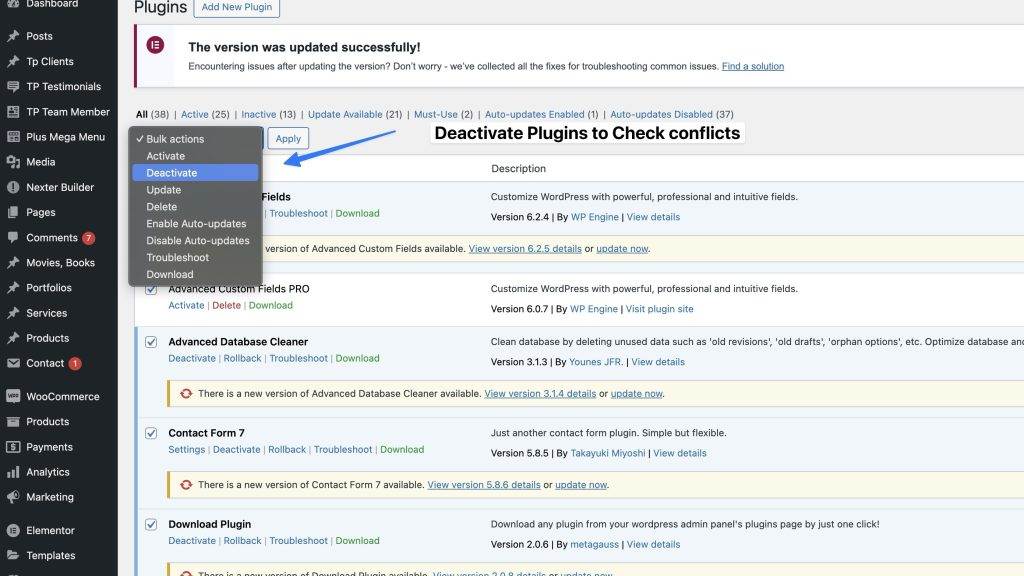
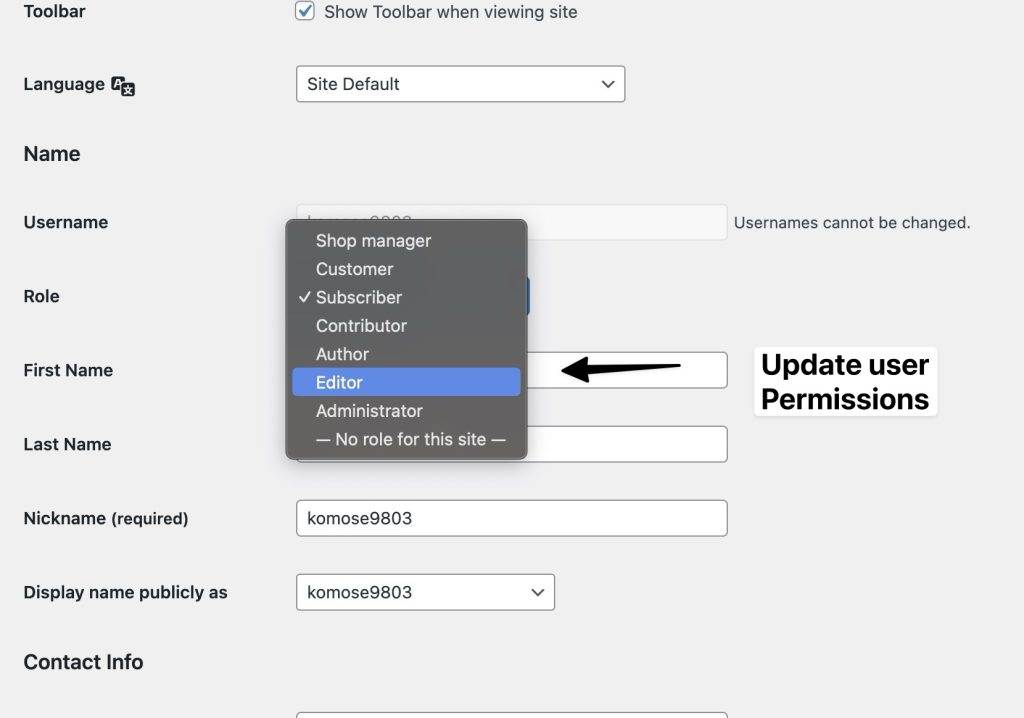



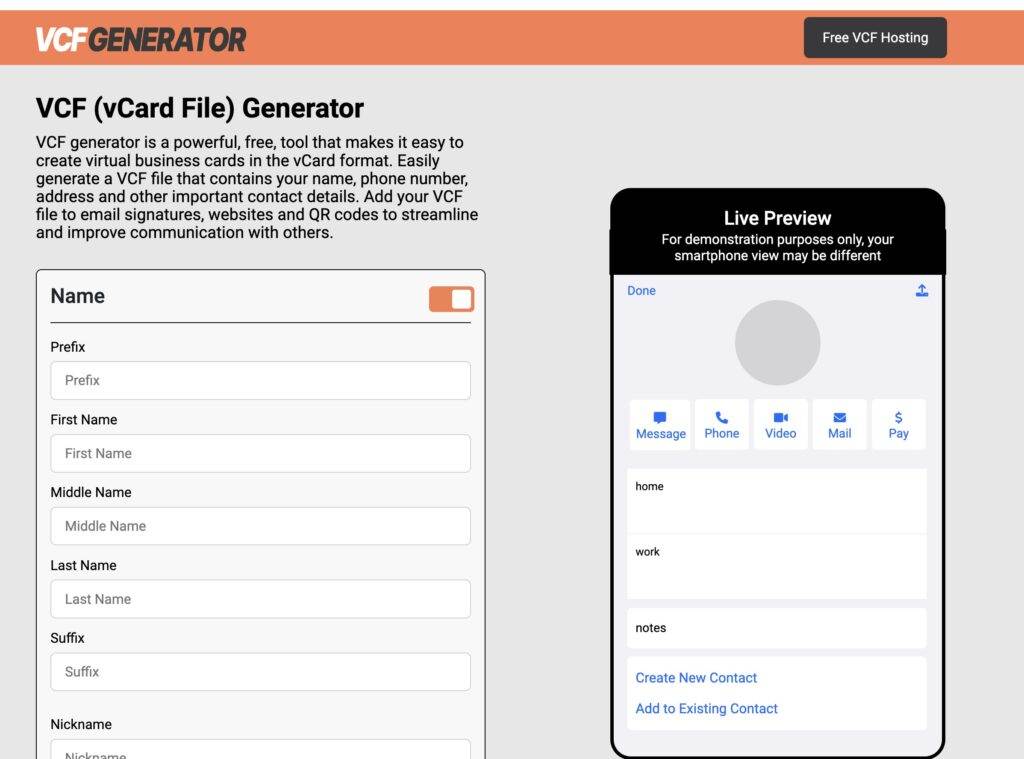
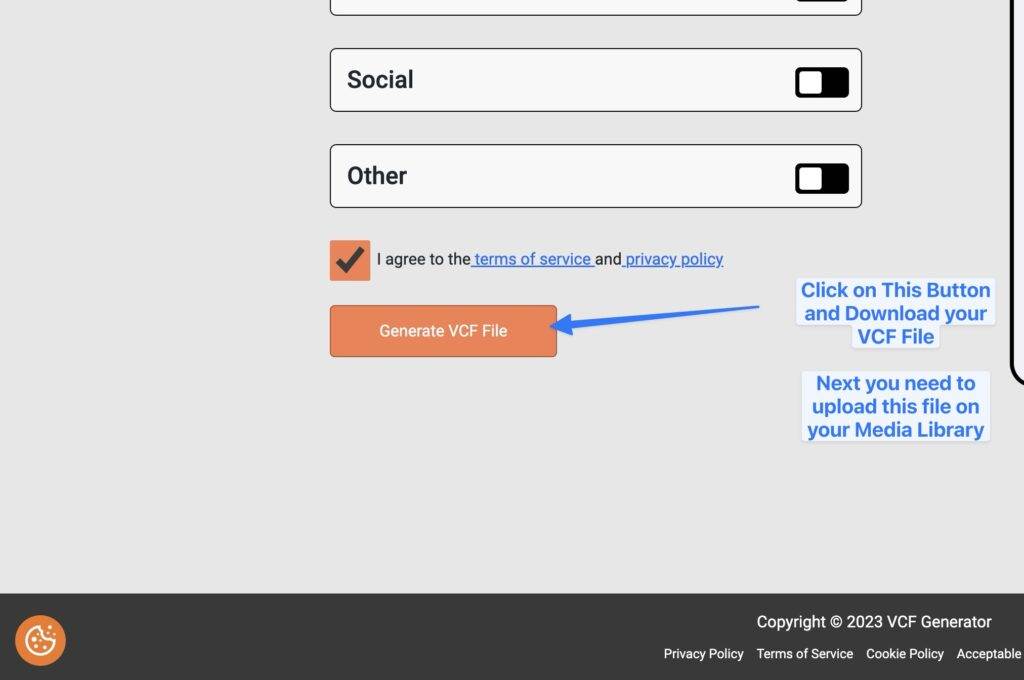
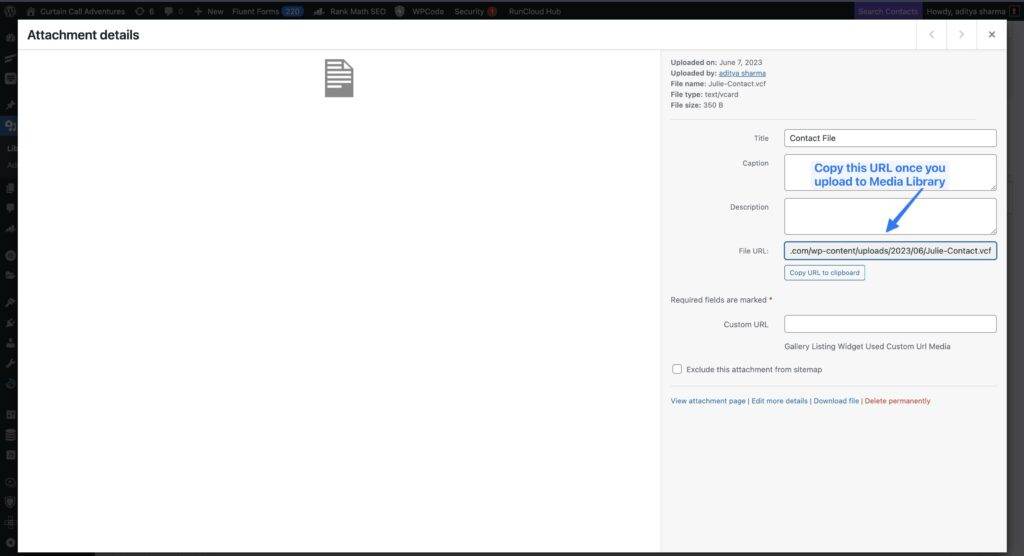
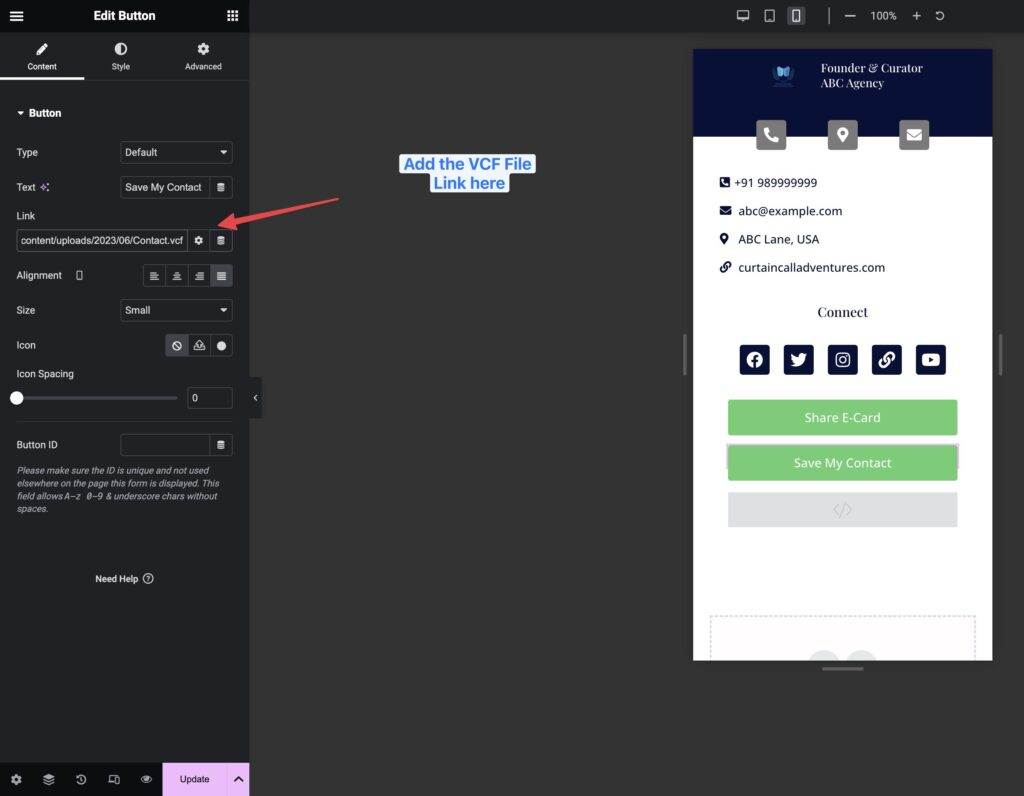

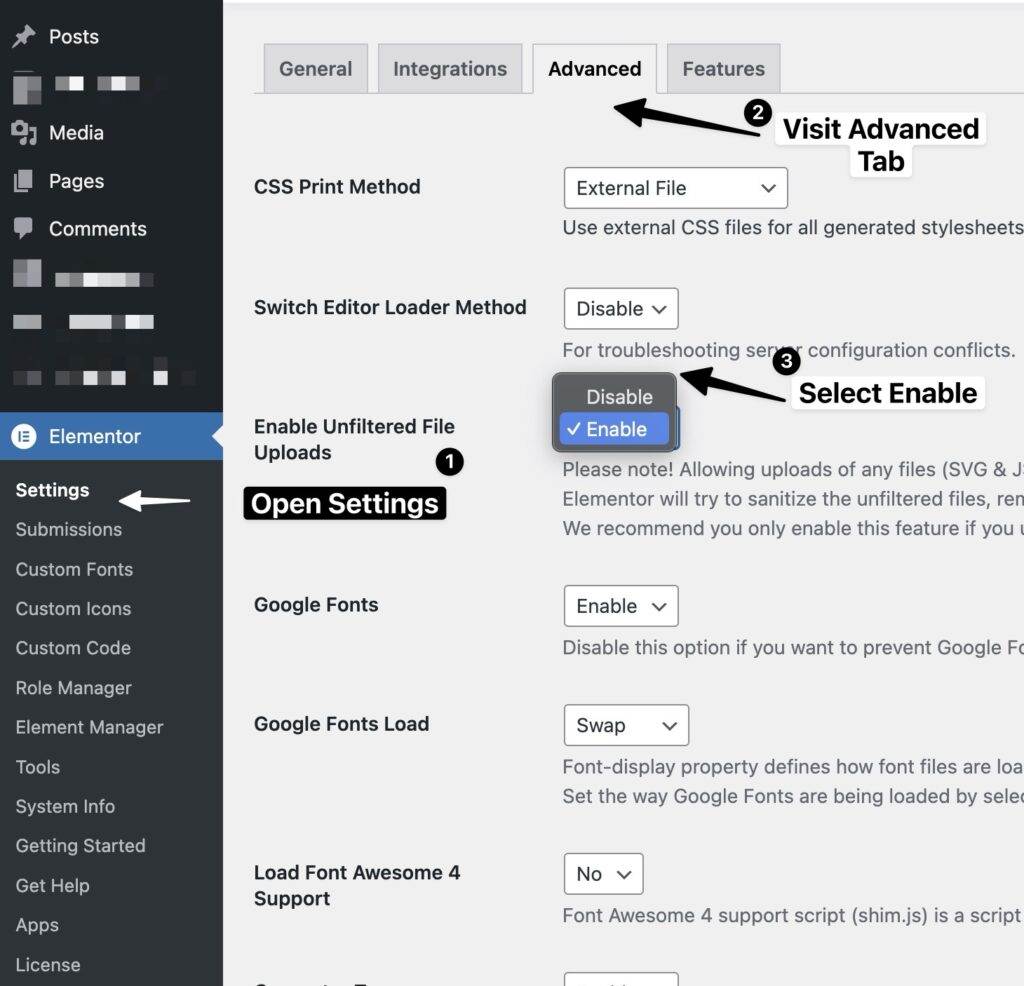


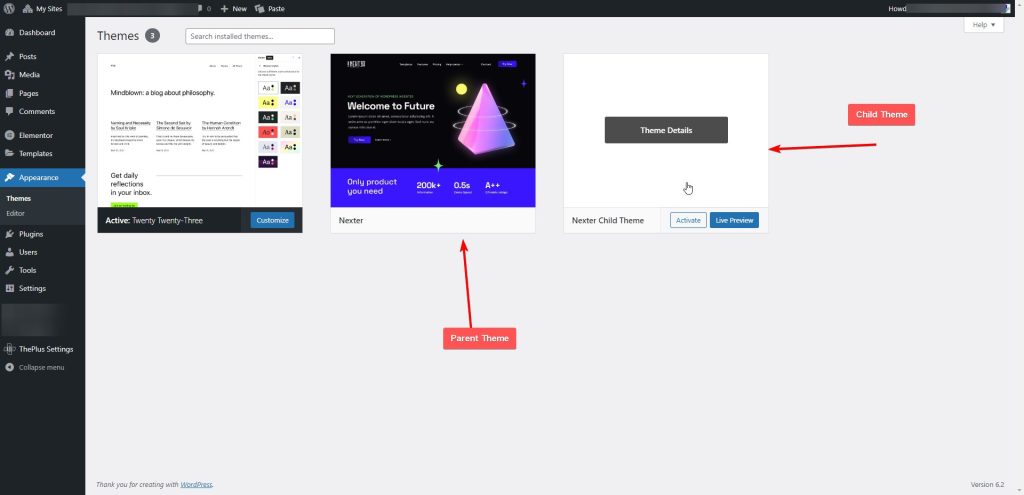
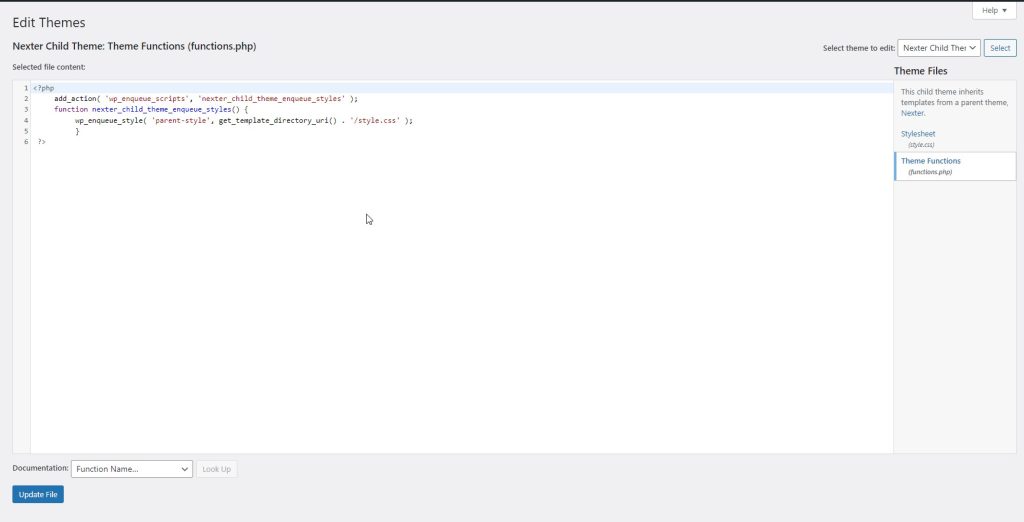





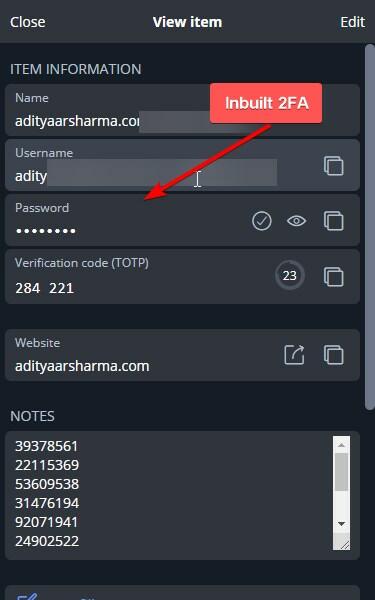

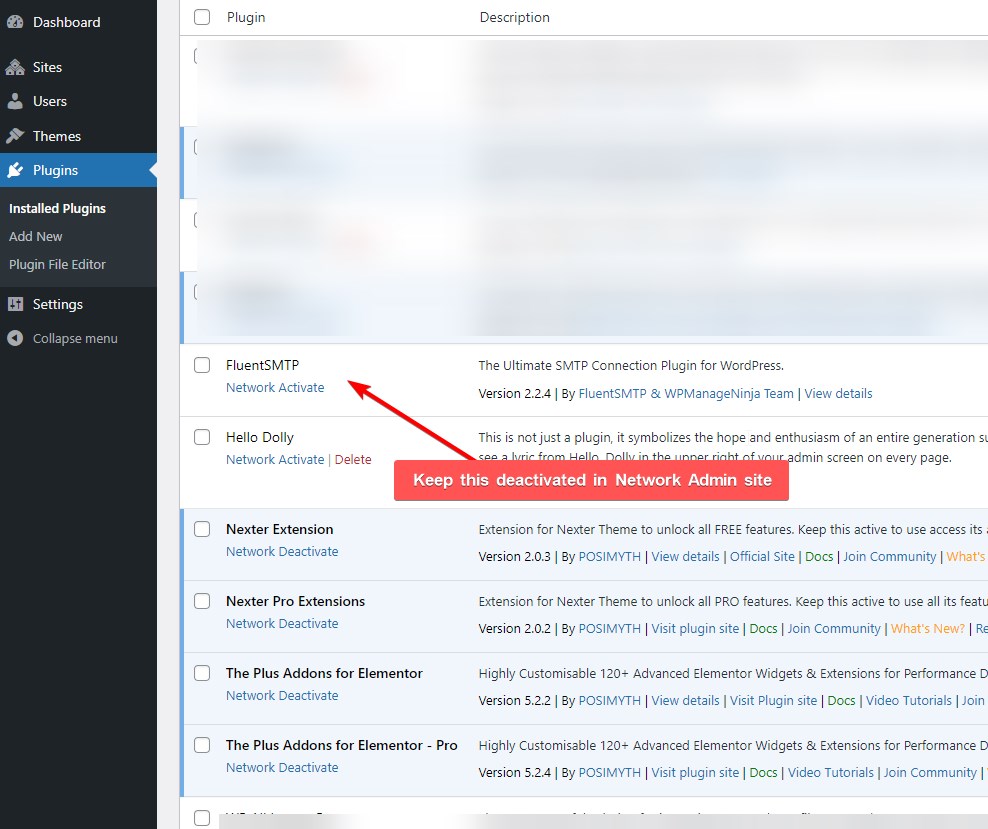
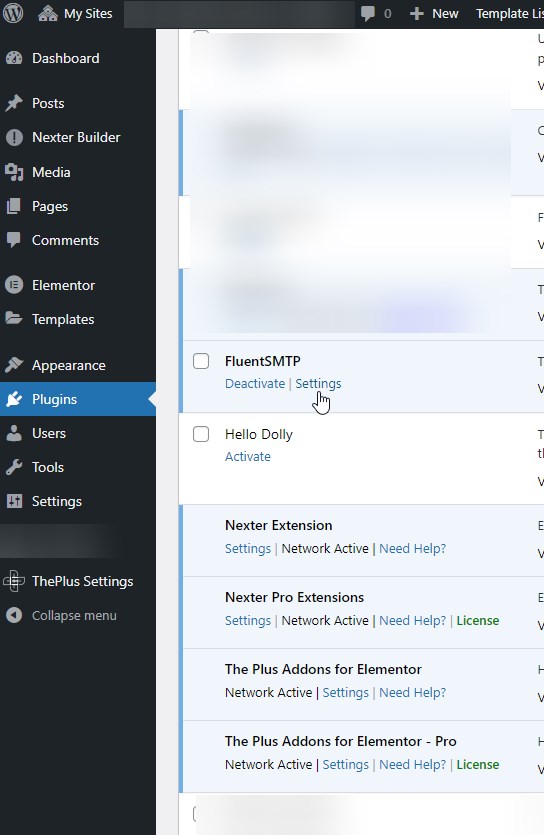
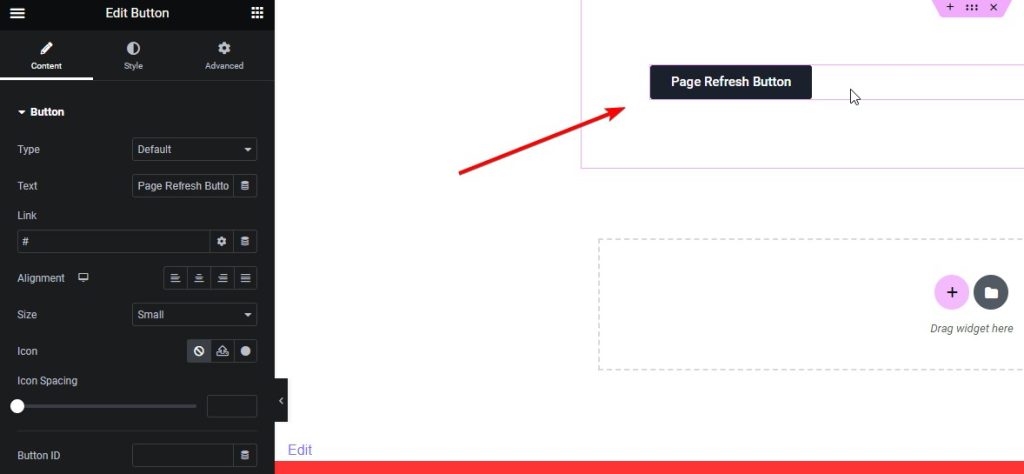
` I've added this feature to my website's footer, so anyone who scrolls down to the bottom of the page will be greeted with a cheerful quote to brighten their day :) And here's the quick output, you can also see this live by going to this website footer. ![](https://adityaarsharma.com/wp-content/uploads/2023/04/Example-of-Website-Footer-where-content-changes-on-Refresh-1.gif) What's great about this approach is that it's compatible with any WordPress builder. For example, since I use Elementor, I simply added the code using the HTML block. However, if you prefer the Gutenberg block editor, you can also paste the code into the HTML block there. ## Conclusion In conclusion, changing the text content on your WordPress website each time it's refreshed can be a fun and engaging way to keep your readers coming back for more. And the good news is that it can be accomplished without relying on plugins or complicated code. As I've shown, you can create a text file with your desired phrases and use a simple HTML, CSS & JS code snippet to randomly display one of those phrases each time the page is refreshed. This approach works regardless of whether you use Elementor or the Gutenberg block editor. So, why not give it a try and surprise your readers with a new message each time they visit your website? If you have any feedback or suggestions for future blog posts, please let me know in the comments below. And if you need any help with custom code in Elementor or have any questions about the method I shared in this post, don't hesitate to [reach out to me](https://adityaarsharma.com/connect/). I'm always happy to assist fellow WordPress users and help make their websites even better. Thank you for reading, and I hope you found this post helpful! ### What is the benefit of changing the text content on my WordPress website each time it's refreshed? Changing the text content on your website can keep your readers interested and engaged, as they'll be curious to see what new message or quote like in mycase, they'll be greeted with each time they visit your site. This can also make your website feel more personalized and dynamic. ### Do I need to know how to code to implement this method? No, you don't need to be an expert in coding to implement this method. The process involves simply creating a text file and adding a few lines of code to your website using an HTML or JavaScript code block. Where if you require any customization feel free to ping me. ### Can I use this method with any WordPress builder? Yes, this method is compatible with any WordPress builder. Whether you use Elementor, Gutenberg, or another builder, you can simply add the code to your website using an HTML or JavaScript code block. ### Can I customize the text content and font style to match my website's branding? Yes, you can customize the font style by adjusting the CSS in the code. To change the font family, you can modify the 'font-family' property within the CSS, and to change the font size, you can modify the 'font-size' property. For example, if you wanted to change the font family to 'Arial' and increase the font size to 20px, you could modify the CSS as follows: *font-family: Arial, sans-serif; font-size: 20px;* In the style tag --- # How to Easily Add Custom Link Colors in Elementor [Easiest Way] Source: https://adityaarsharma.com/how-to-easily-add-custom-link-colors-in-elementor/ Is your Elementor website lacking the perfect link color to match your brand or design? Adding custom link colors is a quick and easy way to enhance your website's appearance and make it stand out. With Elementor, you can easily customize your link colors to make them truly your own. In this article, we'll show you the easiest ways to add custom link text colors in Elementor, giving your website the extra edge it deserves. Whether you prefer the default Site settings way or the custom CSS way, you can customize your links to match your brand or design. So, let's dive in and learn how to add custom link colors easily in Elementor – the easiest way! ## Method 1: How to Change Global Elementor Link Color from Site Settings Elementor has a default way to change link colors, which is through the Global Site Settings. Here's how to do it: ![](https://adityaarsharma.com/wp-content/uploads/2023/04/Changing-Elementor-Custom-Links-for-Site-Settings.gif) #### Step 1: Go to Global Site Settings First, go to your WordPress dashboard and navigate to the top left corner Elementor >[ Site Settings. ](https://elementor.com/help/site-settings/)This will take you to the Site Settings panel, where you can set your default colors. #### Step 2: Select Site Colors In the Global Site Settings panel, click on "Site Colors". This will take you to the Site Colors section. #### Step 3: Change Your Link Color Scroll down to the "Links" section and select the color from the color picker or paste your hex code you want for your links. You can choose from the preset colors or enter a custom color code. Once you've selected your color, click on "Save Changes" to save your new default link color. ## Method 2: How to Change Elementor Custom Link Color Using Custom CSS Code? If you want to change the link color for a specific section or widget, you can do so with custom CSS and target it with a class. This is particularly useful if you want to highlight the link colors in a specific section of your website, such as a blog post or a landing page. For example, let's say you want to highlight the link colors in your blog with a specific color. Here's how you can do it: #### Step 1: Add a New Custom Class to Section First, add a new section or widget to your Elementor page. In the section or widget settings, go to the "Advanced" tab. In the "Advanced" tab, add a new class to the "CSS Classes" field. For example, you can add "my-custom-links" as your class. Click on "Update" to save your changes. #### Step 2: Go to the Theme Customizer ![](https://adityaarsharma.com/wp-content/uploads/2023/04/Adding-Custom-Class-to-any-Elementor-Section-1024x716.jpg) Go to your WordPress dashboard and navigate to Appearance > Customize. This will take you to the Customizer. In addition to the customizer, there are other ways to add custom CSS for your link text colors in Elementor. For instance, you can add the code directly in the Elementor Page's Custom CSS to ensure that it only affects the specific page you've added it to. Alternatively, if you want the code to load on all pages of your website, you can add it to the Elementor Header or Footer section. This will ensure that the code is loaded globally on your website. #### Step 3: Add the Custom CSS In the Customizer, click on "Additional CSS". This will take you to the Additional CSS panel. In the Additional CSS panel, add the following code: `.my-custom-links a { color: #ff0000; }` This code will change the color of link for any section with the "my-custom-links" class. You can change the color code as your wish, this way you can also add individual link color. ![](https://adityaarsharma.com/wp-content/uploads/2023/04/Adding-Custom-CSS-To-Target-Class-in-Elementor.jpg) #### Step 4: Publish Your Changes Click on "Publish" to save your changes. Your link color will now be customized for the specific section or widget you added the class to. ## Conclusion Now you know how to add custom link colors easily in Elementor. Whether you prefer the default Global Site Settings way or the custom CSS way, you can customize your links to match your brand or design. If you require any help with customization of Elementor, feel free to[ connect with me](https://adityaarsharma.com/connect/) ## Frequently Asked Questions ### Can I change the link color for a specific page or post in Elementor? Yes, you can change the link color for a specific page or post in Elementor by using the custom CSS way. Simply add a new class to the section or widget you want to change the link color for, and add custom CSS in the Additional CSS panel in the Customizer. ### Can I add hover color effects to my custom link colors in Elementor? Yes, you can add hover effects to your custom link colors in Elementor by using custom CSS. For example, you can add the following code to change the link color on hover: *.my-custom-links a:hover { color: #00ff00; }* This code will change the link color to green when the link is hovered over. ### Can I add custom link colors to my Elementor header and footer? Yes, you can add custom link colors to your Elementor header and footer by using the custom CSS way. Simply add a new class to the header or footer section or widget, and add custom CSS in the Additional CSS panel in the Customizer. ### Will changing the link color affect the accessibility of my website? Yes, changing the link color can affect the accessibility of your website. It's important to choose a color that provides enough contrast with the background color, and to ensure that the link is still easily distinguishable from surrounding text. ### Can I use a gradient for my custom link color in Elementor? Yes, you can use a gradient for your custom link color in Elementor by using custom CSS. For example, you can add the following code to use a gradient for your link color: *.my-custom-links a { background: linear-gradient(to right, #ff0000, #00ff00); -webkit-background-clip: text; -webkit-text-fill-color: transparent; }* This code will use a gradient that goes from red to green for your link color. Just add custom class *my-custom-links* to the section you want to add this effect or else you can remove the class and just start with a to effect the whole Elementor website. --- # How to Save Tweets in Google Sheets with Twitter Search [FREE] + Automate It Source: https://adityaarsharma.com/save-tweets-in-google-sheets-with-twitter-search/ Have you ever found yourself in a situation where you needed to collect and save Tweets on Google Sheet using Twitter Live Search, but didn't know where to start? Certainly, I have. As a marketer, I often need to collect a large number of tweets for my work, but I found that the process can be tedious and time-consuming. That's when I discovered a free and easy solution to tweet archiver in [Google Sheet](https://www.google.com/sheets/about/) using[ App Script function. ](https://www.google.com/script/start/) ![](https://adityaarsharma.com/wp-content/uploads/2023/04/Twitter-Search-in-Google-Sheet-1024x248.jpg) Don't worry, you don't have to code, I will give you an easy copy and paste code, where you just have to replace values. As someone who uses Google Sheets regularly for data analysis, I was excited to learn that it's possible to use Google App script to pull tweets from Twitter's API and insert them directly into a sheet. However, I quickly discovered that the process was not as straightforward as I had hoped, and many of the available solutions came with a price tag or required technical knowledge beyond my comfort level. After much trial and error, I finally stumbled upon a free and easy method that even someone with minimal coding experience can implement Let starts Requirements : - An active Twitter account - Twitter API access - Google Sheets access - Learn how to copy and paste ;) ## How to Create and Apply for a Twitter Developer Account? If you want to use Twitter's API to scrape tweets and add them to a Google Sheet using a Google App script, the first step is to obtain the API key and secret credentials from Twitter's Developer Account. These credentials will give you access to the Twitter API and allow you to make requests for the data you need. ![](https://adityaarsharma.com/wp-content/uploads/2023/04/How-to-Create-Twitter-Developer-Account-1024x495.jpg) #### Step 1: Have a Twitter Account Create a Twitter account if you don't already have one. #### Step 2: Open Twitter Developer Website Go to the [Twitter Developer website](https://developer.twitter.com/en) and sign in with your Twitter account. #### Step 3: Submit Application Details Submit an application detailing your intended use of the Twitter API and the types of data you plan to access. #### Step 4: Agree to Developer Policy and Verify Email Agree to [Twitter's Developer Policy](https://developer.twitter.com/en/developer-terms/agreement-and-policy) and verify your email address. #### Step 5: Answer Additional Questions Answer any additional questions about your intended use of the Twitter API and your technical skills. #### Step 6: Receive API Credentials via Email After providing all necessary information, Twitter will email you with your API key and secret credentials within 48 hours. ## How to Create First App with Twitter Developer Account? The steps to create a Twitter App are: #### Step 1: Sign in to your Twitter Developer Account Go to the [Twitter Developer website](https://developer.twitter.com/en) and sign in to your account. #### Step 2: Go to the Developer Dashboard Once you are signed in, click on the "Developer Dashboard" button in the top right corner of the page. #### Step 3: Create a New App Click on the "Create App" button to create a new app. #### Step 4: Fill in App Details Fill in the details for your app, including the name, description, and website URL. You will also need to select the "App permissions" for the type of data you plan to access. ![](https://adityaarsharma.com/wp-content/uploads/2023/04/image.png) Since we're just searching for twitter with a specific query, then reading access works, but if you're going to create a Twitter or DM someone based on these details it's suggested going with write access as well. Select for Public App, it should work fine. #### Step 5: Generate Client ID and Client Secret Once you have filled in the app details, click on the "Keys and Tokens" tab to generate your Client ID & Secret tokens. You will need to copy these credentials and keep them safe for later use. For our case, we will just require Consumer Key and Consumer Secret Key ![](https://adityaarsharma.com/wp-content/uploads/2023/04/Getting-Twitter-ClientID-and-Secret-ID-1024x495.jpg) And we're done. Now the easiest part, copying :) ## How to Add App Script Code in Google Sheets? So now just create a fresh new Google Sheet, and then click on Extensions → App Script ![](https://adityaarsharma.com/wp-content/uploads/2023/04/Pasting-Google-Script-in-Google-Sheets-Extenstions-1024x495.jpg) And then paste the below code `function getTweets() { var searchOperator = '@adityaarsharma'; // specify your search operator here var numTweets = 10; // specify the number of tweets to retrieve var tweets = searchTweets(searchOperator, numTweets); var sheet = SpreadsheetApp.getActiveSheet(); // clear current data in the sheet sheet.getDataRange().clear(); // write headers to the sheet sheet.getRange(1, 1).setValue('Tweet ID'); sheet.getRange(1, 2).setValue('Tweet Text'); sheet.getRange(1, 3).setValue('Time of Host'); // write tweets to the sheet for (var i = 0; i < tweets.length; i++) { sheet.getRange(i+2, 1).setValue(tweets[i].id_str); sheet.getRange(i+2, 2).setValue(tweets[i].text); sheet.getRange(i+2, 3).setValue(formatDate(tweets[i].created_at)); } } function searchTweets(searchOperator, numTweets) { var tweets = []; var url = 'https://api.twitter.com/1.1/search/tweets.json?q=' + searchOperator + '&result_type=recent&count=' + numTweets; var response = UrlFetchApp.fetch(url, { headers: { 'Authorization': 'Bearer ' + getBearerToken() } }); var data = JSON.parse(response.getContentText()); for (var i = 0; i < data.statuses.length; i++) { var tweet = data.statuses[i]; tweets.push(tweet); } return tweets; } function getBearerToken() { var consumerKey = '*ADD-YOUR-CONSUMER-KEY*'; var consumerSecret = '*ADD-YOUR-CONSUMER-SECRET*'; var encodedConsumerKey = encodeURIComponent(consumerKey); var encodedConsumerSecret = encodeURIComponent(consumerSecret); var combined = encodedConsumerKey + ':' + encodedConsumerSecret; var base64Encoded = Utilities.base64Encode(combined); var url = 'https://api.twitter.com/oauth2/token'; var response = UrlFetchApp.fetch(url, { method: 'post', headers: { 'Authorization': 'Basic ' + base64Encoded, 'Content-Type': 'application/x-www-form-urlencoded;charset=UTF-8' }, payload: 'grant_type=client_credentials' }); var data = JSON.parse(response.getContentText()); var token = data.access_token; return token; } function formatDate(dateStr) { var date = new Date(Date.parse(dateStr)); return Utilities.formatDate(date, 'GMT', 'yyyy-MM-dd\'T\'HH:mm:ss\'Z\''); } ` To make the Twitter search and Google Sheet integration work, you need to add your Twitter App's API keys in the script. Replace "*ADD-YOUR-CONSUMER-SECRET*" and "*ADD-YOUR-CONSUMER-KEY*" with your app's keys in the script. In the second line of the script, add your [advanced search operator for Twitter](https://zapier.com/blog/twitter-advanced-search-guide/). For example, if you want to search for tweets from a specific account, you can add their username like this: "@adityaarsharma". If you have any questions or need help with your search operator, feel free to connect with me on Twitter. After adding your API keys and search operator, simply run the script from your Google Sheet. The script will create three columns in the sheet: Tweet ID, Tweet Text, and Time of Host. If you need any additional data, don't hesitate to reach out to me. By automating the process with a trigger, you can save time and effort in collecting and analyzing Twitter data. ## How to Schedule Tweets Collection at Regular Interval? Did you find adding tweets to a Google Sheet using Twitter Search and Google App script helpful? Great! Let's take it a step further and automate the process. ![](https://adityaarsharma.com/wp-content/uploads/2023/04/Automate-Google-Script-with-Trigger-1024x495.jpg) Rather than manually running the script every time you want to update the sheet with new tweets, you can set up a trigger in Google App script to automatically run the script at set intervals. Here's how: - In the Google App script dashboard, click on "Triggers" and then "Add Trigger". - Choose the function you created earlier, in our case "getTweets". - Set the event source to "Time-driven" and select the interval you want the script to run at. - Click "Save". Now, at the selected time interval, the Google Sheet will automatically be updated with new tweets based on the search operator you provided. This will save you time and effort in data collection and analysis. If you need any help customizing the script or have any questions, feel free to reach out to me via Twitter or email. I'd be happy to assist you. Don't forget to share how you've made use of this workflow and saved time in the comments. And stay tuned for more amazing tips and tricks on using Google Sheets! ## Frequently Asked Questions ### Do I need to know how to code to use Google App script for adding tweets to Google Sheets? While some coding knowledge can be helpful, it's not necessary to know how to code to use Google App script for adding tweets to Google Sheets. With a bit of patience and following the instructions carefully, anyone can implement this solution. ### Can I use this solution to retrieve tweets from multiple Twitter accounts at once? No, this solution is designed to retrieve tweets based on a specific search operator. To retrieve tweets from multiple accounts, you would need to modify the search operator to include the usernames of the accounts you want to retrieve tweets from. ### Can I retrieve tweets from a specific date range using this solution? Yes, you can modify the search operator to include a date range. For example, if you want to retrieve tweets between January 1, 2022 and January 31, 2022, you can add "since:2022-01-01 until:2022-01-31" to your search operator. ### Is there a limit to the number of tweets I can retrieve using this solution? Yes, there is a limit to the number of tweets you can retrieve using the Twitter API. The limit varies based on the type of API endpoint you are using and the number of requests you make within a given time period. However, for most users, the limit is unlikely to be reached. ### Can I customize the script to include additional data fields in my Google Sheet? Yes, you can customize the script to include additional data fields in your Google Sheet. However, this would require modifying the script to retrieve and format the additional data. If you need help with this, feel free to connect with me on Twitter or email. ### Is it safe to use Google App script for retrieving Twitter data? Yes, it's safe to use Google App script for retrieving Twitter data. However, it's important to follow Twitter's API guidelines and not exceed the rate limits or use the data for prohibited purposes. --- Generated by RankReady v0.6.5.1 (https://github.com/adityaarsharma/rankready)