Safari and Chrome Were My Go-To Browsers… Until I Discovered Arc? No, Aside.
On this page, 15 sections
For years, my browser was where I opened websites, checked emails, researched things, and kept way too many tabs open.
Safari, Chrome, and a few alternatives. I’d switch occasionally, try something new, and eventually go back to what I was comfortable with.
But recently, the way I use my browser has changed completely.
I’m no longer just opening websites. I’m running AI workflows, managing projects, connecting tools, using routines, and getting repetitive work done without constantly switching between applications.
That’s what made me stick with Aside.
And honestly, some of the most useful things I’ve discovered aren’t the obvious AI features. They’re the smaller features that start making sense once you build your daily workflow around them.
Here’s how I got here, what I actually use, and a few features I think more people should explore.
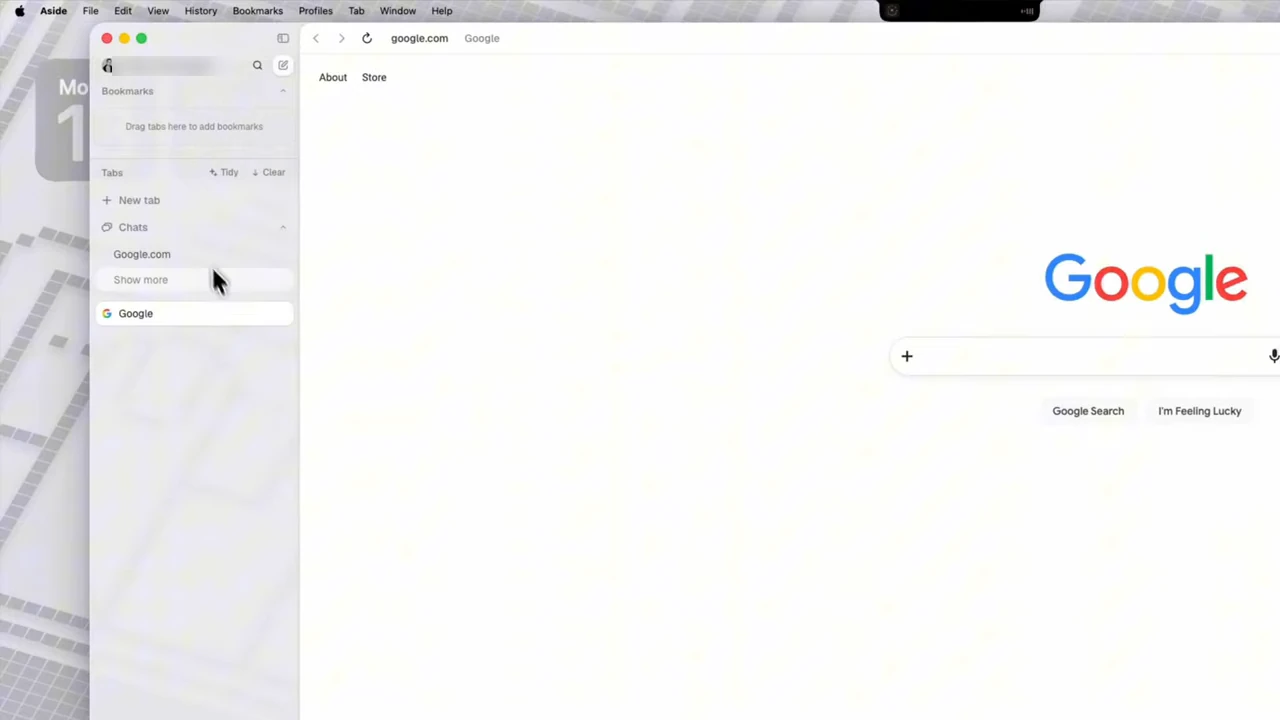
1. My journey from Safari to Chrome to Aside
I started with Safari on my Mac, but I quickly ran into a problem.
My workflow depends heavily on browser extensions. Whether it’s productivity tools, research tools, password management, or other utilities, I don’t like rebuilding my setup every time I change browsers.
Safari doesn’t natively support Chrome extensions. Apple does provide a tool, xcrun safari-web-extension-converter, but the developer of each extension has to run it (Apple Developer Forums). That wasn’t a convenient solution for my existing setup.

So I went back to Chrome.
Chrome worked, but I was still using my browser in the same old way.
I explored a few other Chromium-based browsers as well. They had interesting ideas, but none quite became the browser I wanted to use every day.
Then I tried Aside.
The first thing I appreciated was that I didn’t have to abandon the Chromium extension ecosystem. Aside is built on Chromium (it reports itself as Chrome 156 on my Mac), so I could keep much of the environment I was already comfortable with. And if you’re coming from Safari, Aside imports your data through a ZIP file you export from Safari.
But the bigger difference wasn’t compatibility.
It was the idea that my browser could become a workspace rather than just a window into the internet.
2. The biggest shift: My browser now helps me finish work
This is probably the best way to explain why I stayed with Aside.
I don’t open my browser just to visit websites anymore.
I use it to research, organise information, work across tools, manage projects, and automate recurring tasks.
Instead of jumping between different applications for every little thing, I can bring more of that workflow into one place.
Aside also ships fast. Its public changelog lists 125 releases between 27 May and 1 November 2026, so some of what I describe below is only a few months old. A few features have made a particularly big difference.
3. Context Awareness: A browser that understands what I’m working on
This is one of the features I think deserves much more attention.
Context Awareness changes the way I think about browser sessions.
When I’m researching something, I don’t want to explain the entire background to an AI assistant every time I start a new task.
I want it to understand what I’m working on and retain useful context.
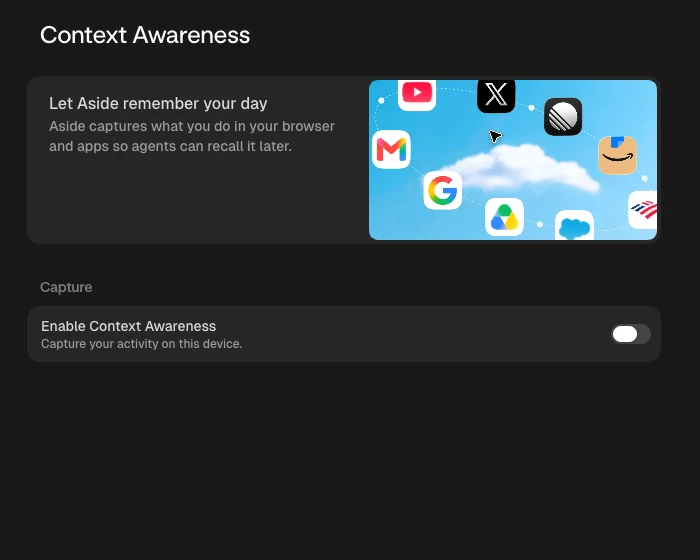
That’s what Context Awareness is for. The card in Settings says it plainly: “Let Aside remember your day. Aside captures what you do in your browser and apps so agents can recall it later.”
Instead of treating every conversation as an isolated interaction, I can build a more continuous workflow around my research, open tabs, and ongoing work.
Why I find this useful:
- I can spend less time repeating background information.
- I can keep research connected to the task I’m working on.
- I can move between related activities without constantly starting from scratch.
- I can make AI assistance more useful across longer-running projects.
One important distinction: Context Awareness is something I choose to enable. It stays off until you turn it on, and the history stays on your computer. Separately, Settings, then Memory, lets you decide how long Aside keeps memories: never forget, 90 days or 30 days. I want to be intentional about what a browser is allowed to retain.
If you care how AI memory works under the hood, I compared a few memory layers in Mem0 vs Zep vs Letta and Graphiti vs Cognee.
4. Working across tabs instead of treating every tab separately
We all know the problem.
You open 15 tabs while researching something. You find useful information in five of them, compare a few websites, and then eventually forget where you found that one important detail.
I’ve started looking at tabs differently with Aside.
Rather than seeing each tab as an isolated webpage, I can use the browser as a connected research environment.
The side panel is the easy way in. Open it on a page and that page attaches to your task as context, with its title and hostname, so you don’t have to copy links into a separate chat.
You can remove the attachment if you want a clean start. Typing @ in the task box attaches other context, and you can attach whole tab groups too.
For example, imagine researching a product:
- Open the manufacturer’s website.
- Open a few competitor websites.
- Check reviews and comparisons.
- Bring the relevant page context into your task.
- Ask AI to organise the findings into a comparison.
This is the kind of workflow where an AI browser starts becoming genuinely useful. Split tabs help too, because you can keep two pages side by side while the task runs.
5. MCPs and integrations: Connecting the tools I already use
This is another area that makes Aside interesting beyond ordinary browsing.
I don’t want AI to simply answer questions. I want it to work with the tools I already use.
That’s why MCP support matters.
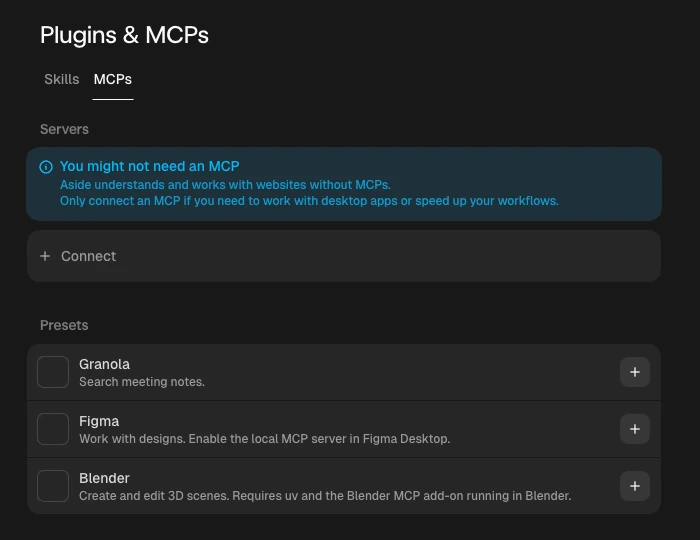
With MCP servers, I can extend what my AI workflows can access and do, depending on the tools and permissions I’ve connected. In Settings, then Plugins and MCPs, there’s a Connect button and a few presets: Granola to search meeting notes, Figma to work with designs, and Blender to create and edit 3D scenes.
What I like is that Aside doesn’t push you to install things. The page literally opens with: “You might not need an MCP. Aside understands and works with websites without MCPs. Only connect an MCP if you need to work with desktop apps or speed up your workflows.”
It also works the other way around. Run aside mcp and Aside becomes an MCP server for your coding tools, so another agent can drive the browser.
The important thing is that the browser becomes a place where these different tools can work together. Instead of thinking about every integration separately, I can start thinking about the outcome I want and which tools can help me achieve it.
6. Projects: Keeping ongoing work organised
I work on multiple things, and not every task belongs in the same conversation or workspace.
This is where Projects become useful.
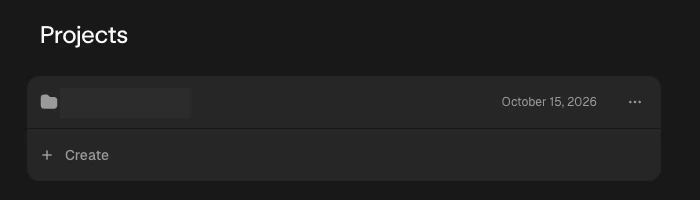
I can organise work around a particular objective rather than treating everything as one long conversation. A project has its own files, instructions and local workspace, plus its own memory.
For example:
- A research project.
- A content and marketing project.
- A website project.
- An ongoing business workflow.
The benefit is having relevant files and context associated with the work. You can move an existing chat into a project, and pick the project right from the task box.
It’s a small change in how you organise your AI activities, but it makes a difference when you have multiple ongoing projects.
7. Routines: My favourite way to stop repeating the same work
If there’s one feature I’d recommend exploring after getting comfortable with Aside, it’s Routines.
I don’t want to keep manually repeating tasks that follow the same pattern.
Whether it’s checking information, organising work, preparing updates, or running a recurring workflow, Routines give me a way to make those activities more consistent.
What I particularly like is the idea of having tasks run on a schedule or when something happens, rather than having to remember to start everything myself.
Aside’s docs describe two kinds: a cron routine starts a new task on a schedule (a weekly summary, for example), and a heartbeat routine wakes an existing chat and carries on with new context. If you don’t know what to automate, it can even scan for recurring work and suggest draft routines.
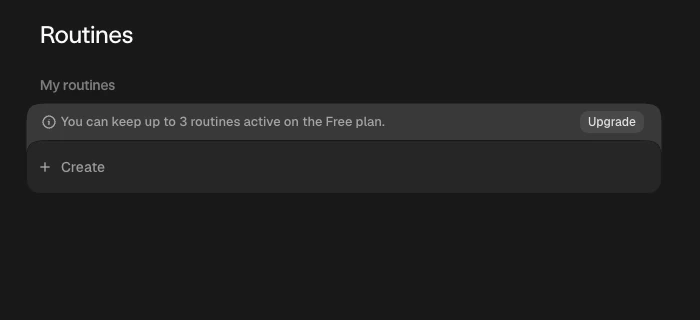
Two things worth knowing before you plan around them. The Free plan keeps up to 3 active routines, and Pro has no limit. And routines run on your computer, so it has to be awake with Aside running. Cloud handoff is listed as coming soon.
The best way to get started is to identify one repetitive task you perform every week.
Then ask:
- What information does this task need?
- Which tools does it use?
- What should the output look like?
- Does it need my approval before taking action?
- How often should it run?
Start with something simple. Once you understand the workflow, you can build on it.
8. Password Manager: Getting work done without exposing passwords
This is a feature I particularly appreciate because I don’t want convenience to come at the cost of security.
I already use a password manager, and I don’t want to share credentials with an AI agent just to get a task completed.
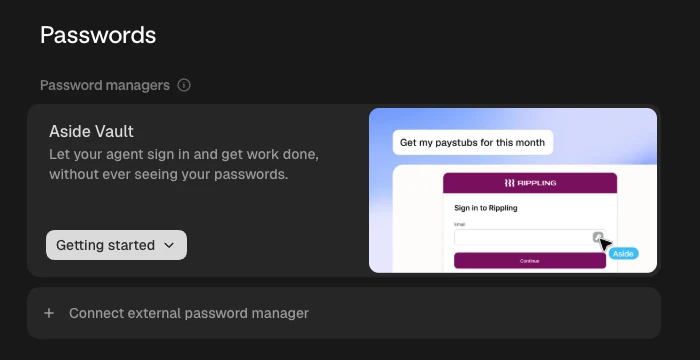
Aside Vault is designed around the idea that agents can use saved credentials to sign in without directly seeing your passwords. The agent gets a login action, not the raw password.
It also supports importing from password managers such as 1Password, Bitwarden, Dashlane, and LastPass, with NordPass, Proton Pass and Apple Passwords added in later releases.
The practical use case is straightforward.
I can ask an agent to work on a website where I’m already signed in, without having to paste my credentials into a chat.
There are also permission controls worth understanding before enabling these workflows. In Settings, then Passwords, you choose the access policy for AI agents: always allow, only while the vault is unlocked, or never.
The docs say the default is Always allow, so it’s worth checking. Agents can’t use the Vault in incognito sessions. And some sites will still need you: if they ask for MFA, a passkey, a CAPTCHA or identity verification, you complete that step and the task carries on.
My recommendation: connect your password manager, understand what happens when it’s locked, and test the setup with a low-risk account first.
9. Computer Use and remote workflows
This is where the idea of an AI browser gets even more interesting.
Aside’s Computer Use capability is designed to let agents interact with desktop applications, not just browser pages.
That means workflows can move beyond a website and involve other applications on your computer.
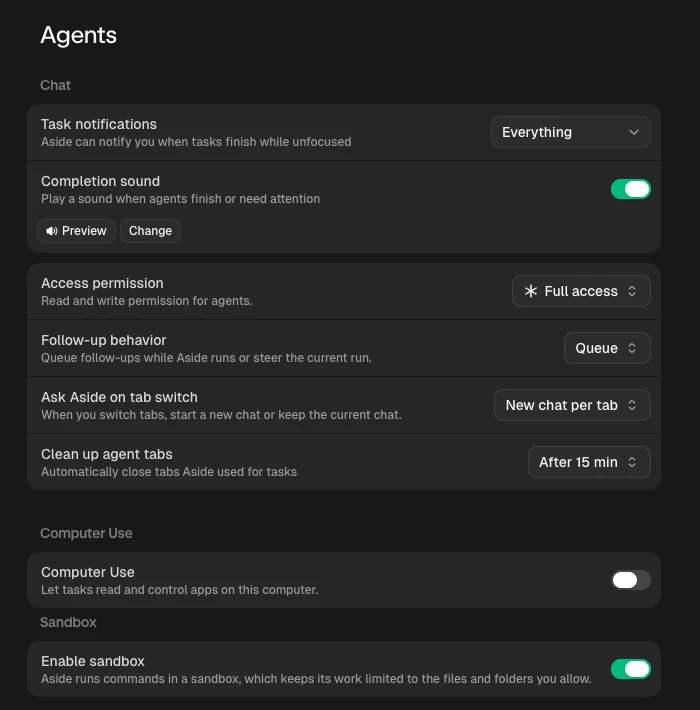
In Settings, then Agents, there’s a switch: “Let tasks read and control apps on this computer.” You mention apps in chat, watch live previews, and take over when needed. I particularly like the fact that you keep control of the process rather than treating automation as a completely invisible black box.
One thing worth highlighting: Computer Use has specific availability and permission requirements. It arrived in October 2026 for Max subscribers and experimental accounts, on Mac and Windows, and on a Mac it asks for Accessibility and Screen Recording permission. Check whether it’s enabled for your account before planning a workflow around it. It’s off on my Mac.
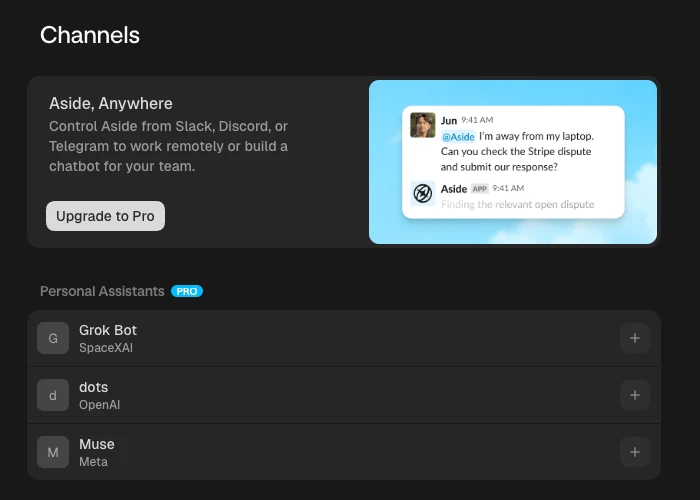
The remote side is Channels. You can control Aside from Slack, Discord or Telegram, which is useful when you want to send work to an assistant without opening the browser. There’s also an Only me option that limits a bot to one paired person.
In Settings, there’s a Personal Assistants list too, with Grok Bot, dots and Muse. It’s a Pro feature, and the card on a Free plan shows an Upgrade to Pro button. Like routines, it needs your computer awake with Aside running.
10. Permissions: I don’t want an AI agent to have unlimited access
This is important.
As I started using more AI workflows, I also started thinking more carefully about permissions.
I don’t want an agent to have unrestricted access to everything on my computer.
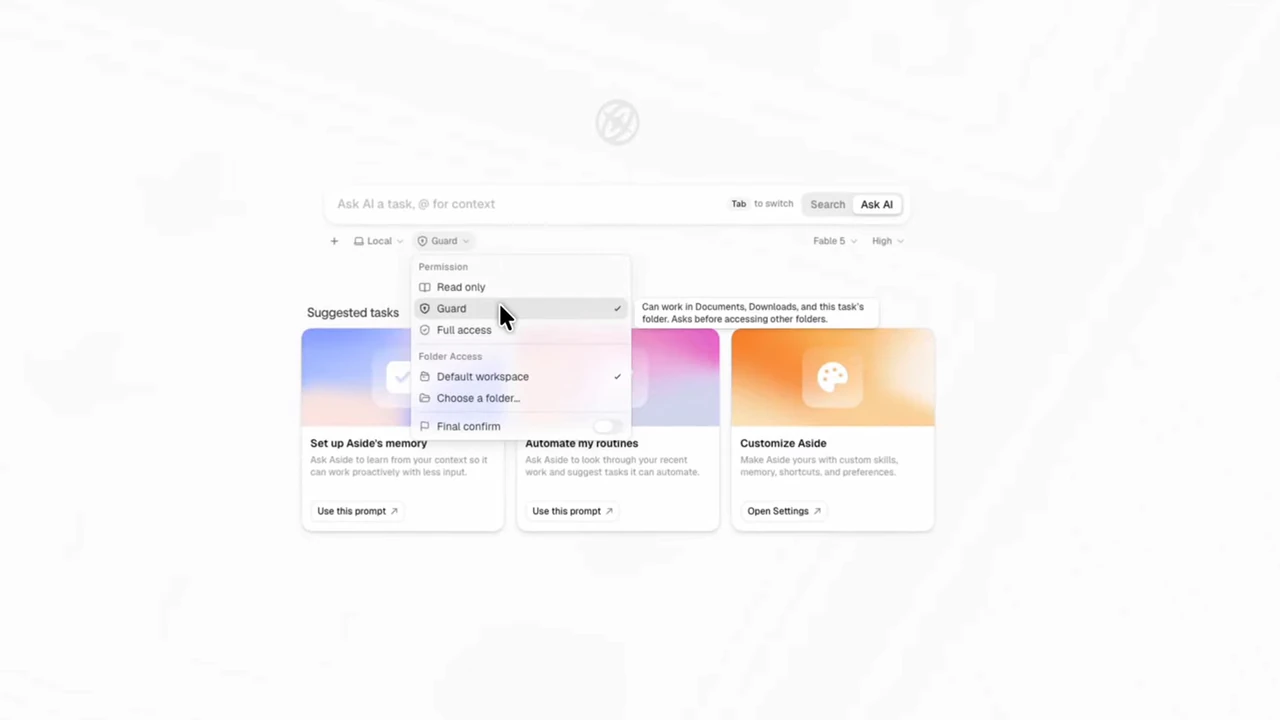
Aside provides different permission levels for each task: Read only, Guard, and Full access.
I like the idea of starting with restricted access and expanding permissions only when a task actually requires it. Guard is the default for new tasks: it works in approved folders and asks before it touches anything else. Full access reads and writes anywhere on the computer, though it still doesn’t expose saved password values.
For everyday experimentation, I’d recommend understanding Guard mode first.
Also pay attention to what files and folders a task can access and when it requires your approval. There’s a sandbox switch for commands too, and tool permissions with Allow, Ask and Deny, where Deny always wins.
Automation is useful, but knowing what your agent can and cannot do is just as important.
11. Working on websites without constantly fighting bot checks
One of the frustrations with browser automation is that websites don’t always behave the way they do when you’re browsing manually.
Login sessions, verification steps, bot checks, and website restrictions can interrupt workflows.
Aside has been working on improving how its agents interact with websites. The changelog says that on 23 October it reduced the signals websites can use to detect Aside, and on 12 October normal Google search results stopped being treated as a bot challenge.
In my own experience, this has made some website-based workflows more practical.
I still wouldn’t promise that any browser automation can avoid every verification or restriction. Websites can change their policies and detection systems at any time.
For me, the value is being able to use AI assistance on websites where I’m already authenticated, while keeping the process controlled and respecting the website’s access requirements.
12. A few smaller features worth exploring
There are several other features that are easy to overlook when you first install Aside.
Lasso
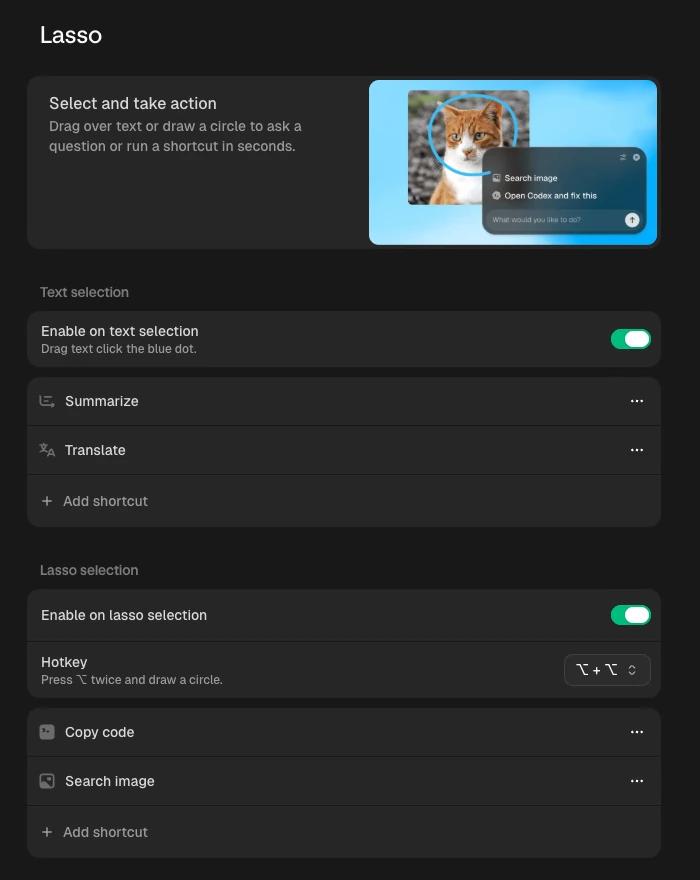
Press Option twice and draw a circle around something on a page, or drag over text, to ask a question or run a shortcut. Summarize and Translate come on text, Copy code and Search image on a circle, and you can add your own.
Plugins and Skills
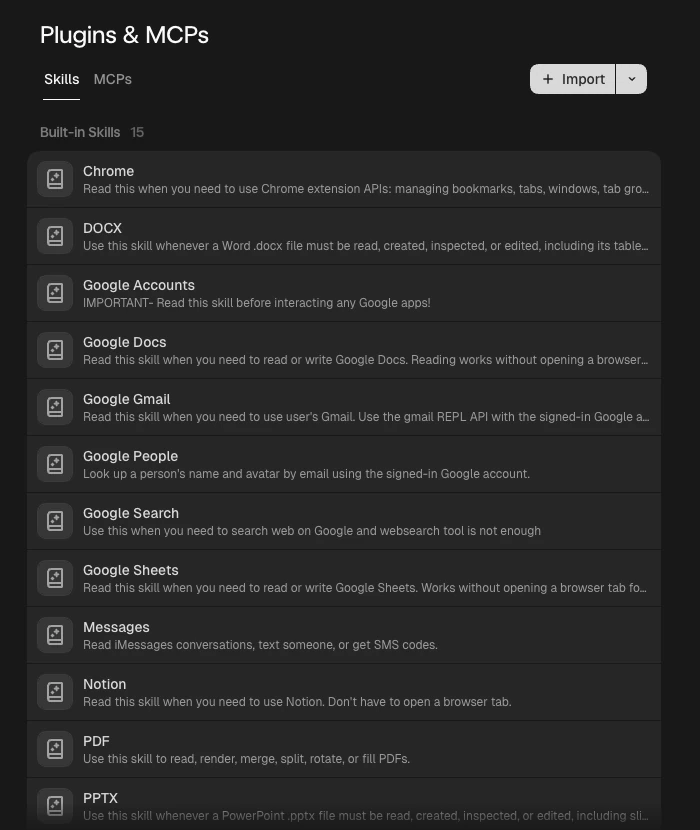
Aside ships with 15 built-in skills, including Chrome, Google Docs, Gmail, Sheets, Messages, Notion, PDF and PowerPoint. You can add your own custom skills too.
Mini Popup
A quick way to access Aside from elsewhere on your desktop, with a shortcut you set yourself.
Tabs Tidy
Helps organise your tabs instead of letting your browser turn into an endless collection of open pages. You can even write your own grouping prompt.
Models
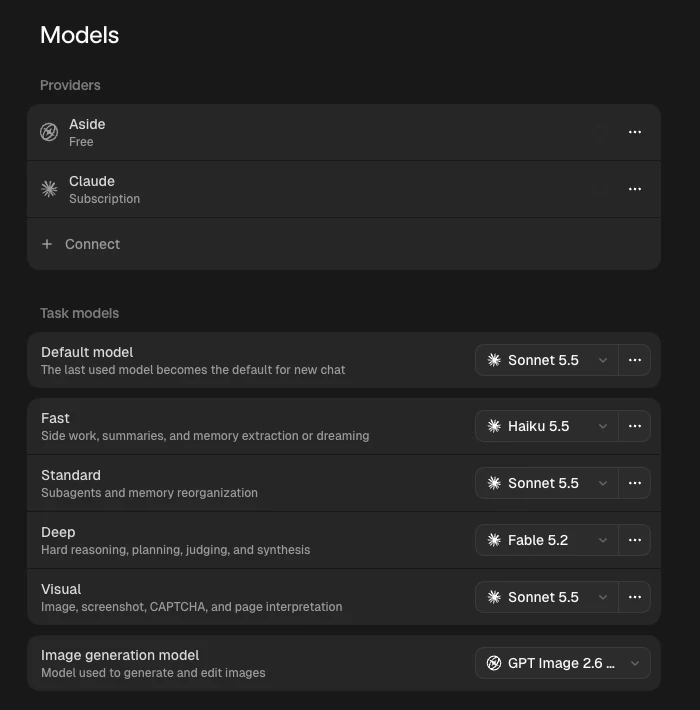
You can connect the AI plan you already pay for, such as a Claude or ChatGPT subscription, bring your own API key, or run local models through Ollama and LM Studio. Different kinds of work get their own model: Fast, Standard, Deep and Visual.
CLI Integration
Interesting if you also use coding agents such as Codex, Claude Code, Cursor, or OpenCode. You run aside with a task from the terminal, and aside skills install adds the Aside skill to those tools. I wrote about how I choose between coding agents in Claude Code vs Codex: How I Decide Which to Open.
These aren’t necessarily the first things I’d explore, but they’re part of what makes the overall ecosystem interesting.
13. My 10-minute checklist for anyone trying Aside
If you’re switching from Chrome or Safari, don’t just install Aside and start clicking around.
Try this instead:
- Install your five most important browser extensions.
- Connect the AI model or subscription you want to use.
- Explore Context Awareness and understand its privacy settings.
- Open a few related tabs and try a research workflow.
- Connect an MCP server you actually use, if you need one.
- Create a Project for something you’re currently working on.
- Set up one simple Routine.
- Connect your password manager and review its security settings.
- Try a real task on a website you’re already signed into.
- Explore Computer Use and remote Channels if they’re available on your plan.
Don’t try to automate your entire life on day one.
Start with one workflow that saves you time. Then build from there.
So, why am I sticking with Aside?
I’ve tried different browsers, and I understand why people have their favourites.
Chrome has its ecosystem. Safari works beautifully within Apple’s environment. Other browsers have their own interesting approaches to productivity.
But my requirements have changed.
I don’t just want a browser that opens pages quickly or manages tabs efficiently.
I want a browser that helps me connect information, remember relevant context, work with my tools, manage projects, and automate repetitive tasks.
I want to spend less time moving information between applications and more time actually getting things done.
That’s the biggest reason Aside has become my favourite.
It’s not just about having AI inside a browser.
It’s about making the browser a place where the work actually happens.
I’m still exploring features and finding new ways to use it, so I’ll be sharing more workflows, tips, and lesser-known features as I go.
If you use Aside, I’d genuinely love to know: What’s one feature or workflow that has changed the way you use your browser?
FAQ
Does Aside run Chrome extensions?
Aside is built on Chromium and reports itself as Chrome 156 on my Mac, so Chromium extensions are the world it lives in.
Does Safari run Chrome extensions?
Not as they are. A developer has to convert a Chrome extension with Apple’s safari-web-extension-converter tool and ship it as a Safari extension.
Is Aside free?
There’s a Free plan with 500 credits a month, up to 3 routines, the built-in password manager and personalized memory. Pro adds Ultrabrowse and unlimited routines, and Max has 40x the Free usage (Aside docs).
Does Aside see my passwords?
Aside’s docs say the agent can use a login action but does not receive the raw password.
Can Aside get past CAPTCHAs and bot checks?
Nothing is promised. When a site asks for MFA, a passkey, a CAPTCHA or identity verification, you complete that step and the task continues.
Do routines run when my computer is asleep?
No. Aside’s docs say a paid plan does not keep local routines running after the computer sleeps or shuts down.
Screens are from Aside’s own Settings on my Mac, 18 November 2026, except the permission menu (a frame from thirty’s July video). Facts come from Aside’s help docs and changelog, read 18 November 2026.