WordPress in Docker for Local Development: wp-env vs the Alternatives
On this page, 9 sections
This is the last line wp-env start printed after spending two minutes building a 1.26 GB image for my second plugin:
Error response from daemon: failed to set up container networking: driver failed programming external connectivity on endpoint wp-env-second-plugin-12347dd9-wordpress-1 (9276177247d957b1b85f8692453bf3d7dc5911ef0298f624d47d45a0d9334862): Bind for 0.0.0.0:8888 failed: port is already allocated
The WordPress documentation says you will see Host is already in use by another container. On Docker 29.6.1 you get the raw daemon error above, which contains none of those words.
If you search the string the docs told you to expect, you find nothing, and it takes a minute to work out you are looking at a port collision with the environment you started five minutes ago.
I spent an afternoon running wp-env, a hand-written Docker Compose stack and the WordPress Playground CLI side by side on the same throwaway plugin, timing each one and measuring what it left on disk.
Every number below came off my own machine on 2 September 2026. Here is what I would actually pick, and why.
The measured comparison
What was measured
One plugin directory containing a single PHP file with a plugin header. Cold images already pulled. Times are to a working, reachable WordPress:
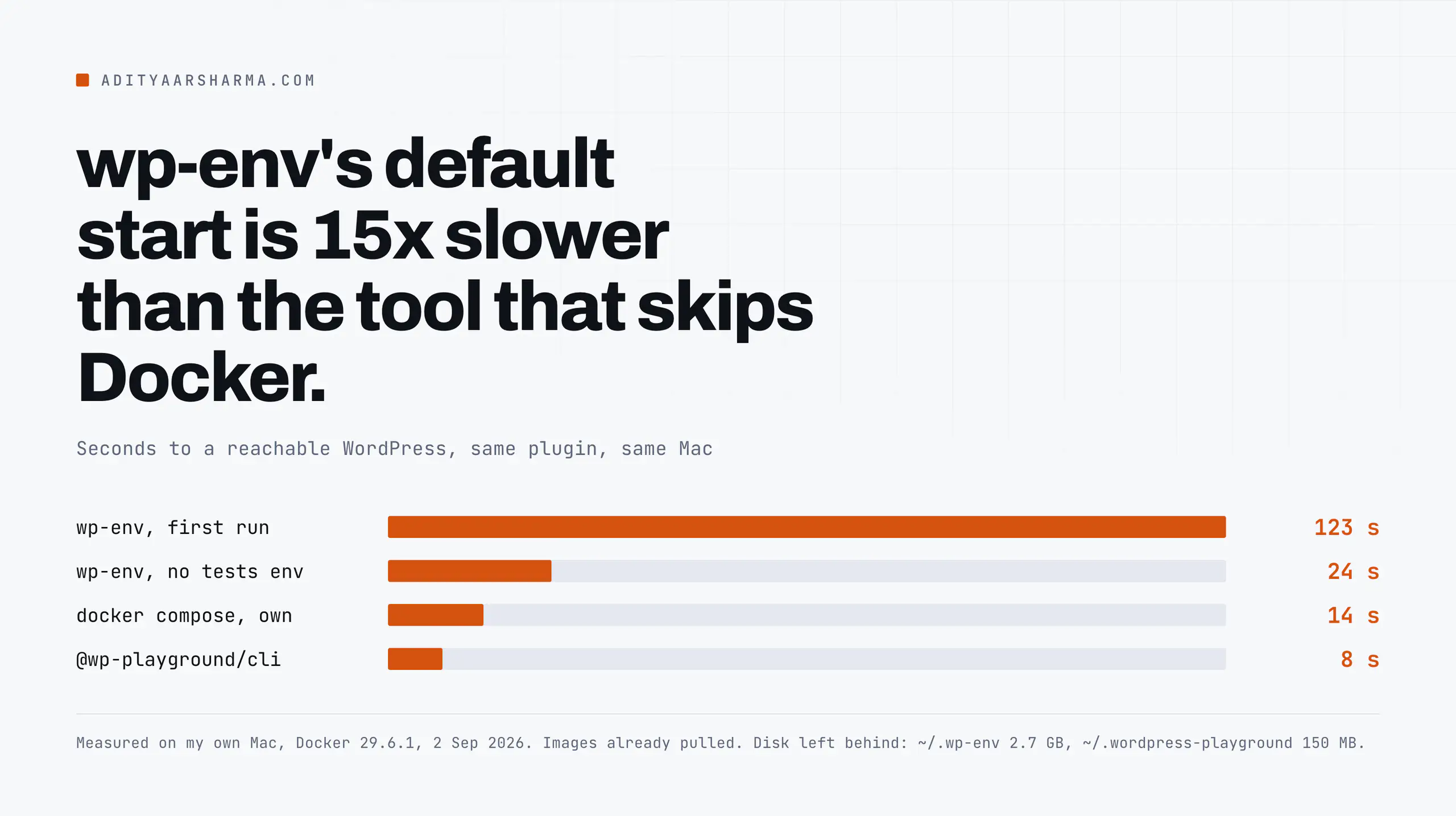
| Tool | Ready in | WordPress | PHP | Database |
|---|---|---|---|---|
| wp-env, first run (dev + tests) | 123s | 7.1 | image | mariadb:lts |
| wp-env, .wp-env.json, tests disabled | 24s | 6.8.2 | 8.2.30 | mariadb:lts |
| docker compose, hand-written | 14s | 6.9.4 | 8.3 | mariadb:11.4 |
| @wp-playground/cli start (warm) | 8s | latest | 8.3 | SQLite |
Disk is where they separate
Disk is where they really separate. On this Mac, ~/.wp-env is 2.7 GB, of which 1.8 GB belongs to environments whose project folders no longer exist.
~/.wordpress-playground is 150 MB in total, across everything I have ever run through it. Disk creep like that is one of the lines I price in what self-hosting actually costs.
wp-env: what it is really doing
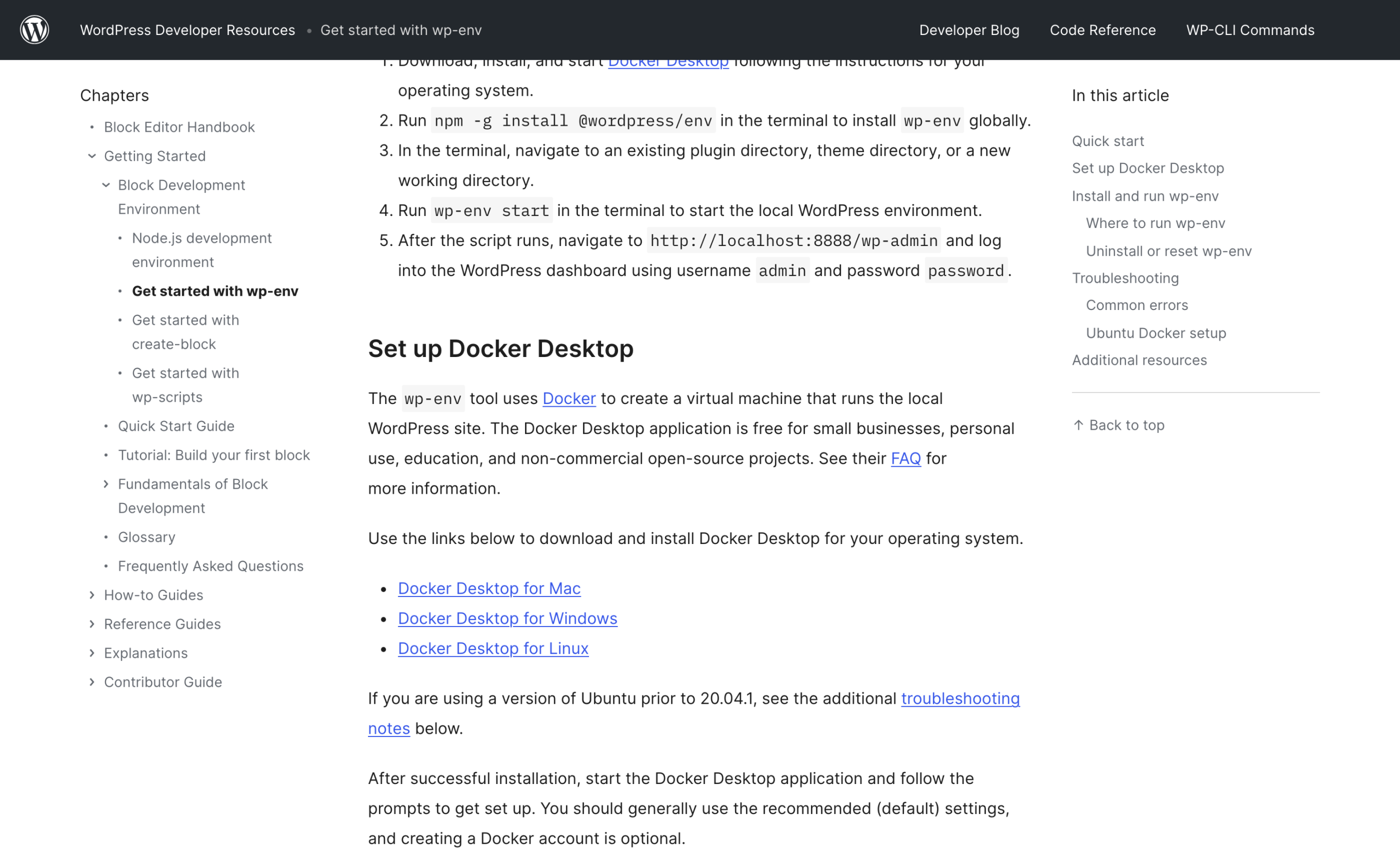
@wordpress/env is at version 11.14.0 on npm, last published 28 August 2026. The install and first run are two commands:
It is npm -g install @wordpress/env, then cd my-test-plugin and wp-env start.
Three things the getting-started page does not say
Three things came out of that first run that the getting-started page does not prepare you for.
One. It warned me that it could not tell what my directory was, and then mounted it correctly anyway:
Warning: could not find a .wp-env.json configuration file and could not determine if '/.../my-test-plugin' is a WordPress installation, a plugin, or a theme.
The plugin was bind-mounted and activated regardless. docker inspect on the resulting container shows the mount, and WP-CLI shows it active:
- A bind from
~/.wp-env/wp-env-my-test-plugin-a86ba9b5/WordPressto/var/www/html. - A bind from the WordPress-PHPUnit suite's
tests/phpunitto/wordpress-phpunit. - A volume,
wp-env-my-test-plugin-a86ba9b5_user-home, at/home/adityasharma. - A bind from my own
my-test-plugindirectory to/var/www/html/wp-content/plugins/my-test-plugin. wp-env run cli wp plugin listthen reportshelloinactive at 1.7.2 andmy-test-pluginactive at 0.1.0.
Where core actually lives
The mechanism is worth knowing because it is the good part of wp-env. WordPress core never lands in your project. It is unpacked into ~/.wp-env/<env-name>/WordPress on the host and bind-mounted to /var/www/html.
Your plugin is bind-mounted on top of it at wp-content/plugins/<name>. So your repository stays exactly as your repository should look, and edits are live with no sync step.
Two. It starts two full environments by default, and it now tells you that this is going away:
Warning: wp-env starts both development and tests environments by default. This behavior is deprecated and will be removed in a future version. To avoid this warning, add "testsEnvironment": false to your .wp-env.json.
The "env", "testsPort", and "testsEnvironment" options are also deprecated. Use the --config option with a separate config file for test environments instead.
Two environments by default
That default is most of the 123 seconds. Dev on 8888, tests on 8889, two MariaDB containers on random high ports (65114 and 65113 in my run). Turn it off and the same start takes 24 seconds.
Three. It does not pull a WordPress image. It builds one, per project, from a generated Dockerfile:
| Image | Size |
|---|---|
wp-env-second-plugin-12347dd9-wordpress | 1.24GB |
wp-env-my-test-plugin-a86ba9b5-wordpress | 1.26GB |
wp-env-my-test-plugin-a86ba9b5-tests-wordpress | 1.26GB |
wp-env-my-test-plugin-a86ba9b5-cli | 727MB |
wp-env-my-test-plugin-a86ba9b5-tests-cli | 727MB |
Shared bytes against unique bytes
The headline number is misleading in a way worth checking before you panic. docker system df -v breaks the same images into shared and unique bytes:
| Image | Size | Shared | Unique |
|---|---|---|---|
wp-env-my-test-plugin-a86ba9b5-wordpress | 1.26GB | 1.26GB | 76.86kB |
wp-env-my-test-plugin-a86ba9b5-tests-wordpress | 1.26GB | 1.26GB | 76.88kB |
wp-env-second-plugin-12347dd9-wordpress | 1.24GB | 139.5MB | 1.103GB |
Two environments on the same PHP version cost 77 KB extra each, because every layer is shared.
The third one costs a full 1.1 GB, and the only difference is that its .wp-env.json asks for PHP 8.2 instead of the default.
So the rule is: change phpVersion and you buy another gigabyte. Add a project on the same PHP and you buy nothing.
The config file that fixes both problems
Everything above is solved by four lines. This is the .wp-env.json I used for the second plugin, and the versions it produced:
{
  "core": "WordPress/WordPress#6.8.2",
  "phpVersion": "8.2",
  "testsEnvironment": false,
  "config": {
    "WP_DEBUG": true,
    "SCRIPT_DEBUG": true
  }
}
WP_ENV_PORT=8890 wp-env startreported the development site athttp://localhost:8890, MySQL listening on port 50701, done in 24s 504ms.WP_ENV_PORT=8890 wp-env run cli wp core versionreturned6.8.2.WP_ENV_PORT=8890 wp-env run cli wp eval 'echo PHP_VERSION;'returned8.2.30.
WP_ENV_PORT is not a config key
WP_ENV_PORT is the answer to the daemon error at the top.
It is an environment variable rather than a config key, which is why people search .wp-env.json for a port setting and do not find one.
Set it per project, in your shell profile or a .env, and two plugins can run at once.
It builds before it binds
Note also that wp-env builds the image before it binds the port. The failure at the top of this post arrived after two minutes of Docker build output. Check lsof -i :8888 before you start, not after.
Plain Docker Compose, and the one thing that always breaks
If you are not shipping to WordPress.org and you want the stack to look like production, write the compose file. Mine, complete, using official tags:
services:
  db:
    image: mariadb:11.4
    environment:
      MARIADB_ROOT_PASSWORD: wordpress
      MARIADB_DATABASE: wordpress
      MARIADB_USER: wordpress
      MARIADB_PASSWORD: wordpress
    volumes:
      - db:/var/lib/mysql
    healthcheck:
      test: ["CMD", "healthcheck.sh", "--connect", "--innodb_initialized"]
      interval: 5s
      retries: 20

  wordpress:
    image: wordpress:6.9-php8.3-apache
    depends_on:
      db:
        condition: service_healthy
    ports:
      - "8891:80"
    environment:
      WORDPRESS_DB_HOST: db
      WORDPRESS_DB_USER: wordpress
      WORDPRESS_DB_PASSWORD: wordpress
      WORDPRESS_DB_NAME: wordpress
      WORDPRESS_DEBUG: 1
    volumes:
      - wp:/var/www/html
      - ./plugins/my-test-plugin:/var/www/html/wp-content/plugins/my-test-plugin

  cli:
    image: wordpress:cli-php8.3
    user: "33:33"
    depends_on: [wordpress]
    environment:
      WORDPRESS_DB_HOST: db
      WORDPRESS_DB_USER: wordpress
      WORDPRESS_DB_PASSWORD: wordpress
      WORDPRESS_DB_NAME: wordpress
    volumes:
      - wp:/var/www/html
      - ./plugins/my-test-plugin:/var/www/html/wp-content/plugins/my-test-plugin
    entrypoint: ["tail", "-f", "/dev/null"]

volumes:
  db:
  wp:
What that stack produced
docker compose up -d gave me HTTP 302 on port 8891 after 14 seconds, and wp core version reported 6.9.4.
The environment: block on the cli service is the part I want to explain, because I left it out first and hit this:
Running docker compose exec -T cli wp core install --url=http://localhost:8891 ... returned Error: Error establishing a database connection.
This either means that the username and password information in your wp-config.php file is incorrect or that contact with the database server at mysql could not be established.
Why the error names a host you never wrote
My service is called db. Nothing in my compose file says mysql. The reason is in the wp-config.php that the official image writes on first boot:
$ docker compose exec -T wordpress grep -n 'DB_HOST' /var/www/html/wp-config.php
59:define( 'DB_HOST', getenv_docker('WORDPRESS_DB_HOST', 'mysql') );
How the fallback gets used
That config resolves its values from environment variables at request time, with hardcoded fallbacks. The wordpress container has WORDPRESS_DB_HOST=db in its environment, so it works.
The wordpress:cli sidecar shares the same wp-config.php through the volume but has none of those variables, so getenv_docker falls through to the image default of mysql and the lookup fails.
Give the CLI service the same four variables, or point both at a YAML anchor, and it works first time. This one line costs people hours because the error names a host that appears nowhere in their configuration.
Pin your tags, and look at what you are pinning
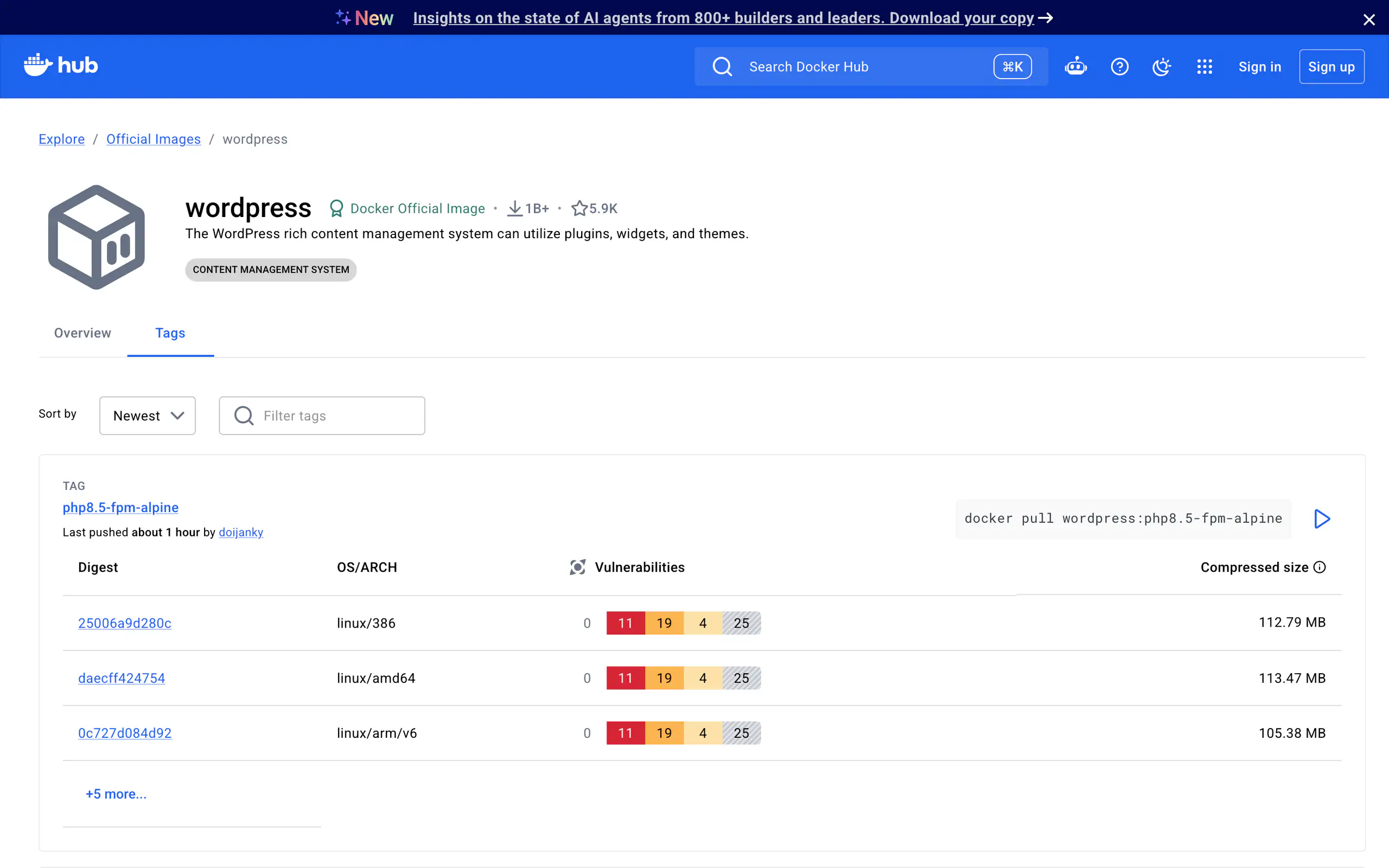
The official wordpress image has 1B+ pulls and 5.9K stars.
On the day I looked, the newest tag was php8.5-fpm-alpine, pushed about an hour earlier, and Docker Hub’s vulnerability column for it showed a 0 followed by counts of 11, 19, 4 and 25 across its severity bands.
Two habits, not an argument against the image
That is not an argument against the image. It is an argument for two habits. Pin a specific tag such as wordpress:6.9-php8.3-apache so your environment does not change under you between Mondays.
And when you do move the pin, look at the scan first, because latest on a base image is a moving target and local dev containers are still containers on your machine.
The one without Docker at all
Two naming traps first
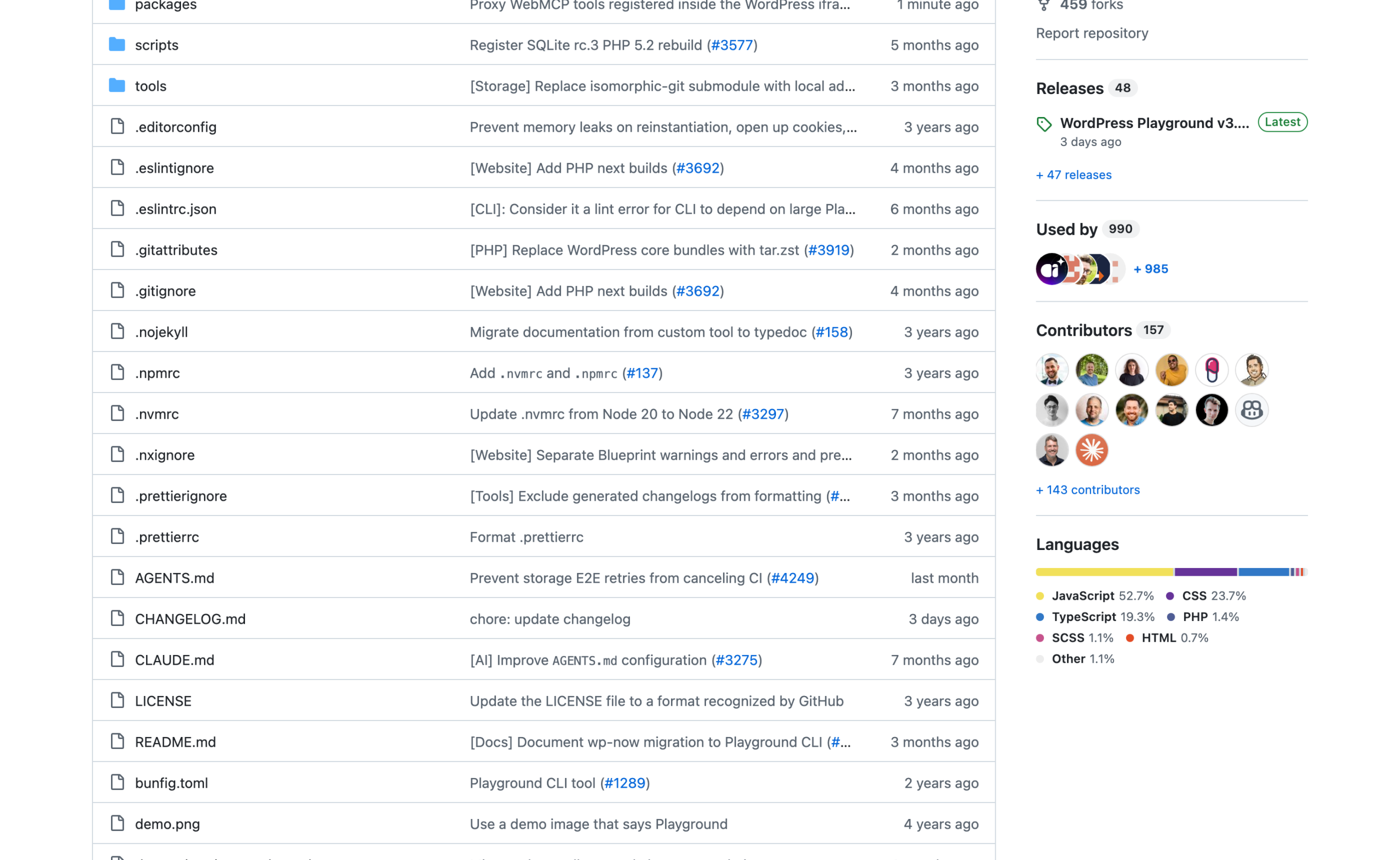
Two naming traps before the useful part. @wordpress/wp-now does not exist on npm and returns a 404; the package is @wp-now/wp-now, and it is at 0.1.75, last published 8 June 2026.
The actively maintained tool is @wp-playground/cli, at 3.1.52, last published 31 August 2026. If a tutorial tells you to install the first name, it was written from memory.
npx @wp-playground/cli start --port 8899stored the site files under~/.wordpress-playground/sites/f7dcd3e7....- It reported PHP 8.3, WordPress latest, and the extensions
intl,redisandmemcached. - It auto-mounted my plugin directory to
/wordpress/wp-content/plugins/my-test-pluginand the site directory to/wordpress. - Ready on
http://127.0.0.1:8899with 6 workers.
Eight seconds, no daemon
Eight seconds warm, no Docker daemon involved, and it auto-detected the plugin that wp-env warned it could not identify. PHP runs as WebAssembly in the Node process.
The catch is the database
The catch is the database. There is no MySQL. The site stores everything in wp-content/database/.ht.sqlite, which I confirmed by looking:
find ~/.wordpress-playground -name '*.sqlite' returns exactly one file, ~/.wordpress-playground/sites/f7dcd3e7.../wp-content/database/.ht.sqlite.
So any plugin that writes raw SQL with MySQL-specific syntax, uses SHOW TABLE STATUS, or depends on MySQL collation behaviour will not be tested honestly here.
For block development, admin screens, editor work and reproducing a customer bug in under a minute, it is the fastest tool on this list by a wide margin.
What I would pick
- Shipping a plugin or theme to WordPress.org, or running PHPUnit against core. wp-env. It mounts the WordPress-PHPUnit suite at
/wordpress-phpunitand setsWP_TESTS_DIRfor you, and nothing else on this list does that without work. - Mirroring a production stack, a particular PHP or MariaDB version, nginx instead of Apache, Redis, a real object cache. Hand-written compose. You already know the syntax and you own every version.
- Reproducing a bug, reviewing a pull request, demoing a block.
@wp-playground/cli. Eight seconds and 150 MB.
The fourth answer people are sniffy about
There is a fourth answer that is fine and that developers are a bit sniffy about: a GUI tool such as Local.
If your work is client sites rather than distributed plugins, the version matrix matters less than the speed of handing a site to someone else, and I made a similar argument about picking tooling by the job in the roundup of WordPress management tools.
If you are driving any of these from an agent or a script rather than by hand, the setup I use for that is written up in running Claude Code against WordPress.
And once your plugin runs locally, the small admin details still matter; adding a Go to Settings link after activation is the first one I add to anything I ship.
Resources
- Get started with wp-env, the official page. Note the last-updated date on it against the npm release date.
- The @wordpress/env package reference, which carries the full
.wp-env.jsonschema and every environment variable. - The official wordpress image, where the tag list and the scan results live.
- WordPress/wordpress-playground on GitHub, where
@wp-playground/cliis developed. - Docker Compose documentation, for the anchor syntax that stops you repeating the environment block.
One thing to do now
Run du -sh ~/.wp-env.
If that number surprises you, list the directory: every folder in there whose project no longer exists is dead weight, and wp-env destroy only cleans the one you are standing in.
Mine was 2.7 GB with 1.8 GB of orphans from projects I finished months ago, and that is before the 67 GB of images sitting behind it.