n8n and WordPress: What Is Actually Worth Wiring Together
On this page, 11 sections
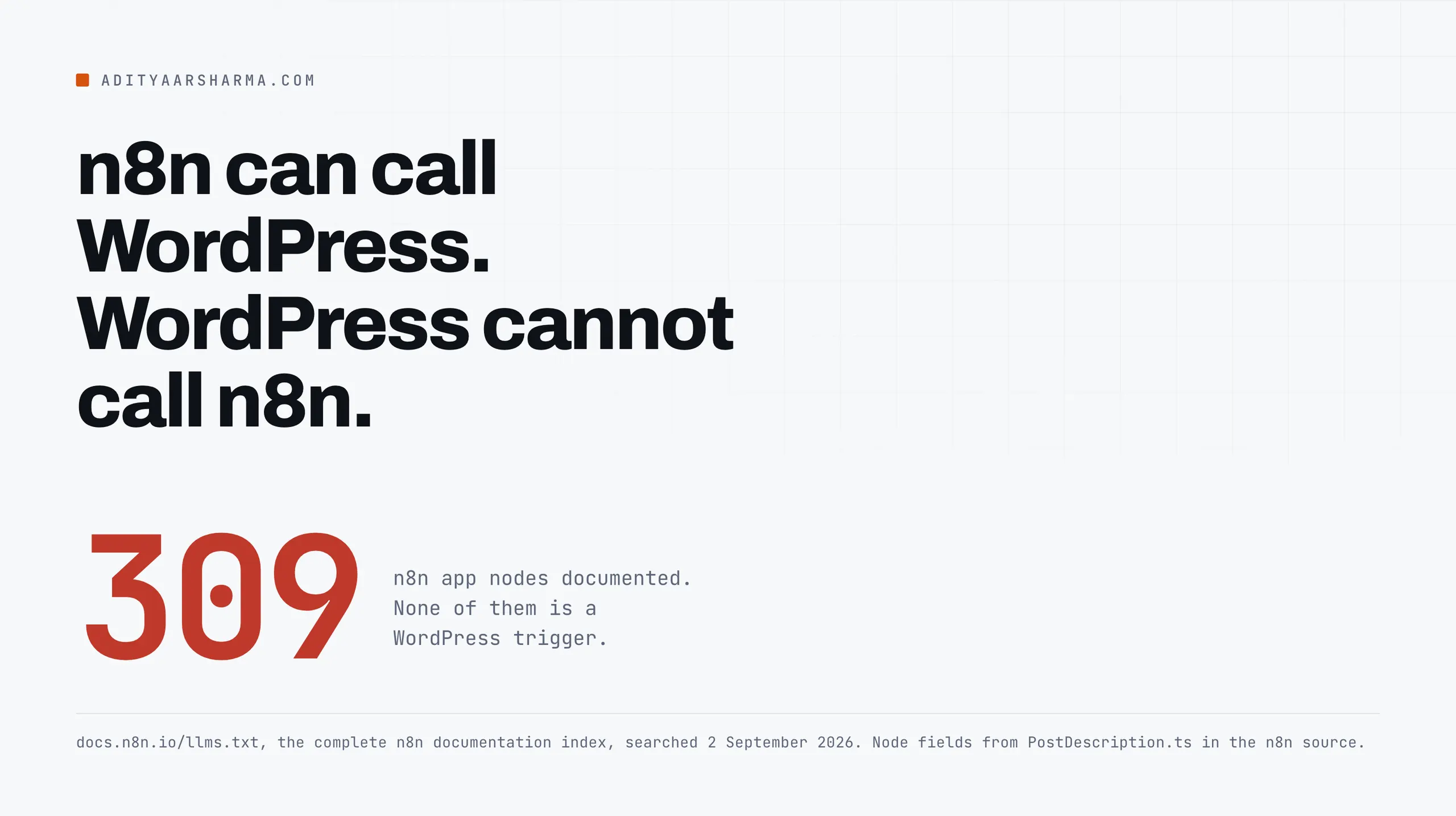
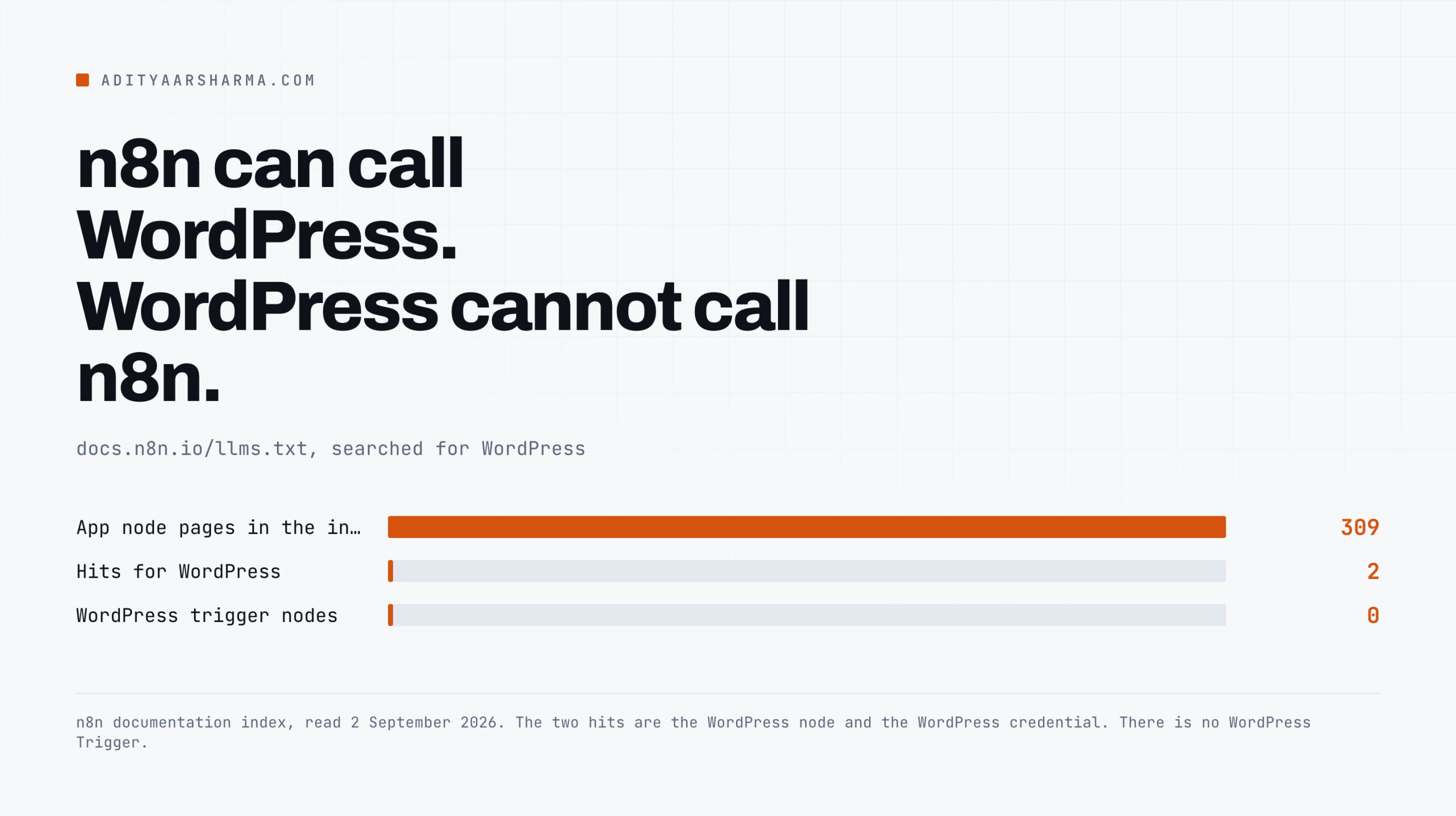
The n8n documentation index at docs.n8n.io/llms.txt lists 309 app node pages. Search the whole index for WordPress and you get exactly two hits: the WordPress node, and the WordPress credential. There is no WordPress Trigger.
What the missing trigger decides
That single absence decides most of what is worth building. n8n can talk to WordPress whenever it wants to.
WordPress cannot start an n8n workflow unless you make it, which means every idea of the shape “when a post is published, do X” needs code on the WordPress side before n8n is involved at all.
Once you have written that code, a fair number of the automations people reach for stop needing n8n.
Here is what actually earns its place, what does not, and the parts of the setup that are not obvious.
What the WordPress node can and cannot do
Per the node documentation, the operations are Post create, get, get all and update; Pages create, get, get all and update; User create, get, get all and update. That is the whole surface.
The fields the node accepts
The fields on a post are worth listing, because the gap is where people lose an afternoon.
From PostDescription.ts in the n8n source, post create takes title, plus optional Author ID, Content, Slug, Password, Status, Date, Comment Status, Ping Status, Format, Sticky, Categories, Tags and Post Template.
Status includes Future, so the node can schedule.
The three fields that are missing
What is not there: no featured image, no excerpt, no custom fields. There is no featured_media field and no meta field.
A workflow that publishes a finished article with a cover image cannot be built with this node alone, and no amount of configuration will change that.
The way around it
The way through is the HTTP Request node with the same credential. From the n8n docs: in the HTTP Request node select Authentication > Predefined Credential Type, then the service, then your credential.
So you get Application Password auth for free while calling any endpoint the node does not cover, including /wp/v2/media.
At that point you are writing raw REST calls in a workflow editor, which is a reasonable moment to ask whether a script that publishes to WordPress directly would be shorter.
Credentials, and the part the docs get sideways
The WordPress credential page in the n8n docs is written for WordPress.com. It walks you through enabling Two-Step Authentication on wordpress.com and generating an application password there.
For a self-hosted site none of that applies: you generate the Application Password in your own admin, under Users, your profile, Application Passwords, which core has shipped since 5.6.
The four fields, and the one to leave alone
Four fields to fill in, per the docs: Username, Password, WordPress URL, and Ignore SSL Issues. Leave Ignore SSL Issues off. The docs are explicit that the OAuth2 option is WordPress.com only, so for self-hosted, basic auth is the only path.
Test it before you build anything on it, from a shell rather than from n8n, so you know which side is broken:
curl -s -u "aditya:abcd EFGH ijkl MNOP qrst UVWX" \
  "https://example.com/wp-json/wp/v2/users/me?context=edit" | jq '{id,name}'
Making WordPress start a workflow
Two options, and they are not equivalent.
Option one: poll the feed
Option one: poll the feed. The RSS Feed Trigger node points at https://example.com/feed/ and fires on new items. Zero code on the WordPress side, which is the entire appeal.
The limits are real though. The feed carries published posts only, so nothing about drafts, scheduled posts or updates reaches you.
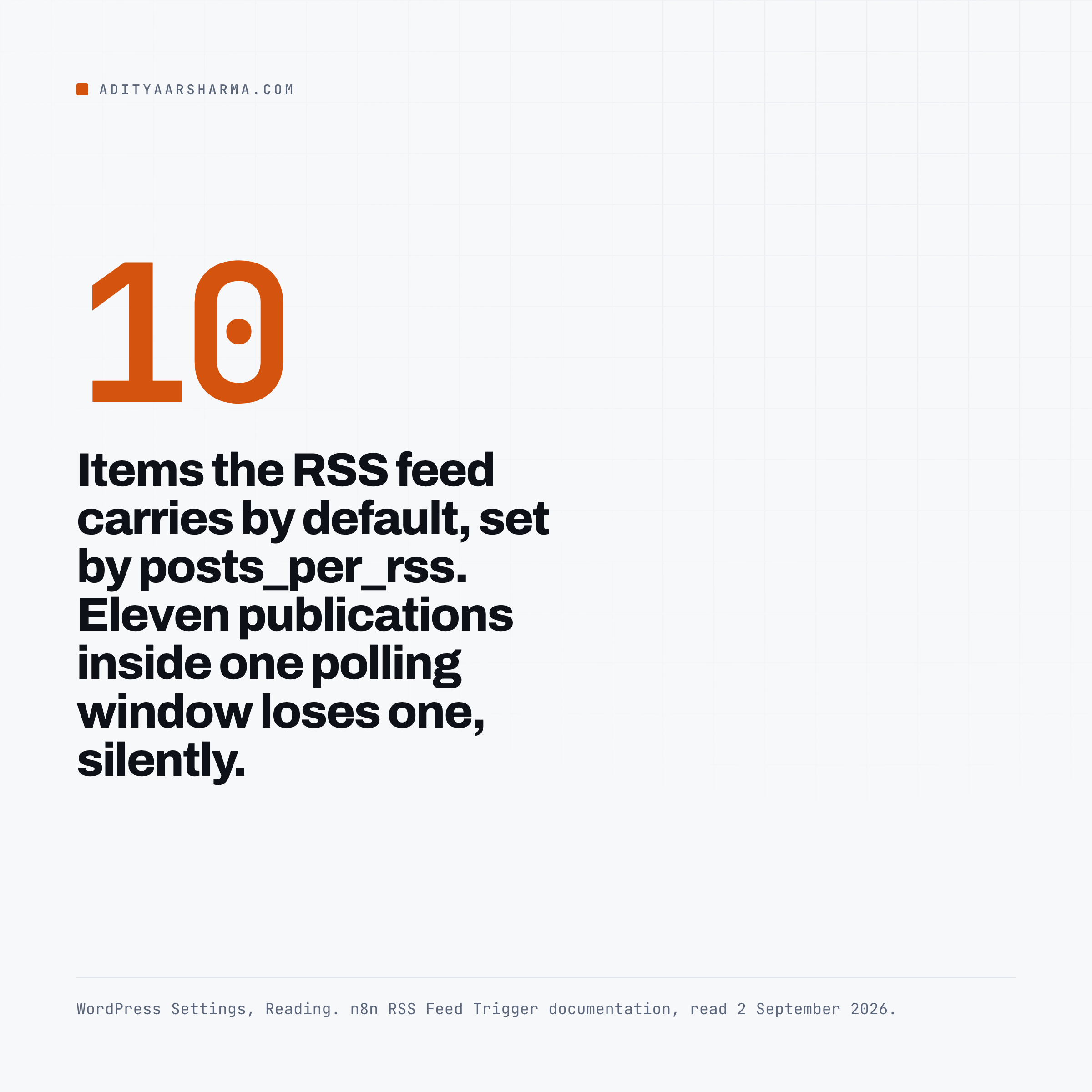
It carries the number of items set by posts_per_rss in Settings, Reading, which is 10 by default, so a burst of eleven publications inside one polling window loses one.
And it gives you the rendered feed content, not the post ID, so the first thing your workflow does is guess which post this was.
Option two: fire a webhook
Option two: fire a webhook from WordPress. More honest, and about twenty lines in wp-content/mu-plugins/notify-n8n.php. The shape is a hook, two guards and one outbound request.
add_action( 'transition_post_status', 'aas_notify_n8n', 10, 3 );

function aas_notify_n8n( $new_status, $old_status, $post ) {
    if ( 'publish' !== $new_status || 'publish' === $old_status ) { return; }
    if ( 'post' !== $post->post_type ) { return; }
    $response = wp_remote_post( N8N_HOOK_URL, $args );
}
Constants go in wp-config.php, not in the file above, so the key is not sitting in a directory that ships with a theme export:
define( 'N8N_HOOK_URL', 'https://n8n.example.com/webhook/wp-published' );
define( 'N8N_HOOK_KEY', 'a-long-random-string' );
Four decisions in that snippet
Four decisions in that snippet worth explaining, because the defaults are all wrong.
transition_post_statusrather thanpublish_post, and the'publish' === $old_statusguard, so editing an already-live post does not re-fire. Without that guard every typo fix reposts to your channels.'blocking' => truewith a 5 second timeout. Non-blocking is faster and it makes every delivery failure invisible, which is exactly the trap that makes WP-Cron so hard to debug. Five seconds in the editor’s save request, once per publication, is a fair price for knowing.'data_format' => 'body'. Without it,wp_remote_post()treats the body array as form fields. You want the raw JSON string to arrive as the body.- A shared secret in a header. In n8n, set the Webhook node’s Authentication to Header Auth and create the matching credential. The node supports Basic auth, Header auth, JWT auth or None. Leaving it on None gives anyone who guesses your URL the ability to trigger the workflow with whatever payload they like.
- The
$argsarray istimeout5,blockingtrue,headerscarryingContent-Type: application/jsonandX-Webhook-Key,bodyset to the encoded payload, anddata_formatset tobody. - The payload is
wp_json_encode()of the postid,slug,title,permalinkfromget_permalink(),author,categoriesfromwp_get_post_categories(),date_gmt, andwas, which carries the old status. - On
is_wp_error( $response ), log the message and return. Otherwise readwp_remote_retrieve_response_code()and log anything outside the 2xx range with the response body.
The two webhook URLs, which are not the same
On the n8n side, the Webhook node hands you two URLs and they are different: the test URL only listens while you have pressed Listen for Test Event or are executing the workflow manually, and the production URL only exists once the workflow is published.
Half of all “my webhook does not fire” is a test URL in wp-config.php and nobody sitting on the canvas.
Set the Path field to something you chose, like wp-published, rather than keeping the random one, and pick Respond: Immediately so WordPress is not held open while the workflow runs.
Worth wiring
The test I use
The test I use: does the work cross a boundary that WordPress has no business knowing about, and would doing it in PHP mean storing someone else’s credentials in wp-config.php? If yes, n8n is genuinely the right place.
- Fan-out on publish. One post goes live, and five systems need to hear about it: a Slack channel, a newsletter tool, a social scheduler, a Google Sheet you actually read, a search engine ping. Webhook node in, Code node to shape the payload, then parallel branches. Adding a sixth destination later is a node, not a deployment.
- Inbound content from somewhere with no WordPress plugin. A form provider, a client’s Airtable, a transcription service. n8n creates the draft through the WordPress node and a human presses publish. This is the case the node’s field list actually fits, because a draft does not need a featured image yet.
- Scheduled reporting that reads several systems. Schedule Trigger, a few reads, a Merge node, one summary somewhere you will see it. Nothing is written back to WordPress, so the blast radius is zero, which makes it the right first workflow to build while you are learning where the sharp edges are.
- Anything you want an execution log for. n8n stores each run with its input and output per node. For a job that runs weekly and fails silently three months later, that log is worth more than the code being tidy.
Not worth wiring
- Anything that happens entirely inside one WordPress site. Auto-tagging on publish, sending an email when an order completes, setting a default category. That is an
add_action()and five lines, running in the same process, with no network hop and no second system to keep up. When I wanted a refund button inside a support desk I built it as a one-click EDD refund button inside Fluent Support rather than as a workflow, and it has needed no maintenance since, because there is nothing between the button and the API. - Bulk edits. n8n will loop 400 HTTP requests at you happily. What it will not give you is a dry run you can read before anything is written, a diff, or a verification pass. Those are the three things that make a bulk edit survivable, and they are why bulk editing over the REST API belongs in a script with a plan file rather than on a canvas.
- Publishing finished articles with images. The node cannot set
featured_media. You end up doing the media upload through an HTTP Request node, base64 handling and all, which is more code than the script version and harder to test. - Replacing WP-Cron. Pointing a Schedule Trigger at
wp-cron.phpputs a whole workflow platform in the path of something a crontab line does better. Disabling WP-Cron and running it from system cron is the fix, and it has one moving part. - Sending a few hundred personalised emails. If the data already lives in a spreadsheet, sending them from Gmail with Apps Script needs no server, no credentials in a third system, and no monthly execution limit.
Three settings that decide whether it survives
Timezone
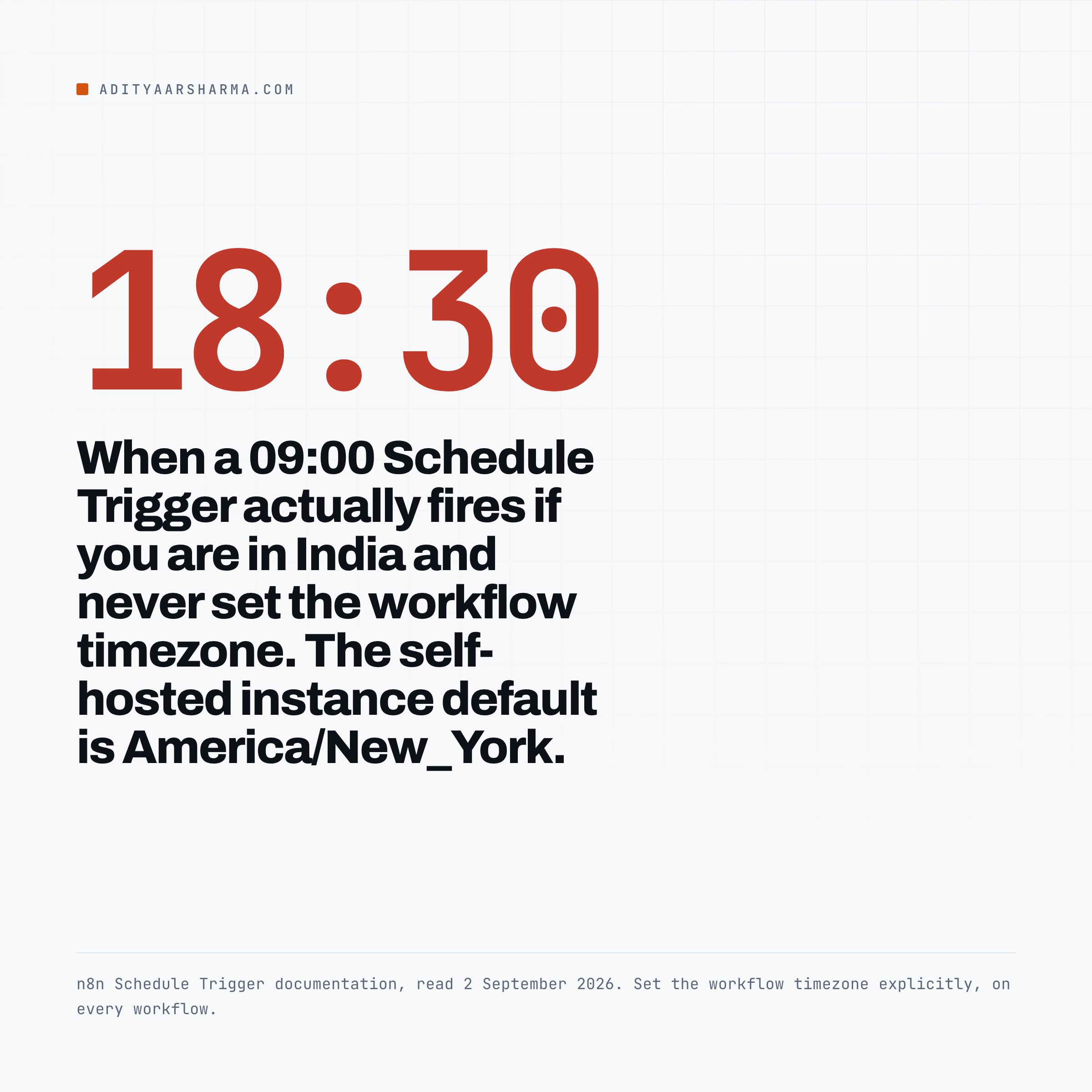
Timezone. The Schedule Trigger uses the workflow timezone if set, otherwise the instance timezone, and the n8n docs state the self-hosted default is America/New_York.
If you are in India and you set a trigger for 09:00 without touching workflow settings, it fires at 18:30 your time. Set the workflow timezone explicitly, on every workflow, and never rely on the instance default.
Missed executions
Missed executions. The Schedule Trigger’s Settings tab has an If Execution Is Missed option with three values: don’t run missed executions, which is the default, run the most recent missed execution, or run the most recent missed execution per rule.
Read the caveat in the docs carefully. These options exist from n8n 2.36, only on Schedule Trigger nodes added from that version on, and they only do anything when the instance runs the durable scheduler.
The default in-memory scheduler never runs missed executions. So on a stock self-hosted instance, a restart at 08:59 means the 09:00 run never happened and nothing tells you.
Error workflow
Error workflow. Build one workflow whose first node is an Error Trigger, then set it under Options, Settings, Error workflow on every workflow you care about.
The payload gives you execution.id, execution.url, execution.error.message and execution.lastNodeExecuted, which is enough to send yourself a message naming the workflow, the node and a link.
Two things from the docs worth knowing before you trust it: you cannot test an error workflow by running a workflow manually, because the Error Trigger only fires on automatic executions, and when the failure is in the trigger node itself the payload has a trigger object instead of a populated execution object, so code that reads execution.error.message throws inside your error handler.
Batching, when you do loop
If a workflow does end up making many WordPress calls, the node is Loop Over Items, type n8n-nodes-base.splitInBatches, still labelled Split In Batches in older workflows.
Set Batch Size, wire the loop output through the work and back into the node, and take the done output for whatever happens at the end.
The Reset option restarts the accumulation, which is how you page an unknown number of pages with an If node as the exit condition.
The docs carry a warning that is not decorative: without a termination condition that actually becomes true, the execution loops forever.
When to reach for it
Most n8n nodes already process every input item, so reach for this node when you specifically need to slow something down or when a node only handles the first item.
For the WordPress REST API the practical ceiling is not the API, it is whatever your host’s rate limiting does at 40 requests a second from one IP.
The honest summary of the split
n8n is a good integration layer and a poor application layer. Use it where two systems that do not know about each other have to exchange a message, and where you would otherwise be storing a third party’s API key inside WordPress.
Do not use it as a place to keep logic that belongs in one system, because a workflow is harder to read than the function it replaced, it is not in version control by default, and it adds a second thing that can be down.
The same test on the tools next to it
The same test applies to the tools next to it. Pulling YouTube video details into a Google Sheet or saving search results to a sheet on a schedule needs a spreadsheet and a script, not a workflow engine.
Reach for the engine when the count of systems goes above two.
Build this one first
The mu-plugin above, a Webhook node with Header Auth, and one branch that posts the title and permalink into a Slack channel. Nothing writes back to WordPress, so the worst failure is a missing message.
Publish a test post and watch the execution appear. If it does not, you now know whether the request left WordPress, because you made the call blocking and put the status code in the error log.
More on wordpress automation
- Scheduling WordPress Content Properly: Why Posts Miss Their Schedule and How to Fix It for Good
- Bulk Editing WordPress Content Over the REST API Without Breaking Anything
- Publishing to WordPress From a Script: The Complete, Correct Way
Resources
- WordPress node documentation, the full operation list
- WordPress credentials in the n8n docs, including the OAuth2 restriction
- Webhook node documentation, test versus production URLs and the auth methods
- Schedule Trigger documentation, timezone behaviour and the missed execution options
- Error Trigger documentation, with the exact error payload shape
- Loop Over Items documentation
- wp_remote_post() in the code reference, for the argument list used above